

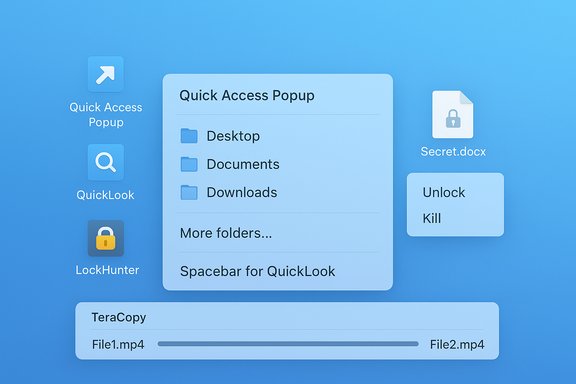
Minimizing clicks and navigation overhead can shave minutes — even hours — off a busy workday, and a handful of free utilities built for Windows can transform file handling from a repetitive chore into a near‑invisible part of your workflow. Four lightweight, freely available tools — Quick Access Popup, QuickLook (Windows port), LockHunter, and TeraCopy — together address the three biggest everyday pain points: fast access, instant previews, stubborn locked files, and reliable bulk copying. The result is a measurably smoother file flow with fewer interruptions and less context‑switching.
Windows File Explorer is stable and capable, but it was never optimized for power users who demand keyboard-first navigation, instant file peeks, robust copy jobs, and quick problem diagnosis. Over the last decade a rich ecosystem of third‑party utilities has emerged to plug those gaps — many of them free, small, and actively maintained. These apps are not replacements for core Windows features so much as surgical tools that remove friction: a quick menu for frequently used locations, a macOS‑style spacebar preview, a process‑aware unlocker, and a resilient copy engine. Several community roundups and toolkits highlight the same set of contenders; they’re battle‑tested in real user workflows and recommended across Windows power‑user communities.
For immediate wins install QuickLook and Quick Access Popup first: they reduce repeated context switching and accelerate identification of relevant files. Add TeraCopy when you need dependable bulk transfers and bring in LockHunter as your safety valve for locked resource headaches. Follow the installation checklist above, keep downloads official, and you’ll be rewarded with a leaner, faster, and less error‑prone Windows file experience.
Appendix — Quick start commands and shortcuts
Source: Make Tech Easier Use These Free Apps For More Efficient Windows Files Management - Make Tech Easier
 Background
Windows File Explorer is stable and capable, but it was never optimized for power users who demand keyboard-first navigation, instant file peeks, robust copy jobs, and quick problem diagnosis. Over the last decade a rich ecosystem of third‑party utilities has emerged to plug those gaps — many of them free, small, and actively maintained. These apps are not replacements for core Windows features so much as surgical tools that remove friction: a quick menu for frequently used locations, a macOS‑style spacebar preview, a process‑aware unlocker, and a resilient copy engine. Several community roundups and toolkits highlight the same set of contenders; they’re battle‑tested in real user workflows and recommended across Windows power‑user communities.Quick Access Popup — two clicks to everywhere
What it does and why it matters
Quick Access Popup (QAP) creates a universally available, configurable popup menu that you can summon from anywhere with the middle‑mouse button or a hotkey (Windows+W by default). That menu can hold shortcuts to folders, files, apps, network locations, and even scripted actions, letting you jump to frequently used places in two clicks instead of hunting through nested Explorer windows. QAP’s trigger flexibility (middle click, keyboard shortcuts, tray icon, and more) makes it easy to adopt in either mouse‑heavy or keyboard‑driven workflows.Key features
- Add favorites (folders, documents, apps, links) and group them into categories for quick scanning.
- Multiple trigger methods: middle mouse, Windows+W, double Ctrl, context menu entries, or command‑line invocation.
- Special “Alternative” menu used for applying actions (copy, open with, etc. to favorites.
- Exclusion lists let you prevent QAP from conflicting with specific apps.
Practical tips and gotchas
- Configure a hotkey alternative if your mouse’s middle button is claimed by other software or hardware quirks; QAP supports a wide range of triggers and per‑window exclusions.
- Keep the visible menu concise — while QAP accepts many shortcuts, a shorter menu yields the fastest selection speed; visual clutter increases cognitive switching.
- If QAP appears slow when opening menus, check for favorites that reference offline network drives; dynamic menus that query remote resources can delay rendering.
Strengths and limitations
- Strength: Direct, low‑latency access from anywhere on the desktop; integrates into file dialogs to change the current folder.
- Limitation: Large menus that overflow the screen rely on tiny scroll controls; heavy lists or offline network favorites can cause perceptible lag. For most users a curated, compact menu is the best approach.
QuickLook for Windows — preview files with the Spacebar
The idea in one sentence
QuickLook ports macOS’s beloved spacebar preview to Windows: with a selected file in Explorer, press Space to open a lightweight preview window; release (or press Space again) to dismiss. It’s invaluable for fast visual or textual inspection without launching heavyweight apps.What QuickLook supports
- Images, text files, PDF, many audio/video formats, archives, and more — extended further by plugins for Office, ePub, fonts, and other formats.
- Touch and HiDPI‑friendly UI, keyboard navigation inside preview, zoom controls for images and PDFs, and plugin architecture for coverage expansion.
How it changes workflows
Previewing dozens of images, peeking inside a document, or sampling a video clip becomes an ephemeral action with zero app‑switch overhead. In practice, this reduces the “open → read → close” loop to a momentary glance that doesn’t break window layouts or kill context. QuickLook’s portal‑like behavior is especially useful when sorting folders of media or triaging attachments.Caveats and reliability notes
- The preview layer runs in the background and interacts with Explorer selection; third‑party shell extensions or non‑standard file managers can sometimes interfere with the hotkey behavior. Community reports indicate occasional plugin conflicts or the need to restart the QuickLook process in rare cases.
- Take care with always‑on preview options if you rely on keyboard workflows that use Space for typing; remap hotkeys when needed.
LockHunter — find what’s locking your files and free them
Why file locks are a headache
Locked files block deletes, moves, and sometimes even edits. Identifying which process holds a handle to a file can be time‑consuming if you rely on Task Manager alone. LockHunter gives a focused, context‑menu‑driven view of locking processes and lets you unlock, kill, or schedule deletion — safely.How LockHunter works
- Right‑click any file or open it from LockHunter’s browser to scan current locks. The tool enumerates processes holding file handles and provides actions: unlock, kill process, remove file at next reboot, or delete to Recycle Bin (so recovery is possible).
When to use it
- Stubborn deletes after crashes, installers that leave handles open, and background services holding temporary files are common scenarios. Instead of rebooting or brute forcing with unsafe deletions, LockHunter lets you target the exact culprit.
Risks and mitigations
- Killing processes can cause data loss if the process was legitimately writing to the file. Prefer the app’s “unlock” operation where available, and only kill processes when you understand the consequences. LockHunter’s default deletion to the Recycle Bin is a safer default for recoverability.
TeraCopy — faster, smarter copying and moving
What TeraCopy adds to the Windows toolkit
TeraCopy replaces or augments Explorer’s copy/move engine with a more resilient, faster implementation that uses dynamic buffering, asynchronous transfers, and robust error handling. It’s designed to keep large or complex copy jobs moving rather than stopping on first error.Core benefits
- Dynamic buffering reduces unnecessary seeks by adjusting buffer sizes based on throughput characteristics, which helps especially with many small files.
- Asynchronous copying lets read and write operations operate in parallel when copying between physical devices, improving throughput on multi‑disk setups.
- Error recovery skips problematic files, logs them, and continues the job; you can re‑attempt only the failed items afterward.
- Integration: Optionally replace Windows’ default copy UI so Ctrl+C/Ctrl+V invoke TeraCopy behavior; access TeraCopy from the Explorer context menu when you prefer.
Real‑world performance notes
- TeraCopy often shows the biggest wins for many small files and HDD‑to‑HDD transfers; with modern NVMe SSDs and optimized drivers the improvements are less dramatic but the robustness and resume abilities remain valuable. Independent tests and community reports suggest noticeable improvements for multi‑file transfers and for copies that might otherwise stall due to a single corrupt file.
Troubleshooting speed problems
- Antivirus real‑time scanning is frequently the largest single bottleneck, especially when copying many small files; adding TeraCopy to your AV exclusions (if your security policy permits) can significantly improve throughput. Some AVs inspect every file that TeraCopy processes, which negates dynamic buffering benefits.
Free vs Pro
- The free version delivers the core copy, pause/resume, error recovery, and shell integration features most users need. A paid Pro tier adds automation conveniences and advanced management features that matter in pro workflows. Evaluate the free build first; it’s typically adequate for everyday file handling.
Comparative analysis — how these four apps work together
- Quick Access Popup and QuickLook reduce cognitive load at opposite ends of the access spectrum: QAP gets you to the file quickly; QuickLook lets you validate content without launching apps. Paired, they cut navigation and inspection time dramatically.
- LockHunter is a surgical tool for the inevitable stuck file; combined with TeraCopy’s error‑tolerant copy engine, they remove the “restart the PC” fallback from many workflows.
Workflow example
- Use QAP to jump to a working folder in two clicks.
- Select candidates and press Space to preview with QuickLook; reject irrelevant files without opening separate apps.
- Drag the final set to TeraCopy for a robust move to archive or external storage. If any files are locked, run LockHunter to identify locking processes and resolve them safely.
Security, privacy, and compatibility considerations
Installer safety and origin verification
Always download installers from the official project page or a trusted store (Microsoft Store, official GitHub release, or the developer’s website). Many free tools have imitation or repackaged installers floating around the web that bundle adware. Check checksums or GitHub release signatures when provided. Community repositories and maintained GitHub projects are strong indicators of active stewardship.Administrative privileges and UAC
Some operations (for example, unlocking files held by services running as SYSTEM, or installing shell integration) may require elevated privileges. Use UAC prompts as intended; avoid running tools permanently as Administrator unless you understand the security model and your threat surface. LockHunter and TeraCopy integrate with Explorer and may prompt for elevation for specific operations.Data exposure and previewing
QuickLook and similar previewers read file contents outside of the primary app that created them. If you work with sensitive data, be conscious of the preview cache and any optional plugin that enables cloud or OS dialog previews. Treat preview applications like any other app that can access file content and audit settings for logging, caching, and plugin privileges.Performance interactions
- Antivirus and on‑access scanning are the most common performance antagonists. When copying many small files or letting a background copy run, consider temporary exclusions (if permitted) or throttle copy priority. TeraCopy provides priority settings for this reason.
Installation and safe configuration checklist
- Download installers only from the project’s official site, GitHub releases, or a well‑known app store. Verify version numbers and checksums where available.
- Install one tool at a time and observe behavior for a day before layering more utilities. This helps isolate shell integration or hotkey conflicts.
- Configure hotkeys to avoid conflicts with apps you use daily (e.g., remap QuickLook or QAP hotkeys if you rely on Space for text entry).
- If using TeraCopy for large or frequent backups, whitelist the executable in your AV solution after confirming policy: the performance benefit is often substantial.
- Keep a safety net: system restore points or a recent backup before making sweeping file deletions or swapping default copy handlers. LockHunter’s “move to Recycle Bin” default reduces accidental data loss risk.
Strengths, trade‑offs, and recommended use cases
Strengths
- Significant time savings for repeated file access and inspection.
- Reduced need to open heavyweight apps just to verify content.
- More resilient file operations (copy/move) and clearer diagnostics for locked resources.
Trade‑offs
- Third‑party shell integration can occasionally conflict with Explorer or other shell extensions; installing multiple shell replacement utilities simultaneously increases the chance of weird behavior.
- Speed gains vary by hardware profile; NVMe SSDs and fast networks narrow the margin where TeraCopy outperforms native copy. However, robustness and resumability still matter.
Recommended users
- Knowledge workers and creators who handle many small files and lots of previews (photographers, designers, researchers) will see immediate productivity gains.
- IT pros and power users who perform regular migrations, backups, or drives management benefit from TeraCopy’s error handling and LockHunter’s troubleshooting.
- Casual users can adopt QuickLook alone for a massive UX improvement with almost no configuration required.
Final verdict and pragmatic advice
These four free utilities — Quick Access Popup, QuickLook (Windows port), LockHunter, and TeraCopy — attack the most common file‑management frictions with minimal footprint and learning curve. Individually they provide targeted value; combined they transform a scattered Windows file workflow into a fluid, resilient pipeline. The single biggest operational caveat is how they interact with other installed shell extensions and security software: be deliberate when integrating shell‑level replacements and observe performance impacts related to antivirus scanning.For immediate wins install QuickLook and Quick Access Popup first: they reduce repeated context switching and accelerate identification of relevant files. Add TeraCopy when you need dependable bulk transfers and bring in LockHunter as your safety valve for locked resource headaches. Follow the installation checklist above, keep downloads official, and you’ll be rewarded with a leaner, faster, and less error‑prone Windows file experience.
Appendix — Quick start commands and shortcuts
- Quick Access Popup: invoke with Middle Mouse Button or Windows+W (default); open Customize from the popup to add favorites.
- QuickLook: select a file in Explorer and press Space to preview; Esc or Space dismisses it. Plugins extend format support.
- LockHunter: right‑click a file and select LockHunter to scan locks; choose Unlock, Kill, or Delete to resolve.
- TeraCopy: use context menu “TeraCopy > Copy to / Move to” or enable Explorer replacement to use Ctrl+C / Ctrl+V with TeraCopy behavior; configure checksum and buffer options in Settings.
Source: Make Tech Easier Use These Free Apps For More Efficient Windows Files Management - Make Tech Easier
