

If your Microsoft Store downloads have crawled to a crawl on a fast connection, the problem may not be your ISP or your router — it may be a Windows feature called Delivery Optimization, and a single toggle or bandwidth setting can often change a multi-hour wait into minutes.
Delivery Optimization is a built-in Windows content-distribution system that Microsoft uses to fetch Windows updates, Microsoft Store apps, and other Microsoft-delivered content. Instead of relying solely on Microsoft’s CDN for every device, Delivery Optimization can obtain or share pieces of downloads with other PCs on your local network — and, optionally, with PCs on the public internet. That behavior is intended to reduce server load and speed distribution across many devices, but its peer-to-peer (P2P) mechanics and automatic bandwidth policies sometimes produce the opposite effect for single-PC users.
On paper Delivery Optimization is a smart optimization. In practice, however, it has three characteristics that commonly generate confusion and poor performance for end users:
If you see very slow progress on a connection that otherwise tests fast (speed tests show close to advertised speeds), that discrepancy is a signal that something at the OS or application layer is limiting the transfer — and Delivery Optimization is a prime suspect.
However, the same mechanisms can be counterproductive on a single‑PC home setup or on low-density networks. If your device repeatedly spends cycles searching for peers or if the OS inaccurately throttles foreground downloads, the feature’s tradeoffs become visible to the user — and frustrating.
Delivery Optimization’s intent is good; its default behavior is useful in many contexts. But when it stands between you and a multi-gig game you paid for, it’s reasonable to reclaim control. The setting is easy to adjust, reversible, and in many cases will instantly turn a frustratingly slow Microsoft Store download into the download speed you expected when you signed up for a fast internet plan.
Conclusion
If your Microsoft Store downloads feel stuck on dial‑up, start with Delivery Optimization: toggle off peer downloads or remove foreground bandwidth limits, reset the Store cache if necessary, and use a wired connection for large files. These steps fix the majority of user-reported cases and give you a clear, reversible path back to the speeds your connection can deliver. If problems persist after these changes, the issue may be elsewhere — on your ISP, on Microsoft’s distribution side, or in device management policies — and deeper diagnostics will be needed.
Source: MakeUseOf My Microsoft Store downloads were terribly slow until I changed this setting
 Background
Delivery Optimization is a built-in Windows content-distribution system that Microsoft uses to fetch Windows updates, Microsoft Store apps, and other Microsoft-delivered content. Instead of relying solely on Microsoft’s CDN for every device, Delivery Optimization can obtain or share pieces of downloads with other PCs on your local network — and, optionally, with PCs on the public internet. That behavior is intended to reduce server load and speed distribution across many devices, but its peer-to-peer (P2P) mechanics and automatic bandwidth policies sometimes produce the opposite effect for single-PC users.On paper Delivery Optimization is a smart optimization. In practice, however, it has three characteristics that commonly generate confusion and poor performance for end users:
- It can search for peers and switch sources dynamically, which adds connection overhead and delays if peers are scarce or unreachable.
- It imposes bandwidth policies with separate background and foreground limits you can adjust; incorrect settings here can throttle downloads without the user realizing it.
- On managed devices (work PCs) these settings are often locked down by IT, so local fixes may not be available.
Why your 4.5 GB game shouldn’t take 45 minutes on a gigabit line (and the math you can use)
A typical “gigabit” home connection is marketed as 1 Gbps (1,000 Mbps). Convert bits to bytes (8 bits = 1 byte) and you get roughly 125 megabytes per second (MB/s) as the theoretical maximum raw throughput. That means a 4.5 GB (≈4,500 MB) file could, in an ideal world, finish in under a minute. Real-world factors — protocol overhead, disk speed, congestion on Wi‑Fi, and server-side limits — make the real time longer, but not tens of minutes on a properly working line.If you see very slow progress on a connection that otherwise tests fast (speed tests show close to advertised speeds), that discrepancy is a signal that something at the OS or application layer is limiting the transfer — and Delivery Optimization is a prime suspect.
How Delivery Optimization can slow Microsoft Store downloads
Peer discovery overhead and failed handshakes
When Delivery Optimization is allowed to look for peers on the local network or on the internet, your PC spends time discovering, validating, and connecting to peers. If there are no good peers nearby, the client falls back to CDN servers — but the discovery and retry cycles add latency and can create the impression of a stalled download. Several troubleshooting threads and guidance pages note that peer-mode can worsen download times on single-PC setups.Bandwidth-limiting settings and background/foreground difference
Windows provides two ways to limit Delivery Optimization downloads: Absolute bandwidth limit (Mbps) and Percentage of measured bandwidth. Each mode lets you set separate caps for background and foreground downloads. Misconfigured limits — even low defaults or previously changed values — will throttle Store downloads until the OS believes it’s allowed to use more network capacity. Microsoft documents these controls and notes how they behave.Management and policy locks
If your device is managed by an organization, Delivery Optimization settings might be locked via Group Policy or MDM. In that scenario, local toggles are disabled and the only way to change behavior is through your IT admin. Microsoft’s documentation explains this behavior and why some toggles may be unavailable.Cache behaviour and Store-specific issues
Separately, the Microsoft Store maintains a cache that can become stale or corrupted. When that happens, downloads can stall or show very low throughput; resetting the Store cache (wsreset.exe) is a common remediation step. Microsoft’s support Q&A and many troubleshooting guides list wsreset.exe as a standard quick fix.The practical fix I (and many others) used — exact steps
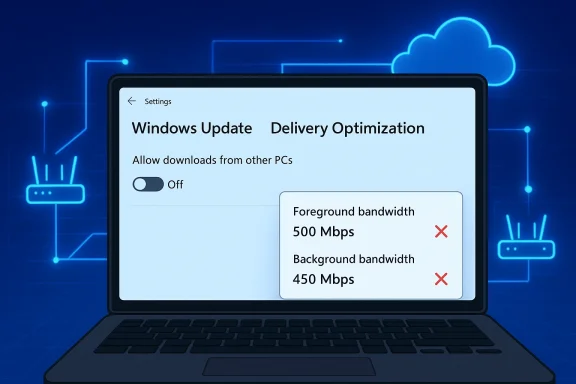
Below are the settings most people can change in minutes. These steps match the Settings UI in Windows 11 (and similar locations in recent Windows 10 builds), and they’re the same controls described in Microsoft’s Delivery Optimization documentation.- Open Settings (press Win + I).
- Select Windows Update → Advanced options.
- Scroll down and click Delivery Optimization.
- Toggle Allow downloads from other PCs to Off to stop peer-to-peer sharing entirely. This forces your PC to download directly from Microsoft’s servers.
- In Delivery Optimization, find Download options and open the drop-down.
- Choose Absolute bandwidth limit (Mbps). This allows you to specify explicit Mbps thresholds for Background and Foreground downloads.
- For the quick “remove the bottleneck” test, uncheck the boxes for Background and Foreground limits. If unchecking doesn’t change behavior, recheck them and enter a very high value (users commonly report entering values like 9999 Mbps as an expedient way to effectively remove the ceiling). Note: this last trick is anecdotal and not officially documented by Microsoft — it’s a practical workaround users have reported; results vary.
- Press Win + R, type wsreset.exe, press Enter. A blank command window will open and close automatically, and the Store will relaunch. This clears the Store cache and can fix stuck or slow downloads.
Why Microsoft built Delivery Optimization (and why it’s still useful)
Delivery Optimization solves real problems at scale. For organizations and households with multiple Windows devices, the P2P/caching model reduces duplicate downloads from the internet and can materially lower bandwidth use and update time. Microsoft’s official docs highlight benefits such as reduced CDN load and faster distribution in dense environments. If you manage many systems or rely on a local cache server, Delivery Optimization is an important efficiency tool.However, the same mechanisms can be counterproductive on a single‑PC home setup or on low-density networks. If your device repeatedly spends cycles searching for peers or if the OS inaccurately throttles foreground downloads, the feature’s tradeoffs become visible to the user — and frustrating.
Critical analysis: strengths, risks, and what Microsoft could improve
Strengths
- Bandwidth conservation at scale. In multi‑PC homes, offices, or supply‑chain scenarios, Delivery Optimization can dramatically reduce redundant downloads and save upstream bandwidth.
- Configurable controls. Absolute and percentage-based limits, plus a monthly upload cap, give power users and administrators flexible levers to tune behavior.
Risks and downsides
- Opaque heuristics cause unpredictable user experience. Automatic decisions and peer discovery can introduce delays that are hard for non-expert users to diagnose. Several troubleshooting threads show users puzzled by slow downloads even when their network is fast.
- Privacy and data usage concerns. When set to share with “PCs on the Internet,” Delivery Optimization may upload parts of updates to other devices, consuming upstream bandwidth and raising privacy or data-cap concerns (Microsoft provides upload controls and a monthly cap, but the behavior requires user awareness).
- Edge cases with manual downloads. Microsoft states that bandwidth limits only apply to automatic update downloads; manual downloads initiated by the user may not obey the same caps. That nuance can confuse troubleshooting because your changes might not behave the way you expect in all cases.
What Microsoft could or should improve
- Clearer default behavior for single‑PC users. Ship Delivery Optimization defaults that detect low device counts and switch to CDN-first behavior to avoid peer discovery overhead. Several community posts explicitly recommend this as a user-friendly default.
- Better telemetry and user-facing diagnostics. A clearer “why is this slow?” page for Store downloads — showing source selection, current limit, and recent handshake failures — would speed troubleshooting for power users and novices alike. Some of Microsoft’s docs mention an Activity Monitor in Delivery Optimization, but a more prominent UI would help.
Recommended configurations by user type
Single‑PC household (typical home user)
- Turn Allow downloads from other PCs off. This avoids peer discovery and generally makes Store downloads more predictable.
- If you must leave Delivery Optimization on, set Absolute bandwidth limit and either uncheck both limit boxes or set them to your measured line speed (or a high value) so foreground downloads aren’t constrained.
Multi‑PC household or small office
- Keep Delivery Optimization enabled and limit peer sharing to Devices on my local network when possible; this preserves the benefit of local caching without exposing uploads to the wider internet. Use an upload cap if you have a low upstream data cap.
Managed/Enterprise
- Control Delivery Optimization through Group Policy or Intune with a coherent DO strategy (cache servers, local mode, monthly cap). Don’t rely on per-user toggles in a fleet; they can be inconsistent. Microsoft documents Group Policy and administration options for DO.
Other practical troubleshooting steps (fast checklist)
- Run wsreset.exe to clear the Microsoft Store cache and retry downloads. This often resolves stuck or slow transfers caused by bad manifests.
- Use Ethernet during large downloads to avoid Wi‑Fi contention. Wired connections reduce packet loss and retransmits that slow effective throughput.
- Disable VPNs or proxies temporarily; some VPN providers throttle large CDNs or introduce latency that hurts throughput.
- Check for metered connections in Settings — Windows treats metered networks differently, which can limit background data usage.
- If the device is managed, talk to your IT admin before changing policies; corporate update policies may require Delivery Optimization behavior for compliance.
The “9999 Mbps” trick: does it work and is it safe?
The practice of entering an absurdly large value (for example, 9999 Mbps) in the Absolute bandwidth field is a community-sourced workaround: by giving Windows a ceiling far above your actual link speed, the setting effectively removes Delivery Optimization’s local cap. Numerous user threads and some troubleshooting answers show people reporting improvements after this change. However, Microsoft does not document 9999 as an official value or recommended technique, and results vary by device and Windows build. Treat this as an anecdotal hack: useful in a pinch, but not an official or guaranteed fix. If you try it, monitor other devices for congestion and be mindful of ISP data caps.When changing Delivery Optimization isn’t the answer
Sometimes slow downloads aren’t caused by Windows at all. If adjusting Delivery Optimization and resetting the Store don’t help, verify:- Your ISP’s network — run speed tests and try downloads from other services to compare throughput.
- Server-side rate limiting — some storefronts limit per‑user speeds. If other users report the same slow downloads at the same time, the problem may be on the provider side.
- Local firewall/UAC/antivirus interference — aggressive security software can scan or block chunks of downloads and dramatically slow the effective rate.
If you’ve exhausted local options and the Microsoft Store remains slow, gather logs and, if possible, open a case with Microsoft Support; community threads and Microsoft Q&A often reveal whether a larger outage or update distribution issue is underway.
Final verdict and practical guidance
Delivery Optimization is a powerful, well-intentioned feature that benefits many environments but occasionally works against an individual user’s expectations. For most single-PC home users who pay for high-speed broadband and expect fast app/game downloads, the fastest path to consistent Microsoft Store speed is:- Turn off peer-to-peer sharing by toggling Allow downloads from other PCs off.
- If you prefer to keep Delivery Optimization enabled, check Download options and ensure foreground limits are disabled or set to an appropriately high value.
- If persistent issues remain, reset the Store cache with wsreset.exe and test with a wired connection to remove Wi‑Fi as a variable.
Delivery Optimization’s intent is good; its default behavior is useful in many contexts. But when it stands between you and a multi-gig game you paid for, it’s reasonable to reclaim control. The setting is easy to adjust, reversible, and in many cases will instantly turn a frustratingly slow Microsoft Store download into the download speed you expected when you signed up for a fast internet plan.
Conclusion
If your Microsoft Store downloads feel stuck on dial‑up, start with Delivery Optimization: toggle off peer downloads or remove foreground bandwidth limits, reset the Store cache if necessary, and use a wired connection for large files. These steps fix the majority of user-reported cases and give you a clear, reversible path back to the speeds your connection can deliver. If problems persist after these changes, the issue may be elsewhere — on your ISP, on Microsoft’s distribution side, or in device management policies — and deeper diagnostics will be needed.
Source: MakeUseOf My Microsoft Store downloads were terribly slow until I changed this setting
