

Windows 11 rarely becomes slow for one dramatic reason. More often, responsiveness erodes through accumulated startup utilities, nearly full storage, background updaters, thermal throttling, aging hardware, and applications that consume resources when they should be idle. A newly published PCMag UK guide packages many of the right remedies into an approachable checklist, although its headline promises 14 fixes while the article actually presents 16 recommendations, including a gaming bonus. The most useful takeaway is not that every optimization should be applied, but that Windows users should diagnose the bottleneck first, make reversible changes, and reserve hardware spending for cases where software maintenance cannot overcome physical limits.
Windows performance tuning has changed substantially since the days when users routinely edited
That automation has not eliminated slow PCs. It has merely changed the most common causes.
Hardware also ages in practical rather than purely mechanical ways. Software requirements grow, websites become heavier, security tools inspect more activity, and users keep more browser tabs open than they did when the machine was new. A PC with 8GB of memory that felt generous several years ago can struggle once it is juggling Windows 11, Teams, cloud synchronization, a modern browser, and multiple productivity applications.
Upgrading an unsupported machine to Windows 11 through unofficial workarounds is not automatically the best performance strategy. A system that lacks a supported processor, TPM configuration, adequate memory, or modern storage may be better served by replacement, repurposing, or temporary Windows 10 ESU coverage while the owner plans a migration.
Look for a sustained constraint rather than a momentary spike:
A safer workflow is:
Users should investigate unfamiliar software before removing it. A small hardware-support component may be more important than a much larger entertainment application.
Programs that deserve particular scrutiny include:
A smaller Windows installation is not necessarily a faster or more reliable one. Remove applications you recognize and do not need, but avoid bulk-deletion scripts unless you understand every command and can restore the machine from a verified backup.
Good candidates for disabling include applications that do not need to be ready immediately:
The correct approach is methodical. Re-enable groups of services and applications, restart, and test until the problem returns, then narrow the group further. Leaving Windows permanently in a diagnostic configuration may prevent backup, synchronization, audio, printing, VPN, security, or hardware-control software from functioning correctly.
Downloads deserve special care because many people use that folder as permanent storage. Storage Sense does not normally delete Downloads content unless the user selects that behavior, and enabling it without reviewing the retention period can remove files that were not backed up elsewhere.
Other worthwhile targets include:
Moving personal files to another drive can help, but an external SSD does not magically accelerate the operating system. It improves performance only for applications, games, projects, scratch files, or data actually stored and accessed there. The internal boot drive remains the critical component for Windows startup and general system responsiveness.
The suggestion that every user is “best off” with separate malware-removal software is too broad. Microsoft Defender Antivirus is adequate for many properly maintained home PCs, and reputable third-party security suites can also be effective. The more important rule is to avoid running multiple real-time antivirus engines simultaneously, because overlapping file inspection can reduce performance and cause instability.
Warning signs include persistent browser redirection, disabled security settings, unknown administrator accounts, unexplained scheduled tasks, unexpected proxy configuration, repeated detection alerts, or a process that returns immediately after termination. If credentials may have been exposed, malware removal alone is insufficient; passwords should be changed from a known-clean device, and sensitive accounts should be reviewed for unauthorized activity.
Plugging in a laptop often unlocks higher CPU and GPU power limits, but the result depends on the charger. A low-wattage USB-C adapter may power the machine without providing enough headroom for maximum performance, particularly during gaming or rendering.
Use Best Performance selectively when:
Cleaning should be performed with the PC powered down and disconnected. Users unfamiliar with internal service should avoid spinning fans excessively with compressed air, puncturing batteries, or dismantling cooling assemblies without model-specific instructions.
Cooling improvements help only if temperature is the limiting factor. A clean, cool PC with too little RAM or a mechanical boot drive will remain constrained by memory or storage.
A practical maintenance cycle includes:
Enterprise IT teams should use telemetry, pilot groups, deployment rings, and application testing. A performance gain achieved by disabling an endpoint protection sensor is not an optimization; it is a control failure.
Automatic Maintenance also performs useful background tasks, but manually forcing it is not a universal speed fix. If the PC is slow because maintenance is already active, starting more maintenance work can temporarily make the machine feel worse.
Its “boost” concept should be interpreted realistically. Releasing cached memory can make a graph look cleaner, but Windows normally uses available RAM as a cache to accelerate future operations. Empty memory is not inherently better than intelligently used memory, and repeated manual memory purging can force applications to reload data.
PC Manager is best viewed as a dashboard for existing maintenance capabilities. It does not turn inadequate hardware into a high-performance system, repair every driver fault, or replace disciplined diagnosis.
Selecting “Adjust for best performance” removes nearly everything at once, including conveniences whose resource cost may be trivial on modern hardware. A better compromise is to disable animations and fading while retaining font smoothing, thumbnail previews, and visual elements that improve usability.
Perceived speed matters, but it should not be confused with throughput. Removing a 200-millisecond animation can make a window appear faster even though the application completes its work at exactly the same time.
Disabling indexing may reduce background work on a constrained PC, yet it can dramatically slow File Explorer and Outlook searches. A more balanced approach is to use Classic indexing and exclude huge development trees, build-output folders, virtual machine directories, archives, or other locations that do not need content search.
Enhanced indexing covers more of the PC and therefore consumes more resources. Users who search only standard libraries may find Classic mode provides the best balance.
Tips, suggestions, promotional recommendations, device-usage personalization, and welcome experiences are reasonable candidates for removal. These features are not normally the primary cause of a seriously slow PC, but switching them off can reduce clutter and unwanted engagement prompts.
Do Not Disturb is especially useful during presentations, games, recording sessions, and focused work. Automatic rules can silence notifications during full-screen activity without permanently hiding them.
Before opening the machine, record the recovery key, create a verified backup, check the manufacturer’s service documentation, and confirm component compatibility. Installing the wrong memory or migrating Windows incorrectly can turn a performance project into a recovery exercise.
An external SSD is useful for games, media, project files, and portable workloads, but it is not equivalent to replacing a slow internal system drive. Connection speed, enclosure quality, thermal behavior, and whether the application actually runs from that drive determine the benefit.
Gamers should compare repeated runs in the same location or benchmark sequence. Average frames per second alone can hide stutter, so one-percent lows, frame-time graphs, and input latency provide a better picture.
Compatibility is not universal. If a game develops flickering, capture problems, overlays that no longer work, or inconsistent frame pacing, Windows allows graphics preferences to be adjusted per application.
Other high-value gaming checks include:
Enterprises have additional migration paths and support arrangements, but application compatibility, security baselines, driver availability, and hardware inventory will remain central. Organizations that deferred Windows 11 deployment should use the remaining time for structured testing rather than emergency in-place upgrades.
Better explanations would also reduce confusion. Windows could more clearly identify why a startup item has a high impact, whether low storage is affecting updates, which process is waking the CPU, and whether the system is throttling because of power or temperature.
The best Windows 11 speedup strategy remains a layered one: remove software that serves no purpose, reduce unnecessary startup activity, maintain free storage, confirm the system is secure and updated, preserve sensible search and visual settings, and upgrade hardware only after identifying the actual constraint. Most importantly, users should pursue measurable responsiveness rather than the appearance of optimization. A healthy Windows PC is not the one with the fewest processes or the emptiest memory graph; it is the one that completes the owner’s real work quickly, reliably, securely, and without sacrificing essential features.
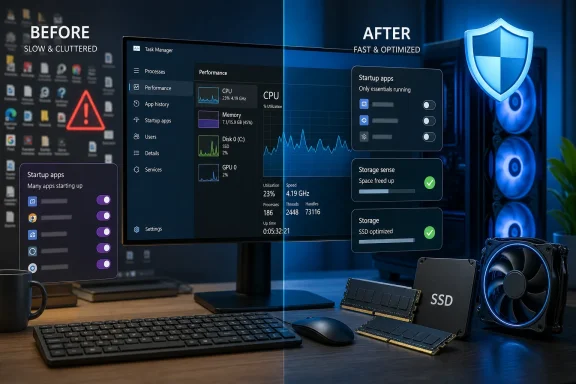 Background
Windows performance tuning has changed substantially since the days when users routinely edited MSCONFIG, defragmented mechanical hard drives, and disabled services based on dubious optimization guides. Windows 11 performs far more maintenance automatically, including update installation, storage cleanup when configured, malware protection, SSD optimization, application power management, and scheduled maintenance.That automation has not eliminated slow PCs. It has merely changed the most common causes.
Why Windows PCs lose responsiveness
Applications increasingly install launchers, update agents, synchronization tools, browser extensions, notification components, and background services. Any one of these may have a negligible impact, but a dozen small tasks can produce a noticeable delay after sign-in and increase memory pressure throughout the day.Hardware also ages in practical rather than purely mechanical ways. Software requirements grow, websites become heavier, security tools inspect more activity, and users keep more browser tabs open than they did when the machine was new. A PC with 8GB of memory that felt generous several years ago can struggle once it is juggling Windows 11, Teams, cloud synchronization, a modern browser, and multiple productivity applications.
Windows 10 is now a security exception
The recommendation to move eligible systems from Windows 10 to Windows 11 has become more urgent because normal Windows 10 support ended on October 14, 2025. Eligible consumer PCs can receive Windows 10 Extended Security Updates through October 13, 2026, but that program is a temporary security bridge rather than a source of new features, broad reliability improvements, or indefinite support.Upgrading an unsupported machine to Windows 11 through unofficial workarounds is not automatically the best performance strategy. A system that lacks a supported processor, TPM configuration, adequate memory, or modern storage may be better served by replacement, repurposing, or temporary Windows 10 ESU coverage while the owner plans a migration.
Start With Measurement, Not Guesswork
The fastest route to a better PC begins by identifying whether the problem affects startup, application launching, multitasking, storage access, internet activity, gaming, or the entire system. “My computer is slow” is a symptom description, not a diagnosis.Establish a baseline
Before changing settings, restart the PC and allow several minutes for Windows Update, antivirus scanning, cloud synchronization, and startup programs to settle. Then open Task Manager withCtrl-Shift-Esc and examine the Processes and Performance pages.Look for a sustained constraint rather than a momentary spike:
- CPU usage that remains near 100% suggests a demanding application, runaway process, update task, driver problem, or insufficient processor performance.
- Memory usage that stays above roughly 80% to 90% during ordinary work points toward excessive applications, a memory leak, or inadequate RAM.
- A disk stuck at 100% active time can indicate paging, indexing, updates, malware scanning, drive failure, or the limitations of a mechanical hard disk.
- High GPU usage outside games or creative applications may reveal browser acceleration problems, overlays, recording software, or a malfunctioning application.
- Normal utilization combined with poor responsiveness can implicate drivers, storage latency, overheating, firmware, power policy, or damaged Windows components.
Change one variable at a time
A common mistake is to disable ten services, install three cleaning utilities, alter the power plan, and remove several applications in one session. If performance improves—or something breaks—the user cannot tell which change mattered.A safer workflow is:
- Record the original behavior and resource usage.
- Apply one reversible change.
- Restart if the change affects startup, drivers, or system components.
- Repeat the same workload.
- Keep the change only if it produces a measurable or clearly perceptible benefit.
Remove Unwanted Software Carefully
Uninstalling unnecessary software remains one of the best low-risk optimizations. OEM utilities, expired antivirus trials, promotional applications, game launchers, printer suites, RGB controllers, and vendor update tools can all add startup entries or scheduled tasks.Distinguish bloatware from useful support tools
Sorting installed applications by publisher, installation date, and size can expose obvious candidates. However, deleting everything carrying the PC manufacturer’s name is unwise because some packages control function keys, battery charging limits, firmware updates, audio processing, cooling profiles, touchpad behavior, or display modes.Users should investigate unfamiliar software before removing it. A small hardware-support component may be more important than a much larger entertainment application.
Programs that deserve particular scrutiny include:
- Applications that display unsolicited promotions or notifications.
- Trial software that has expired but continues loading background components.
- Utilities that duplicate built-in Windows functions without adding meaningful value.
- Launchers for games or services that are no longer used.
- Browser add-ons and companion applications installed through bundled setup programs.
- Third-party “driver updater” and “registry cleaner” products with unclear provenance.
Do not confuse debloating with deleting Windows components
Aggressive scripts that remove provisioned apps, services, scheduled tasks, and system packages can produce an impressively short process list. They can also break cumulative updates, Microsoft Store installation, search, notifications, security controls, printing, or future feature upgrades.A smaller Windows installation is not necessarily a faster or more reliable one. Remove applications you recognize and do not need, but avoid bulk-deletion scripts unless you understand every command and can restore the machine from a verified backup.
Control Startup and Background Activity
Startup optimization can shorten the period between sign-in and a fully usable desktop. It can also reduce the constant background load that makes an older PC feel busy even when no visible application is open.Use Startup Apps before advanced tools
Windows 11 exposes startup controls in both Settings and Task Manager. Task Manager is particularly useful because it estimates each entry’s startup impact and shows whether it is enabled.Good candidates for disabling include applications that do not need to be ready immediately:
- Music, gaming, and shopping launchers can usually wait until opened.
- Chat clients can be disabled if instant availability is not required.
- Creative-suite launchers and update agents often do not need to start with every session.
- Peripheral dashboards may be optional if their settings persist in hardware.
- Cloud clients can be disabled only if delayed synchronization is acceptable.
Use clean boot troubleshooting for stubborn cases
If the slowdown survives normal startup cleanup, a clean boot can help isolate third-party interference. This method starts Windows with Microsoft services intact while selected non-Microsoft services and startup programs are disabled.The correct approach is methodical. Re-enable groups of services and applications, restart, and test until the problem returns, then narrow the group further. Leaving Windows permanently in a diagnostic configuration may prevent backup, synchronization, audio, printing, VPN, security, or hardware-control software from functioning correctly.
Reclaim Storage Without Creating New Problems
Free storage matters even on an SSD. Windows needs room for updates, temporary files, application caches, restore points, memory dumps, browser data, and the page file. A nearly full system drive can therefore cause update failures and erratic performance even when raw SSD access remains fast.Configure Storage Sense
Storage Sense can remove temporary files and age out Recycle Bin contents according to a schedule. It can also manage locally stored cloud files when configured, but users should inspect those options rather than assuming everything marked “temporary” is disposable.Downloads deserve special care because many people use that folder as permanent storage. Storage Sense does not normally delete Downloads content unless the user selects that behavior, and enabling it without reviewing the retention period can remove files that were not backed up elsewhere.
Other worthwhile targets include:
- Previous Windows installation files after the rollback period is no longer needed.
- Delivery Optimization data left from update distribution.
- Temporary application and Windows Update files.
- Large applications or games that have not been used recently.
- Duplicate media, old virtual machines, abandoned ISO images, and obsolete installers.
Keep realistic free-space headroom
There is no universal percentage that guarantees maximum SSD speed because controller design, overprovisioning, workload, and drive capacity differ. Nevertheless, maintaining comfortable free space gives Windows and the SSD controller room to work.Moving personal files to another drive can help, but an external SSD does not magically accelerate the operating system. It improves performance only for applications, games, projects, scratch files, or data actually stored and accessed there. The internal boot drive remains the critical component for Windows startup and general system responsiveness.
Check Security Before Chasing Tweaks
Malware, unwanted software, browser hijackers, cryptominers, and compromised extensions can consume processor time, memory, network bandwidth, and storage. Security checks therefore belong near the beginning of a performance investigation.Microsoft Defender is a legitimate first line
Windows Security can update threat intelligence, run a quick or full scan, and launch Microsoft Defender Offline for threats that are difficult to remove while Windows is running. Users should also confirm that real-time protection, tamper protection, firewall protection, reputation-based protection, and potentially unwanted application blocking are active where appropriate.The suggestion that every user is “best off” with separate malware-removal software is too broad. Microsoft Defender Antivirus is adequate for many properly maintained home PCs, and reputable third-party security suites can also be effective. The more important rule is to avoid running multiple real-time antivirus engines simultaneously, because overlapping file inspection can reduce performance and cause instability.
Treat unexplained load as a warning sign
A suspicious process name is not proof of infection, and legitimate Windows services may briefly use substantial resources during updates or maintenance. Conversely, low CPU usage does not prove that a system is clean.Warning signs include persistent browser redirection, disabled security settings, unknown administrator accounts, unexplained scheduled tasks, unexpected proxy configuration, repeated detection alerts, or a process that returns immediately after termination. If credentials may have been exposed, malware removal alone is insufficient; passwords should be changed from a known-clean device, and sensitive accounts should be reviewed for unauthorized activity.
Tune Power, Thermals, and Cooling Together
Windows 11’s power modes trade energy efficiency for responsiveness. Best Performance can reduce power throttling and encourage more aggressive processor behavior, but it cannot overcome every limit imposed by firmware, temperature, battery status, or the PC manufacturer.Best Performance is not a free upgrade
On a desktop with adequate cooling, Best Performance may improve responsiveness in bursty or sustained workloads. On a laptop, it can increase fan noise, surface temperature, and battery drain, and the benefit may be small during light work.Plugging in a laptop often unlocks higher CPU and GPU power limits, but the result depends on the charger. A low-wattage USB-C adapter may power the machine without providing enough headroom for maximum performance, particularly during gaming or rendering.
Use Best Performance selectively when:
- A demanding workload is visibly limited by processor power policy.
- The computer is connected to a suitable power adapter.
- Cooling is unobstructed and temperatures remain controlled.
- Battery runtime and fan noise are secondary concerns.
Thermal throttling can mimic old hardware
Dust, blocked vents, dried thermal material, failed fans, and poor placement can force a processor or graphics chip to reduce clock speed. A laptop resting on a blanket may recirculate hot air or block intake vents, while a desktop trapped in a closed cabinet can suffer the same fate.Cleaning should be performed with the PC powered down and disconnected. Users unfamiliar with internal service should avoid spinning fans excessively with compressed air, puncturing batteries, or dismantling cooling assemblies without model-specific instructions.
Cooling improvements help only if temperature is the limiting factor. A clean, cool PC with too little RAM or a mechanical boot drive will remain constrained by memory or storage.
Keep Windows, Drivers, and Firmware Current
Updates can improve reliability, compatibility, security, and performance, but update timing matters. Windows Update may temporarily increase disk and CPU activity while downloading, installing, indexing, or cleaning previous packages.Install updates, then allow maintenance to finish
After a major update, performance can appear worse for a short period as Windows rebuilds indexes, optimizes components, updates Store applications, and performs security scans. Repeatedly interrupting the process can extend the disruption.A practical maintenance cycle includes:
- Install pending Windows updates during a convenient period.
- Restart even if Windows does not appear to demand one.
- Check for optional driver or firmware updates only when they address a relevant problem.
- Allow the machine time to complete post-update maintenance.
- Verify Device Manager and application behavior before declaring the update unsuccessful.
Enterprises need staged deployment
Businesses should not apply consumer-style tuning indiscriminately across managed fleets. Startup agents may provide endpoint security, inventory, compliance, backup, VPN, certificate, or update-management functions that users cannot safely disable.Enterprise IT teams should use telemetry, pilot groups, deployment rings, and application testing. A performance gain achieved by disabling an endpoint protection sensor is not an optimization; it is a control failure.
Use Troubleshooters and Maintenance Tools Selectively
Windows troubleshooters can reset services, repair common settings, and detect basic configuration problems. Their scope varies across Windows builds, and some older Control Panel troubleshooters have been retired or redirected to newer support experiences.Troubleshoot the relevant subsystem
Running every available troubleshooter rarely produces a meaningful result. Choose the tool that matches the symptom: network connectivity, audio, Windows Update, Store apps, search, printing, or another affected component.Automatic Maintenance also performs useful background tasks, but manually forcing it is not a universal speed fix. If the PC is slow because maintenance is already active, starting more maintenance work can temporarily make the machine feel worse.
Microsoft PC Manager offers convenience, not magic
Microsoft PC Manager collects storage cleanup, startup management, health checking, and related controls in a simpler interface. This can benefit users who find Windows Settings fragmented, and its cleanup functions may recover space or reduce unnecessary startup activity.Its “boost” concept should be interpreted realistically. Releasing cached memory can make a graph look cleaner, but Windows normally uses available RAM as a cache to accelerate future operations. Empty memory is not inherently better than intelligently used memory, and repeated manual memory purging can force applications to reload data.
PC Manager is best viewed as a dashboard for existing maintenance capabilities. It does not turn inadequate hardware into a high-performance system, repair every driver fault, or replace disciplined diagnosis.
Be Skeptical of Visual and Search Tweaks
Two traditional recommendations—disabling visual effects and turning off indexing—can help under specific conditions. They can also make Windows less pleasant or make common tasks slower.Reduce visual effects surgically
The legacy Performance Options dialog can disable animation, shadows, fading, thumbnail previews, and other effects. On a very old integrated GPU or a low-memory system, reducing these features may make the interface feel more immediate.Selecting “Adjust for best performance” removes nearly everything at once, including conveniences whose resource cost may be trivial on modern hardware. A better compromise is to disable animations and fading while retaining font smoothing, thumbnail previews, and visual elements that improve usability.
Perceived speed matters, but it should not be confused with throughput. Removing a 200-millisecond animation can make a window appear faster even though the application completes its work at exactly the same time.
Do not disable indexing by default
Search indexing creates a database of file names, properties, content, email, and other supported data so that searches can return quickly. Initial indexing or rebuilding can consume resources, but steady-state activity is normally incremental.Disabling indexing may reduce background work on a constrained PC, yet it can dramatically slow File Explorer and Outlook searches. A more balanced approach is to use Classic indexing and exclude huge development trees, build-output folders, virtual machine directories, archives, or other locations that do not need content search.
Enhanced indexing covers more of the PC and therefore consumes more resources. Users who search only standard libraries may find Classic mode provides the best balance.
Cut Notifications and Distractions
Notifications usually impose a small performance cost, but a badly behaved application can generate excessive background activity or interrupt full-screen workloads. Reducing notifications can also make the computer feel faster by eliminating pop-ups, sounds, and context switches.Disable noisy senders rather than everything
Windows allows notifications to be controlled per application. This is preferable to globally disabling alerts because security warnings, calendar reminders, backup failures, and communication notifications may still matter.Tips, suggestions, promotional recommendations, device-usage personalization, and welcome experiences are reasonable candidates for removal. These features are not normally the primary cause of a seriously slow PC, but switching them off can reduce clutter and unwanted engagement prompts.
Do Not Disturb is especially useful during presentations, games, recording sessions, and focused work. Automatic rules can silence notifications during full-screen activity without permanently hiding them.
Upgrade Hardware Where It Changes the Bottleneck
Software cleanup has limits. If Task Manager consistently shows memory exhaustion, the boot drive is a mechanical hard disk, or the processor cannot meet modern workloads, hardware changes offer more meaningful gains than another round of settings tweaks.Prioritize upgrades by impact
For an older but otherwise serviceable PC, the typical upgrade order is:- Replace a mechanical Windows boot drive with an internal SSD. This usually delivers the largest improvement in boot time, application launching, updates, paging, and general responsiveness.
- Increase RAM when ordinary workloads cause sustained high memory use. Moving from 8GB to 16GB can substantially improve multitasking, while heavier creative, development, and virtualization workloads may justify 32GB or more.
- Service cooling when clock speeds collapse under load. Restoring normal sustained performance can be more valuable than a marginal component upgrade.
- Replace the platform when the CPU, firmware, security support, or expansion limits are fundamental. Money spent upgrading an unsupported system may be better directed toward a newer PC.
Verify upgradeability first
Many thin laptops use soldered memory and non-upgradable storage. Others accept only specific module sizes, memory generations, SSD lengths, or single-sided drives. Warranty terms, BitLocker device encryption, recovery media, and physical accessibility also matter.Before opening the machine, record the recovery key, create a verified backup, check the manufacturer’s service documentation, and confirm component compatibility. Installing the wrong memory or migrating Windows incorrectly can turn a performance project into a recovery exercise.
An external SSD is useful for games, media, project files, and portable workloads, but it is not equivalent to replacing a slow internal system drive. Connection speed, enclosure quality, thermal behavior, and whether the application actually runs from that drive determine the benefit.
Gaming Requires More Than Game Mode
Windows 11 Game Mode reduces some background interference and aims to provide more consistent gaming performance. It is generally enabled by default for recognized games, but results vary because modern gaming bottlenecks can lie in the CPU, GPU, memory, storage, shaders, drivers, or the game engine itself.Test Game Mode rather than assuming
Game Mode may improve frame-time consistency on a busy system, particularly when background activity would otherwise compete for resources. On a well-maintained PC with ample headroom, average frame-rate changes may be negligible.Gamers should compare repeated runs in the same location or benchmark sequence. Average frames per second alone can hide stutter, so one-percent lows, frame-time graphs, and input latency provide a better picture.
Windowed-game optimizations can reduce presentation overhead
Optimizations for windowed games can move compatible titles from an older copy-based presentation path to the modern flip model. This can reduce latency and enable features such as variable refresh rate and Auto HDR on supported configurations.Compatibility is not universal. If a game develops flickering, capture problems, overlays that no longer work, or inconsistent frame pacing, Windows allows graphics preferences to be adjusted per application.
Other high-value gaming checks include:
- Confirm that the monitor is running at its intended refresh rate.
- Install a stable graphics driver rather than automatically assuming the newest driver is best.
- Disable unnecessary recording overlays and hardware-monitoring hooks.
- Keep shader caches and game files on suitable storage.
- Check laptop GPU selection so that the game uses the high-performance adapter.
- Avoid thermal throttling by maintaining airflow and using the correct power adapter.
Strengths and Opportunities
The collection succeeds because it favors understandable actions over registry edits and unsupported service modifications. Most recommendations can be performed with built-in Windows interfaces and reversed if the result is disappointing.- Startup management offers an excellent effort-to-reward ratio. Disabling a few unnecessary launchers can improve sign-in performance without removing applications.
- Storage cleanup addresses both responsiveness and update reliability. It is especially valuable on inexpensive systems with small SSDs.
- Task Manager encourages evidence-based troubleshooting. CPU, memory, disk, GPU, and startup data help users distinguish symptoms from causes.
- Cooling advice recognizes a frequently overlooked bottleneck. Thermal throttling can make capable hardware behave like a much slower system.
- SSD and RAM upgrades target genuine hardware limits. They are more credible than claims that a cleaner or optimizer can manufacture performance.
- Gaming settings acknowledge frame consistency as well as raw speed. Modern presentation modes and reduced background interference can improve the experience even when average frame rates barely change.
- Notification control improves perceived responsiveness and concentration. A calmer desktop can feel more efficient without risky system modifications.
Risks and Concerns
Several recommendations need qualifications because an optimization for one workload can be a regression for another.- Removing OEM software can disable hardware-specific features. Battery conservation, hotkeys, fan profiles, audio processing, and firmware delivery may depend on vendor packages.
- Disabling startup entries can stop backup or synchronization. Users may not notice the failure until important files are missing.
- Best Performance increases power and heat. A laptop may become louder, hotter, and shorter-lived on battery for only a modest speed improvement.
- Turning off indexing can make search substantially slower. Excluding unnecessary locations is usually preferable to disabling the service.
- Memory-cleaning tools can undermine Windows caching. A lower RAM-usage number does not automatically mean better performance.
- Multiple security products can conflict. Layering real-time antivirus engines may make the PC slower and less stable.
- External SSD claims can be misunderstood. The external drive accelerates only the workloads placed on it and does not inherently speed the internal Windows installation.
- Blanket opposition to reinstalling Windows is too absolute. Reinstallation should not be the first move, but a properly planned clean install can resolve severe corruption, years of software residue, or an irreparably damaged configuration.
- Feature-removal scripts can compromise servicing. A system that appears lean today may fail during a future cumulative or feature update.
What to Watch Next
Windows performance tuning will increasingly revolve around background intelligence, energy efficiency, security scanning, cloud integration, and heterogeneous processors rather than traditional service trimming. Newer systems distribute work across performance cores, efficiency cores, integrated graphics, dedicated GPUs, and neural processing units, making simplistic “disable everything” guidance less reliable.Windows 10 migration pressure will intensify
As the October 13, 2026 end of consumer Windows 10 ESU approaches, owners of unsupported PCs will face a harder choice between hardware replacement, another operating system, and operating without Windows security updates. Performance should not be evaluated separately from support status; a fast but unpatched machine is not a healthy endpoint.Enterprises have additional migration paths and support arrangements, but application compatibility, security baselines, driver availability, and hardware inventory will remain central. Organizations that deferred Windows 11 deployment should use the remaining time for structured testing rather than emergency in-place upgrades.
Microsoft must make optimization more coherent
PC Manager demonstrates demand for a single maintenance dashboard, yet Windows still scatters performance controls across Settings, Task Manager, Control Panel, Windows Security, vendor applications, and legacy dialogs. Consolidation would help ordinary users distinguish safe maintenance from risky internet folklore.Better explanations would also reduce confusion. Windows could more clearly identify why a startup item has a high impact, whether low storage is affecting updates, which process is waking the CPU, and whether the system is throttling because of power or temperature.
The best Windows 11 speedup strategy remains a layered one: remove software that serves no purpose, reduce unnecessary startup activity, maintain free storage, confirm the system is secure and updated, preserve sensible search and visual settings, and upgrade hardware only after identifying the actual constraint. Most importantly, users should pursue measurable responsiveness rather than the appearance of optimization. A healthy Windows PC is not the one with the fewest processes or the emptiest memory graph; it is the one that completes the owner’s real work quickly, reliably, securely, and without sacrificing essential features.
References
- Primary source: PCMag UK
Published: 2026-07-22T11:45:14+00:00
14 Easy Fixes to Make Windows 11 Feel Faster
Don't reinstall Windows if you PC is slow. Try these simple tricks, and you should see a noticeable speed boost.uk.pcmag.com