

If your Windows 11 laptop or desktop takes too long to reach a usable desktop, the most likely culprit is a crowded startup — dozens of apps and background services competing for CPU, disk and memory the instant you sign in. Trimming that list, and pairing it with a few housekeeping steps, can turn a sluggish boot into a snappier, more responsive start in minutes.
Windows 11 is designed to be convenient: apps, cloud sync, and background services make features feel instantaneous, but they also create a noisy startup environment. Each item that auto‑launches consumes CPU cycles, disk I/O and RAM during the critical first moments after boot, which is why auditing startup behavior is the single highest‑ROI change for most users. Community testing and practical guides consistently place disabling nonessential startup items at the top of a practical speed‑up checklist.
Beyond startup trimming, storage health and drive type strongly influence real boot performance. Upgrading from a spinning HDD to an SSD is the most transformative hardware change you can make; NVMe drives produce even larger gains when paired with modern CPUs and UEFI firmware. However, software tweaks — measured and reversible — usually deliver immediate perceived improvements for little to no cost.
This “startup impact” is not a precise stopwatch; it’s a heuristic combining CPU and disk usage during application initialization. Treat it as a prioritization tool rather than a guarantee of seconds saved. Hardware differences (SSD vs HDD, CPU speed, firmware) still determine the absolute time-to-desktop for any given machine.
Practical considerations:
Caution: vendor-supplied startup managers and debloat scripts (community PowerShell tools) can remove telemetry and preinstalled apps, but they sometimes remove components users later rely on. Apply such tools sparingly and back up first.
By trimming what starts when you sign in, keeping your boot drive healthy, and making a few measured configuration adjustments, you can turn a slow Windows 11 launch into a noticeably faster experience — often without spending a dime. If you decide to pursue hardware upgrades, the SSD route is the single most reliable way to turn seconds of waiting into seconds of work.
Source: CNET Speed Up Your Windows 11 Launch Time in a Snap. Here's How to Do It
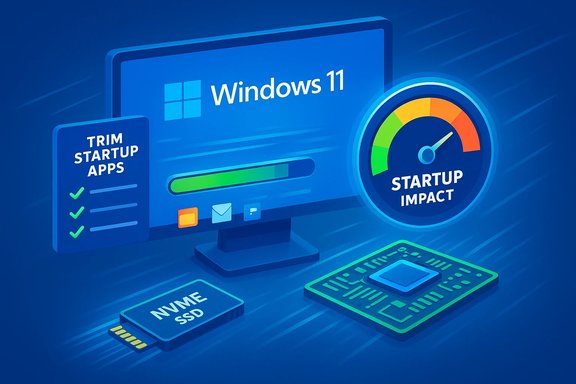 Background
Windows 11 is designed to be convenient: apps, cloud sync, and background services make features feel instantaneous, but they also create a noisy startup environment. Each item that auto‑launches consumes CPU cycles, disk I/O and RAM during the critical first moments after boot, which is why auditing startup behavior is the single highest‑ROI change for most users. Community testing and practical guides consistently place disabling nonessential startup items at the top of a practical speed‑up checklist.Beyond startup trimming, storage health and drive type strongly influence real boot performance. Upgrading from a spinning HDD to an SSD is the most transformative hardware change you can make; NVMe drives produce even larger gains when paired with modern CPUs and UEFI firmware. However, software tweaks — measured and reversible — usually deliver immediate perceived improvements for little to no cost.
Why startup apps matter (and how Windows measures impact)
Every app that launches at sign‑in adds to the queue of work Windows must complete before the desktop feels ready. Windows surfaces a useful metric in Task Manager called Startup impact — values include High, Medium, Low, None and Not measured — to help you prioritize which items to disable first. Apps marked High typically generate the most CPU or disk I/O during startup, and are therefore the most likely to slow your sign‑in.This “startup impact” is not a precise stopwatch; it’s a heuristic combining CPU and disk usage during application initialization. Treat it as a prioritization tool rather than a guarantee of seconds saved. Hardware differences (SSD vs HDD, CPU speed, firmware) still determine the absolute time-to-desktop for any given machine.
The three fast routes to control startup apps
Windows 11 gives you three straightforward ways to manage startup items: Task Manager, Settings, and File Explorer (the Startup folder). Use whichever you find easiest — they reach the same set of typical startup entries, but each has small advantages.1. Task Manager — fast and informative
Task Manager is the quickest way to audit startup entries and see their impact.- Press Ctrl + Shift + Esc (or right‑click the Start button and choose Task Manager).
- Click More details if Task Manager opens compact.
- Select the Startup tab.
- Sort by Startup impact or Status, then right‑click any app and choose Disable to stop it from launching automatically.
2. Settings — the more descriptive toggle list
If you prefer Settings:- Open Settings (Win + I).
- Go to Apps → Startup.
- Toggle off apps you don’t want to start automatically.
3. File Explorer — control the Startup folder
Some shortcuts or legacy apps place shortcuts into the user or common Startup folder, which bypasses the Settings toggle.- Press Win + R, then run shell:appsfolder to open the Apps folder (this lists installed app shortcuts).
- Run shell:startup (for the current user) or shell:common startup (for all users) to open the Startup folder.
- Drag shortcuts into the Startup folder to add them, or delete shortcuts from the Startup folder to remove auto‑launch behavior.
How to decide what to disable (and what to leave alone)
Not all startup items are equal. Use this conservative rule set:- Keep enabled: antivirus/endpoint protection, disk‑encryption/BitLocker agents, and any backup/sync clients you rely on for immediate protection. Disabling these can expose data or stop backups.
- Frequently safe to disable: chat and collaboration apps (Slack, Teams), game launchers (Steam, Epic, Xbox app), cloud sync clients you don’t need immediately (OneDrive, Dropbox), and manufacturer utilities that don’t manage essential hardware.
- When unsure: right‑click the entry in Task Manager and choose Search online to learn what it does before disabling. If problems appear after disabling, re‑enable the item — the changes are reversible.
Quick, safe step‑by‑step: audit and trim startup apps (two minutes)
- Open Task Manager (Ctrl + Shift + Esc).
- Sort by Startup impact.
- Right‑click and Disable any High or Medium items you rarely use.
- Reboot and check Task Manager → Performance for lowered CPU/disk spikes.
Beyond startup: five complementary steps for noticeably faster boots
Disabling startup apps is step one. Combine it with these common, reversible maintenance steps for a bigger cumulative effect.- Storage cleanup: use Disk Cleanup or Storage Sense to remove temporary files and old Windows update files; keeping 10–20% free space on the system drive prevents performance cliffs.
- Visual effects: disabling or reducing animations and transparency via Performance Options can free CPU/GPU cycles on systems with integrated graphics.
- Power mode: set Power & battery → Power mode to Best performance while plugged in when you need snappy responsiveness. Balance battery life accordingly.
- System file repair: run sfc /scannow and DISM component cleanup if you suspect corrupt system files or large component store bloat. These are safe maintenance commands when used correctly.
- Fast Startup: toggling Fast Startup can reduce cold boot time on many systems, but it can cause issues with dual‑boot setups, firmware flashes, or some device drivers — test it.
The single biggest hardware win: move to an SSD
If you’re still unhappy after careful software tidy‑up, the path to transformative improvement is hardware: installing a modern SSD for your boot drive. Moving Windows from an HDD to an SSD typically reduces cold‑boot from minutes to a matter of seconds; NVMe M.2 drives provide the strongest gains on modern platforms. SSD upgrades are repeatedly cited by reviewers and community testing as the most effective change.Practical considerations:
- Check your motherboard for the correct interface (SATA vs M.2 NVMe) before buying.
- Update BIOS/UEFI and storage drivers after installing a new NVMe drive for best stability.
- For long-term health, avoid excessive defragmentation of SSDs — Windows issues TRIM and manages SSD optimization automatically.
Advanced diagnostics: Clean Boot, tracing services, and autoruns
If startup remains slow after disabling startup apps, perform a clean boot to isolate offending services and scheduled items:- Run msconfig → Selective startup → Hide all Microsoft services → Disable all.
- Disable all non‑Microsoft startup items in Task Manager and reboot.
- Re‑enable groups of services/startup items incrementally to find the culprit.
Third‑party startup managers: when to use them
Third‑party tools such as Autoruns, Startup Delayer, and similar utilities can give you fine‑grained control — delaying or queuing startup apps so they don’t try to run simultaneously at sign‑in. These tools are powerful for advanced users and can reduce I/O contention, but they add complexity and carry risks if used improperly. Use them only if the built‑in controls don’t locate the bottleneck.Caution: vendor-supplied startup managers and debloat scripts (community PowerShell tools) can remove telemetry and preinstalled apps, but they sometimes remove components users later rely on. Apply such tools sparingly and back up first.
Common pitfalls and safety notes
- Don’t disable security software unless you understand the consequences; losing real‑time protection is a real risk. If a security agent is slowing startup, investigate vendor settings (delayed startup options) rather than disabling outright.
- Fast Startup can interfere with multi‑boot and disk utilities. If you dual‑boot or frequently flash firmware, turn Fast Startup off for deterministic behavior.
- Some apps re‑add themselves to startup after updates. Revisit the Startup list periodically and automate checks if you manage many devices.
- Measurement matters: change one thing at a time and log the before/after so you can revert if needed. Anecdotal claims of exact seconds saved are context‑dependent; state your machine specs when comparing numbers.
A pragmatic checklist to implement today
Follow this short, ordered checklist to get the biggest practical wins with minimal risk:- Create a restore point and back up important files.
- Open Task Manager → Startup and disable nonessential High and Medium impact entries. Reboot and measure.
- Run Disk Cleanup → Clean up system files, or enable Storage Sense to reclaim temporary files. Aim to keep 10–20% free on C:.
- Adjust visual effects (Performance Options) or turn off Transparency to reduce UI overhead on weaker GPUs.
- If you still need more speed, consider an SSD upgrade; verify M.2 vs SATA compatibility and update firmware/drivers post‑install.
Final verdict — what works and what to watch for
- The fastest, safest, and most reversible improvement for most users is trimming startup apps via Task Manager or Settings; expect immediate perceived snappiness.
- The most transformative single change is moving the OS to an SSD (NVMe if your system supports it). That usually outperforms any software tweak in raw boot times.
- Combine software housekeeping (cleanup, visual tuning, measured disabling) with periodic checks; many issues creep back over time as apps update and reintroduce startup entries.
By trimming what starts when you sign in, keeping your boot drive healthy, and making a few measured configuration adjustments, you can turn a slow Windows 11 launch into a noticeably faster experience — often without spending a dime. If you decide to pursue hardware upgrades, the SSD route is the single most reliable way to turn seconds of waiting into seconds of work.
Source: CNET Speed Up Your Windows 11 Launch Time in a Snap. Here's How to Do It
