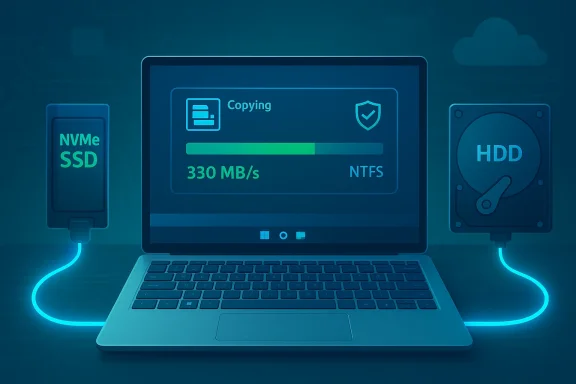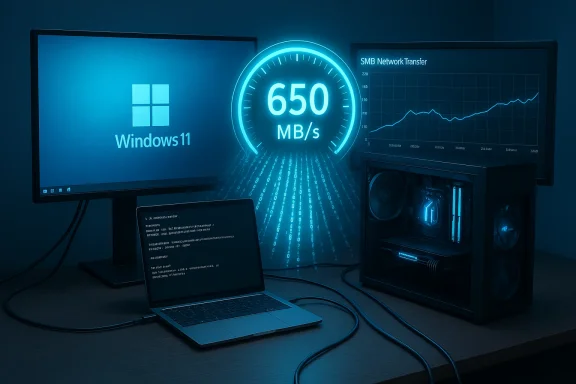
If your Windows 11 file copies feel sluggish, the good news is that most performance problems are fixable with a blend of hardware choices, system tuning, and smarter transfer methods. The popular “7 tips to speed up file transfers on Windows 11” advice (SSDs, USB 3.x ports, NTFS, Robocopy, disabling real‑time antivirus, compression, and closing background apps) covers many of the right bases — but it also omits a few critical caveats, precise numbers, and advanced options that matter to power users and network admins. This article verifies the key claims, corrects a common numerical error, expands the checklist with deeper system and network fixes, and gives practical, tested steps you can use right now to get reliably faster file transfers on Windows 11.
Background / Overview
Windows file transfers are constrained by one or more of three bottlenecks: storage device speed, interface bandwidth (USB, Thunderbolt, PCIe, or network), and system/OS overhead (antivirus scanning, driver inefficiencies, or filesystem behavior). Fixing a slow transfer requires identifying which layer is limiting throughput and then applying the appropriate optimization.This piece examines the seven common tips you probably already read, confirms or corrects the technical specifics against Microsoft documentation and independent hardware reviews, and adds advanced strategies — including write‑caching, SMB features (compression/multichannel), device firmware and driver updates, and safe antivirus tuning — that often produce the largest real‑world gains.
Verifying the headline claims: what’s accurate and what needs correction
SSDs vs HDDs: the single biggest lift for transfers
- Claim: Use SSDs over HDDs because they’re faster. This is correct.
- Reality check: Modern SATA SSDs saturate the SATA III interface at roughly 500–600 MB/s sequential read/write. Typical consumer HDDs (7,200 RPM) commonly deliver 30–150 MB/s depending on file sizes and fragmentation. NVMe drives (PCIe NVMe) are multiples faster: PCIe Gen3 NVMe commonly reaches ~3,000–3,500 MB/s, PCIe Gen4 drives often reach 5,000–7,000 MB/s, and current Gen5/flagship consumer parts claim much higher peak numbers (many Gen5 drives advertise into the double‑digit GB/s range on sequential benchmarks). These figures were verified against vendor specs and independent reviews.
- Practical takeaway: For single‑device local copies, NVMe > SATA SSD >> HDD. Replace mechanical drives first if transfers are a priority.
USB ports and bandwidth: check units and controllers
- Claim in many quick guides: “USB 3.0 offers data transfer speeds of 5 GB per second.”
- Correction: That statement uses the wrong unit. USB 3.0 (also called USB 3.2 Gen 1 in current labels) has a theoretical maximum of 5 Gbit/s, which equals about 625 MB/s raw throughput, not 5 GB/s. Higher USB versions (USB 3.2 Gen 2 = 10 Gbit/s, some USB4 implementations / Thunderbolt 3/4 and USB4 variants reach much higher) exist, but you must ensure the device, cable, and host controller all support the higher generation. Device Manager and manufacturer documentation are the right places to confirm controller capability.
- Practical takeaway: Use a proper USB 3.x or Thunderbolt port and a quality cable; plugging a USB 3.0 device into a USB 2.0 port will limit you to the slower interface.
Filesystem: NTFS vs FAT32 vs exFAT
- Claim: Use NTFS over FAT32 for faster read/write. This is broadly correct, but nuance matters.
- Reality check: NTFS provides journaling, richer metadata, compression, and other features that generally lead to better performance and reliability on Windows for large volumes and modern workloads. FAT32 is constrained to 4 GB per-file limits and lacks many modern features. exFAT is a cross‑platform option that removes the 4 GB file-size limit and works well for removable drives, but it lacks NTFS journaling and certain Windows-only features. Microsoft’s filesystem comparison tables and independent tests confirm these differences.
- Practical takeaway: For internal drives and Windows‑only volumes, prefer NTFS. For removable media requiring compatibility with cameras and older devices, use exFAT rather than FAT32 for large files.
Robocopy: the right tool for reliable, fast copies
- Claim: Robocopy can be faster than File Explorer and supports multithreading with /MT:16. Verified.
- Reality check: The Robocopy command in Windows supports
/MT[:n]to enable multi‑threaded copies, wherencan be 1–128 and defaults to 8 if/MTis used without a number. The/Zflag enables restartable mode, useful on unstable networks, but can slow transfers./MTis incompatible with certain switches (for example/IPGand/EFSRAW). Microsoft documentation confirms these behaviors. - Practical takeaway: Use Robocopy for large folder moves and server copies, but choose thread counts carefully — too many threads on a mechanical drive can thrash the disk, while on fast NVMe or network cards higher thread counts usually help.
Antivirus real‑time scanning: don’t disable forever
- Claim: Real‑time antivirus scanning can delay file copies. Correct.
- Reality check: Real‑time protection inspects files as they are written, which can add latency. Microsoft explicitly documents real‑time protection behavior and provides safer alternatives than completely disabling protection — namely performance mode for trusted Dev Drives, or targeted exclusions for directories or file types that you trust. Community reports and Microsoft Q&A archives show that disabling Defender temporarily can improve transfer speed, but that leaves the system vulnerable.
- Practical takeaway: Instead of disabling protection, use the Windows Security exclusions feature or enable Defender performance modes (where applicable). If you must disable real‑time protection temporarily, re‑enable it immediately after the copy.
Compression before copying: helpful but contextual
- Claim: Compressing reduces transfer size and can speed copies. True with caveats.
- Reality check: Compression reduces the number of bytes transferred — which helps most on bandwidth‑limited transfers, particularly across networks. Desktop compression tools (ZIP, 7‑Zip) and network features (SMB compression) can reduce transfer time when files are compressible (text, source code, uncompressed RAW images). Already‑compressed media (MP4, JPG, HEVC) rarely compress further and compressing them wastes CPU time. SMB compression (built into modern Windows/SMB stacks) can compress during transit, saving manual steps. Benchmarks show 7‑Zip gives better ratios but takes more CPU/time than ZIP.
- Practical takeaway: Compress before copying only when files are compressible or when the network is the bottleneck; otherwise the overhead can be counterproductive.
Closing background apps: still good advice
- Claim: Background apps steal CPU and I/O resources. True.
- Reality check: Closing unnecessary apps frees CPU, cache, and disk I/O, which can increase copy throughput, particularly on lower‑end devices or when the copy is CPU‑bound (for compression, encryption, or small‑file metadata operations). Task Manager makes it easy to identify and end heavy processes.
Deep dive: a prioritized optimization checklist for Windows 11
Follow this step sequence to diagnose and fix slow transfers. Each step is short, testable, and reversible.1. Determine the real bottleneck
- Check source and destination device type: HDD vs SATA SSD vs NVMe.
- Monitor transfers with Task Manager > Performance and Resource Monitor to see whether CPU, disk, or network is saturated.
- For network copies, use a wired connection where possible and measure link speed (1 GbE, 2.5 GbE, 10 GbE, etc.).
2. Use the right hardware interface and cables
- For external storage: prefer USB 3.1/3.2 Gen 2, USB4, or Thunderbolt 3/4 ports and certified high‑quality cables. A USB 3.0 device plugged into a USB 2.0 port will be limited by the port — confirm host controller capabilities in Device Manager or via vendor docs.
- For network NAS transfers: prefer wired Ethernet, and invest in 2.5/5/10 GbE NICs if you regularly move large datasets. Use quality Cat6a+/SFP+ cabling for 10GbE.
3. Optimize filesystems and policies
- For Windows‑only internal volumes, format with NTFS (or ReFS for specific server/developer scenarios). Use
convert X: /fs:ntfsto convert a drive safely without losing file data if needed. - For removable drives used across platforms, use exFAT to avoid FAT32’s 4 GB file limit.
- Consider enabling “Better performance” write‑caching for external drives in Disk Management → Drive Properties → Policies — but always use Safely Remove Hardware to avoid data loss.
4. Robocopy: tuned examples and rules
Robocopy is great for both local and network transfers. Here are useful templates:- Fast multithreaded local copy (good for SSD-to-SSD):
robocopy "C:\Source" "D:\Destination" /E /MT:32 /R:1 /W:1 /LOG:robocopy.log - Network copy that can resume if interrupted (useful for large files across flaky links):
robocopy "\server\share\Source" "D:\Destination" /E /Z /MT:16 /R:3 /W:5 /LOG:netcopy.log
- Don’t blindy set /MT to very high values on HDDs — mechanical drives have physical heads and too many threads can produce worse performance.
- /Z is restartable (resume) and useful on unstable networks but can reduce throughput compared with straight copies.
- Verify
/MTcompatibility: it cannot be used with/IPG(inter-packet gap) or/EFSRAW. - After a large Robocopy run you can verify integrity with a file hash comparison (Get-FileHash in PowerShell) if data correctness is critical.
5. Use SMB features on Windows and NAS
If copying to/from a network share (SMB), modern Windows provides powerful options:- SMB Compression: enables on-the-fly compression during transfer — great on low‑bandwidth networks, effective when files compress well.
- SMB Multichannel: aggregates multiple NICs or cores to increase throughput (works automatically when conditions meet Microsoft’s multichannel criteria).
- SMB Direct (RDMA): for RDMA-capable NICs (datacenter or workstation class), SMB Direct provides very low latency and high throughput.
6. Antivirus: targeted mitigation, not blind disabling
- Avoid disabling real‑time protection permanently. Instead:
- Add folder/file exclusions in Windows Security for directories you know are safe (e.g., large backup folders temporarily).
- On developer heavy workloads, Microsoft’s Defender performance mode for Dev Drives defers scans and gives a measured performance boost while keeping protection in place.
- If you must disable Real‑Time Protection temporarily for troubleshooting, re-enable it immediately after the transfer.
7. Compression strategy: match tool to need
- For quick transfers of many small files, consider creating an archive without compression (store mode) — combining files into one stream reduces per‑file overhead.
- Use 7‑Zip for maximal compression ratio on compressible data; use ZIP for speed or compatibility.
- If the network is the bottleneck and CPU is available, consider SMB compression or on‑the‑fly compression tools instead of manual pre‑compression.
8. Firmware, drivers, and throttling
- Update SSD firmware and motherboard/NVMe/USB controller drivers — vendors regularly fix throttling, stability, and performance bugs. NVMe drives may throttle when thermally constrained; ensuring proper heatsinks and airflow matters.
- Check Windows power plan: prefer High Performance when doing large transfers on plugged‑in laptops.
9. Tactical tweaks for tricky cases
- For many small files, compression or zipping into one archive often yields bigger speed gains than raw file copying.
- If HDDs are the bottleneck and you can’t replace them, avoid multi‑threaded copy utilities; single‑stream Robocopy or even xcopy might be less stressful on the drive.
- For critical backups, run a post‑copy integrity check with checksums rather than relying on copy success messages alone.
Practical, step‑by‑step examples (copy recipes)
A. Quick local SSD-to-SSD copy (max throughput, low risk)
- Close large background apps.
- Open an elevated Command Prompt.
- Run:
robocopy "C:\BigProject" "D:\BigProjectBackup" /E /MT:32 /R:1 /W:1 /LOG:fastlocal.log - Monitor Task Manager Disk panel. Reduce
/MTif the source or target is an HDD.
B. Reliable resumeable network copy (unstable Wi‑Fi or VPN)
- Prefer wired connection where possible.
- In elevated Command Prompt:
robocopy "\nas\share\BigData" "E:\Backup" /E /Z /MT:8 /R:3 /W:5 /LOG:netresume.log - If throughput is low, test SMB compression on the share and re-run.
C. When moving many small files or thousands of tiny assets
- Create a non‑compressed archive to minimize file‑open overhead:
- Use 7‑Zip with store (no compression) or ZIP:
7z a -mx=0 backup_store.7z C:\project*
- Use 7‑Zip with store (no compression) or ZIP:
- Copy the single archive file to the target.
- Extract at destination.
Risk warnings and caveats
- Don’t permanently disable antivirus. The temptation to turn off real‑time protection for speed is common, but it exposes you to risk. Use exclusions or temporary toggles and re‑enable protection immediately.
- Don’t set write‑caching and yank the drive. Enabling “Better performance” and write caching can improve throughput but requires that you safely eject the device or you risk data corruption.
- Beware of over-threading on HDDs. Too many Robocopy threads on mechanical drives leads to head thrashing and worse performance.
- Thermal throttling on NVMe: very fast NVMe drives can throttle if they get hot. Use heatsinks or choose motherboards with good M.2 cooling.
- Compression can backfire on already‑compressed files. For media and certain binaries, compression wastes CPU cycles and may slow overall transfer.
Final analysis: where you’ll see the biggest wins
- Replacing HDDs with SSDs (or better: NVMe) produces the most dramatic improvements for local copies; it’s the single most effective investment for faster file transfers.
- For external devices, ensuring the entire chain (device, cable, host port) supports USB 3.x or Thunderbolt is critical — and remember the units: USB3.0 = 5 Gbit/s, not 5 GB/s.
- For network environments, enabling SMB compression or SMB multichannel (or upgrading to 10GbE/25GbE links) often delivers tangible reductions in copy time — especially when copying compressible data or when multiple NICs can be aggregated.
- Robocopy gives both speed and reliability when used with appropriate switches; understand
/MTand/Ztrade‑offs and tune thread counts to your hardware. - Small tactical tweaks (write caching policy, disk driver firmware, targeted antivirus exclusions, zipping many small files into a single archive) produce outsized benefits for specific scenarios.
Conclusion
The seven tips you’ve likely seen are solid, but speed gains become real when you match the fix to the actual bottleneck: hardware upgrade (SSD/NVMe) for raw throughput, proper interface/cable for external drives, filesystem choice for long‑term reliability and capability, Robocopy and SMB options for smart copying, and careful antivirus configuration for minimized overhead without sacrificing security. Verify specs and settings with official documentation and vendor resources before you change system policies: check Device Manager, the drive vendor’s firmware notes, and Microsoft’s SMB/Robocopy guidance. When you combine the right hardware with the targeted software tweaks above, Windows 11 file transfers will feel noticeably faster and far more predictable.Source: How-To Geek 7 tips to speed up file transfers on Windows 11