

If your Windows 11 PC has started to lag, freezing up during routine tasks or taking forever to boot, the first and safest place to look is the pile of temporary files and caches Windows accumulates by design—these small stores of data can become corrupted, balloon in size, or simply get in the way of a responsive system. This feature-length guide explains exactly what each common Windows cache does, how to clear it safely (with precise commands and UI steps), when cleanup helps most, and when it’s time to accept that hardware upgrades or deeper repairs are the real fix. The instructions use only built‑in Windows tools and Microsoft‑documented commands so you can act with confidence.
Windows stores many types of temporary files and caches to speed up repetitive tasks: browser assets, DNS lookups, update downloads, thumbnail images, Delivery Optimization packages, app caches, and more. Those caches usually help—but when they grow huge, become corrupted, or occupy most of a full system drive, they cause sluggishness, problems installing updates, and odd app behavior. A staged cleanup—start safe, then go deeper only if needed—is the recommended approach.
Microsoft provides two user‑friendly, supported entry points for reclaiming space and clearing the common caches: the Settings → System → Storage area (Cleanup recommendations and Storage Sense) and the classic Disk Cleanup tool (cleanmgr). These should be the first stops for most users.
How to run Cleanup recommendations:
How to use Disk Cleanup:
Enable and configure Storage Sense:
Commands:
Commands (run in an elevated Command Prompt):
Safe cleanup via UI:
Risks:
Recommended sequence (elevated Command Prompt):
Keeping Windows lean is simple when approached methodically: start with UI tools, move to targeted commands only as needed, back up before risky changes, and measure improvements rather than chasing mythical instant speedups. Regular cleanup, paired with updates, a good antivirus habit, startup management, and sensible hardware choices, will keep a Windows 11 PC responsive and reliable.
Source: ZDNET How to clear your Windows 11 PC cache (and put a stop to lag for good)
 Background / Overview
Windows stores many types of temporary files and caches to speed up repetitive tasks: browser assets, DNS lookups, update downloads, thumbnail images, Delivery Optimization packages, app caches, and more. Those caches usually help—but when they grow huge, become corrupted, or occupy most of a full system drive, they cause sluggishness, problems installing updates, and odd app behavior. A staged cleanup—start safe, then go deeper only if needed—is the recommended approach.Microsoft provides two user‑friendly, supported entry points for reclaiming space and clearing the common caches: the Settings → System → Storage area (Cleanup recommendations and Storage Sense) and the classic Disk Cleanup tool (cleanmgr). These should be the first stops for most users.
What cleaning can (and cannot) do
- Cleaning reclaims disk space—sometimes several gigabytes when old update files and delivery caches accumulate.
- It can fix odd app behavior caused by corrupted temporary files and improve perceived responsiveness, particularly when the system drive is near capacity.
- It can speed web browsing when stale DNS entries are interfering with name resolution.
- Low RAM or slow mechanical HDD throughput—these require hardware upgrades (adding RAM or switching to an SSD).
- Chronic driver bugs, malware, or processes that monopolize CPU—these need diagnosis beyond cache clearing.
Quick checklist: the safe workflow (do this first)
- Back up any critical files and create a System Restore point. This is precautionary but recommended.
- Confirm Windows Update is current (Settings → Windows Update). Updates contain bug fixes and maintenance improvements.
- Run Cleanup recommendations (Settings → System → Storage → Cleanup recommendations). This is the lowest‑risk way to reclaim obvious junk.
- Run Disk Cleanup (cleanmgr) and choose “Clean up system files” for update leftovers and deeper OS caches.
- Flush DNS, reset the Microsoft Store cache if store apps misbehave, and enable Storage Sense for recurring maintenance. Exact commands and steps follow below.
Step 1 — Use Windows 11 Cleanup recommendations (fast, safe)
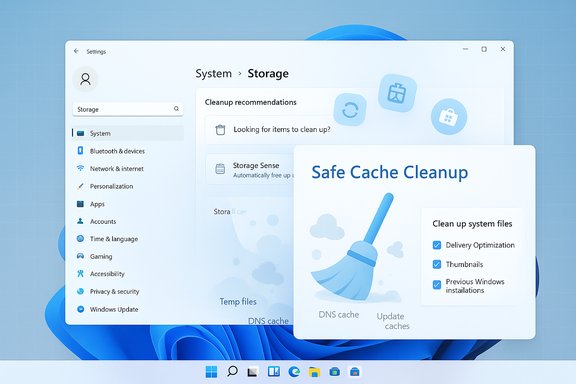
Windows 11’s Cleanup recommendations are designed to highlight high‑value, low‑risk targets: temporary files in Downloads and Recycle Bin, large files, and rarely used apps.How to run Cleanup recommendations:
- Open Start → Settings.
- Go to System → Storage.
- Click Cleanup recommendations.
- Review categories (Temporary files, Large or unused files, Files synced to cloud, Unused apps) and click Clean up for the items you want removed.
- Always review the Downloads list manually before mass deletion—important files often accumulate there.
- If a previous Windows install appears (Windows.old), deleting it frees many GB but permanently removes the rollback option—back up first.
Step 2 — Run Disk Cleanup (cleanmgr) for deeper system items
Disk Cleanup (cleanmgr.exe) remains a reliable tool for removing the OS-level junk Windows has left behind.How to use Disk Cleanup:
- Open Start and type Disk Cleanup. Launch the utility.
- Select the system drive (usually C
 .
. - Click Clean up system files to include Windows Update leftovers and Previous Windows installations.
- Check the boxes for Delivery Optimization Files, Temporary files, Thumbnails, and Previous Windows installations (if you’re sure you don’t need rollback). Click OK.
- Use the /sageset and /sagerun switches if you want to create a consistent scheduled cleanup profile (advanced users). Documentation for cleanmgr’s command options is on Microsoft Learn.
Step 3 — Storage Sense: automatic maintenance
Storage Sense can automate many of the manual cleanup tasks and run on a schedule.Enable and configure Storage Sense:
- Settings → System → Storage → Storage Sense.
- Toggle Storage Sense On and click Run Storage Sense now (or configure frequency and retention intervals). Storage Sense can remove temporary files, empty Recycle Bin items older than X days, and delete files in Downloads older than a set time.
- Storage Sense is conservative by default. Configure retention periods thoughtfully for Downloads and Recycle Bin to avoid accidental deletions.
Step 4 — Clear location history and app caches (privacy + space)
Location history:- Settings → Privacy & Security → Location → Location history → Clear. This wipes the small cache used by location‑aware apps and improves privacy.
- For UWP apps (installed from Microsoft Store), Settings → Apps → Installed apps → [App] → Advanced options → Reset will remove cached data and return the app to defaults (you may lose settings). Use wsreset.exe to clear the Microsoft Store cache without losing installed apps.
- Run dialog (Win + R) → type wsreset.exe → Enter. A blank command window appears and the Store reopens when complete. This is Microsoft’s supported first step for Store issues.
Step 5 — Flush the DNS cache (network responsiveness)
If web browsing or app connectivity feels inconsistent, flush the DNS resolver cache to force fresh name resolution.Commands:
- From Run or Command Prompt (no admin needed for the simple flush):
ipconfig /flushdns - PowerShell alternative (admin recommended):
Clear-DnsClientCache
Step 6 — Reset Winsock / renew IP (when network stacks behave badly)
If DNS flushes don’t fix socket errors or stubborn network problems, reset Winsock and renew DHCP leases.Commands (run in an elevated Command Prompt):
- netsh winsock reset
- ipconfig /release
- ipconfig /renew
Step 7 — Delivery Optimization and Update cache (advanced cleaning)
Delivery Optimization caches and SoftwareDistribution folders can grow large. Remove them only when you understand the tradeoffs.Safe cleanup via UI:
- Disk Cleanup → check Delivery Optimization Files. Or Settings → Storage → Temporary files → choose Delivery Optimization Files. This is the preferred UI route.
- Open elevated Command Prompt.
- net stop wuauserv
- net stop bits
- rename C:\Windows\SoftwareDistribution SoftwareDistribution.old
- rename C:\Windows\System32\catroot2 catroot2.old
- net start wuauserv
- net start bits
- Reboot and check Windows Update.
Risks:
- Removing update logs makes diagnosis harder; only perform this when troubleshooting update failures.
Step 8 — DISM and SFC: repairing the component store (when caches hint at corruption)
If updates fail repeatedly or system files appear corrupted, use DISM and SFC in sequence to repair the Windows component store and system files.Recommended sequence (elevated Command Prompt):
- DISM /Online /Cleanup-Image /RestoreHealth
- sfc /scannow
- If DISM can’t find repair sources online, you may need to supply an install image as the source. In rare cases, a repair install or clean install becomes the practical remedy.
Advanced caches and exactly when to touch them
- Thumbnail and icon cache: Usually safe to clear via Disk Cleanup → Thumbnails. Manually deleting thumbcache_*.db while Explorer is running can be risky—stop Explorer first.
- Prefetch: Windows uses prefetch to speed app launches. Manual clearing of Prefetch (C:\Windows\Prefetch) offers little benefit on modern systems and is generally unnecessary; only consider it when diagnosing corruption.
- Pagefile and hibernation: Changing pagefile behavior or clearing at shutdown can increase shutdown times and cause stability tradeoffs—note the performance/security tradeoff before editing registry keys. These are advanced actions for experienced users only.
When cleanup doesn’t help: next steps
If performance remains poor after comprehensive, safe cleanup:- Check Task Manager (Ctrl+Shift+Esc) for processes using CPU, disk, or memory. Disable unnecessary startup items.
- Run a full malware scan—malware often mimics cache‑related slowness.
- Inspect disk health (chkdsk and SMART tests) and confirm drive type—an HDD will never match an SSD for responsiveness. Consider SSD upgrade as the single biggest real‑world performance improvement.
A conservative, safe step‑by‑step routine you can run in under 15 minutes
- Backup important files; create a System Restore point.
- Settings → Windows Update → Check for updates; install pending updates.
- Settings → System → Storage → Cleanup recommendations — delete selected temp files and empty Recycle Bin.
- Open Disk Cleanup → Clean up system files → remove Delivery Optimization and old update files.
- Win + R → wsreset.exe (if Microsoft Store issues).
- Win + R → type: ipconfig /flushdns → Enter.
- Reboot and measure boot time and responsiveness. If still slow, run DISM /RestoreHealth and sfc /scannow.
Automation and good habits
- Turn on Storage Sense for periodic maintenance and avoid letting temporary files accumulate.
- Empty Recycle Bin and clean Downloads manually on a cadence (weekly for small drives, monthly for larger ones).
- Avoid third‑party “system optimizers” that promise dramatic improvements; many are aggressive, unreviewable, or harmful. Prefer built‑in tools and Microsoft‑documented commands.
Safety summary and risk matrix
- Low risk: Cleanup recommendations, Disk Cleanup, Storage Sense, wsreset.exe, ipconfig /flushdns. These are UI or documented commands and are safe for most users.
- Moderate risk: Stopping update services and renaming SoftwareDistribution or catroot2; requires elevated privileges and should be done only for update troubleshooting. Always rename rather than delete, and reboot.
- High risk (do with backup + restore point): Deleting Windows.old (irreversible rollback loss), manual deletion inside ProgramData or Windows directories, messy registry edits, or aggressive pagefile/hibernate changes. These actions can break apps or prevent rollbacks.
Measurement: how to know cleaning worked
- Check free disk space before and after (Settings → System → Storage). Several GB reclaimed often indicates update leftovers or Delivery Optimization files were removed.
- Time to desktop at cold boot (measure with a stopwatch or Task Manager boot record). Expect modest improvements if the system drive was near full.
- Task Manager responsiveness and reduced background disk usage immediately after cleanup. If a specific app was glitching, confirm whether the bug is resolved after clearing that app’s cache or resetting it.
Final analysis: realistic expectations, strengths, and limits
The strength of Windows’ approach to cache management is that it gives users layered, supported tools: Cleanup recommendations for safe quick wins, Disk Cleanup for deeper OS artifacts, Storage Sense for automation, and documented commands (wsreset.exe, ipconfig /flushdns, DISM/SFC) for targeted fixes. These options avoid third‑party risk and are generally safe when used as documented. However, cleaning is usually an incremental performance gain, not a cure‑all. If hardware is the bottleneck (low RAM, mechanical HDD), or if a misbehaving driver or malware is responsible, cleanup will only delay the inevitable need for upgrades or a deeper repair. Articles that promise to “wipe out lag for good” overstate the case—cleanup is essential maintenance but not a substitute for proper diagnostics and, when necessary, hardware investment.Quick reference: commands and paths
- Cleanup recommendations: Settings → System → Storage → Cleanup recommendations.
- Disk Cleanup (cleanmgr): Start → Disk Cleanup → Clean up system files. Alternatively use cleanmgr command switches documented on Microsoft Learn.
- Flush DNS: ipconfig /flushdns (or Clear-DnsClientCache in PowerShell).
- Reset Microsoft Store: wsreset.exe.
- Reset Winsock: netsh winsock reset (requires reboot).
- Repair component store: DISM /Online /Cleanup-Image /RestoreHealth then sfc /scannow.
- Delivery Optimization cache: Disk Cleanup → Delivery Optimization Files, or stop dosvc and manually clear ProgramData\Microsoft\Windows\DeliveryOptimization\Cache (advanced).
Keeping Windows lean is simple when approached methodically: start with UI tools, move to targeted commands only as needed, back up before risky changes, and measure improvements rather than chasing mythical instant speedups. Regular cleanup, paired with updates, a good antivirus habit, startup management, and sensible hardware choices, will keep a Windows 11 PC responsive and reliable.
Source: ZDNET How to clear your Windows 11 PC cache (and put a stop to lag for good)
