

Autoruns from Sysinternals gives you the most complete view of everything Windows starts automatically, and when used carefully it’s the single best free tool to diagnose and shrink the work Windows does during boot and sign‑in.
Boot time is a chain of stages: firmware POST/UEFI device enumeration, kernel and driver initialization, system services starting, and finally user‑session autostarts and scheduled tasks. Trimming only the visible Startup list in Task Manager is useful, but many autostarts live in less obvious places — Registry Run keys, scheduled tasks, shell extensions, drivers and AppInit DLLs — and that’s where Autoruns delivers value by exposing everything in one place.
This feature piece explains what Autoruns is, how it works, how to install and operate it safely, and how to combine it with measurement and other Sysinternals tools to reliably speed up Windows boot and sign‑in. Recommendations are careful, reversible and focused on practical improvements rather than sweeping or risky changes.
Tools and measurements to use:
The risk is user error: disabling the wrong thing can break printing, backups, network access, or security tools. That risk is mitigated by the recommended approach: create a restore point, disable rather than delete, make one change at a time and measure. Follow the conservative examples (don’t touch core Windows services) and you keep the downside low while gaining the upside of a faster, cleaner startup.
Autoruns is not a malware removal tool but a diagnostic aid: it helps reveal persistent malicious autostarts that require antivirus or specialized cleanup to remove; use VirusTotal and signature checks as part of your investigation, then remediate with appropriate security tools.
Source: Windows Report Autoruns Sysinternals Explained: Speed Up Windows Boot Time
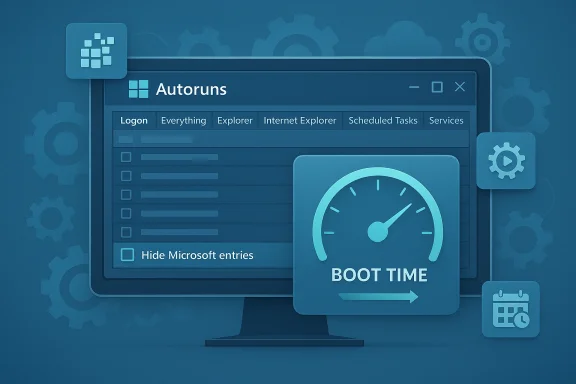 Background / Overview
Boot time is a chain of stages: firmware POST/UEFI device enumeration, kernel and driver initialization, system services starting, and finally user‑session autostarts and scheduled tasks. Trimming only the visible Startup list in Task Manager is useful, but many autostarts live in less obvious places — Registry Run keys, scheduled tasks, shell extensions, drivers and AppInit DLLs — and that’s where Autoruns delivers value by exposing everything in one place.This feature piece explains what Autoruns is, how it works, how to install and operate it safely, and how to combine it with measurement and other Sysinternals tools to reliably speed up Windows boot and sign‑in. Recommendations are careful, reversible and focused on practical improvements rather than sweeping or risky changes.
What Autoruns (Sysinternals) actually does
Autoruns enumerates every autostart location that Windows supports and lists items in readable tabs so you can decide what to disable, test, or remove. Key capabilities:- Shows autostarts that Task Manager does not (Registry Run/RunOnce, AppInit, Explorer shell extensions, services, drivers, scheduled tasks).
- Lets you disable entries by unchecking them, or delete entries when you’re certain they’re orphaned.
- Can filter out Microsoft entries to reduce noise and focus on third‑party additions.
- Integrates reputation checks (code signature verification and VirusTotal lookups) so you can flag suspicious items before removing them.
Downloading and installing Autoruns
Autoruns is a portable utility — there’s no installer — and the correct executable depends on your Windows architecture. The typical, safe installation workflow:- Download the Autoruns ZIP from the Microsoft Sysinternals page and extract it to a folder you control.
- Use Autoruns64.exe on 64‑bit Windows and Autoruns.exe on 32‑bit Windows. Run the executable with administrative privileges to see system‑wide entries.
How to use Autoruns to clean startup — a safe, step‑by‑step workflow
Autoruns is powerful — and with power comes risk. The following ordered process minimizes chance of accidental breakage and maximizes measurable improvement.1. Measure before you change
Before throttling startup items, record objective boot metrics so you can attribute gains or regressions to individual changes. Two recommended measurements:- Event Viewer → Applications and Services Logs → Microsoft → Windows → Diagnostics‑Performance → Operational, Event ID 100 (BootDuration). This is Windows’ recorded boot time.
- A user‑facing timer such as BootRacer or a manual stopwatch to measure perceived time to usable desktop; BootRacer excludes password entry and is commonly used alongside Event Viewer.
2. Start with Task Manager (low risk, high return)
Open Task Manager → Startup and disable obvious, nonessential apps (cloud sync clients, chat/IM, game launchers, vendor updaters). This is reversible and often provides immediate perceived improvement. Use the Startup impact column to prioritize big offenders and don’t disable security agents.3. Run Autoruns as Administrator and inspect the Logon tab
Launch Autoruns64.exe elevated, let it populate, then open the Logon tab to review programs that run at user sign‑in. For safety:- Check “Hide Microsoft entries” to focus on third‑party items.
- Uncheck items you recognize as unnecessary (this disables but does not delete).
- Right‑click an entry and choose Delete only if you’re sure the program is uninstalled or the entry is orphaned.
4. Sweep the Everything tab for remnants
The Everything view shows drivers, scheduled tasks, services and shell extensions. Look for:- Drivers and services that point to vanished software directories.
- Scheduled tasks with At startup / At logon triggers that run updaters or telemetry. Task Scheduler (taskschd.msc) will also show triggers and actions generically, but Autoruns shows them in one list.
5. Use reputation and signature checks for safety
In Autoruns’ Options menu enable Verify code signatures and Check VirusTotal.com. Refresh the display and review reputation scores. Disable or remove entries with unknown signatures or poor VirusTotal reputations, but always research unusual names before deleting — legitimate — but unusual vendor components can be misflagged.Measuring impact and iterating safely
A methodical, single‑change approach is critical: change one or two items, reboot three times, record Event ID 100 and BootRacer. Repeat until diminishing returns. This stepwise process isolates which tweak produced the improvement and guards against cumulative changes that accidentally break functionality.Tools and measurements to use:
- Event Viewer Event ID 100 for OS‑level boot duration.
- BootRacer (user‑facing timing) or a stopwatch.
- Windows Performance Recorder/Analyzer for advanced traces when a stubborn driver or service is holding up the boot. Use WPA only if basic steps fail; it provides driver‑level breakdowns at the cost of complexity.
Advanced Autoruns features and integrations
Autoruns plays well with other Sysinternals and Windows tools:- Process Explorer: For live process inspection and to connect an autostart entry to a running process for diagnosis.
- Sysmon: For persistent activity logging if you suspect malicious persistence not removed by simple disabling. Use Sysmon to capture telemetry for later analysis.
- VirusTotal integration inside Autoruns: quick sanity checks that reduce risk of deleting benign but signed items without research.
Common fixes and what to watch for
- Remove orphaned vendor updaters and helper agents that survive uninstalls. These are frequent causes of hidden autostarts and redundant background work.
- Disable or set nonessential third‑party services to Manual (printer spooler if you don’t print from the machine is a common safe test). Always test after each change.
- SysMain (formerly Superfetch) is a commonly debated candidate: on many SSD systems it provides little benefit and can be tested by setting it to Manual and monitoring impact. Re‑enable if app‑launch profiles or perceived performance regress.
- Scheduled tasks are frequently overlooked: look for tasks that run At startup or At logon and disable unnecessary ones. These often trigger updates or telemetry immediately after login and add I/O spikes.
Risks, caveats and safe practices
Autoruns is powerful and can break things if used without care. Key safety points:- Always prefer unchecking (disabling) over deleting. Uncheck first, test, then delete only when you’re confident.
- Do not disable essential Windows services (Windows Update, Windows Security, core networking services, GPU driver services required for display) unless you have a tested alternative. If in doubt, set the service to Manual rather than Disabled.
- Fast Startup (hybrid shutdown) is a separate Windows feature that saves the kernel session to hibernation and restores it on boot. It shortens boot time in many setups but has tradeoffs for dual‑boot and BitLocker scenarios; toggle and test with measurement. Autoruns does not control Fast Startup but complements its effect by removing extra work that runs after kernel restoration.
- Firmware (BIOS/UEFI) and hardware behavior can dwarf software tweaks. If POST/UEFI enumeration is the bottleneck, move the Windows drive to the top of the boot order and consider firmware Fast Boot where acceptable. These changes are outside Autoruns but are part of a complete boot optimization plan.
- Firmware and SSD firmware updates carry risk — back up data and follow vendor instructions when updating drive firmware. Vendor tools (Samsung Magician, WD Dashboard, Crucial Storage Executive) are the right path for firmware updates and over‑provisioning recommendations.
Realistic expectations — what wins to expect
- Immediate, visible wins often come from disabling large startup games/launchers, cloud sync clients and redundant vendor updaters. These are low risk and easy to test.
- Larger systemic gains usually come from a layered approach: firmware boot order optimizations, Fast Startup, storage housekeeping (TRIM / over‑provisioning / SSD firmware), and pruning hidden autostarts with Autoruns. Combined, these produce the most consistent reductions in cold boot time.
- Card‑carrying realism: absolute boot‑time numbers vary with CPU, NVMe controller, firmware, attached devices and installed drivers. Avoid promises of universal “10‑second boots”; treat published examples as typical, not guaranteed. Measure your machine.
A practical 20‑minute checklist (ordered, reversible)
- Create a System Restore point.
- Measure baseline: Event ID 100 and BootRacer (three cold boots).
- Task Manager → Startup: Disable obvious, nonessential items. Reboot; measure.
- Run Autoruns as Administrator; hide Microsoft entries; uncheck unnecessary Logon items. Reboot; measure.
- Check Everything tab; disable orphaned scheduled tasks and nonessential services (set to Manual first). Reboot; measure.
- If firmware time dominates (Task Manager → Startup → Last BIOS time is high), enter UEFI and move system drive to top of boot order; consider enabling firmware Fast Boot after assessing tradeoffs. Reboot; measure.
- Use VirusTotal and signature checks in Autoruns for questionable items before deleting.
When Autoruns won’t fix it — next steps
If autorun pruning, service tweaks and firmware changes don’t resolve slow boots:- Check storage health and firmware; SSD behavior and drive latency are common underlying causes. Use vendor tools to check SMART and firmware.
- Capture a Windows Performance Recorder boot trace and analyze with Windows Performance Analyzer to identify driver or service delays at the driver level. This is advanced but definitive.
- Consider hardware upgrades (NVMe SSD) if the platform is old or the drive is the bottleneck; software tweaks are complementary to hardware improvements, not always a replacement.
Final analysis — strengths and risks, in plain terms
Autoruns’ primary strength is visibility. No other free utility exposes autostarts across Registry, services, drivers and scheduled tasks in a single, filterable interface. For troubleshooting slow boots and unusual background activity this visibility significantly reduces time-to-root-cause compared to guessing.The risk is user error: disabling the wrong thing can break printing, backups, network access, or security tools. That risk is mitigated by the recommended approach: create a restore point, disable rather than delete, make one change at a time and measure. Follow the conservative examples (don’t touch core Windows services) and you keep the downside low while gaining the upside of a faster, cleaner startup.
Autoruns is not a malware removal tool but a diagnostic aid: it helps reveal persistent malicious autostarts that require antivirus or specialized cleanup to remove; use VirusTotal and signature checks as part of your investigation, then remediate with appropriate security tools.
Conclusion
Autoruns from Sysinternals is an indispensable, low‑cost (time, not money) specialist’s tool for anyone who wants to reduce Windows boot time or understand hidden autostarts. When combined with careful measurement (Event Viewer Event ID 100 and BootRacer), conservative operations (disable before delete, one change at a time), and complementary firmware and storage housekeeping, Autoruns helps produce consistent, verifiable improvements in boot and sign‑in responsiveness. The payoff is clarity — and a faster, more predictable Windows experience — without spending on new hardware unless you hit the point of diminishing returns.Source: Windows Report Autoruns Sysinternals Explained: Speed Up Windows Boot Time
