

When your Windows PC starts to drag, a quick, low‑risk toolkit can often deliver the most visible improvement without a full reinstall: reclaim disk space, remove accumulated junk, and make file search and discovery snappier. The three free utilities I reach for first—WinDirStat, BleachBit, and Everything—each solve a distinct, high‑value problem. WinDirStat gives a visual map of storage hogs so you stop guessing where space went. BleachBit safely removes caches, temporary files, and traces that quietly bloat systems and slow workflows. Everything replaces slow native file search with an almost instant index that finds files by name the moment you start typing. Together they form a fast, lightweight triage that often makes a sluggish PC feel noticeably better in under an hour.
Windows systems accumulate performance friction for a handful of predictable reasons: full or fragmented drives, oversized app caches and temporary files, many startup items, and user data scattered across folders. Built‑in tools—Storage Sense, Disk Cleanup, Optimize Drives and Task Manager—address a large share of common problems. Third‑party utilities like WinDirStat, BleachBit and Everything are not replacements for proper troubleshooting or hardware upgrades, but they provide targeted, efficient ways to reclaim space, remove clutter, and speed daily tasks with minimal risk and no cost. Use them as the first tier of a measured maintenance workflow before you escalate to registry edits, driver surgery, or OS resets.
Caution: some historical security issues and functionality differences exist between versions of these projects—always download the current stable releases and consult official release notes if you plan to run advanced features (wiping, network servers, or system‑wide cleanups). If a claim in this piece seems time‑sensitive (for example, a recent vulnerability fix or a change to a paid/free model), verify the project’s release notes before proceeding.
Source: How-To Geek 3 free Windows tools I use to revive sluggish PCs
 Background
Windows systems accumulate performance friction for a handful of predictable reasons: full or fragmented drives, oversized app caches and temporary files, many startup items, and user data scattered across folders. Built‑in tools—Storage Sense, Disk Cleanup, Optimize Drives and Task Manager—address a large share of common problems. Third‑party utilities like WinDirStat, BleachBit and Everything are not replacements for proper troubleshooting or hardware upgrades, but they provide targeted, efficient ways to reclaim space, remove clutter, and speed daily tasks with minimal risk and no cost. Use them as the first tier of a measured maintenance workflow before you escalate to registry edits, driver surgery, or OS resets.WinDirStat: visualize where your disk space went
What it is and what it does
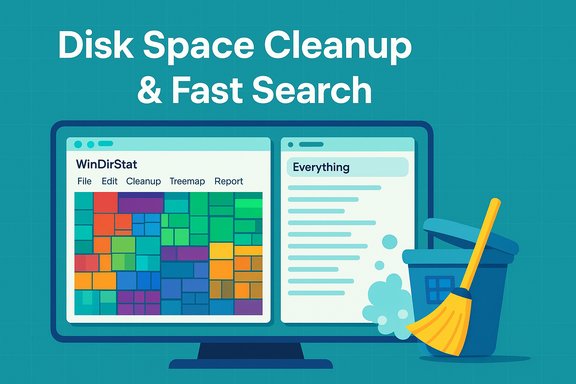
WinDirStat is a free disk usage analyzer for Windows that scans drives and renders a treemap—a colorful, scaled mosaic where each rectangle represents a file and its area corresponds to file size. This visual layout immediately exposes unusually large files, forgotten ISOs, virtual disks, caches, and other space sinks that standard folder browsing can hide. The treemap pairs with a directory list and file‑type legend so you can click a block and immediately locate the file on disk for deletion or relocation. The treemap concept and WinDirStat’s implementation are documented in its help and user guides; it’s a proven way to go from “somewhere on this disk” to the exact folder in seconds.Why it helps sluggish systems
Low free space is one of the most common and underappreciated causes of sluggishness: Windows needs free space for paging, update staging, and temporary file usage. Reclaiming even a few gigabytes on a nearly full drive often removes immediate bottlenecks. WinDirStat’s strength is investigative: it prevents accidental deletion by showing you exactly which files are largest and where they live, so you can make safe decisions rather than deleting blindly. Practical troubleshooting guides consistently list a treemap scan as the first step when drive capacity doesn’t match expectations.How to use WinDirStat safely and effectively
- Download and run WinDirStat, then choose the drive(s) you want to scan.
- Let it complete the scan; the treemap appears when indexing finishes.
- Identify the largest rectangles (big files). Hover to see file path and size.
- Use the directory list to confirm a file’s role before deleting (for example, don’t delete a Windows system file).
- If you find large app caches or installers you no longer need, move them to an archive drive or delete after backing up.
- Reboot and verify improvements in free space and perceived responsiveness.
Risks and caveats
WinDirStat shows raw disk usage; it won’t tell you whether a given large file is critical. Always verify file ownership and function before deletion (system folders, program files, and Pagefile/hiberfil should be treated with care). For stubborn system stores (Windows.old, WinSxS), prefer the built‑in Disk Cleanup and DISM workflows rather than manual deletion.BleachBit: transparent, open‑source cleanup and privacy tools
What BleachBit does best
BleachBit is a lightweight, open‑source cleaner for Windows and Linux focused on removing application and OS debris: browser caches, caches from editors and media apps, temporary files, logs, and leftover installer fragments. Beyond freeing space, BleachBit offers shredding (overwrite deletes) and wipe free space options to reduce recoverability of deleted files—useful if you’re disposing of a machine or handling sensitive data. It intentionally avoids bundled advertising, telemetry and background services common in many consumer “PC cleaners.” The project explicitly positions itself as a privacy tool as well as a space cleaner.Practical benefits for a slow PC
- Frees disk space occupied by large caches (browsers, media apps).
- Removes log files and transient artifacts that can grow unchecked on long‑lived machines.
- Reduces clutter that slows backup, antivirus scanning, and indexing operations.
These effects are incremental but unobtrusive—BleachBit’s biggest wins are cumulative and safe when used with preview and conservative selections.
How to run BleachBit safely
- Run BleachBit in Preview mode first to see what will be removed.
- Avoid the “Select All” temptation; choose only items you understand (cache and temp files are safe for most users).
- When in doubt, back up important data or create a System Restore point before shaving system files.
- Use the shredding and wipe free space features only when you understand the limitations around SSDs (see caveat below).
Important cautions and verifications
- BleachBit is open‑source, which reduces—but does not eliminate—risk. Community review helps surface issues faster, but security history matters: older Windows builds had DLL‑related vulnerabilities that were addressed in later releases. Always use the latest stable BleachBit and download from official distribution channels.
- SSDs and shredding: Overwriting free space on modern SSDs does not guarantee data cannot be recovered due to wear‑leveling and remapped sectors. For disposal, prefer full‑disk encryption (BitLocker) or the drive manufacturer’s secure‑erase utility rather than overwrite passes. Documentation and privacy discussions recommend these safer approaches. If you need to obscure deleted files on an SSD, enable device encryption and then securely erase via vendor tools or perform a cryptographic erase.
Community feedback and limitations
User reviews praise BleachBit’s transparency and lack of bloat; some community threads and audits have raised issues in the past (for specific older versions), but publicly tracked fixes and a steady release cadence show responsiveness. BleachBit deliberately lacks scheduled background cleaning and the marketing tactics found in commercial cleaners—good for privacy, but less convenient for users who want automation.Everything (VoidTools): search that feels instantaneous
How Everything works
Everything by VoidTools builds a lightweight index of file names on NTFS volumes and keeps it up to date in real time. Indexing is fast (often a few seconds on modern disks) because Everything indexes only file paths and names by default; optional metadata (size, dates, attributes) can be added at a memory cost. The result is immediate search results as you type, vastly faster than Windows’ built‑in search in many scenarios. Everything also supports advanced query operators, filters, bookmarkable searches, and remote access options for advanced users.Why fast search matters for perceived performance
When you can find files in a few keystrokes, day‑to‑day productivity improves. Locating a misplaced document, an installer, or a config file usually becomes faster with Everything than by drilling through nested directories. In maintenance workflows it also helps you locate large or old files WinDirStat highlights, so the two tools complement one another: WinDirStat exposes the problem, Everything helps you act on it immediately.Using Everything safely and efficiently
- Install Everything and let it build the initial index (takes a few seconds).
- Type partial filenames to get instant results; use filters (audio:, video:, size:>1gb) for precision.
- Consider running Everything as an elevated service if you need to index files across multiple accounts or system locations.
- Disable content indexing—Everything does not index file contents by default; content searches are slow and require extra filters. For most users, filename search alone is what speeds workflows.
Privacy and safety considerations
Everything stores its small database locally and does not send your file listing to remote services by default. If you enable the HTTP or ETP server features, be mindful of the network exposure and protect access with appropriate firewall and authentication controls. Community guides emphasize using Everything as a local tool unless you specifically need remote file discovery.A combined maintenance workflow: three tools, one quick rescue
Use these tools in sequence for a fast, low‑risk triage that addresses the most common causes of sluggishness:- Quick backups and checkpoints
- Create a System Restore point or a file backup. This is lightweight and preserves a rollback path if cleanups remove something important.
- Visual diagnosis with WinDirStat
- Scan the system drive. Identify large unexpected files and folders. Make a short list of candidates for removal or archival.
- Focused cleanup with BleachBit
- Run BleachBit in Preview mode, uncheck anything you’re unsure about, and clean caches, temp files, and unused installer remnants. Use shredding only when appropriate.
- Find and remove the exact files with Everything
- If WinDirStat showed a large file in a deep path, use Everything to locate all occurrences of that filename pattern and confirm before deleting. Everything speeds locating duplicates or scattered caches.
- Verify system behavior
- Reboot, check free space and Task Manager for reductions in disk I/O and startup items. If performance hasn’t improved, escalate: check for malware, test drive health (SMART), and examine memory pressure.
- Schedule light maintenance (optional)
- Enable Storage Sense for automatic background trimming and use Everything/WinDirStat periodically when you suspect accumulation. BleachBit lacks built‑in scheduling—pair it with a manual checklist or a scheduled script if you need automation.
Deeper troubleshooting and when these tools won’t be enough
These three utilities fix common, surface‑level causes of slowness, but they won’t defeat hardware limitations or persistent system corruption.- If Task Manager shows sustained 90–100% memory usage, adding RAM is the correct fix. Software cleaning will only mask the symptom.
- If your boot drive is a slow mechanical HDD, migrating Windows to an SSD yields the most consistent improvement in responsiveness; this is a hardware upgrade, not a cleaner solution.
- Malware and unwanted background processes (run a full AV scan).
- Misbehaving software (profiling with Resource Monitor / Process Explorer).
- Log or temp directories being written to aggressively (identify with WinDirStat and trace creators).
- DISM /Online /Cleanup‑Image /RestoreHealth
- sfc /scannow
These Microsoft tools repair component store corruption and replace damaged system files, and they’re the recommended escalation after safe cleaning operations.
Strengths, risks, and verification checklist
Strengths
- Low barrier to entry: all three tools are lightweight, free, and fast to run.
- Complementary scope: treemap analysis (WinDirStat) + safe cleanup (BleachBit) + instant search (Everything) tackle storage, clutter, and discoverability separately but coherently.
Risks and limitations
- Accidental deletion: WinDirStat shows size but not file importance. Always verify before deletion.
- BleachBit deletes permanently—no undo. Preview before clean and avoid aggressive selections on unfamiliar systems. Also watch for historical vulnerabilities in older builds; keep BleachBit updated.
- SSD realities: overwriting free space on SSDs is not a reliable secure‑erase method. Use encryption or vendor secure‑erase tools for disposal.
- Everything exposes indices if you enable network features—harden access if you turn on remote services.
Verification checklist (before you run anything)
- Backup important files or create a system image (quick insurance).
- Confirm downloads come from official project pages or trusted repos.
- Run BleachBit in Preview mode; do not select everything blindly.
- Use WinDirStat’s treemap to confirm which files will be removed and why.
- Keep a clear rollback plan (System Restore or recent full backup) if you plan aggressive cleaning of system components.
Alternatives and complements
If you prefer graphical alternatives or need additional functionality, consider:- WizTree or TreeSize Free for fast tree maps with different performance characteristics.
- Revo Uninstaller for stubborn app removal and leftover cleanup when uninstallers fail.
- Built‑in Windows tools: Storage Sense, Disk Cleanup (cleanmgr), and Optimize Drives for conservative, Microsoft‑supported cleanups and drive maintenance. These native tools are safe baselines before third‑party interventions.
Conclusion
When a Windows PC starts to feel sluggish, start with three inexpensive, fast, and effective steps: visualize disk usage with WinDirStat, clean debris with BleachBit, and search and act quickly with Everything. This trio addresses the most common, fixable sources of perceived slowness—disk bloat, accumulated app clutter, and slow file discovery—without heavy installs, background telemetry, or paid upsells. Use the tools conservatively: preview deletes, back up before major changes, and prefer built‑in Windows procedures for system or component store removals. For many older or heavily used machines, these three free utilities will deliver measurable improvements in space and responsiveness within an hour; when they don’t, their diagnostics will point you to the next right step—malware scanning, hardware upgrades, or a deeper system repair.Caution: some historical security issues and functionality differences exist between versions of these projects—always download the current stable releases and consult official release notes if you plan to run advanced features (wiping, network servers, or system‑wide cleanups). If a claim in this piece seems time‑sensitive (for example, a recent vulnerability fix or a change to a paid/free model), verify the project’s release notes before proceeding.
Source: How-To Geek 3 free Windows tools I use to revive sluggish PCs
