

A sluggish PC is rarely a mystery—most slowdowns are caused by a predictable mix of background apps, storage pressure, aging hardware, and intermittent software corruption—and many of them can be fixed in minutes or cured permanently with one targeted upgrade. This feature compiles a practical, technician‑grade workflow for speeding up Windows PCs in 2026, combining quick 10‑minute wins, safe system checks, and hardware recommendations that deliver the largest real‑world impact.
Computers accrue performance debt as software, drivers, and cached files build up, and modern Windows systems are no exception. Basic housekeeping—restarting, removing unneeded startup programs, clearing disk clutter and running malware scans—still accounts for the majority of recoverable speed. Community guides and diagnostic threads reinforce the same fundamental checklist: trim startup items, free space on the system drive, confirm Windows updates and drivers are current, and consider storage or RAM upgrades for long‑term gains.
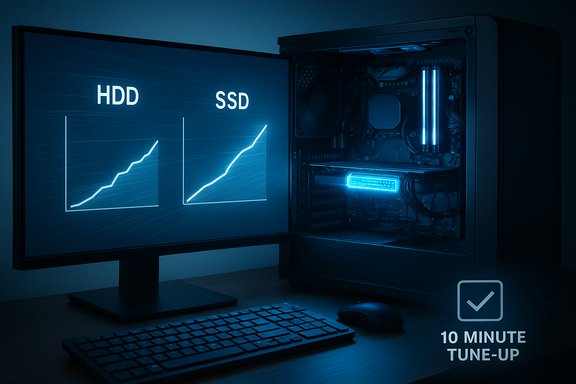
At the same time, some technical specifics have measurable effects: replacing an HDD with an SSD typically produces the single most obvious responsiveness improvement, while adding RAM reduces paging and multitasking bottlenecks. These hardware facts are supported by vendor and independent benchmark data that show NVMe drives delivering very large gains in latency and throughput compared with spinning disks.
Limitations and trade‑offs include the fact that software tweaks can only mitigate bottlenecks—fundamental CPU or architectural limits remain unless hardware is upgraded. Some tweaks (Fast Startup, manual page file changes, disabling services) have side effects; changes should be reversible and tested. Finally, published vendor performance numbers are useful for comparison but do not translate directly into guaranteed end‑user boot times because platform differences matter.
Source: 9meters How to Speed Up Computer: Effective Techniques for 2026 - 9meters
 Background
Computers accrue performance debt as software, drivers, and cached files build up, and modern Windows systems are no exception. Basic housekeeping—restarting, removing unneeded startup programs, clearing disk clutter and running malware scans—still accounts for the majority of recoverable speed. Community guides and diagnostic threads reinforce the same fundamental checklist: trim startup items, free space on the system drive, confirm Windows updates and drivers are current, and consider storage or RAM upgrades for long‑term gains.At the same time, some technical specifics have measurable effects: replacing an HDD with an SSD typically produces the single most obvious responsiveness improvement, while adding RAM reduces paging and multitasking bottlenecks. These hardware facts are supported by vendor and independent benchmark data that show NVMe drives delivering very large gains in latency and throughput compared with spinning disks.
Overview: What to do first (the 10‑minute checklist)
These are the highest‑ROI steps you can apply immediately. They’re safe, reversible, and will often produce a noticeable snappier feel right away.- Restart the PC — a full reboot clears temporary memory pressure and completes pending updates.
- Stop runaway processes — open Task Manager (Ctrl+Shift+Esc) and sort by CPU / Memory / Disk to end obvious resource hogs.
- Trim startup apps — disable nonessential items on the Startup tab so fewer programs load at sign‑in.
- Free space on C: — run Disk Cleanup or Storage Sense to delete temporary files and old update packages.
- Run a quick antivirus scan (Windows Security or your preferred tool).
- Check Task Manager’s Performance tab to confirm where the bottleneck is (CPU, Memory, Disk, or GPU).
Background housekeeping — software steps that matter
1) Manage startup programs and background apps
Excess startup items increase boot time and immediately reduce available RAM after login. Use Task Manager → Startup to review impact ratings and disable anything nonessential (cloud syncs, chat clients, game launchers, updaters). For Universal Windows apps, check Settings → Apps → Startup or the app’s own options to prevent background activity. Triage conservatively: keep security and backup clients enabled unless you have an alternate plan.2) Clear local storage and avoid an overfull system drive
Windows performs poorly when the system drive is nearly full. Use Storage Sense or Disk Cleanup to remove:- Temporary files and caches
- Old Windows update packages (Disk Cleanup → Clean up system files)
- Large downloads or duplicate installers
3) Keep Windows and drivers current
Microsoft delivers performance and reliability fixes via Windows Update; GPU and storage drivers also affect performance. Check Settings → Update & Security → Windows Update and Optional Updates for driver packages. For graphics, use vendor tools (NVIDIA GeForce Experience, AMD Adrenalin, Intel Driver & Support Assistant) but create a restore point before major driver swaps.4) Scan and remove malware
Malware can silently consume CPU, network, and disk resources. Windows Security (Microsoft Defender) provides real‑time protection and on‑demand full scans; supplementary tools like Malwarebytes can help detect stealthy items. Run at least a quick or full scan when you suspect sudden slowdowns. Microsoft recommends running Defender and explains on‑demand scans and Intune controls for managed environments.5) Repair corrupted system files with DISM and SFC
If you see odd errors or persistent slowness after cleanup, scan and repair system files:- Open an elevated Command Prompt.
- Run: DISM /Online /Cleanup‑Image /RestoreHealth
- Then run: sfc /scannow
Storage: why the boot drive matters and how to optimize it
SSD vs HDD — the single biggest upgrade
Replacing a mechanical HDD with an SSD yields the clearest, most consistent user‑perceived speed boost: faster boot times, snappier app launches, and lower latency for file I/O. Modern NVMe drives (PCIe 4.0 and beyond) raise that bar further, with vendor and lab benchmarks showing sequential read speeds in the multiple GB/s range and very high random‑IOPS numbers that matter for OS responsiveness. But real‑world improvements also depend on your CPU, firmware/UEFI, and which apps run at startup. Cross‑check (practical expectations): a typical SATA SSD will often reduce a multi‑minute HDD cold boot to tens of seconds; NVMe drives can shorten that further, but claiming a precise “10×” improvement for every system is misleading—results vary by platform and configuration. Treat published speed numbers as device‑level metrics, not guaranteed end‑user boot times.SSD upkeep (TRIM, firmware, and Windows handling)
Windows automatically enables TRIM for SSDs and manages scheduled optimization (the Optimize Drives utility). There’s usually no need for third‑party “SSD optimization” tools; keeping firmware up to date with the SSD vendor’s utility and letting Windows handle TRIM is the recommended approach. You can manually run Optimize Drives or adjust the schedule if you prefer. Use fsutil behavior query DisableDeleteNotify to confirm TRIM status on older systems.If you must use an HDD — defragment correctly
Defragmentation helps mechanical drives by reorganizing files for less seek time. Windows’ Optimize Drives will automatically defragment HDDs and use TRIM for SSDs, so rely on the built‑in tool rather than running third‑party defrag tools on SSDs.Memory and virtual memory tuning
RAM matters more than tweaking page file
If your system routinely shows high memory pressure (Task Manager → Memory near 90–100% under normal use), adding physical RAM is the most effective fix. For light systems, 8 GB is considered the minimum for modern Windows usage, and 16 GB is a pragmatic recommendation for multitasking, modern browsers, and mainstream productivity. Windows 11’s documented minimum is 4 GB, but practical usability benefits from more memory. If you can’t add RAM immediately, adjust virtual memory cautiously: System Properties → Advanced → Performance Options → Advanced → Virtual Memory, and prefer “System managed” unless you have a measured reason to set a custom size. Remember: page file is disk‑backed and much slower than RAM—raising it helps stability but does not replace physical memory.Visual effects, power plans and thermal management
Disable or tune animations
Disabling animations and nonessential visual effects reduces GPU and CPU overhead and makes UI operations feel instantaneous, especially on low‑end hardware. Use System Properties → Performance Settings to select “Adjust for best performance” or a custom set of animations to keep. This is reversible and low risk.Use appropriate power mode
Set Power & battery → Power mode to “High performance” or “Best performance” when plugged in and doing heavy work; switch back to balanced for battery longevity. High performance prevents aggressive CPU down‑clocking during workload peaks but may increase heat and fan noise.Cooling and thermal throttling
Dust buildup and degraded cooling cause thermal throttling, which reduces CPU/GPU clocks and causes sustained slowdowns. Clean fans and vents, verify the CPU cooler mounting, and consider replacing dried thermal paste on older desktops to restore thermal performance. These mechanical fixes can recover CPU performance lost to heat and are especially useful on older systems.Network and browser performance
- Trim browser extensions, clear cached data, and enable features like sleeping tabs or memory saver modes to reduce memory pressure from heavy browsing sessions.
- For online gaming, prioritize QoS on the router and reduce background sync operations during play. Network lag is separate from system slowness but interacts with perceived responsiveness in multiplayer and streaming scenarios.
Advanced diagnostics and safe procedures
Measure first, change one thing at a time
To avoid chasing phantom improvements, measure boot times and resource usage before and after changes. Use Event Viewer Diagnostics‑Performance and Task Manager’s Startup impact, or a simple stopwatch for reproducible app‑launch tests. Make one change at a time and record results to know which tweak delivered the win.When to perform a clean Windows install
If accumulated bloat, driver conflicts, or persistent corruption resist repair, a fresh install or a Reset (keeping files or starting clean) often restores original performance. Back up data first. Use SFC/DISM to attempt repairs before reinstalling. Microsoft documents the recommended repair sequence: DISM → SFC → manual repair or reinstall.Boot tracing and professional tools
For stubborn boots, Windows Performance Recorder (WPR) and Windows Performance Analyzer (WPA) can identify specific driver or service delays. This is advanced but gives definitive, actionable data about which driver, service, or scheduled task is blocking the boot sequence. Community troubleshooting often escalates to this level when basic steps don’t resolve boot latency.Hardware upgrade roadmap (what to buy and why)
- SSD (first upgrade): migrate your OS to an NVMe or SATA SSD. NVMe (M.2) yields the largest jump for modern systems; vendors report sequential reads of multiple GB/s on Gen4 drives, translating to much faster application loads. Verify motherboard compatibility (M.2 slot and PCIe generation).
- RAM (second): move to at least 8 GB for basic responsiveness, 16 GB for comfortable multitasking and browser tab loads. Check your laptop or desktop max supported configuration and match RAM speed/latency for best results.
- GPU/CPU: upgrade only for workloads that require raw compute (gaming, video editing, 3D rendering). For general desktop snappiness, a fast SSD and sufficient RAM are higher‑value upgrades.
Common pitfalls, trade‑offs and safety notes
- Fast Startup speeds reboots by hibernating kernel state, which can make driver or dual‑boot workflows behave oddly; disable it when flashing firmware or using multi‑OS configurations. Microsoft and community support threads document compatibility caveats—test Fast Startup before relying on it.
- Don’t overuse “one‑click” optimization suites simultaneously; multiple cleaning/optimizing utilities can conflict and create instability. Community experience warns against aggressive debloat scripts that remove system components.
- SSD firmware updates and partition resizing carry risk—always back up before flashing firmware or changing partitions. Some vendors provide utilities for firmware updates; heed vendor instructions.
A recommended troubleshooting sequence (practical step‑by‑step)
- Create a backup and a System Restore point.
- Measure baseline: note cold boot time (Event Viewer ID 100 or stopwatch), memory and disk use in Task Manager.
- Reboot. Run a full antivirus scan.
- Disable nonessential startup apps (Task Manager → Startup). Reboot and re‑measure.
- Free at least 10–20% of the C: drive using Storage Sense or Disk Cleanup. Reboot and re‑measure.
- Run DISM /Online /Cleanup‑Image /RestoreHealth then sfc /scannow. Reboot.
- If disk is HDD and boot/test results remain slow, plan an SSD migration for the OS drive. If Memory pressure persists, install more RAM.
- For stubborn slow boots, capture a WPR boot trace and analyze with WPA or escalate to a local technician.
Measuring success — what “faster” should look like
- Boot time: expect a measurable reduction after disabling high‑impact startup items and moving to an SSD. Use Event Viewer boot diagnostics for reproducible numbers.
- App launch times: a responsive system will open heavy apps (browser with tabs, IDE) in noticeably fewer seconds; measure with a stopwatch.
- Resource headroom: Task Manager should show lower baseline memory and disk usage after cleanup. If memory stays high, add RAM.
Final analysis: strengths, limitations and realistic expectations
The strengths of the approach above are its layered logic: low‑risk, high‑return housekeeping steps first; measurement and repair next; then targeted hardware upgrades (SSD, RAM) that deliver permanent, observable gains. The community and vendor documentation both point to the same conclusion: most users get their biggest, most cost‑effective improvement from storage and memory upgrades plus consistent system maintenance.Limitations and trade‑offs include the fact that software tweaks can only mitigate bottlenecks—fundamental CPU or architectural limits remain unless hardware is upgraded. Some tweaks (Fast Startup, manual page file changes, disabling services) have side effects; changes should be reversible and tested. Finally, published vendor performance numbers are useful for comparison but do not translate directly into guaranteed end‑user boot times because platform differences matter.
Conclusion
Speeding up a Windows PC in 2026 remains a process of disciplined triage: measure, remove software friction, repair system integrity, and invest in the right hardware when needed. A 10‑minute maintenance pass—restart, disable nonessential startups, run Disk Cleanup, and perform a malware scan—often delivers immediate perceptible gains. When deeper fixes are required, an OS migration to an SSD and a RAM increase are the most reliable, high‑impact upgrades. Follow a measured checklist, back up before risky changes, and use Microsoft’s built‑in tools (Optimize Drives, DISM, SFC, Windows Security) alongside cautious hardware updates to keep a PC feeling fast and responsive for years.Source: 9meters How to Speed Up Computer: Effective Techniques for 2026 - 9meters
