

Computers don’t slow down by magic — they accumulate friction: background services, cloud syncs, bloated browsers, full drives and outdated drivers that quietly steal responsiveness until everyday tasks feel punitive. This guide pulls together practical diagnostics, proven fixes and guarded recommendations so you can measure what’s wrong, fix what’s easy, and decide when a hardware upgrade is the only honest solution.
Windows ships with powerful diagnostic tools and sensible defaults, but modern systems trade raw minimalism for compatibility and convenience. That means a machine that felt snappy on day one can feel sluggish months later as startup apps, scheduled scans, indexing, and cloud syncs accumulate. The right troubleshooting approach begins with measurement — identify the bottleneck (CPU, memory, disk, GPU or network), then act on the highest-impact, lowest-risk fixes first.
This structured approach turns vague frustration into repeatable fixes: you’ll know what changed, why it helped, and whether it’s time to buy better hardware or simply reclaim control of a system that’s let itself become cluttered.
Source: CNET These Could Be Slowing Down Your Computer
 Background
Windows ships with powerful diagnostic tools and sensible defaults, but modern systems trade raw minimalism for compatibility and convenience. That means a machine that felt snappy on day one can feel sluggish months later as startup apps, scheduled scans, indexing, and cloud syncs accumulate. The right troubleshooting approach begins with measurement — identify the bottleneck (CPU, memory, disk, GPU or network), then act on the highest-impact, lowest-risk fixes first.Why “slow” is usually measurable, not mystical
Most persistent slowness is caused by software behavior and storage contention rather than failing motherboards or mysterious Windows gremlins. Common root causes are runaway processes, heavy background maintenance (updates, antivirus, indexing), low free space on the system drive, or insufficient RAM for current workloads. Start with data, not guesswork.Task Manager: your first and most important diagnostic
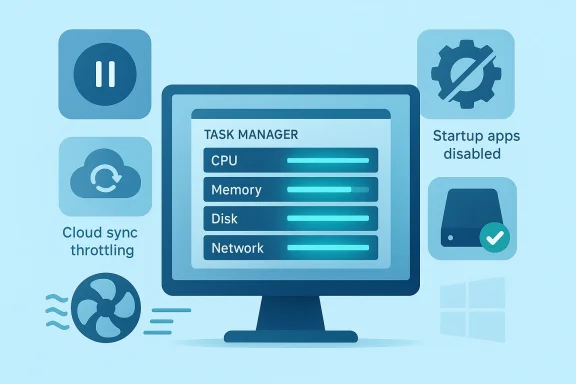
Think of Task Manager as a live window into what’s actually using your PC’s brain, memory and I/O. Open it immediately when the system is slow and use it to answer the basic triage questions: Which process is pegging CPU? Which process is saturating disk activity? Is RAM near its physical limit and causing paging?- Open instantly with
Ctrl + Shift + Esc. If Task Manager opens in compact view, click More details. - The Processes tab shows CPU, Memory, Disk, GPU, and Network usage. Click column headers to sort and find the loudest consumer.
- The Startup tab reveals what auto-launches after sign-in and gives a “Startup impact” indicator you can use to prioritize. Disable nonessential items there — it’s usually the quickest single improvement in perceived snappiness.
The usual culprits, explained and prioritized
Below are the common causes you’ll find again and again, with why they matter and the safe, high-impact remedies.1. Antivirus and scheduled scans
Antivirus software protects you, but full or poorly scheduled scans can saturate CPU and disk I/O while you’re trying to work. When an AV engine is active you’ll often see it near the top in Task Manager.- Action: Schedule scans for off-hours (overnight or lunch breaks). If you rely on built-in Windows Security (Defender), review its scheduled and periodic scanning options and toggle periodic scanning off if you need to test performance changes.
- Caution: Never permanently disable real‑time protection unless you understand the security implications. Scheduling is safer than disabling.
2. Too many startup apps
A crowded set of apps that auto-start is one of the most common sources of slow sign-ins and poor responsiveness immediately after login.- Where to look: Task Manager → Startup or Settings → Apps → Startup. Disable anything you don’t need at boot (chat clients, game launchers, automatic updaters, extra vendor utilities).
- Tip: Disabling startup does not uninstall the app; it simply prevents auto-launch. Reboot after changes and re-measure.
3. Browser memory bloat and extensions
Modern browsers are effectively mini operating systems — multiple processes, tabs and extensions multiply memory use quickly. A heavy browsing session alone can push a system into memory pressure and paging.- Quick checks: Expand your browser in Task Manager (click the arrow next to the browser name) or use the browser’s own task manager (Chrome/Edge:
Shift + Esc) to find memory-hungry tabs and extensions. - Fixes: Close unnecessary tabs, remove or disable unused extensions, use built-in memory-saver features (Edge’s Sleeping Tabs, Chrome’s Memory Saver) and consider switching to a lighter browser for low-RAM systems.
4. Low free storage and failing drives
Windows needs free space for swap files, update staging and temporary work. A nearly full OS drive can dramatically increase paging activity and make the system feel sluggish.- Practical rule of thumb: Keep roughly 10–20% free space on the system drive as a buffer; feature upgrades may need many more gigabytes. Treat this as a guideline, not a strict requirement.
- Disk health: Use a diagnostic tool (for example, CrystalDiskInfo or vendor utilities) to check S.M.A.R.T. status and identify failing HDDs/SSDs. If a drive is failing, prioritize backing up and replacing it.
5. Outdated or mismatched drivers and OS updates
Drivers are the translators between hardware and Windows. Outdated or generic drivers (or a problematic Windows update) can cause performance regressions or instability.- Best practice: Use vendor-specific driver tools (NVIDIA GeForce Experience, AMD Adrenalin, Intel Driver & Support Assistant) for GPU, chipset, storage and network drivers. If a newly installed Windows update coincides with slowdowns, check update history and consider rolling back the offending KB as a last resort.
- Caution: Uninstalling updates or drivers removes security and stability fixes — weigh the trade-offs and use official guidance (vendor or Microsoft release health notes) when available.
6. Background cloud sync and indexing
OneDrive, Dropbox and other sync clients scan and upload files, sometimes re-syncing large libraries after an update or crash. Similarly, Windows Search indexing can consume disk and CPU until it finishes.- Quick test: Pause OneDrive syncing and watch disk/network activity. If performance improves, adjust sync rules or exclude large folders.
- Indexing: Switch index scope from Enhanced to Classic or exclude heavy folders (video libraries, virtual disks) to reduce work. Rebuilding the index is costly and should be a measured choice.
7. Thermal throttling and hardware aging
Heat causes CPUs and GPUs to throttle speed to protect themselves. Dust-clogged fans, degraded thermal paste or inadequate airflow will make a capable CPU feel slow.- Monitor temps during load with a simple tool; if sustained temps enter the high 80s–90s°C under normal workloads, investigate cooling. Cleaning fans and reseating heatsinks or replacing thermal paste are inexpensive, high-impact fixes.
Battle-tested step-by-step troubleshooting flow
Follow this safe, measured sequence. Apply one change, test, and document results so you know what helped.- Reboot and open Task Manager (
Ctrl + Shift + Esc). Observe CPU, Disk and Memory columns for sustained high usage. - If disk or CPU is pegged by Windows Update, TiWorker.exe or SearchIndexer.exe, wait a few hours if possible — background maintenance may finish on its own. If it never finishes, proceed.
- Disable obvious nonessential Startup items (Task Manager → Startup) and reboot. Re-measure.
- Pause cloud sync clients (OneDrive, Dropbox) and temporarily disable scheduled antivirus scans. Re-measure.
- Run the built-in file checks: open an elevated Command Prompt and run
sfc /scannow, thenDISM /Online /Cleanup-Image /RestoreHealth. These repair system components if corrupted. - If slowdowns persist, perform a Clean Boot to isolate third-party services:
msconfig→ Hide Microsoft services → Disable all → disable non-Microsoft startup items → reboot. Re-enable in small groups to find the culprit. - Check storage: free space, run a S.M.A.R.T. check, and use a utility to inspect drive health. If an HDD is the OS drive, migrating to an SSD (NVMe where supported) is the single most effective performance upgrade.
Advanced troubleshooting and fixes
If the above flow identifies a driver or stubborn update as the cause, consider these targeted interventions:- Use vendor removal tools and clean installs for GPU drivers (DDU + fresh driver) when rolling back or reinstalling drivers.
- If memory use is continuously near physical RAM and you see frequent hard faults, consider adding RAM (many systems benefit moving from 8 GB → 16 GB for multitasking). Use Resource Monitor and Performance tab data to confirm memory pressure before buying hardware.
- For persistent disk slowness on an SSD, check firmware and ensure TRIM is active (TRIM is automatic on modern Windows installations). If sustained disk utilization remains high, investigate the process driving the I/O (cloud sync, antivirus, indexing, or a background conversion).
- If you suspect a Windows update regression, consult Windows Update history and the platform’s release‑health notes before uninstalling updates. Removing updates should be a last resort.
Practical maintenance routine (what to do and when)
A little maintenance prevents the slow creep that frustrates users:- Weekly
- Reboot at least once to let updates finalize and clear transient memory use.
- Check Task Manager for unexpected high consumers.
- Monthly
- Audit and trim Startup items.
- Run Disk Cleanup or Storage Sense to reclaim space.
- Review installed apps and uninstall unused software.
- Quarterly
- Update drivers from vendor sites and confirm disk firmware is current.
- Run a S.M.A.R.T. health check and confirm backups are current.
When to upgrade hardware
Software fixes and tuning only go so far. If diagnostics show sustained resource saturation that matches your workload, upgrades are the durable answer.- Replace HDD with NVMe SSD for the single biggest perceptible improvement in boot and app launch times.
- Add RAM if memory is consistently above ~80% during normal use and paging is frequent. This reduces disk-backed paging and improves multitasking.
- CPU upgrades help compute-heavy workflows, but they’re often constrained by motherboard compatibility and cost — address storage and memory first.
Risks, caveats and what not to do
- Don’t disable or uninstall security software indiscriminately. Doing so reduces protection and can expose data. Schedule scans rather than turning protection off permanently.
- Avoid “one‑click optimizer” tools that promise dramatic gains; many provide temporary reprieves or perform risky registry edits. Built‑in tools plus measured changes are safer and more predictable.
- Uninstalling updates or rolling back drivers removes security fixes — apply these measures only when diagnostics clearly point to the update as the cause and you understand the trade-offs. Consult official guidance where available.
Quick reference: commands and locations
- Open Task Manager:
Ctrl + Shift + Esc. - Clean Boot:
msconfig→ Services → Hide Microsoft services → Disable all → Startup → Open Task Manager → Disable non‑Microsoft items. - System file checks:
sfc /scannowandDISM /Online /Cleanup-Image /RestoreHealth(run from elevated Command Prompt). - Pause OneDrive: click the OneDrive icon in the notification tray → More → Pause syncing.
Final verdict: measure, trim, test, upgrade
Performance troubleshooting is mostly a discipline of measurement and incremental action. Start with Task Manager and a measured checklist: trim startup apps, pause heavy background syncs, schedule antivirus scans, free disk space, and confirm driver/OS health. These steps resolve the majority of slow-PC complaints. When diagnostics show persistent hardware-limited behavior — especially slow random I/O on an HDD or persistent memory pressure — invest in an SSD and more RAM for the most reliable, visible gains.This structured approach turns vague frustration into repeatable fixes: you’ll know what changed, why it helped, and whether it’s time to buy better hardware or simply reclaim control of a system that’s let itself become cluttered.
Source: CNET These Could Be Slowing Down Your Computer
