

Windows accessibility features are no longer niche options tucked away for a small group of users — used smartly, they can reduce friction, speed routine tasks, and make your day-to-day Windows experience measurably more efficient.
Windows 11 consolidated the old Ease of Access settings under a clearer Accessibility umbrella, and Microsoft has been gradually exposing more mouse- and input-related controls in the modern Settings app (while keeping legacy Control Panel paths for compatibility). This reorganization makes it easier for anyone — not only people with disabilities — to discover and adopt features that reduce repetitive motion, improve visibility, and shorten interaction time. Many of the tweaks covered below appear in the Accessibility pages of Settings, but their exact placement and the presence of new toggles can vary by Windows build.
Source: TechPP Make Your PC More Efficient With These Windows Accessibility Features - TechPP
 Background
Windows 11 consolidated the old Ease of Access settings under a clearer Accessibility umbrella, and Microsoft has been gradually exposing more mouse- and input-related controls in the modern Settings app (while keeping legacy Control Panel paths for compatibility). This reorganization makes it easier for anyone — not only people with disabilities — to discover and adopt features that reduce repetitive motion, improve visibility, and shorten interaction time. Many of the tweaks covered below appear in the Accessibility pages of Settings, but their exact placement and the presence of new toggles can vary by Windows build. Why accessibility features matter for efficiency
Accessibility settings are designed to minimize physical and cognitive effort. That design intent maps directly to productivity gains for general users: fewer repetitive mouse travels, instant access to the right action inside a dialog, clearer pointer and caret, and the ability to operate the pointer from the keyboard all shrink the micro-latencies that add up over a working day.- Low effort, high ROI: Small, reversible changes often yield immediate improvements.
- Broad applicability: Features geared to a disability group frequently help a wider audience.
- Configurability: Most options include sliders or delay controls so you can tune them to fit your workflow.
Make the mouse cursor instantly visible (Inverted / custom pointer)
What it does and why it helps
The Inverted pointer style flips the cursor’s color relative to whatever background it sits on — effectively guaranteeing high contrast no matter the wallpaper, app, or content under the pointer. For anyone who loses the cursor on a busy desktop, on multiple monitors, or after a lid sleep/resume, this simple visual change often eliminates the “where did my cursor go?” detour.How to enable (verified)
- Press Win + I to open Settings.
- Go to Accessibility → Mouse pointer and touch.
- Under Mouse pointer style, select Inverted (or choose Custom to pick a bright color and increase the pointer size).
Caveats and reliability
- A handful of users report the pointer occasionally reverting to a default color after lock/unlock or sleep/resume; Microsoft’s community threads indicate this has been filed as a reproducible problem in some builds. If you rely on this for accessibility, keep your device updated and report any reproducible steps to Feedback Hub.
Hear everything in one ear (Mono audio)
Why mono audio helps everyday users
If you use a single earbud, work in an open office with one ear free, or simply want to avoid missing speech content that is paneled in a stereo recording, Mono audio collapses left and right channels into one. That ensures important dialog or notification audio reaches whichever earphone (or ear) you’re using.How to enable (verified)
- Press Win + I → Settings.
- Go to Accessibility → Audio.
- Toggle Mono audio to On.
Practical notes
- Mono audio is a global setting: if you turn it on, all system sounds and apps will output mono unless an app overrides it. Test quickly with your normal headset configuration before making it permanent.
Close dialog boxes faster (Snap-to-default / “Snap To”)
What Snap-to-default does
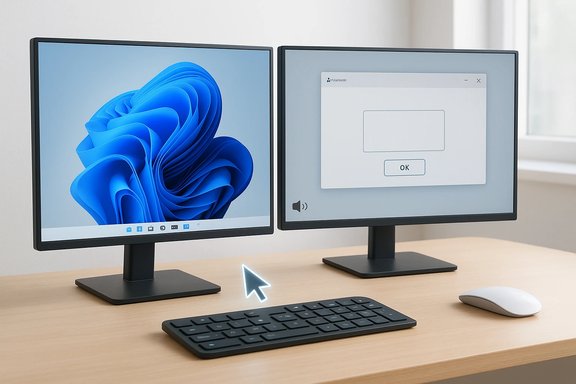
The Snap-to-default (also called “Automatically move pointer to the default button in a dialog box” historically) automatically moves the pointer to the most likely action (OK/Yes/Save) when a dialog appears. For users who accept the default option most of the time, this removes tiny, repeated mouse travels and can shave seconds from workflows that spawn many confirmations. The underlying behavior is a decades-old Windows feature implemented at the dialog-manager level.How to enable (verified)
- Classic Control Panel (works across many builds): Control Panel → Mouse → Pointer Options → under Snap To, check Automatically move pointer to the default button in a dialog box.
- Newer Windows 11 builds (24H2 and later-ish): Settings → Accessibility → Mouse (Interaction) → toggle Snap to default button (availability depends on OS build). If your Settings page lacks the toggle, use the Control Panel path or a registry edit.
Limitations and risks
- Not all dialogs are eligible: applications that use custom dialog frameworks or web-based popups may not trigger the Snap-to behavior (this is a dialog-management implementation detail). Test critical apps (browsers, sandboxed apps, admin prompts) to ensure compatibility.
- Automation and UI scripts can break: If you use automated UI scripts that assume the pointer remains in place, enabling Snap-to can introduce flakiness. Evaluate and document the change in managed environments.
Work between windows faster (Activate on hover / Scroll inactive windows)
Two related but distinct features
Windows exposes two related mouse behaviors that reduce clicks and keep your hands on the mouse:- Activate on hover (focus follows mouse): moves keyboard focus to a window merely by hovering the cursor over it; optionally raises the window to the top. This replaces the need to click a window to type or use its keyboard shortcuts.
- Scroll inactive windows when hovering: lets you scroll background windows (using the mouse wheel) without clicking them first. This is especially handy when referencing a document on one side while editing in another.
How to enable (verified)
- Press Win + I → Settings.
- For Scroll inactive windows: Bluetooth & devices → Mouse → toggle Scroll inactive windows when hovering over them.
- For Activate on hover (if present): Accessibility → Mouse → expand Activate on hover and toggle it on; optionally tune the activation delay and whether the hovered window moves to the top. If your build doesn’t show it in Settings, the legacy path is Control Panel → Ease of Access → Make the mouse easier to use → check Activate a window by hovering over it with the mouse.
Trade-offs and pitfalls
- Unexpected focus flips: menus or pop-ups can close unexpectedly if the cursor crosses them; a modest activation delay (300–500 ms) reduces accidental switches. Test your chosen delay.
- Interaction with games and drawing apps: some full-screen or low-level input apps behave poorly with hover activation—turn the feature off for those sessions.
Improve cursor precision (Mouse Keys — control the pointer with the numeric keypad)
Why use Mouse Keys
When you need pixel‑level placement — aligning a screenshot crop, nudging UI elements, or positioning small objects — using the numeric keypad is often steadier than micro-movements with a physical mouse. Mouse Keys lets the numeric keypad act as a pointer controller with tunable speed and acceleration. This is invaluable for designers, QA, and accessibility scenarios.How to enable and the common mappings (verified)
- Press Win + I → Settings → Accessibility → Mouse (Interaction).
- Toggle Mouse keys (Control your mouse with a numeric keypad).
- Default key mapping (common across modern Windows versions):
- 8 = up, 2 = down, 4 = left, 6 = right
- 7/9/1/3 = diagonals
- 5 = click (active button), 0 = begin drag, . (decimal) = release/drop
- There’s a keyboard shortcut too: Left Alt + Left Shift + Num Lock will prompt to turn Mouse Keys on/off.
Practical limits and alternatives
- Increment size is influenced by pointer speed, display resolution, and acceleration settings — Mouse Keys is very fine-grained but not guaranteed to be one‑pixel per keystroke on every system. If you require deterministic single-pixel moves, scripting via AutoHotkey (with explicit pixel moves) is a more precise alternative.
Useful companion tweaks (quick wins)
Text cursor indicator
Make the caret thicker and colored so it’s always visible while typing. Settings → Accessibility → Text cursor. This reduces “lost caret” moments when editing code, long documents, or web forms.Live captions
Windows can show captions for any audio on your PC, useful in noisy environments or when you’re using only one earbud. Settings → Accessibility → Captions.Pointer trails and visibility tweaks
If you use Mouse Keys or need extra visual feedback after a jump, pointer trails or a slightly larger pointer size improve tracking. These are available under Mouse pointer and touch → Additional mouse settings.Verifying claims and build differences (what to watch for)
The exact Settings paths, the presence of new toggles (for example, Snap to default or Activate on hover), and the labels used in the UI can vary by Windows 11 build (24H2/26100.xxx and later began moving more mouse controls into Settings). When instructing others or documenting configuration changes for a fleet, verify the OS build before scripting or rolling out changes. Where the Settings toggle is missing, the classic Control Panel path and registry keys remain reliable fallbacks.- Snap-to registry key: HKEY_CURRENT_USER\Control Panel\Mouse\SnapToDefaultButton (string "1" = on). This registry entry is used by community scripts and guides for automation.
- Activate-on-hover bits are encoded in UserPreferencesMask under HKEY_CURRENT_USER\Control Panel\Desktop and can be toggled in managed environments with care. Always back up the registry before making changes.
A note about the “Windows PC Manager” claim
Some articles describe a “Windows PC Manager” built into Windows or “hidden in plain sight.” In reality Microsoft PC Manager exists as a Microsoft‑published app in the Microsoft Store (initially region-limited and rolled out gradually), not as a universally preinstalled, built‑in control panel replacement on all Windows PCs. If you see claims that it’s a required, built-in tool on every Windows 11 machine, treat that as inaccurate — availability, behavior, and region rollout differ, and reviews note its Store app status and its sometimes limited regional rollout. Verify availability on your device via the Microsoft Store and the app’s listing rather than assuming it’s already installed.Deploying changes safely (IT and power-user checklist)
- Test one machine first: enable a single feature and use it for a full workday to observe real interaction changes.
- Measure regressions: confirm critical apps (SaaS apps, remote-control tools, games, and automation scripts) behave correctly with the feature on.
- Document rollback: capture the previous setting, any registry edits, and confirm steps to undo changes. Use simple .reg files or PowerShell instructions for quick rollback.
- Communicate with users: many will be surprised if the pointer jumps or windows activate on hover; provide an “undo” quick guide in your rollout message.
- Automate carefully: if you must automate the change for many machines, check build numbers and choose the correct path (Settings API, Control Panel, or registry) to avoid silent failures.
Critical analysis — strengths, limits, and sensible defaults
Strengths
- Immediate gains with minimal risk: Most toggles are non-invasive and reversible.
- Inclusive design benefits everyone: visibility and input options reduce cognitive load and repetitive strain.
- Configurable behavior: delays, sizes, and colors can be tuned to individual preference.
Limits and risks
- App compatibility varies: web-based dialogs and sandboxed apps can bypass Snap-to or act oddly with hover focus.
- Build fragmentation: the Settings UI may look different across Windows 11 builds; automation must account for that.
- Precision expectations: Mouse Keys gives fine-grained control but does not guarantee a one‑press = one‑pixel behavior across all hardware — use scripting for deterministic results.
Sensible defaults to start with (recommended)
- Pointer: Inverted or a large, bright custom color.
- Dialogs: Try Snap‑to for heavy dialog workflows; disable if you encounter web-based dialog breakage.
- Hover: Use Scroll inactive windows on by default; enable Activate on hover only for power users and with a small activation delay.
- Precision: Enable Mouse Keys for occasional micro-adjustment; prefer AutoHotkey for precision-critical repetitive tasks.
Quick setup cheat sheet (step-by-step)
- Open Settings (Win + I).
- Make pointer visible: Accessibility → Mouse pointer and touch → choose Inverted / Custom + size.
- Mono audio: Accessibility → Audio → toggle Mono audio.
- Snap-to-default: Control Panel → Mouse → Pointer Options → check Automatically move pointer to the default button (or Settings → Accessibility → Mouse if present).
- Hover behavior: Bluetooth & devices → Mouse → toggle Scroll inactive windows; Accessibility → Mouse → Activate on hover (if available).
- Mouse Keys: Accessibility → Mouse → toggle Mouse keys and tune speed/acceleration. Use Left Alt + Left Shift + Num Lock to toggle quickly.
Conclusion
Windows’ accessibility suite is a practical toolbox for everyone. The features discussed here — inverted/custom pointer, mono audio, Snap‑to‑default, hover activation and scroll, and Mouse Keys — are cheap, reversible changes that deliver real time savings and reduce the small frictions that slow workflows. Implement them thoughtfully: test on representative builds, watch for app compatibility, document a rollback path, and tune values (pointer size, hover delay, Mouse Keys speed) so the settings fit your personal workflow. Used responsibly, these accessibility features turn everyday Windows chores into smoother, faster interactions that benefit power users and general users alike.Source: TechPP Make Your PC More Efficient With These Windows Accessibility Features - TechPP

