

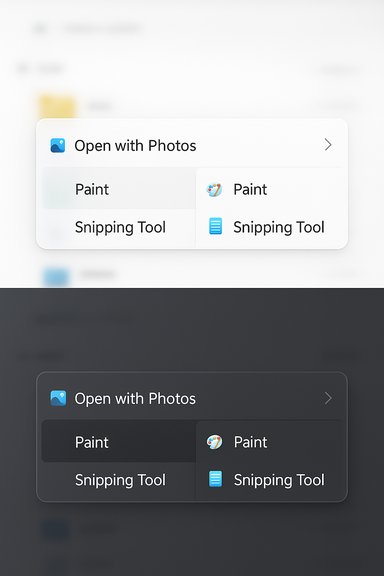
Microsoft is quietly rolling back one of Windows 11’s longest-running UX complaints: the cramped, repetitive, and hard-to-navigate right-click context menu in File Explorer — and the fix, as reported from community previews and developer channels, is a new “Split Context Menu” design driven by a WinUI control that lets a single menu row act as both a primary action and a compact nested menu for related commands.
Background: why the right-click menu became a problem
For more than two decades the Windows context menu evolved in an unregulated way: shell extensions, third‑party installers, and legacy APIs tacked items onto the right-click menu with few modern constraints. That growth produced a menu that is often long, inconsistent, and populated with duplicate or irrelevant entries — for example, multiple entries referencing the same app or too many “Open with…” entries for different apps. Microsoft itself has acknowledged that the menu’s expansion and inconsistent grouping have been a user experience problem. The shift to Windows 11 in 2021 introduced a redesigned, icon-forward context menu intended to declutter the UI. It moved common actions into a compact top row and pushed lesser-used, legacy items into an overflow. That attempt improved discoverability for some users but did not address the underlying problem: the menu still exposes a sprawling set of potential commands created by many disparate sources, and new elements like AI-powered actions and Copilot integrations have again increased pressure on the menu’s surface. Recent feature additions such as right-click AI actions in File Explorer further complicate the situation.What Microsoft (and developer previews) are proposing: the Split Context Menu
The basic idea
The proposed solution — described in developer previews and community call screenshots — is to introduce split context menu entries: single rows that let the left side perform a default action immediately while the right side opens a small, context‑aware flyout with related secondary actions. In other words, instead of seeing separate menu lines for “Open with Photos”, “Edit with Photos” and “Set as desktop background,” you’d see a single “Open with Photos” item whose chevron opens a compact side menu containing related apps and commands. This approach reduces vertical stacking and groups logically related commands together, making menus shorter and more context-aware.The API and control model
The control shown in preview material is described as a WinUI3 control — referenced in community reporting as SplitMenuFlyoutItem — that acts like a hybrid button + submenu. The left half executes the developer‑designated default action; the right half opens a tiny flyout with related items. Microsoft’s Windows App SDK preview releases provide the distribution path for new WinUI controls and APIs, and developers are being encouraged to experiment with preview packages so app menus can be modernized ahead of a system-wide rollout. However, the exact control naming and manifests in official docs may lag community demonstrations; developers should check the latest Windows App SDK preview releases for the newest APIs.Context awareness and grouping
Crucially, this split model supports context-aware grouping: File Explorer is expected to show different secondary actions depending on the selected file type. For example:- Right‑click a .txt file → a primary “Open with Notepad” button with other editors in the secondary flyout.
- Right‑click an image → “Open with Photos” primary action with Paint, Snipping Tool, etc., nested in the flyout.
How the new UI works in practice
Interaction model
- Hover or right‑click a file to open the context menu.
- The menu shows a single split row for a primary action (left) plus a chevron (right).
- Clicking the left side runs the default command immediately.
- Clicking or hovering the chevron opens a compact, adjacent flyout containing related commands and apps.
Developer control and system behavior
- Developers define the primary command and populate the secondary flyout using the new API surface in WinUI/Windows App SDK.
- Windows can dynamically choose which actions to promote depending on file type and usage telemetry, allowing the same app to present different menu behavior for text vs. image files.
- Because the nested commands are provided by developers (or by the app registration), the core system UI does not have to enumerate every possible legacy COM extension at top level; instead, developers can choose what to expose.
Why this could finally fix long-standing complaints
Reduced vertical clutter
The split model turns what used to be multiple similar items into a single, denser row with a small side menu. That reduces scrolling and mouse travel in deep menus and improves first-glance clarity for most users. The optical result is a shorter, less intimidating menu.More relevant options at the point of use
By grouping related actions and letting the system or developer present only the most relevant secondary actions for a file type, users see fewer irrelevant commands. This reduces noise and improves discoverability for the commands that matter.Developer-driven modernization
Because the mechanism for nested actions is part of WinUI/Windows App SDK, app teams can modernize their own context menus using contemporary patterns and layout styles. That means vendor and first‑party apps can adopt a consistent look and behavior long before a system-wide rollout forces compatibility changes. Microsoft’s preview channel for the Windows App SDK is explicitly intended to allow developers to experiment with new controls and behaviors.Critical analysis: strengths, limits, and real‑world risks
Strengths
- Cleaner default experience. For casual users, the menu will feel smaller and less chaotic; common tasks remain one click away.
- Better grouping logic. Context-aware secondary menus minimize duplicates and place related commands together.
- Graceful developer migration. Providing the control through WinUI and the Windows App SDK lets app teams adopt the pattern on their own schedule rather than forcing a breaking system change.
- Performance benefit potential. If apps provide local secondary actions via WinRT/WinUI constructs rather than legacy COM shell extensions running in-process, File Explorer reliability and responsiveness could improve. Microsoft has previously identified that some context menu items run in-process and can slow or destabilize Explorer, and moving to safer, out‑of‑process patterns was a stated goal in earlier context menu work.
Compatibility and adoption risks
- Legacy COM shell extensions: The Windows ecosystem still contains countless COM-based shell extensions (compression tools, version control clients, backup utilities) that register context menu verbs via IContextMenu. Unless Microsoft provides a transparent migration path or compatibility layer, many classic utilities may fall back to the overflow “Show more options” menu or disappear from the primary menu entirely — hurting power-user workflows that rely on those entries. Evidence of that migration friction has been present since Windows 11’s initial menu redesign.
- Developer inertia: Smaller app developers and open-source utilities may not adopt WinUI/Windows App SDK bundles, especially if they target older Windows versions or prefer native Win32 COM extensions. That will prolong fragmentation and delay the full benefits of the split model.
- Discoverability trade-offs: While split rows reduce vertical clutter, they introduce dual interaction targets on the same row (left vs. right). Users who expect to click a single row for an action might accidentally trigger the default action when they wanted the secondary flyout (or vice‑versa), at least until interaction patterns settle.
- Keyboard and accessibility: Hybrid split items must be keyboard‑navigable and screen‑reader friendly. Any new control must be fully accessible — including clear focus states for the primary action and the nested menu, logical order for assistive technologies, and proper semantics for ARIA/Windows Automation. If these are not carefully implemented, the redesign could reduce accessibility for some users.
- Enterprise rollout and policy control: IT administrators often rely on Group Policy or MDM controls to lock or hide context menu items for compliance or workflow reasons. The split menu introduces another abstraction layer that must be manageable via enterprise tooling; otherwise, admins will face surprise behavior changes during mass deployments.
Privacy and telemetry concerns
Some recent context menu additions — notably AI actions and Copilot integrations — require uploading content to cloud services when the user invokes certain actions. While the split menu itself is a UI pattern, its real-world usage will intersect with AI actions that may surface within those secondary flyouts. Organizations and privacy-conscious users should pay attention to which context-menu actions send file contents off-box and whether the default promotion logic might surface cloud actions too prominently. Microsoft’s rollout of AI actions in File Explorer has already raised questions about who sees those actions and whether they should be hidden by default in enterprise settings.Technical compatibility: legacy APIs and the migration path
The historical API landscape
Historically, context menus have been extended by COM interfaces such as IContextMenu, IContextMenu2, and IContextMenu3. These interfaces allow third-party code to programmatically add menu items at render time, often running in-process with Explorer — a potential reliability hazard. Microsoft introduced newer models for registering commands (IExplorerCommand and later modern registration patterns) to give apps an easier, safer path to surface menu items. Expect the split menu to favor these modern registration methods.What needs to happen for a smooth transition
- Microsoft should provide a clear compatibility shim so that legacy COM-based context menu entries surface sensibly in the new split UI (either as nested items or in overflow).
- Tooling and documentation must be published and kept current in the Windows App SDK and WinUI repos, with migration guides that show how to:
- Define a default primary action
- Populate the secondary flyout
- Set accessibility properties for the split control
- Enterprise policy controls and MDM/Group Policy templates should expose the ability to suppress or reorder promoted actions, and to block cloud-based AI actions from appearing by default.
- Microsoft should ship accessible samples and WinUI Gallery examples to set expectations for how the control behaves for keyboard and assistive tech users.
Timeline and availability: what to expect next
- The Split Context Menu and associated controls are currently discussed in developer/preview channels and community calls; Microsoft has made Windows App SDK preview builds available to developers, and the preview channel is the place where these APIs typically appear first. That said, as of the latest official release notes and catalog pages searched, the specific control name and a system-wide rollout schedule have not been formally published in stable documentation. Developers can reference preview Windows App SDK releases to begin experimenting, but a public Insider build for everyday testers has not been universally confirmed. Treat current information as early-stage and subject to change.
- Microsoft’s broader efforts to modernize File Explorer — including AI actions and improved dark mode coverage — are actively rolling out on preview channels and selected release tracks; those changes suggest the company is iterating on the File Explorer experience across both visual polish and functional depth. The split menu fits into that larger modernization push.
Practical guidance: what users, admins, and developers should do now
For everyday users
- Expect the right-click menu to change gradually over the next Windows 11 updates; when split menus arrive, they should make common tasks quicker to access and reduce duplicate entries.
- If you rely on legacy context menu entries (compression tools, version control GUIs, backup utilities), note that those items may be moved behind “Show more options” initially. Keep your tools updated and check vendor documentation for Windows 11 compatibility notes.
For enterprise IT and admins
- Watch preview and release notes for Group Policy or MDM controls that manage context menu behavior, AI action availability, and telemetry. Test any workflow that relies on custom context menu items before rolling out OS updates broadly.
- Audit mission‑critical shell-extension dependencies and liaise with vendors to ensure compatibility or provide alternative command registration mechanisms.
For developers
- Install the latest Windows App SDK preview packages and explore the WinUI control set (WinUI Gallery and sample apps are the best starting points) so your app can offer a native split-menu experience rather than forcing users into the overflow menu.
- Make keyboard and screen-reader behavior a priority when designing split menu entries. Provide explicit focus targets and descriptive automation properties for both the primary action and the nested flyout.
- Consider usage telemetry (with clear privacy controls) to select sensible defaults for promoted actions and to avoid pushing cloud-based operations into the most prominent position by default.
What to watch for in future updates
- Official documentation pages for the Windows App SDK and WinUI that explicitly list the control, its XAML/C# usage patterns, and code samples.
- Insider build releases that surface the system-wide implementation in File Explorer so testers can evaluate the real‑world behavior with popular third‑party shell extensions.
- Enterprise management features that allow admins to control defaults, hide cloud actions, and manage promoted verbs.
- Accessibility and keyboard‑navigation test results from Microsoft and the community validating that split items work smoothly with screen readers and keyboard-only workflows.
Conclusion
The split context menu — a hybrid menu row that offers a one-click primary action and a compact nested flyout for related commands — is a practical and overdue refinement for File Explorer’s long-suffering right-click menu. The approach addresses two core problems at once: it reduces vertical clutter and makes options more context-aware. Delivered as a WinUI/Windows App SDK control for developers to adopt, it also reflects Microsoft’s preferred direction of moving menu registration into modern APIs rather than relying on fragile, in‑process COM shell extensions.That said, the improvement is not a silver bullet. Real-world success depends on how Microsoft handles legacy shell extension compatibility, developer adoption, accessibility conformance, and enterprise policy controls. Users who rely on older tools should prepare for a transition period, and developers should use preview SDKs to update menu behavior proactively. If Microsoft executes this migration thoughtfully — with clear migration guides, enterprise controls, and robust accessibility support — the split context menu could be one of the most quietly impactful UX improvements in Windows 11’s continuing evolution.
Source: Windows Latest Microsoft admits Windows 11's right-click menu is cluttered, confirms fix with a new UI feature
