

Microsoft’s long-simmering complaint about bloated right-click menus may finally get a meaningful fix: recent developer previews and a WinUI community demonstration show a split context menu approach that surfaces a single sensible default action for a file type while tucking related but less common commands into a compact secondary flyout — a design change that promises to trim vertical clutter in File Explorer and make contextual actions far more relevant.
Windows’ context menu has been an architectural open-door for almost as long as the shell has existed. Third‑party installers, shell extensions, legacy COM verbs, and modern app registrations have all added entries without a single coordinated taxonomy, producing a right‑click experience that is inconsistent, repetitive, and often annoyingly long. The Windows 11 redesign attempted to address this by consolidating common verbs and moving legacy items into an overflow, but that approach only masked the underlying problem: the system still needs a robust way to group related commands and present them in a compact, predictable way.
What is now surfacing in developer channels is an evolution of that idea: make each top‑level menu row do double duty. The left side becomes an immediate action (the most sensible single action for the file), and a small chevron opens a narrow, contextual flyout with related actions. The pattern reduces vertical stacking by grouping similar verbs, and it gives app developers or the shell itself a place to define what counts as the primary action for a given file type.
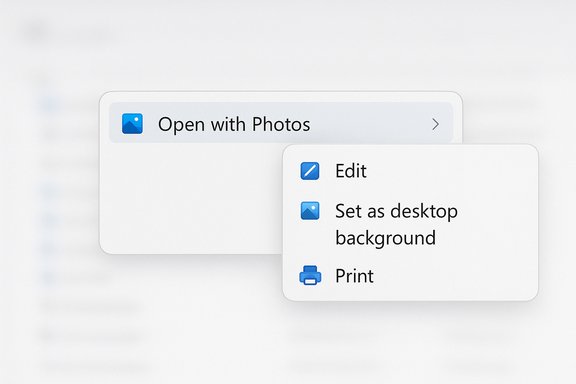
This work was demonstrated during a WinUI community call by a member of Microsoft’s WinUI team. The demo showed File Explorer using a new split item control so that, for example, an image’s row can read “Open with Photos” and, when hovered or clicked on the chevron, expose other image-related actions without elongating the main menu. The change is currently visible only in preview material and API discussions in developer channels; there is no general release date yet and the exact shipping form is still subject to change.
Because this is a WinUI/Windows App SDK control, it’s delivered via the application framework rather than through ad‑hoc shell hooks, which helps reduce the fragility and reliability problems historically associated with in‑process COM shell extensions.
That said, the design’s success will hinge on the migration path for legacy shell extensions, careful attention to accessibility, and the system’s ability to load secondary items without adding latency. If Microsoft pairs the split control with a robust compatibility shim, clear migration docs, and enterprise controls, the result could be a rare, quietly transformative UX improvement for Windows 11. If those pieces are missing, early users may see shorter menus but also an uneven experience that confuses long‑time power users.
Either way, the work underway offers a realistic path out of a two‑decade extension mess: compress what belongs together, make the common case immediate, and give developers a modern, testable way to present context‑sensitive choices. The engineering tradeoffs remain nontrivial, but the idea itself is precisely the kind of platform‑level cleanup Windows needs.
Source: XDA Microsoft may finally fix one of my least favorite things about Windows 11
 Background
Windows’ context menu has been an architectural open-door for almost as long as the shell has existed. Third‑party installers, shell extensions, legacy COM verbs, and modern app registrations have all added entries without a single coordinated taxonomy, producing a right‑click experience that is inconsistent, repetitive, and often annoyingly long. The Windows 11 redesign attempted to address this by consolidating common verbs and moving legacy items into an overflow, but that approach only masked the underlying problem: the system still needs a robust way to group related commands and present them in a compact, predictable way.What is now surfacing in developer channels is an evolution of that idea: make each top‑level menu row do double duty. The left side becomes an immediate action (the most sensible single action for the file), and a small chevron opens a narrow, contextual flyout with related actions. The pattern reduces vertical stacking by grouping similar verbs, and it gives app developers or the shell itself a place to define what counts as the primary action for a given file type.
This work was demonstrated during a WinUI community call by a member of Microsoft’s WinUI team. The demo showed File Explorer using a new split item control so that, for example, an image’s row can read “Open with Photos” and, when hovered or clicked on the chevron, expose other image-related actions without elongating the main menu. The change is currently visible only in preview material and API discussions in developer channels; there is no general release date yet and the exact shipping form is still subject to change.
Overview: how the split context menu works
The interaction model
- Right‑click a file in File Explorer to open the context menu.
- The top‑level menu shows a single, focused row for the most relevant action for that filetype.
- The left portion of that row executes the default action immediately.
- The right portion (a chevron or split area) opens a compact adjacent flyout containing related commands and alternate apps.
- Less relevant or legacy commands can be relegated to an overflow — preserving discoverability without forcing constant scrolling.
The developer surface
The change is being introduced as a WinUI control available through preview releases of the Windows App SDK. App teams and developers can define which action appears as the primary command and which related items live in the secondary flyout. That gives vendors and first‑party apps the ability to modernize context‑sensitive behavior while keeping the visual language consistent across apps that adopt the API.Because this is a WinUI/Windows App SDK control, it’s delivered via the application framework rather than through ad‑hoc shell hooks, which helps reduce the fragility and reliability problems historically associated with in‑process COM shell extensions.
Why this matters: benefits for users and developers
For everyday users
- Less visual clutter. The most immediate benefit is a shorter, more scannable context menu. Eliminating repetitive rows and grouping related items into a single split entry cuts vertical noise and reduces the need to hunt for actions.
- Action relevance. By promoting the most commonly used action for a given file type to the primary position, users get faster access to what they need most of the time.
- Cleaner discoverability. Secondary actions remain discoverable behind the chevron rather than being lost in a long list. This improves first glances for novices without sacrificing depth for power users.
For developers
- A modern registration path. The WinUI control formalizes how apps should present multiple related actions, letting developers explicitly define defaults and groupings instead of relying on legacy COM tricks.
- Consistency across applications. When multiple apps adopt the same pattern, context menus will look and behave more predictably for end users.
- Preview-first testing. Because the control is exposed through preview SDKs, developers can experiment and migrate prior to system‑wide rollout, smoothing the eventual transition for their users.
Technical realities and compatibility concerns
Legacy shell extension landscape
The Windows shell has been extended for decades through COM interfaces such as IContextMenu, IContextMenu2, and IContextMenu3. Those extensions run in process with Explorer and often insert arbitrary items at render time. The new split model favors modern registration patterns and WinUI controls, which means:- Many legacy shell extensions will not automatically map into the split model.
- Without a deliberate compatibility strategy, those legacy entries may be pushed to the “Show more options” overflow, hidden entirely from the default menu, or require additional translation layers.
- Power users relying on tools that add deeply integrated verbs (backup utilities, VCS clients, compression tools, installer helpers) may see their workflows change unless vendors update their registration to the modern APIs.
Performance and reliability
Putting menu rendering into a controlled WinUI component should increase reliability by reducing the number of in‑process third‑party extensions that can crash Explorer. However, runtime behavior depends on how and when the shell or registered apps enumerate secondary items. If the secondary flyout requires synchronous enumeration of many providers, there could be delays. Proper asynchronous loading and caching strategies will be essential to avoid introducing the very latency this design seeks to eliminate.Accessibility and keyboard navigation
Split items introduce two targets in a single row (primary action and chevron/flyout). That must be handled carefully for keyboard users and assistive technologies:- Focus order should be predictable and discoverable.
- Screen readers must be able to announce both the primary action and the presence of additional related actions.
- Keyboard shortcuts and arrow/enter behaviors must be consistent so power users can operate the whole menu without needing a mouse.
- Visual focus states must make it clear which portion of the split item is active.
Discoverability trade-offs
Grouping multiple verbs reduces menu height but risks hiding lesser used but important actions behind the chevron. That trade‑off is sensible for most users, but it can slow workflows for users who habitually rely on specific non‑primary verbs. Clear affordances and good defaults (plus the ability for users or admins to promote items to top level) will be important mitigations.Migration: what must happen for a smooth transition
- Microsoft must publish authoritative documentation and migration guides that show how to:
- Register primary and secondary menu items using the new WinUI control.
- Map legacy COM verbs into the new model when possible.
- Provide accessibility hooks and examples.
- Tooling and samples should be included in the Windows App SDK and WinUI Gallery so developers can prototype and QA their migrations.
- A compatibility shim or automated translation layer will be necessary to capture common legacy patterns and surface them sensibly in the split UI until vendors update their offerings.
- Enterprise controls (Group Policy / MDM) should let administrators configure whether legacy entries appear in the primary menu, or force fallback to the legacy menu for critical workflows.
- Microsoft should publish performance guidance — including asynchronous load patterns and caching recommendations — so that the flyout payload doesn’t cause perceivable delays.
Practical advice for users and administrators
- For users who prefer the old, exhaustive menu, the legacy “Show more options” or the classic context menu remains an escape valve in current builds. Registry tweaks and third‑party tools can force the legacy menu, but these are workarounds that may break with future updates.
- Power users reliant on specific shell extensions should track vendor updates. Many popular utilities (archivers, version control tools, power tools) will need to release updates that register their verbs via the modern API; until then, those verbs may only be available in overflow.
- IT administrators should prepare by identifying critical context menu dependencies used in managed environments and coordinate with software vendors to ensure compatibility with the new registration model.
- Developers should experiment with the preview Windows App SDK releases to update their context‑menu behavior now rather than waiting for a system rollout.
Strengths of the approach
- Elegant reduction of vertical clutter. The split model compresses repetitive entries into dense rows, directly addressing the main UX complaint.
- Developer-driven modernization. Moving the surface to WinUI encourages consistent, testable registration and helps avoid fragile in‑process shell extensions.
- Better default behaviour. Promoting sensible defaults by filetype improves speed for common workflows and makes menus less intimidating to casual users.
- Opportunity to fix long-standing accessibility and performance issues. Because WinUI controls are designed with modern accessibility APIs and patterns, the change is an opportunity to clean up previous accessibility gaps — if the implementation is done thoughtfully.
Risks and open questions
- Legacy compatibility. The Windows ecosystem contains a vast number of legacy shell extensions; without an automated migration path, the split model could fragment experiences for years.
- Developer adoption lag. Smaller vendors and open‑source projects may not prioritize adopting the new API, prolonging the mixed experience.
- Potential hidden latency. If secondary flyouts enumerate many providers synchronously, the menu could feel slower unless the system relies on asynchronous patterns.
- Discoverability and accidental actions. Dual targets introduce a learning curve; some users could click the default when they intended to open the extended menu, or vice versa.
- Uncertain shipping schedule. Demonstrations and preview SDKs are promising, but there is no firm release date for a system‑wide rollout; implementation detail and accessibility completeness are still being refined.
Developer checklist: how to prepare
- Install the preview Windows App SDK and WinUI packages to experiment with the control and evaluate the interaction model.
- Audit existing context‑menu registrations and shell extensions in your app:
- Identify which commands should be primary vs. secondary.
- Add accessibility annotations to both the primary action and the secondary flyout.
- Implement asynchronous enumeration for secondary items where possible to avoid blocking menu rendering.
- Provide user settings that let users pin favored secondary items into the primary slot, or make promotion persistent per user.
- Test across scaling, multiple monitors, and assistive technologies to ensure reliable behavior.
What to expect next
Expect to see the split context menu pattern show up first in developer channels and preview SDKs, followed by staggered rollouts to Insider builds once Microsoft and early adopters have iterated on feedback. The timeline for general availability will depend on the compatibility story for legacy shell extensions, the accessibility audit, and developer adoption. Until there is an official stable SDK release and a public Insider preview that includes the system‑wide change, consider current demonstrations a reliable signal that the company is actively addressing the problem — but not a guarantee of the final user experience.Conclusion
The split context menu proposal is an overdue and sensible evolution of File Explorer’s right‑click UX. It acknowledges a core truth of modern Windows: context menus are no longer a simple list of verbs, they are an integration surface for thousands of apps and services. Grouping related actions into a single primary row with an adjacent, contextual flyout is a pragmatic way to reduce clutter, improve relevance, and encourage developers to register actions using modern, safer APIs.That said, the design’s success will hinge on the migration path for legacy shell extensions, careful attention to accessibility, and the system’s ability to load secondary items without adding latency. If Microsoft pairs the split control with a robust compatibility shim, clear migration docs, and enterprise controls, the result could be a rare, quietly transformative UX improvement for Windows 11. If those pieces are missing, early users may see shorter menus but also an uneven experience that confuses long‑time power users.
Either way, the work underway offers a realistic path out of a two‑decade extension mess: compress what belongs together, make the common case immediate, and give developers a modern, testable way to present context‑sensitive choices. The engineering tradeoffs remain nontrivial, but the idea itself is precisely the kind of platform‑level cleanup Windows needs.
Source: XDA Microsoft may finally fix one of my least favorite things about Windows 11
