

I still run a Windows 10 PC in my living room because it does exactly what I need—and with a careful, layered approach I’ve kept it safe even after Microsoft’s official support ended on October 14, 2025.
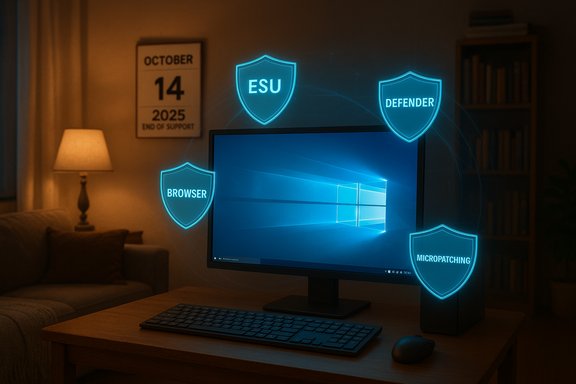
Windows 10 reached its official end-of-support date on October 14, 2025. That calendar milestone means Microsoft stopped delivering routine, free security and quality updates for consumer Windows 10 installations, and standard technical support for those SKUs ended. Microsoft’s lifecycle and support pages make this explicit and outline the immediate options for consumers: upgrade to Windows 11 if the PC is eligible, enroll eligible devices in the Windows 10 Consumer Extended Security Updates (ESU) program for a time‑boxed bridge, or migrate to another platform. End-of-support is a precise operational change: the OS continues to function, but newly discovered kernel, driver, or platform vulnerabilities discovered after the cutoff will not be patched for unenrolled devices. That enlarges the system’s attack surface over time and shifts the device’s threat model from “routine maintenance” to “risk-managed legacy endpoint.” The practical upshot is straightforward—an internet-connected Windows 10 machine that does not receive OS-level patches becomes a progressively easier target for attackers as the months and years pass.
For anyone balancing cost, sustainability, and risk: inventory your devices, verify upgrade eligibility now, enroll in ESU only if you truly need the breathing room, keep browsers and security tools updated, and schedule an irreversible migration before the temporary protections degrade. The clock is the real constraint—time and vendor roadmaps, not nostalgia, determine when the final, sensible switch must happen.
Source: How-To Geek Why I’m still using Windows 10 and how I’m keeping it safe past its end of support
 Background / Overview
Windows 10 reached its official end-of-support date on October 14, 2025. That calendar milestone means Microsoft stopped delivering routine, free security and quality updates for consumer Windows 10 installations, and standard technical support for those SKUs ended. Microsoft’s lifecycle and support pages make this explicit and outline the immediate options for consumers: upgrade to Windows 11 if the PC is eligible, enroll eligible devices in the Windows 10 Consumer Extended Security Updates (ESU) program for a time‑boxed bridge, or migrate to another platform. End-of-support is a precise operational change: the OS continues to function, but newly discovered kernel, driver, or platform vulnerabilities discovered after the cutoff will not be patched for unenrolled devices. That enlarges the system’s attack surface over time and shifts the device’s threat model from “routine maintenance” to “risk-managed legacy endpoint.” The practical upshot is straightforward—an internet-connected Windows 10 machine that does not receive OS-level patches becomes a progressively easier target for attackers as the months and years pass.Why some people (still) keep Windows 10
Familiarity, compatibility, and hardware constraints
Many users keep Windows 10 for very pragmatic reasons: familiarity with the UI and workflows, stable legacy driver and app compatibility, and hardware limitations that block a supported upgrade to Windows 11. Microsoft’s Windows 11 minimum hardware baseline—UEFI with Secure Boot, TPM 2.0, and a compatible CPU—left a large portion of existing PCs ineligible for the “official” upgrade without replacing major components. For owners of older but otherwise healthy machines, the economic and environmental cost of replacing a working PC just to satisfy an OS checklist often outweighs the benefit.Enterprise and single‑purpose use cases
Organizations with legacy applications, or households that use a particular machine for non-sensitive tasks (media playback, local documents, retro gaming), often decide the convenience of staying put is the best short‑term tradeoff. Windows 10 was refined over a decade; on many systems it’s predictable, stable, and well-understood—valuable properties in their own right. The How-To Geek piece summarized this practical calculus well: for many users the OS still “does the job,” and the cost of switching—both financial and cognitive—can be non-trivial.How to keep an unsupported Windows 10 PC reasonably safe
No mitigation restores the security guarantees of a fully supported OS. Still, defenders can reduce risk materially by applying a layered approach: vendor-supplied bridges (ESU), third-party micropatching, browser and account hardening, network isolation, and strict operational discipline.1) Consumer Extended Security Updates (ESU): what it is, how to enroll
- What ESU provides: ESU supplies security-only updates (Critical and Important) for eligible Windows 10 devices through October 13, 2026 for consumer enrollments. It does not include new features, non‑security quality fixes, or routine technical support.
- How to enroll: Microsoft documented three consumer enrollment routes: (a) a free path that requires signing into a Microsoft account and enabling Windows Backup/settings sync; (b) redeeming Microsoft Rewards points; or (c) a one‑time paid purchase (commonly reported around $30 USD, regionally variable). Enrollment is performed from Settings → Update & Security → Windows Update if the device meets prerequisites (Windows 10 version 22H2 and current cumulative updates).
- Limitations and privacy tradeoffs: consumer ESU enrollment requires a Microsoft account for the free and paid paths—local‑only accounts are not eligible. That provoked controversy among privacy‑minded users and is a real tradeoff to weigh. ESU is a time‑boxed bridge—not a long‑term plan.
2) Micropatching (0patch and similar services)
- What micropatching is: Micropatching involves applying tiny, in‑memory code fixes to running processes to close specific vulnerabilities without changing on‑disk system files. The technology is designed to protect endpoints from specific, high‑risk flaws that would otherwise remain exploitable on an unpatched OS.
- Real-world provider: 0patch (now a recognizable micropatch vendor) has a public track record of writing and delivering micropatches for high‑impact vulnerabilities on older Windows versions, including a steady backlog of Windows 10 micropatches. Their blog notes distribution of micropatches for multiple Windows 10 builds and for some 0‑day issues when they were discovered. Micropatching can be a meaningful stopgap, but it’s not a panacea—coverage depends on the vendor’s research prioritization and subscriptions.
- Caveats: micropatches are targeted, not comprehensive. They protect against specific, patched issues and rely on timely discover/patch cycles; they cannot replace a full OS servicing program. Organizations with high-value targets should treat micropatching as part of defense-in-depth rather than a substitute for vendor updates.
3) Principle: defense-in-depth and account hardening
- Run day‑to‑day sessions as a standard user, not an administrator. This dramatically reduces the blast radius of malware and makes privilege escalation considerably harder.
- Keep Microsoft Defender (or another reputable endpoint product) enabled and updated; Microsoft committed to continue Defender security intelligence/definition updates beyond the OS lifecycle, which helps against commodity threats but does not replace platform patches. Microsoft’s Defender servicing plan for application and signature updates extends beyond Windows 10’s OS EoS for several years.
- Harden accounts with strong passwords, enable multi‑factor authentication for online accounts, and disable unnecessary services or remote management endpoints (RDP, SMBv1).
4) Browser hygiene and app inventory
- Use a modern, actively maintained browser and keep extensions minimal and vetted. Browsers are the leading attack vector for drive‑by exploits and phishing. Major browser vendors (Firefox, Chrome, and Edge) have signaled continued Windows 10 support in the near term: Mozilla says it will continue delivering full Firefox updates on Windows 10 “for the foreseeable future,” Microsoft will continue updating Edge and WebView2 on Windows 10 through at least October 2028, and Chrome’s system requirements still list “Windows 10 or later.” These browser vendors’ continued support buys important time—if and only if you keep the browser up to date.
- Remove or replace legacy, unmaintained applications. If a crucial app has a vendor roadmap that ends support on Windows 10, factor that into your migration timeline.
5) Network segmentation and task separation
- Isolate legacy machines on a segmented network or VLAN, and avoid using them for high‑risk activities such as online banking or administrative tasks for corporate systems.
- Consider running sensitive workflows in a modern, supported device (or in a cloud desktop) while retaining the Windows 10 system for offline tasks, media playback, or legacy toolchains.
6) Backups, recovery, and incident preparation
- Maintain verified, offline backups and a tested recovery plan. With an unsupported OS, assume compromise is possible and plan for rapid restore to a clean host.
- Use immutable/air‑gapped backup copies for critical data where possible.
Cross-checking key technical claims and vendor commitments
A credible mitigation strategy requires verifying vendor timelines and product policies.- Microsoft’s lifecycle pages confirm the end-of-support date and the consumer ESU mechanics described above. They explicitly recommend upgrading to Windows 11 where hardware permits and outline ESU enrollment paths for eligible devices.
- Microsoft documents and product pages also state that Microsoft Edge and the WebView2 Runtime will continue to receive updates on Windows 10 22H2 until at least October 2028, and those updates do not require ESU enrollment. That preserves a key layer (the browser runtime) for a few additional years.
- Browser vendors are publicly committed to continuing Windows 10 support for the near term. Mozilla’s public guidance says Firefox will keep receiving the latest updates on Windows 10 for the foreseeable future; Google’s Chrome system requirements still list “Windows 10 or later” as supported; Microsoft Edge explicitly lists Windows 10 22H2 support through at least 2028. Those commitments reduce immediate exposure from web-based attacks as long as the browser remains patched.
- Third‑party vendor behavior (drivers, OEMs) varies. Some hardware vendors removed explicit Windows 10 references from recent driver documentation but publicly clarified ongoing Windows 10 compatibility for currently released drivers; nonetheless, driver vendor roadmaps can shift without notice, so plan for eventual driver and peripheral compatibility erosion. Coverage and testing for new drivers and GPU optimizations will increasingly prioritize Windows 11. Expect this to affect gaming and some hardware-accelerated workloads first.
- Micropatching vendors like 0patch have repeatedly demonstrated the ability to produce targeted fixes for Windows 10 vulnerabilities and have published examples and distribution practices. However, micropatches are selective and depend on a vendor’s resources and priorities; they do not equal vendor-supplied system updates. Use them as a complementary control.
Migration and long-term options (ranked)
- Upgrade to Windows 11 (recommended if eligible)
- Pros: restores full OS-level security updates and modern security primitives (TPM-backed features, VBS, Secure Boot). Microsoft’s Windows 11 system requirements are explicit: 64‑bit CPU on the supported list, TPM 2.0, UEFI with Secure Boot, 4 GB RAM, and 64 GB storage. Use PC Health Check to confirm eligibility.
- Cons: hardware incompatibility for older devices; UI changes; potential app and driver surprises.
- Enroll eligible devices in Consumer ESU (time-limited bridge)
- Pros: buys time while you plan a migration; delivers security-only updates through Oct 13, 2026 for consumer ESU.
- Cons: temporary, account requirements, no feature or quality updates beyond security fixes.
- Move workloads to cloud or virtual desktops (Windows 365 / Azure Virtual Desktop)
- Pros: keeps apps in a managed, patched environment and lets old hardware act as thin clients.
- Cons: subscription cost and ongoing network dependency.
- Repurpose hardware with a supported alternative OS
- Options: modern Linux distributions (Ubuntu, Linux Mint), or ChromeOS Flex for web‑centric tasks. These can extend hardware life with active security updates for a fraction of the cost of a new PC.
- Cons: application compatibility for Windows‑only software; user retraining.
- Continue running Windows 10 offline / air‑gapped
- Pros: usable for purely offline tasks (retro gaming, media playback).
- Cons: highly constrained use case; removable media hygiene becomes critical.
A practical checklist: What to do now (concrete steps)
- Inventory: identify every Windows 10 device on your network and classify its role (sensitive, general productivity, media/legacy).
- Check eligibility: run the PC Health Check tool on each machine to determine Windows 11 compatibility and write down blockers (TPM disabled, CPU not on the supported list, Secure Boot off).
- Prioritize: migrate high-risk devices first (used for banking, corporate VPN, or holding sensitive data).
- Enroll in ESU if needed and eligible: follow Settings → Update & Security → Windows Update and enroll before your migration completes. Be aware of Microsoft account requirements.
- Harden the remaining Windows 10 machines:
- Switch daily users to standard accounts.
- Ensure Microsoft Defender real‑time protection and cloud protection are enabled.
- Use modern browsers (Edge/Chrome/Firefox), keep them updated, and minimize extensions.
- Segment and isolate legacy endpoints: use VLANs, firewall rules, and software-defined network controls where possible.
- Backup: maintain offline, immutable, versioned backups and test restores.
- Monitor: scan for intrusions, enable logging, and watch for vendor announcements about driver/app support ending.
Strengths and risks — an honest assessment
- Strengths of staying on Windows 10 short-term:
- Predictable behavior and compatibility for legacy workflows.
- Availability of compensating controls: ESU, micropatching, Defender definition updates, and continued browser support give a credible short-term risk reduction strategy.
- Real risks and failure modes:
- Unpatched OS-level vulnerabilities (kernel, drivers) can be weaponized via patch‑diffing; antivirus definitions cannot fix privilege escalation or kernel RCEs. Over time that gap can become fatal to the security posture.
- Third‑party vendor abandonment: drivers, games, and productivity software will gradually deprioritize Windows 10 testing and fixes, leading to compatibility and stability issues.
- Compliance and insurance exposure: running unsupported software may violate contractual or regulatory obligations for businesses and could impact cyber insurance coverage.
- Time horizon matters: the mitigations described buy time (weeks to a few years), but they do not make a device “future-proof.” ESU is explicitly time-limited, and vendor commitments (Edge/Firefox/Chrome) are helpful but not permanent. Plan migration; don’t treat mitigation as indefinite safety.
Conclusion
Keeping a Windows 10 PC after its end-of-support date is a defensible, pragmatic choice for many users—provided you accept two realities. First, you are running a legacy platform whose baseline risk increases over time; and second, you must compensate with an intentional, layered strategy: consumer ESU (if eligible), targeted micropatching where appropriate, strict account and browser hygiene, network isolation, and a disciplined migration plan. The How‑To Geek viewpoint—“it still works and I keep it safe by design” — mirrors a larger practical truth: supported platforms are preferable, but disciplined users can manage legacy hardware safely for a finite period.For anyone balancing cost, sustainability, and risk: inventory your devices, verify upgrade eligibility now, enroll in ESU only if you truly need the breathing room, keep browsers and security tools updated, and schedule an irreversible migration before the temporary protections degrade. The clock is the real constraint—time and vendor roadmaps, not nostalgia, determine when the final, sensible switch must happen.
Source: How-To Geek Why I’m still using Windows 10 and how I’m keeping it safe past its end of support
