

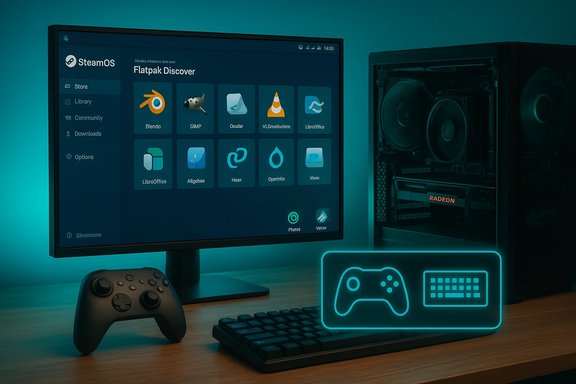
Valve’s SteamOS has evolved from a handheld-first curiosity into a viable desktop OS for many PC gamers — and for AMD-based rigs in particular, recent driver, Proton, and tooling updates have made the prospect of leaving Windows for SteamOS more realistic than it was two years ago.
Background / Overview
SteamOS began life as Valve’s Linux distribution tailored for the Steam Deck. Over successive updates it added a desktop mode, Flatpak support via Flathub/Discover, and incremental improvements to Proton (the Windows compatibility layer) that let more Windows-native games run on Linux with acceptable performance. The hands-on experience described in the NoobFeed piece — wiping a Windows SSD and installing SteamOS, then running a modern AMD GPU/CPU rig as a SteamOS desktop — reflects what many early adopters have reported: the installer is straightforward, common desktop apps run well via Flatpak, and Steam libraries on other drives can be recognized when you point Steam to the right library folders.That momentum is not accidental. Valve’s compatibility layer team and community Proton forks have added features (including support for new upscaling and Vulkan/DX translation paths) that improve performance on AMD hardware, and Valve’s Steam client and Steam Input continue to broaden controller support and desktop usability. At the same time, the anti‑cheat landscape and a few specific game-level issues remain the leading blockers for anyone trying to make SteamOS their only OS.
This guide synthesizes the NoobFeed hands‑on account with the wider technical record, hands‑on testing notes from editorial coverage, and current Proton/driver developments so you can safely evaluate whether switching from Windows to SteamOS makes sense for your AMD PC — and how to do it with minimal risk.
Why AMD-first? The practical argument
The NoobFeed tester concluded that SteamOS currently gives the best experience with AMD CPU+GPU systems. That observation aligns with the broader engineering story:- Mesa / AMDGPU driver maturity: AMD’s open driver stack (Mesa + AMDGPU) for Linux has been a community and vendor focus for years. That progress has made recent AMD GPUs and APUs well-supported on Linux distributions used for SteamOS and Deck-like images.
- Proton / VKD3D-Proton work on AMD features: VKD3D‑Proton (the Direct3D 12 → Vulkan translator used in Proton) recently landed major upgrades including support for AMD’s FSR 4 upscaling path and Anti‑Lag features. That implementation is gated for RDNA 4 hardware by default, but the codebase also exposes fallback/emulation paths for older RDNA GPUs — useful for some AMD setups though slower or lower quality in that mode. These changes were broadly documented in recent Proton/VKD3D release notes and technical coverage.
- Upscaling and performance parity: With FSR 4 support in the translation stack, AMD systems can benefit from modern upscaling and latency tools inside Proton‑translated DX12 games where the game or engine exposes FSR hooks. That tilts the balance toward AMD hardware for SteamOS-first workflows — at least until equivalent vendor features (for Nvidia or Intel) catch up in Proton in the same depth.
What to expect: Desktop, apps, and day-to-day use
SteamOS provides two complementary modes: the controller-first “Game Mode” (the full-screen Steam UI) and a KDE Plasma-based desktop mode for traditional PC tasks. In desktop mode you get:- Access to Flatpak apps through the Discover store (Discord, Obsidian, browsers, OBS, productivity apps).
- Standard Linux file system access and the ability to install additional packages if you’re comfortable with terminal work.
- Steam client, Proton, and Steam Input for controller-first flows.
Installation: A practical step-by-step for AMD PCs
The NoobFeed hands‑on account emphasizes that installation is simple: download Valve’s recovery image, write to USB (Balena Etcher is a common choice), boot the USB, and install. That remains the most reliable path for Deck-like recovery images and SteamOS installer images. Concrete steps and tips:- Back up everything. Create a full image/clone of your Windows system (use Macrium Reflect, Clonezilla, or vendor tools) and store BitLocker keys and activation records if applicable.
- Download the official SteamOS recovery/installer image (use Valve’s recovery image or your OEM’s SteamOS image if provided).
- Create a bootable USB with Balena Etcher or a verified flasher tool. Etcher AppImage guides and community flasher scripts are common references and work on Linux and Windows.
- Boot the target PC from USB, choose the install target, and follow the installer prompts. If you want a dual‑boot, shrink Windows partitions and install SteamOS alongside Windows.
- After install, update the system (SteamOS and Proton runtime updates) before trying heavy games.
- If you keep other drives with Steam libraries, add them as Steam Library Folders inside the Steam client (Settings → Downloads → Steam Library Folders). Steam will usually discover installed game files or accept them during a “reinstall” step that simply validates existing files rather than redownloading everything. This is the standard Steam behavior when migrating or pointing at existing libraries.
- If the installer asks about Secure Boot, follow platform guidance. Enrolling MOK keys or disabling Secure Boot may be required for third‑party drivers or kernel modules on some systems.
Getting your games working: Proton, VKD3D, FSR4, and shader caches
Modern Windows games run on SteamOS primarily through Proton. Two major recent developments matter:- VKD3D‑Proton 3.0 added support for AMD FSR 4 (with RDNA 4 hardware as the canonical target) and Anti‑Lag, plus a major shader-backend rewrite that improves DX12 translation. That enables better upscaling paths on Valve/AMD hardware and prepares Proton for next‑gen AMD features — while also exposing fallback paths for older GPUs (with performance and fidelity tradeoffs).
- Valve and the industry have been moving toward precompiled shader delivery and cloud-distributed shader caches to eliminate the “first‑run shader compile stutters” that used to plague many titles. Valve’s shader cache model on the Steam Deck and Microsoft’s DirectX Advanced Shader Delivery work both aim to precompute shaders and distribute them so local devices don’t spend minutes compiling shaders on first launch. Expect your first run of a heavy Vulkan/DX12 game to still compile shaders locally in some cases, but Steam’s cloud-side shader caches and new tooling reduce that overhead over time.
- If an Unreal Engine 5 title uses downloaded precompiled shaders for your hardware, the first run may still take 10–15 minutes to warm up; later runs will be faster once caches are populated.
- Check Proton release notes and VKD3D changelogs for per-game overrides. Community Proton forks (Proton‑GE) sometimes include experimental flags (like FSR4 emulation) sooner than official builds; use them if you accept the tradeoff of some instability.
Controller and peripheral support
Steam Input is one of SteamOS’s strongest features: it supports a broad list of controllers (PlayStation, Xbox, Nintendo Switch Pro, Steam Controller, many DirectInput devices) and provides per‑title remapping, gyro mapping, and profile sharing. Valve’s Steam Input device documentation lists major controller families as supported and keeps that list updated. In practice Steam Input works very well with DualSense, Xbox controllers, Nintendo Pro controllers, 8BitDo devices, and most modern wireless gamepads — including community reports that 8BitDo models now enjoy strong native Steam support. Audio and headset controls: SteamOS supports USB and Bluetooth headsets (most are recognized as standard audio devices) and in-game voice chat in Discord and Steam works with common headsets. Some vendor-specific headset features (firmware buttons, vendor control panels) may be unavailable; when vendor-specific software is critical, the Windows fallback is still the safe option.Peripherals that rely on proprietary Windows drivers (some racing wheels, flight sim hardware with Windows-only tuning software) may require workarounds or remain partially incompatible. The NoobFeed account flagged MOSA Pit House as an example where third‑party racing peripheral software didn’t fully work; that’s representative of the device cases to watch.
Anti-cheat and multiplayer: the landmine
This is the single most important compatibility axis for gamers considering a full switch.- Some anti‑cheat systems (Easy Anti‑Cheat, BattlEye) have released Linux-compatible runtimes or Proton integrations, and Valve has collaborated with these vendors to enable many titles on Proton/SteamOS. However, the vendor and the game developer must actually opt in and configure their anti‑cheat for Proton execution paths. That results in a patchwork: many games work, many do not.
- Conversely, several modern kernel‑level anti‑cheat systems and publisher policies explicitly prevent running under Proton/SteamOS. Notable examples in recent editorial coverage include Battlefield 6 (EA’s Javelin / Secure Boot‑dependent anti‑cheat) and other EA titles, which block Linux clients by requiring Secure Boot and kernel-level components that aren’t available or allowed on Proton installs. That means some high‑profile multiplayer titles are effectively unplayable on SteamOS until publishers change their approach.
- Audit your library. For every multiplayer title you care about, check current compatibility status on ProtonDB and the game’s Steam page. If anti‑cheat is used, confirm whether the developer has enabled the anti‑cheat vendor’s Proton support.
- Keep a Windows fallback (dual‑boot or a small Windows SSD). This lets you preserve access to locked multiplayer titles without compromising your SteamOS experiment.
- Use cloud streaming (Steam Remote Play, Xbox Cloud Gaming) as a band‑aid when direct Proton support isn’t available.
Common problems and troubleshooting
- Steam doesn’t see installed games on other drives: add the old drive’s Steam library folder via Steam → Settings → Downloads → Steam Library Folders, then click “Add Library Folder.” In many cases Steam will detect existing files and avoid re‑downloading. This is standard Steam behavior.
- Controller mapping broken in a game: check the per‑game Controller settings (Properties → Controller) and toggle Steam Input (Enable or Force Enable). Steam Input settings can be applied per-game. Community threads show this resolves many controller edge cases.
- Shader stutter on first run: allow the shader cache / precompilation to complete; consider waiting or using community Proton builds with async shader compile hacks (dxvk‑async / Proton‑GE) where the community has documented improvements. Valve’s cloud shader caches and Microsoft’s Advanced Shader Delivery are both industry moves to reduce this problem.
- Flatpak / Discover not listing apps: ensure Flathub is configured as a source in Discover; some SteamOS users have had to re‑add Flathub or enable the beta repo to access certain Flatpaks (Edge, Lutris, etc.. Community posts and Discover bug reports discuss that process.
Realistic performance expectations
Hands‑on reports — including the NoobFeed account — show that many AAA single‑player titles run at or near native fidelity on modern AMD hardware under SteamOS with Proton, especially when using in‑game presets plus frame‑limiters or upscalers. The practical wins tend to be:- Better sustained 1% lows and fewer micro‑stutters in shader‑heavy scenes (because of tuned Mesa drivers, Proton improvements, and shader caching).
- Full controller/U‑I integration that can reduce friction for living‑room play and streaming.
A quick decision flow (should you switch?
- Is your library primarily single‑player and Steam-native? If yes — SteamOS is a strong candidate.
- Do you rely on competitive multiplayer titles with aggressive anti‑cheat? If yes — keep Windows as a fallback or stay on Windows.
- Do you need vendor-specific Windows-only apps or device control panels (some creative/professional tools, OEM utilities)? If yes — retain Windows for those tasks or accept partial functionality.
- Want a low-risk path? Dual‑boot, test SteamOS live USB, or try it on a secondary drive before wiping your main Windows image.
What’s changed recently (and why it matters)
- VKD3D‑Proton 3.0 added FSR 4 and Anti‑Lag support and rewrote DXBC shader codepaths, improving translation and enabling new upscaling pathways on Linux — a direct win for AMD‑centric SteamOS users.
- Valve’s Steam shader cache model (and Microsoft’s similar Advanced Shader Delivery work in the DirectX ecosystem) reduces first‑run shader lag by precompiling or distributing shader caches, improving perceived smoothness on first play sessions over time.
- Anti‑cheat remains the gating factor. While EAC/BattlEye have Proton paths in many cases, kernel-level systems and publisher policies (e.g., recent EA Javelin / Secure Boot requirements) continue to exclude some titles from SteamOS. Always verify the multiplayer titles you need.
Flagging uncertain / questionable claims
Some hands‑on reports and blog posts conflate model names or list vendor hardware inaccurately (for example, references like “9800X3D CPU” or similarly odd component names). These appear to be typos or mis‑labels rather than new product names. When you read a single-user account that references unfamiliar SKU strings, treat them with caution and verify against vendor product pages or official spec sheets before making purchase or compatibility decisions. If specific driver or firmware compatibility is essential, consult the GPU vendor and Proton release notes directly.Practical checklist (before you flip the switch)
- Back up Windows and create recovery media.
- Inventory anti‑cheat and DRM‑sensitive titles; confirm Proton/dev opt‑ins.
- Test drivers and hardware on a SteamOS live USB or secondary SSD.
- Prepare a dual‑boot plan or a small Windows recovery SSD if you depend on locked titles.
- Use a rolling update plan: keep Proton, Mesa, and kernel packages updated, but set up snapshots/rollback (Btrfs + Timeshift) to recover from bad updates.
- Add Steam Library Folders to reuse existing game installations — Steam will detect and validate files in most cases.
Final verdict
Switching from Windows to SteamOS on an AMD PC is more practical today than it was a few years ago. SteamOS’s desktop mode, Proton’s steady improvements (including VKD3D’s FSR4 work), and the maturing Mesa driver stack make SteamOS a serious alternative for gamers whose libraries and workflows are Steam‑centric and single‑player heavy. The install is straightforward, controller integration is excellent, and desktop apps via Flatpak can cover many productivity needs. The NoobFeed hands‑on example — quick install, immediate hardware detection, and strong gaming outcomes on an AMD rig — is consistent with broader community reporting and recent technical releases.That said, the switch is not cost‑free. Anti‑cheat and certain proprietary device drivers are the main friction points that prevent a universal migration today. For most users the pragmatic path is staged: test SteamOS on secondary hardware or dual‑boot, maintain a Windows fallback for locked multiplayer titles, and keep up with Proton and driver updates as they land.
If your priority is a console‑like, plug‑and‑play living‑room or handheld experience with deep Steam integration and you own an AMD system, SteamOS is now very attractive. If you need absolute seamless access to the entire Windows multiplayer ecosystem, wait or hedge with a dual‑boot arrangement. Either way, the tools and compatibility have improved to the point where switching is no longer an academic experiment — it’s a practical engineering choice that many gamers will find worthwhile.
Source: NoobFeed Switching from Windows to SteamOS: Full Guide for AMD PCs | NoobFeed
