

Valve’s SteamOS has finally reached the point where a casual, AMD‑based gamer can seriously consider wiping Windows and running a full-time gaming PC on a Linux‑first stack — the experience is smooth, installs are short, controllers and headsets are well supported, and the Proton toolchain has added meaningful AMD-focused features that improve fidelity and performance for many modern titles.
SteamOS began as Valve’s tailored Linux image for the Steam Deck, but successive updates turned it into a full desktop distribution with a controller-first Game Mode and a KDE Plasma desktop mode. That evolution included Flatpak support for common desktop apps, Steam Input integration, and ongoing Proton improvements that translate Windows APIs (Direct3D) to Vulkan. The result is an OS that’s built around playable Windows games on Linux while offering the kind of console-like, living‑room UX many players want. In practical terms, the combination of a maturing Mesa/AMDGPU driver stack, steady Proton/VKD3D engineering, and Valve’s runtime tooling has tilted the balance toward AMD hardware for many users — not because Intel or Nvidia are inherently broken, but because AMD’s open driver approach and recent feature work have aligned well with Proton’s current translation strategies. Key recent upstream work (notably VKD3D‑Proton 3.0) added first-class support for AMD FidelityFX Super Resolution 4 (FSR4) and other Direct3D 12 improvements, explicitly targeting RDNA4 as the canonical hardware for optimal behavior. This article synthesizes a NoobFeed hands‑on (the author wiped Windows and installed SteamOS to test an AMD rig), community reporting, and authoritative technical notes so you can evaluate the practical steps, performance expectations, and the risks you must accept before making the switch.
If you’re moving forward: back up, test with a live USB or secondary drive, confirm the Proton status for your must‑play multiplayer titles, and pick the SteamOS recovery image that matches your hardware generation (3.8/3.9+ for many RDNA4 builds). When in doubt, hedge with a small Windows recovery drive — it preserves access to the last few stubborn titles while letting you enjoy the streamlined SteamOS experience for everything else. Caution: some hands‑on accounts conflate component names or list odd SKU strings (for example, uncommon CPU/GPU model strings); treat unfamiliar or unverified hardware claims with skepticism and verify against vendor specification pages before making purchase or compatibility decisions.
This is the practical, road‑tested state of SteamOS on AMD PCs as of the recent Proton and driver improvements — a viable path for many, but one that rewards prudent testing and a well‑planned fallback strategy.
Source: NoobFeed Switching from Windows to SteamOS: Full Guide for AMD PCs | NoobFeed
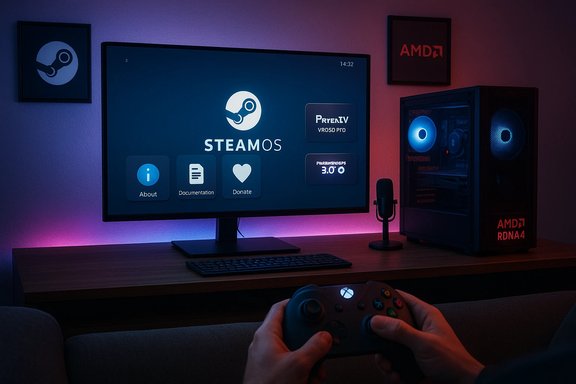 Background / Overview
SteamOS began as Valve’s tailored Linux image for the Steam Deck, but successive updates turned it into a full desktop distribution with a controller-first Game Mode and a KDE Plasma desktop mode. That evolution included Flatpak support for common desktop apps, Steam Input integration, and ongoing Proton improvements that translate Windows APIs (Direct3D) to Vulkan. The result is an OS that’s built around playable Windows games on Linux while offering the kind of console-like, living‑room UX many players want. In practical terms, the combination of a maturing Mesa/AMDGPU driver stack, steady Proton/VKD3D engineering, and Valve’s runtime tooling has tilted the balance toward AMD hardware for many users — not because Intel or Nvidia are inherently broken, but because AMD’s open driver approach and recent feature work have aligned well with Proton’s current translation strategies. Key recent upstream work (notably VKD3D‑Proton 3.0) added first-class support for AMD FidelityFX Super Resolution 4 (FSR4) and other Direct3D 12 improvements, explicitly targeting RDNA4 as the canonical hardware for optimal behavior. This article synthesizes a NoobFeed hands‑on (the author wiped Windows and installed SteamOS to test an AMD rig), community reporting, and authoritative technical notes so you can evaluate the practical steps, performance expectations, and the risks you must accept before making the switch.Why “AMD‑first” Makes Sense Right Now
Technical alignment: Mesa, AMDGPU, and Proton
- Open drivers and vendor collaboration: AMD’s Mesa + AMDGPU driver stack receives both community and vendor contributions; Valve and AMD engineers collaborate regularly to tune runtime behavior for Steam Deck and SteamOS targets.
- VKD3D‑Proton advances: VKD3D‑Proton 3.0 introduced FSR4 support and a DXBC shader backend rewrite that fixes legacy edge cases in D3D12 translation. The default path exposes FSR4 on RDNA4 devices; older RDNA GPUs can attempt fallback modes but with performance and correctness tradeoffs.
- Upscaling parity: With FSR4 available through the translation stack, AMD GPUs can leverage modern upscalers without waiting for every game studio to ship a native Linux patch — a real practical win for single‑player AAA titles that expose upscaling hooks or where Proton can inject the upscaling path.
Practical implication
- If your library is Steam‑centric and primarily single‑player or cooperative, an AMD CPU+GPU setup running SteamOS is now a pragmatic, lower‑friction choice for many users. If you depend on intensive, competitive multiplayer titles with proprietary or kernel‑level anti‑cheat, you should not assume everything will work. Anti‑cheat is the largest compatibility variable.
What NoobFeed Tested (Short Summary)
- The tester erased a Windows 11 SSD, flashed a SteamOS recovery image to USB (Balena Etcher is a common flasher), installed SteamOS, then updated it. Post‑install: keyboard, Bluetooth, controllers, and existing Steam libraries on other drives were detected without re‑downloads. Performance: modern AAA games (Borderlands 4, Metal Gear Solid Delta, Silent Hill 2 Remake, Elden Ring) ran at 1440p with 60 fps frame‑limit and maxed settings on the AMD test rig. Controller integration and desktop apps like Discord and Obsidian worked well for everyday tasks. The overall verdict: very positive for an AMD desktop use case, with a few caveats around anti‑cheat and niche peripheral tooling.
Installation: A Practical, Low‑Risk Workflow
Preparation (do this first)
- Back up everything. Create a full disk image of your Windows system (Macrium Reflect, Clonezilla, or similar) and export BitLocker keys and license info.
- Inventory anti‑cheat titles. Make a list of the multiplayer titles you can’t live without and check their current Linux/Proton status (developer opt‑ins for EAC/BattlEye vary). If those titles are critical, plan a dual‑boot or keep a small Windows recovery SSD.
- Obtain the SteamOS recovery image. Use Valve’s recovery image (the Steam support/FAQ page documents the recovery procedure). Community experiences show different recovery images were required for some third‑party handhelds — use the image recommended for your target hardware or the latest SteamOS recovery image for desktops if available.
- Make a bootable USB. Balena Etcher, Rufus, or other verified imaging tools work across platforms.
Installation steps (clean install)
- Boot from the SteamOS recovery USB and choose “Install” or “Reimage” depending on whether you want factory behavior.
- Select the target drive (warning: this will erase the selected drive). For dual‑boot, shrink Windows partitions first and install SteamOS to the free space or a separate drive.
- After the first boot, switch to Developer Settings and set update branches if you need a later kernel or driver set (community guides often show this step when hardware requires newer drivers).
- Add existing Steam library folders via Steam → Settings → Downloads → Steam Library Folders to reuse game files.
- Update the system (Steam client, Proton runtime, Mesa/kernel where made available by the SteamOS channels).
Reusing Existing Games and the Steam Library
- Steam will usually detect files on attached drives when you add them as library folders, then validate files instead of re‑downloading. This saves enormous time and bandwidth when migrating an existing Steam library to SteamOS. Many users report quick detection and minimal revalidation after pointing the Steam client to the old library folders.
Gaming Experience: What to Expect and How to Tune It
Performance realities
- Many titles run at or near native fidelity on modern AMD hardware using Proton and VKD3D, particularly single‑player AAA games optimized for DX12. Users report smoother 1% lows and fewer micro‑stutters in shader‑heavy scenes thanks to driver and shader cache improvements, though results vary by title and configuration.
Upscaling and VKD3D gains
- VKD3D‑Proton 3.0’s FSR4 and anti‑lag integration are real engineering gains: FSR4 is exposed by default on RDNA4 in official builds, while fallback emulation paths for older GPUs exist but come with performance costs and are not always enabled in official Proton builds. Using the right Proton version (Proton Experimental or community forks for bleeding‑edge fixes) can materially change results.
Shader compilation and first‑run stutter
- First‑run shader compilation has historically caused long pauses on first launch. Valve implemented precompiled shader delivery and cloud shader caching to mitigate the issue, and Mesa/RADV driver changes have dramatically reduced cache sizes and warm‑up times. Expect a warm‑up period on a first play session (10–15 minutes for some UE5 titles) but much better behavior thereafter as caches populate. Community reports and Valve fixes indicate shader cache delivery is an active area of improvement.
Controller and peripheral support
- Steam Input is a robust system that maps a wide range of controllers (DualSense, Xbox Series X, Nintendo Switch Pro, 8BitDo) and provides per‑title remapping, gyro, and profile sharing. Steam Input is a major strength of SteamOS for a living‑room, controller‑first setup. That said, vendor‑specific utilities for headsets or niche racing peripherals that rely on Windows drivers may not be fully functional; expect to research specific peripherals ahead of a full wipe.
Anti‑Cheat: The Single Biggest Landmine
Anti‑cheat is the central compatibility axis that will determine whether you can truly migrate off Windows. The state is complicated:- EAC and BattlEye have Linux/Proton paths and Valve has worked with vendors to enable Proton compatibility for many titles — but developer opt‑in is required. Proton’s implementation made it possible for many games to run with EAC or BattlEye when the studio configured the pipeline appropriately.
- Not all anti‑cheat is equal. Kernel‑level systems like EA’s Javelin (used in Battlefield 6) require Secure Boot and kernel components that currently block Proton in practice; other vendors or publisher policies may prohibit Proton execution. As a result, some big multiplayer titles remain blocked or fragile on SteamOS unless the developer explicitly enables Linux support.
- Pragmatic checklist: Audit every multiplayer title you need. If the developer requires kernel‑level anti‑cheat or has not enabled Linux paths, keep Windows as a fallback. Use cloud streaming (Steam Remote Play or Game Pass cloud) when direct local execution is blocked.
Desktop Apps, Productivity, and Streaming
- Flatpak + Discover: SteamOS offers a desktop mode powered by KDE and Flatpak/Discover. Common apps like Discord, OBS (or Flatpak OBS), and Obsidian are available and usable for light productivity and streaming. For high‑quality streaming on lower‑end systems, OBS is typically preferable to the built‑in Steam recording.
- Workflow notes: If you rely on Windows‑only creative tools (proprietary audio suites, device control panels, vendor RGB software), those may not be available on Linux. Keep a Windows fallback if you rely heavily on those utilities.
The Alternatives: Bazzite / Community Distros
If you want broader hardware support or a more general desktop Linux experience, community distributions such as Bazzite (Fedora‑based gaming distro) and other handheld‑centric spins offer different tradeoffs: broader hw compatibility (including more Nvidia-friendly packaging in some community images), different update strategies (immutable vs. mutable root), and additional preconfigured tooling for multiple launchers. For users who want a wider Linux desktop experience with gaming conveniences, these distros are a reasonable middle ground — but they’re not Valve‑maintained SteamOS and may have their own quirks.Troubleshooting and Common Gotchas
- SteamOS recovery image versions matter. Some community reports and installs required 3.8+ or 3.9 images to get newer RDNA drivers working properly — check the image version for your GPU family before installing.
- Shader cache downloads can be large and behave oddly with some drivers; expect an initial period where Steam downloads precompiled shader caches and driver updates may reduce sizes over time. Valve and Mesa changes reduced shader cache bloat, but some community reports of daily re-downloads exist — keep your system updated.
- Peripherals with Windows‑only companion apps (racing wheel managers, headset DSP suites) may require Windows for full feature access. Research required vendor support before a full‑time switch.
Risk Matrix: Who Should Switch, Who Should Hedge
- Buy (Switch): Steam‑centric gamers whose libraries are mostly single‑player / coop, who value a console‑like living‑room UX, or who want a simplified, controller‑first environment. AMD systems will typically provide the smoothest path today due to driver and Proton alignment.
- Hedge (Dual‑boot): Gamers who play a mix of single‑player and competitive multiplayer titles that may rely on kernel‑level anti‑cheat or non‑Linux launchers; keep a small Windows SSD and only migrate fully when every critical title is confirmed to run.
- Wait: Users who rely on numerous Windows‑only vendor utilities, unusual peripherals, or titles without Proton support should delay a full migration until vendor support widens.
Strengths, Weaknesses, and the Road Ahead
Strengths
- Controller-first, console-like UX that’s ideal for living‑room setups and handheld-style use.
- Rapid Proton/VKD3D progress with FSR4 and D3D12 translation improvements giving AMD setups new options for upscaling and latency reduction.
- Flatpak ecosystem makes everyday desktop apps accessible without deep Linux packaging knowledge.
Weaknesses / Risks
- Anti‑cheat and publisher policy remain the biggest blockers for a complete Windows-to‑SteamOS migration. Developers must opt in to EAC/BattlEye Proton paths; some anti‑cheat (e.g., Javelin) enforces Secure Boot/kernel components that currently block Proton.
- Vendor utilities and niche drivers: racing wheels, certain audio DSP suites, and some OEM power/thermal utilities may not have Linux equivalents.
- Scheduler and driver variance: results vary by title, engine, and driver version — test your key titles on a live USB or secondary SSD before a full wipe.
What’s likely to improve next
- Wider adoption of FSR4 in Proton and better driver support for RDNA4 across distributions.
- Continued anti‑cheat vendor integration (EAC/BattlEye) in partnership with Valve — but developer opt‑in will remain a gating factor.
- Further optimization of shader cache delivery and reduced disk/first‑run friction as Valve and Mesa refine pipeline caches.
Final Verdict
The NoobFeed hands‑on aligns with broader community and engineering signals: switching from Windows to SteamOS on an AMD PC is a viable, often satisfying choice for many gamers, particularly those who prioritize single‑player experiences, living‑room play, and controller first workflows. The installation and daily desktop experience are polished enough to be a daily driver on competent hardware, and Proton’s VKD3D 3.0 milestone brings AMD‑focused features that further justify the move for RDNA‑class systems. That said, the migration is not risk‑free. Anti‑cheat, niche drivers, and vendor utilities are the principal friction points that make a staged approach (dual‑boot or a small Windows fallback SSD) the safest strategy for most users today. If you can accept those tradeoffs, SteamOS delivers a compelling, console‑like gaming OS that no longer feels like an experiment — it feels like a practical choice.If you’re moving forward: back up, test with a live USB or secondary drive, confirm the Proton status for your must‑play multiplayer titles, and pick the SteamOS recovery image that matches your hardware generation (3.8/3.9+ for many RDNA4 builds). When in doubt, hedge with a small Windows recovery drive — it preserves access to the last few stubborn titles while letting you enjoy the streamlined SteamOS experience for everything else. Caution: some hands‑on accounts conflate component names or list odd SKU strings (for example, uncommon CPU/GPU model strings); treat unfamiliar or unverified hardware claims with skepticism and verify against vendor specification pages before making purchase or compatibility decisions.
This is the practical, road‑tested state of SteamOS on AMD PCs as of the recent Proton and driver improvements — a viable path for many, but one that rewards prudent testing and a well‑planned fallback strategy.
Source: NoobFeed Switching from Windows to SteamOS: Full Guide for AMD PCs | NoobFeed
