

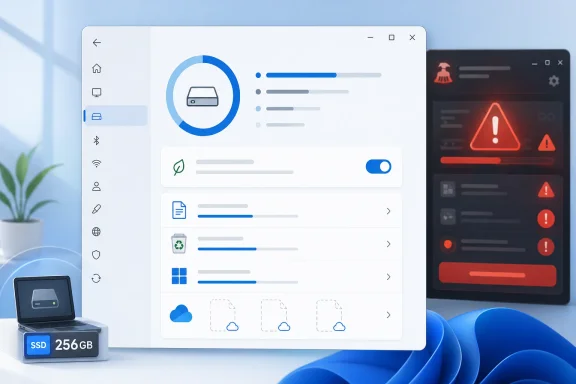
Windows users have been trained for decades to treat a full drive as a crisis best solved by downloading yet another utility, but the more interesting answer has been sitting inside the operating system all along. Storage Sense, Microsoft’s built-in cleanup automation for Windows 10 and Windows 11, does many of the jobs that commercial “PC cleanup” apps advertise, without the scare tactics, subscription prompts, or one-click promises that often surround the category. The renewed attention around Storage Sense is a useful reminder that Windows has quietly absorbed many maintenance tasks that once required separate tools. For everyday users, the bigger story is not just that Windows can delete temporary files; it is that Microsoft has turned storage management into a policy-driven, cloud-aware maintenance feature.
For years, Windows maintenance culture revolved around visible tools: Disk Cleanup, defragmenters, registry cleaners, uninstallers, startup managers, and all-in-one optimization suites. Some of those utilities had legitimate uses, especially in the Windows XP and Windows 7 eras, when storage was slower, Windows Update cleanup was less visible, and mechanical hard drives benefited from periodic manual attention. But the software market also learned that “junk files” made for powerful marketing, because large numbers and red warning icons could make a normal PC look dangerously neglected.
Microsoft’s own approach evolved more slowly. Disk Cleanup gave users a familiar way to remove temporary files, old update packages, thumbnails, delivery optimization files, and other recoverable data, but it remained a manual tool with a legacy interface. It helped, but it did not feel like part of a modern operating system that could manage itself.
Storage Sense changed that direction by moving cleanup into Windows Settings and adding automation. Instead of asking users to remember a utility, it lets Windows monitor storage conditions and apply rules over time. That distinction matters because storage problems are rarely caused by one dramatic event; they tend to accumulate through downloads, app caches, Windows updates, screenshots, cloud sync folders, game patches, and abandoned installers.
The feature is also part of a broader shift in Windows from repair-oriented utilities to continuous maintenance. Windows Security, Windows Update, OneDrive Files On-Demand, app reset options, and Settings-based storage reports all point in the same direction. Microsoft wants the operating system to handle ordinary housekeeping quietly, leaving third-party utilities for edge cases rather than routine survival.
Storage Sense matters because it targets the boring accumulation that users rarely inspect. Temporary files, Recycle Bin contents, update leftovers, and locally cached cloud files do not look dramatic individually, but together they can consume many gigabytes. The value is not magic performance boosting; it is predictable recovery of space without forcing users into risky cleanup rituals.
Once enabled, Storage Sense can run when disk space is low or on a schedule, including daily, weekly, or monthly intervals depending on configuration. It can remove temporary system and app files, clear Recycle Bin items after a chosen age, and optionally manage files in the Downloads folder. On systems using OneDrive, it can also make eligible locally cached cloud files online-only after a defined period of inactivity.
A sensible setup usually looks like this:
This is not the same as blindly trusting Windows to decide everything. It is closer to a triage screen, where the operating system narrows the list but the user makes the final call. That design is especially useful for less technical users who know they need space but do not know where to start.
This is particularly valuable on laptops with small SSDs. A user may want access to a large photo archive, school folder, or work document library without keeping the entire collection physically stored on the device. Storage Sense can help maintain that balance by freeing local space while preserving access through the cloud.
The most common problem is incentive design. A paid cleanup app often needs to convince users that continued scanning has value, even when the system is healthy. That can lead to exaggerated language around caches, registry entries, cookies, and “performance issues” that are not necessarily urgent.
Administrators can configure Storage Sense through modern management channels, including policy-based deployment. That matters because unmanaged cleanup behavior is risky in business environments, but standardized rules can be tested, documented, and applied consistently. In other words, Storage Sense becomes part of endpoint hygiene rather than an ad hoc user choice.
For organizations, the key questions are practical:
This is especially helpful for families managing shared PCs. Children download games, parents save photos, browsers collect caches, and Windows updates leave behind cleanup candidates. A monthly Storage Sense routine can prevent the machine from slowly turning into a storage mystery.
The more dangerous myth involves registry cleaning. Modern Windows systems do not generally need routine registry scrubbing, and removing entries because they look unused can create more risk than benefit. A few orphaned keys are usually less harmful than an overzealous cleaner deleting something an application expects to find.
Common misconceptions include:
The difference is presentation and automation. Disk Cleanup is a tool you remember to launch, while Storage Sense is a behavior you configure. That changes the user relationship from reactive cleanup to ongoing management.
A practical distinction looks like this:
That does not eliminate the market, but it changes the burden of proof. A utility now has to demonstrate specific value beyond what Windows already includes. “Clean junk files” is no longer a compelling pitch by itself when the operating system can do that with first-party awareness.
Signs of a healthier utility include:
Storage Sense reduces that exposure because it is part of Windows. It does not remove every privacy concern, and users should still understand Microsoft account and diagnostic settings, but it avoids adding another company to the maintenance loop. For many households and small businesses, that is a meaningful reduction in complexity.
Security-minded users should consider:
Microsoft also has room to make Storage Sense more predictive. Instead of waiting for low space or running on a fixed schedule, Windows could warn users that a feature update, game installation, or developer workload will likely require additional space. That kind of proactive guidance would make storage feel less like a sudden failure.
Watch these areas closely:
Storage Sense will not end the market for cleanup utilities, and it will not fix every slow or crowded PC. But it does expose how much of the old cleanup ritual was habit, anxiety, and marketing rather than necessity. For most Windows 10 and Windows 11 users, the smartest first step is no longer downloading another optimizer; it is opening Settings, reviewing Storage, and letting Windows handle the routine clutter it already understands.
Source: MakeUseOf I wasted money on cleanup apps before realizing Windows had one built in
 Background
For years, Windows maintenance culture revolved around visible tools: Disk Cleanup, defragmenters, registry cleaners, uninstallers, startup managers, and all-in-one optimization suites. Some of those utilities had legitimate uses, especially in the Windows XP and Windows 7 eras, when storage was slower, Windows Update cleanup was less visible, and mechanical hard drives benefited from periodic manual attention. But the software market also learned that “junk files” made for powerful marketing, because large numbers and red warning icons could make a normal PC look dangerously neglected.Microsoft’s own approach evolved more slowly. Disk Cleanup gave users a familiar way to remove temporary files, old update packages, thumbnails, delivery optimization files, and other recoverable data, but it remained a manual tool with a legacy interface. It helped, but it did not feel like part of a modern operating system that could manage itself.
Storage Sense changed that direction by moving cleanup into Windows Settings and adding automation. Instead of asking users to remember a utility, it lets Windows monitor storage conditions and apply rules over time. That distinction matters because storage problems are rarely caused by one dramatic event; they tend to accumulate through downloads, app caches, Windows updates, screenshots, cloud sync folders, game patches, and abandoned installers.
The feature is also part of a broader shift in Windows from repair-oriented utilities to continuous maintenance. Windows Security, Windows Update, OneDrive Files On-Demand, app reset options, and Settings-based storage reports all point in the same direction. Microsoft wants the operating system to handle ordinary housekeeping quietly, leaving third-party utilities for edge cases rather than routine survival.
Why Storage Sense Matters Now
Storage pressure is getting stranger, not simpler. Many modern PCs ship with fast NVMe SSDs, but entry-level systems still commonly include limited storage, and premium ultrabooks often trade capacity for thinness, battery life, and cost. A 256GB system drive can feel roomy on day one and cramped after a year of Windows feature updates, Teams caches, browser profiles, game launchers, photos, and sync folders.Storage Sense matters because it targets the boring accumulation that users rarely inspect. Temporary files, Recycle Bin contents, update leftovers, and locally cached cloud files do not look dramatic individually, but together they can consume many gigabytes. The value is not magic performance boosting; it is predictable recovery of space without forcing users into risky cleanup rituals.
The end of cleanup theater
The cleanup-app market often sells certainty where none exists. A scan can count thousands of “issues,” but many are harmless cache entries, recently used lists, logs, or registry leftovers that do not meaningfully slow a modern PC. Storage Sense takes a more restrained approach, and that restraint is exactly why it deserves attention.- It focuses on temporary and recoverable data, not vague “system errors.”
- It integrates with Windows’ own understanding of update files and storage categories.
- It avoids presenting every cached file as a crisis.
- It can run automatically instead of encouraging compulsive rescans.
- It works without installing another background service.
How Storage Sense Works
Storage Sense lives in the System > Storage area of Windows Settings. The Storage page first shows what is using disk space, with categories such as installed apps, temporary files, documents, pictures, desktop items, and other storage groups. That visibility is important because cleanup should begin with diagnosis, not blind deletion.Once enabled, Storage Sense can run when disk space is low or on a schedule, including daily, weekly, or monthly intervals depending on configuration. It can remove temporary system and app files, clear Recycle Bin items after a chosen age, and optionally manage files in the Downloads folder. On systems using OneDrive, it can also make eligible locally cached cloud files online-only after a defined period of inactivity.
Rules instead of panic
The most important design choice is that Storage Sense uses rules. Users decide what qualifies for cleanup, and Windows applies those rules later. That is safer than a one-time “clean everything” button because it creates a predictable maintenance pattern.A sensible setup usually looks like this:
- Open Settings and go to System > Storage.
- Review the storage breakdown before deleting anything.
- Open Cleanup recommendations for a one-time review of obvious candidates.
- Enable Storage Sense and choose a monthly or low-disk-space schedule.
- Leave Downloads cleanup disabled unless you deliberately manage that folder.
- Use Run Storage Sense now once you are comfortable with the selected rules.
Cleanup Recommendations: The Human Checkpoint
Windows 11’s Cleanup recommendations feature deserves attention because it bridges manual and automated cleanup. Before you turn on any scheduled deletion, Cleanup recommendations shows categories of data that Windows believes may be safe to remove. It can surface temporary files, large files, unused apps, files synced to the cloud, and Recycle Bin contents.This is not the same as blindly trusting Windows to decide everything. It is closer to a triage screen, where the operating system narrows the list but the user makes the final call. That design is especially useful for less technical users who know they need space but do not know where to start.
Why review still matters
Storage tools are safest when they distinguish between disposable and personally meaningful data. A Windows Update cache is usually disposable after the update is stable; a folder of tax documents in Downloads is not. Automated tools can infer age and location, but they cannot infer emotional or business importance.- Review large files before deletion.
- Treat the Downloads folder as personal storage unless you have another workflow.
- Check Recycle Bin contents if you recently deleted project files.
- Remove unused apps only when you recognize them.
- Confirm cloud sync status before relying on online-only access.
The OneDrive Connection
OneDrive integration is where Storage Sense becomes more than a temporary-file remover. With Files On-Demand, OneDrive can show files in File Explorer without storing full local copies of every file. Storage Sense can then convert eligible locally available files back to online-only status after they have not been opened for a configured period.This is particularly valuable on laptops with small SSDs. A user may want access to a large photo archive, school folder, or work document library without keeping the entire collection physically stored on the device. Storage Sense can help maintain that balance by freeing local space while preserving access through the cloud.
Cloud-aware cleanup is different
Traditional cleanup tools usually think locally: delete files, compress files, clear caches, or uninstall applications. Storage Sense is different because it can dehydrate certain OneDrive files, meaning it removes the local payload while leaving a placeholder that can download again when needed. This turns storage cleanup into a sync-state decision rather than a deletion decision.- Files marked Always keep on this device are protected from automatic online-only conversion.
- Online-only files remain visible in File Explorer.
- Opening an online-only file requires internet access.
- Multiple OneDrive accounts may need separate review.
- Business environments may apply policies that affect user control.
What Third-Party Cleaners Still Offer
It would be too easy to declare every cleanup app obsolete. Some third-party tools still offer useful features, especially for power users who want deeper app uninstall tracking, duplicate file discovery, browser-specific cleanup, startup analysis, or portable maintenance workflows. The issue is not that all cleanup apps are useless; it is that many users install them for jobs Windows can already do safely.The most common problem is incentive design. A paid cleanup app often needs to convince users that continued scanning has value, even when the system is healthy. That can lead to exaggerated language around caches, registry entries, cookies, and “performance issues” that are not necessarily urgent.
Where built-in tools win
For mainstream storage cleanup, the built-in approach has structural advantages. Microsoft knows more about Windows update components, system folders, and OneDrive behavior than any outside utility can safely infer. That does not make Storage Sense perfect, but it gives it a trust advantage for routine housekeeping.- No extra installer is required.
- No subscription is needed for core cleanup.
- No registry cleaning is marketed as a performance cure.
- No third-party background optimizer has to run.
- No separate vendor telemetry relationship is introduced.
Enterprise and IT Admin Implications
For enterprise IT, Storage Sense is not just a convenience feature; it is a fleet-management pressure valve. Devices with small system drives can become support tickets when Windows updates fail, Outlook caches balloon, Teams data grows, or users keep large local OneDrive libraries. Automated cleanup can reduce those incidents before they interrupt work.Administrators can configure Storage Sense through modern management channels, including policy-based deployment. That matters because unmanaged cleanup behavior is risky in business environments, but standardized rules can be tested, documented, and applied consistently. In other words, Storage Sense becomes part of endpoint hygiene rather than an ad hoc user choice.
Policy beats persuasion
IT teams often struggle to persuade users to clean their devices. Users do not know what to delete, they fear losing files, and they usually wait until a failure occurs. A policy-backed Storage Sense configuration can shift the burden away from individual judgment.For organizations, the key questions are practical:
- How much free space should endpoints maintain?
- Should cleanup run only during low disk space or on a schedule?
- Should Recycle Bin cleanup use 30 days, 60 days, or another threshold?
- Should Downloads ever be cleaned automatically?
- How should OneDrive retention differ between departments?
- What offline files are essential for traveling employees?
Consumer Impact: Less Fear, More Control
For home users, the most immediate benefit is psychological. A low-storage warning can feel like a system failure, and cleanup apps often amplify that anxiety with alarming scan results. Storage Sense reframes the problem as ordinary maintenance: review what is using space, clear safe categories, and automate the recurring clutter.This is especially helpful for families managing shared PCs. Children download games, parents save photos, browsers collect caches, and Windows updates leave behind cleanup candidates. A monthly Storage Sense routine can prevent the machine from slowly turning into a storage mystery.
The best default habits
Most consumers do not need aggressive settings. A moderate configuration avoids surprises while still recovering space over time. The goal is to create a maintenance baseline that users can trust.- Turn on Storage Sense with a monthly schedule.
- Keep Recycle Bin cleanup at 30 days or longer.
- Leave Downloads set to Never unless you regularly clear it manually.
- Use Cleanup recommendations after major Windows updates.
- Mark essential OneDrive folders as Always keep on this device.
- Uninstall large apps and games from Settings rather than relying only on cleanup.
Performance Myths and Registry Cleaning
The cleanup-app category still benefits from a persistent myth: that deleting enough miscellaneous files will make Windows dramatically faster. Sometimes free space does affect performance, especially when an SSD is nearly full or Windows lacks room for updates, paging, temporary extraction, and app caches. But beyond that threshold, deleting browser caches or old thumbnails rarely produces the kind of speed boost marketing pages imply.The more dangerous myth involves registry cleaning. Modern Windows systems do not generally need routine registry scrubbing, and removing entries because they look unused can create more risk than benefit. A few orphaned keys are usually less harmful than an overzealous cleaner deleting something an application expects to find.
Clean space is not the same as speed
Storage Sense wisely avoids presenting itself as a cure-all optimizer. It focuses on reclaiming space, not promising benchmark miracles. That is a healthier message for Windows users.Common misconceptions include:
- More deleted files does not always mean a faster PC.
- Registry leftovers are not automatically urgent problems.
- Browser caches can improve performance by avoiding repeated downloads.
- Temporary files may be recreated after cleanup.
- Startup apps affect boot behavior more directly than disk clutter.
- Malware or failing hardware will not be fixed by cleanup.
The Legacy of Disk Cleanup
Disk Cleanup remains one of Windows’ most recognizable maintenance utilities, and longtime users still trust it. Its interface may look dated, but its categories are familiar, and the “Clean up system files” option has helped generations of users reclaim space after updates. That history matters because Storage Sense did not arrive in a vacuum; it inherited a role that Windows users already understood.The difference is presentation and automation. Disk Cleanup is a tool you remember to launch, while Storage Sense is a behavior you configure. That changes the user relationship from reactive cleanup to ongoing management.
Old tool, new model
There is still room for both approaches. Some advanced users prefer Disk Cleanup because it exposes certain categories in a compact legacy interface. Others prefer Settings because it fits the modern Windows management model and integrates better with storage breakdowns and cloud content.A practical distinction looks like this:
- Use Storage Sense for recurring cleanup.
- Use Cleanup recommendations for guided review.
- Use Temporary files in Settings for manual category selection.
- Use Disk Cleanup when you prefer the legacy interface.
- Use app-specific settings for large caches created by creative tools or game launchers.
Competitive Implications for Utility Software
The renewed interest in Storage Sense should make utility vendors uncomfortable. Windows has gradually absorbed functions that once justified separate purchases: antivirus, firewall management, update cleanup, basic startup visibility, storage reports, reset options, and ransomware protection controls. Each improvement narrows the space where general-purpose “PC optimizer” products can claim necessity.That does not eliminate the market, but it changes the burden of proof. A utility now has to demonstrate specific value beyond what Windows already includes. “Clean junk files” is no longer a compelling pitch by itself when the operating system can do that with first-party awareness.
A tougher sales pitch
The strongest third-party vendors will likely emphasize transparency, narrow specialization, and advanced workflows. The weakest will continue relying on fear-based dashboards and inflated issue counts. Users should learn to tell the difference.Signs of a healthier utility include:
- Clear explanations of what each cleanup category contains.
- Easy restore points or undo options.
- No pressure to fix vague “critical” issues.
- No automatic driver updates without careful review.
- No bundling of unrelated browser extensions or security add-ons.
- Respect for Windows’ own maintenance systems.
Security and Privacy Considerations
Installing a cleanup app is not a neutral act. It gives another program visibility into system files, browser data, application traces, installed software, and sometimes deeply privileged areas of Windows. Even reputable vendors must be evaluated as additional software supply-chain dependencies.Storage Sense reduces that exposure because it is part of Windows. It does not remove every privacy concern, and users should still understand Microsoft account and diagnostic settings, but it avoids adding another company to the maintenance loop. For many households and small businesses, that is a meaningful reduction in complexity.
Fewer tools, fewer attack surfaces
Every extra utility can introduce update mechanisms, scheduled tasks, browser integrations, and background services. Those components may be legitimate, but they increase the number of moving parts on the system. A minimalist approach to maintenance is often more secure than a crowded toolbox.Security-minded users should consider:
- Whether a cleanup tool runs with administrator privileges.
- Whether it installs persistent services.
- Whether it modifies browser settings.
- Whether it bundles additional software.
- Whether it offers driver updates from unclear sources.
- Whether its privacy policy matches the access it requests.
Strengths and Opportunities
The strongest argument for Storage Sense is not that it is the most powerful cleanup system imaginable, but that it is good enough, safe enough, and already present for the majority of Windows users. Its integration with Windows Settings, OneDrive, and system cleanup categories gives it a practical advantage over many generic utilities. As Microsoft continues pushing Windows toward cloud-connected, policy-managed, and self-maintaining behavior, Storage Sense is likely to become more important rather than less.- First-party integration lets Windows identify temporary and update-related files with more confidence.
- Automation reduces the chance that users wait until free space becomes an emergency.
- OneDrive awareness makes it useful on small SSDs and cloud-heavy workflows.
- Cleanup recommendations preserve user review before deletion.
- No added subscription makes it attractive for budget-conscious consumers.
- Enterprise policy support gives IT teams a manageable way to reduce storage-related tickets.
- Lower scare factor helps users make calmer maintenance decisions.
Risks and Concerns
Storage Sense is not risk-free, and Microsoft should resist the temptation to make it overly aggressive. Automated cleanup becomes dangerous when users do not understand which locations are treated as temporary, which cloud files are offline, and which folders contain important personal work. The feature’s success depends on conservative defaults, clear language, and visible recovery paths.- Downloads cleanup can surprise users who treat the folder as long-term storage.
- Online-only OneDrive files can be inconvenient without reliable internet access.
- Low-storage triggers may run at moments when users are already stressed.
- Business policies can confuse employees if not documented clearly.
- Temporary app files may include caches that users expected to keep.
- False confidence could lead users to ignore deeper storage problems.
- Limited scope means Storage Sense will not solve every disk-space issue, especially on non-system drives.
What to Watch Next
The next frontier for Windows storage management is better explanation. Microsoft already shows categories and recommendations, but many users still do not understand the difference between deleting a file, removing a local cloud copy, clearing a cache, and uninstalling an app. Clearer language inside Settings could prevent mistakes and reduce dependence on third-party explainers.Microsoft also has room to make Storage Sense more predictive. Instead of waiting for low space or running on a fixed schedule, Windows could warn users that a feature update, game installation, or developer workload will likely require additional space. That kind of proactive guidance would make storage feel less like a sudden failure.
Watch these areas closely:
- Whether Windows 11 and future Windows releases make Storage Sense more visible during setup.
- Whether Microsoft expands Cleanup recommendations with clearer risk labels.
- Whether OneDrive controls become easier for nontechnical users to understand.
- Whether enterprise management adds more granular reporting for storage cleanup results.
- Whether utility vendors shift away from generic cleanup claims toward specialized diagnostics.
Storage Sense will not end the market for cleanup utilities, and it will not fix every slow or crowded PC. But it does expose how much of the old cleanup ritual was habit, anxiety, and marketing rather than necessity. For most Windows 10 and Windows 11 users, the smartest first step is no longer downloading another optimizer; it is opening Settings, reviewing Storage, and letting Windows handle the routine clutter it already understands.
Source: MakeUseOf I wasted money on cleanup apps before realizing Windows had one built in
