

Microsoft’s simple advice — use Storage Sense — is both practical and timely: Windows includes built‑in tools that will reclaim disk space, avoid “disk full” errors, and reduce the need for third‑party cleaners or a full reinstall, but only if users configure those features thoughtfully and respect the limits of what they touch. The recommendation to rely on Storage Sense and other native utilities is grounded in Microsoft’s own documentation and the community testing that followed, yet it also comes with important caveats about what should not be deleted (for example, Prefetch data, System Restore points and Volume Shadow Copies).
Windows machines collect a surprising amount of ephemeral and cached data over time: temporary app files, installer leftovers, browser caches, delivery‑optimization files, OneDrive local caches and Windows Update artifacts. When that clutter grows, even modern SSD systems can suffer from slower response times, failed update installs and general instability. Built‑in Windows tools — most notably Storage Sense and OneDrive Files On‑Demand — are designed to mitigate these problems by automating conservative cleanup tasks and offloading cloud‑backed files to online‑only status. Microsoft documents Storage Sense as an opt‑in tool that runs on the system drive and can be customized; community documentation expands on safe defaults and practical workflows. Storage Sense is not a silver bullet: it addresses ephemeral and cached items, not large local datasets such as games, virtual machines, or media libraries. For many users — especially those with 128–512 GB drives — using Storage Sense correctly can be the difference between frequent manual housekeeping and a mostly hands‑off maintenance regime.
Source: Bangkok Post Microsoft recommend Storage Sense to free up PC space easily
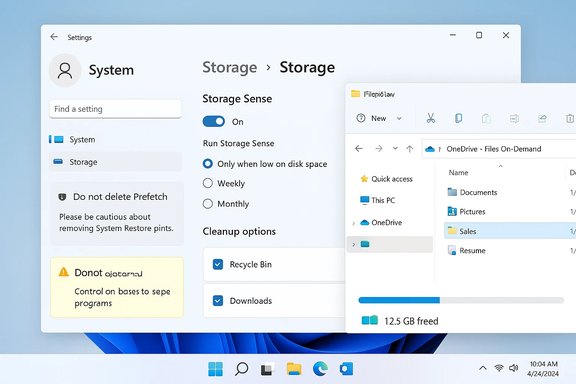 Background / Overview
Windows machines collect a surprising amount of ephemeral and cached data over time: temporary app files, installer leftovers, browser caches, delivery‑optimization files, OneDrive local caches and Windows Update artifacts. When that clutter grows, even modern SSD systems can suffer from slower response times, failed update installs and general instability. Built‑in Windows tools — most notably Storage Sense and OneDrive Files On‑Demand — are designed to mitigate these problems by automating conservative cleanup tasks and offloading cloud‑backed files to online‑only status. Microsoft documents Storage Sense as an opt‑in tool that runs on the system drive and can be customized; community documentation expands on safe defaults and practical workflows. Storage Sense is not a silver bullet: it addresses ephemeral and cached items, not large local datasets such as games, virtual machines, or media libraries. For many users — especially those with 128–512 GB drives — using Storage Sense correctly can be the difference between frequent manual housekeeping and a mostly hands‑off maintenance regime.What Storage Sense does (and what it won’t)
Core actions Storage Sense can perform
- Remove temporary system and application files.
- Empty the Recycle Bin after a configurable age threshold.
- Optionally delete files in the Downloads folder that haven’t been opened for a specified time.
- Convert locally cached OneDrive files to online‑only placeholders (Files On‑Demand) after a chosen period of inactivity.
Constraints and limits
- Runs on the system drive only. Storage Sense operates on the Windows partition (usually C
 ; it does not manage other volumes unless you use separate tools.
 - Requires sign‑in and network availability for certain actions: Storage Sense cannot run unless you are signed in and online for more than ten minutes.
- Not a backup or archival solution: Converting to online‑only preserves the cloud copy, but Storage Sense does not replace a robust backup or versioned archival strategy.
Why Microsoft’s built‑in approach is sensible
Microsoft’s goal with Storage Sense is conservative automation: free the system of expendable cruft without surprising the user. That makes Storage Sense a safer first‑line option than many third‑party “cleaners,” which sometimes overreach or bundle unwanted software. The company’s documentation and community testing both show that Storage Sense’s default behavior is cautious (it only runs when low on disk, unless you schedule it) and that it respects items explicitly pinned as “Always keep on this device” in OneDrive. For everyday users, the built‑in tools cover most needs:- They are maintained by Microsoft and integrated with Windows update and File Explorer.
- They provide clear UI controls and preview screens (Cleanup recommendations) so users can see what will be removed before confirming.
- For managed environments the same behaviors can be controlled centrally via policy.
Step‑by‑step: set up Storage Sense safely
- Open Settings: press Windows + I and go to System → Storage. Toggle Storage Sense to On.
- Click Storage Sense (or “Configure Storage Sense or run it now”) to open configuration. Choose the cadence: Only when low on disk space, Every day, Every week, or Every month. Many users prefer Weekly or Monthly as a balanced choice.
- Configure file deletion thresholds:
- Recycle Bin: set how long items remain (default 30 days).
- Downloads: enable only if you are confident your Downloads folder contains mostly ephemeral installers; choose an inactivity window (many UI builds expose options such as 1, 14, 30, 60 days; policy supports up to 0–365 days). Be conservative with Downloads cleanup.
- Manage cloud content: if you use OneDrive, set when locally available files should be made online‑only (Windows 11, version 22H2 defaults to 30 days). Files marked Always keep on this device are exempt.
- Test with Run Storage Sense now to confirm behavior and validate that important files remain untouched.
OneDrive Files On‑Demand + Storage Sense: the practical interplay
Storage Sense pairs naturally with OneDrive Files On‑Demand. Files On‑Demand presents cloud files in File Explorer as placeholders; Storage Sense can convert locally cached files back to online‑only automatically after your chosen inactivity period. This combo is particularly useful for systems with limited local storage: folder structure and thumbnails remain visible, but local disk usage is reduced dramatically for files you rarely open. Key operational notes:- Online‑only files show a cloud icon; opening them requires network access and downloads them on demand.
- If you need offline access during travel, mark critical folders/files as Always keep on this device before going offline.
Safety caveats and explicit “don’ts”
Microsoft and community experts both warn against indiscriminate deletion of certain system artifacts. The Bangkok Post’s coverage of Microsoft’s guidance correctly highlighted these warnings; storage reclamation should not be careless.Prefetch folder
- The Prefetch folder is self‑maintaining and helps Windows and applications start faster by storing prefetch information. Deleting Prefetch contents is unnecessary and will cause slower launches until Windows rebuilds the data. Microsoft community guidance and official Q&A discourage manually deleting Prefetch. Do not clear this folder as a routine space‑saving step.
System Restore points and Volume Shadow Copies
- System Restore points and Volume Shadow Copies are fundamental for rollback and recovery. Deleting them increases the risk that you cannot recover from a bad update, driver install, or software change. Disk Cleanup exposes a targeted tool for removing old restore points (for example, “Clean up system files → More Options → System Restore and Shadow Copies”) — but this should be done only when you understand the consequences and have alternate backups. Microsoft documentation explains the retention behavior of restore points and why they sometimes disappear (e.g., low free space, quota changes).
Windows update leftovers (Windows.old, WinSxS)
- Removing Windows upgrade leftovers (Windows.old) and component store files can reclaim many gigabytes, but the action is irreversible via normal UI and prevents rollback to a prior Windows installation. Use built‑in Disk Cleanup (Clean up system files) or the Settings > Temporary files UI rather than third‑party tools for these operations.
Advanced controls: policy, Intune and automation
For enterprise administrators, Storage Sense can be controlled centrally:- The Storage Policy CSP and Group Policy settings allow configuring values such as the Downloads cleanup threshold and Recycle Bin cleanup threshold (policy values support 0–365 days). This lets organizations enforce conservative or aggressive cleanup according to operational needs and compliance constraints.
- Coordinate with IT before enabling Storage Sense on managed devices; some AV or backup solutions interact poorly with Files On‑Demand.
- Use managed policies to prevent accidental deletion of shared or sensitive files, and to ensure restore points are preserved according to backup plans.
Disk Cleanup (cleanmgr) vs Storage Sense vs DISM: when to use each
- Storage Sense — best for day‑to‑day automation of temporary files, Recycle Bin, Downloads (optional), and OneDrive dehydration. Safe for general users when configured conservatively.
- Disk Cleanup (cleanmgr) — still useful for deeper system cleanup such as Delivery Optimization files, update caches, and removing Windows.old. Use it when you need manual control over system artifacts that Storage Sense doesn’t automatically target.
- DISM / StartComponentCleanup — an administrative tool for reclaiming WinSxS/Component Store space. This is a power‑user/IT action with rollback trade‑offs (for example, /ResetBase disallows uninstalling superseded updates). Create backups and understand the implications before using DISM.
- Run Storage Sense or Cleanup recommendations (conservative, UI-driven).
- Use Disk Cleanup for system files if more space is required.
- Use DISM only when you understand the component store risks and have backups.
Practical checklist: safe configuration to reclaim space without pain
- Enable Storage Sense and set cadence to Weekly or Monthly rather than Daily unless you have a compelling reason.
- Leave Downloads cleanup off unless you keep installers/archives elsewhere; if enabled, choose a long inactivity window (30+ days) or rely on policy values.
- Set Recycle Bin cleanup to 30 days (default) or a value that fits your workflow.
- Use OneDrive Always keep on this device for files you need offline, and pin travel folders before going offline.
- Before aggressive cleanup (Disk Cleanup’s System files, removing Windows.old, DISM), create a full system backup or at least a restore point and confirm you won’t need to roll back.
- Periodically run a disk analyzer (WizTree, WinDirStat or TreeSize) to find large items Storage Sense won’t touch (games, VMs, ISOs). Move those to secondary drives or cloud storage.
When third‑party cleaners make sense — and when they don’t
Third‑party tools can help target application caches and orphaned files across multiple locations, but they carry risks:- Pros: sometimes catch files Windows tools overlook; can automate multi‑app cache removal.
- Cons: many are overzealous, include adware, or perform registry “repairs” that are unnecessary and harmful.
Realistic expectations: how much space will Storage Sense free?
There is no single answer — savings depend entirely on your usage patterns. If you have large, seldom‑opened files synced to OneDrive, converting those to online‑only can free tens or hundreds of gigabytes. If the problem is local games, VMs, or large media libraries, Storage Sense will barely touch them. Treat any “you’ll free X GB” claim as an estimate and use a disk visualizer to measure before/after results.Final analysis — strengths, gaps and risk assessment
Strengths- Integrated and maintained: Storage Sense and Files On‑Demand are built into Windows, updated and supported by Microsoft. This reduces reliability and security concerns compared with unknown third‑party cleaners.
- Conservative defaults: The system is intentionally cautious (off by default; runs only when low on space unless scheduled), which limits accidental data loss.
- Central control for enterprises: Administrators can enforce sensible policies across fleets using CSP/Group Policy/Intune.
- Doesn’t touch everything: Storage Sense focuses on ephemeral files and OneDrive caches; it won’t reclaim space held by large apps, games, VMs or non‑system volumes.
- User mistakes still possible: The Downloads folder setting is the common pitfall; aggressive thresholds can delete installers and archives you intended to keep. Microsoft and community guidance explicitly call this out.
- System artifacts must be respected: Deleting Prefetch, System Restore points or Volume Shadow Copies without understanding the consequences can compromise performance and recoverability. Microsoft guidance discourages these manual deletions.
Conclusion
Microsoft’s recommendation to use Storage Sense to “free up PC space easily” is sound: for most users it offers a reliable, low‑risk way to reclaim disk space and reduce the recurring friction of manual cleanup. The feature is particularly compelling when combined with OneDrive Files On‑Demand on systems with modest SSD capacity. That said, Storage Sense must be configured with care — especially the Downloads cleanup option — and certain system artifacts (Prefetch, restore points, and shadow copies) should not be casually removed. Follow the conservative setup steps outlined here, test a run manually, and escalate only when you fully understand the implications. With those precautions, Storage Sense can be the simple, built‑in answer to common “disk full” headaches without bringing third‑party risk into the equation.Source: Bangkok Post Microsoft recommend Storage Sense to free up PC space easily
