

My 512GB laptop still feels fast because of a tiny, underrated Windows feature that quietly does what most users don’t want to do themselves: it keeps the system drive tidy, prevents low‑space thrashing, and offloads seldom‑used cloud files so the OS always has breathing room.
Windows has always needed free space to operate smoothly. Beyond the obvious storage used by applications and media, the operating system relies on headroom for temporary files, update staging, the page file, and various caches. When the system drive — usually C: — gets tight, even a modern NVMe SSD can stall under sustained I/O or forced paging. For many users with 256GB or 512GB laptops, that slowdown shows up as sluggish app launches, longer save times, and update failures.
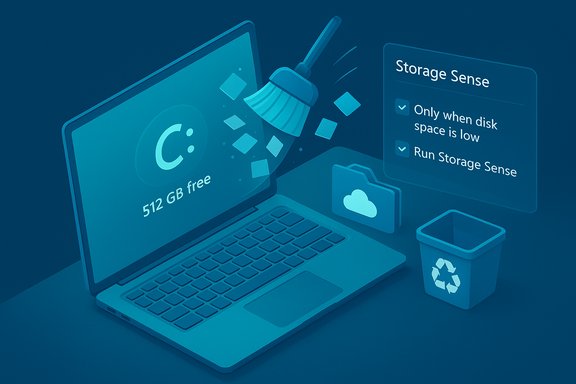
Enter Storage Sense: a built‑in Windows tool that automates disk housekeeping. It deletes ephemeral cruft, empties the Recycle Bin on a schedule, and can convert locally cached OneDrive files back to online‑only to reclaim space. Storage Sense is designed to be set once and forgotten, running on a cadence you choose or only when disk space is low. This hands‑off approach is what keeps many smaller‑capacity laptops feeling responsive without constant manual cleanup.
Microsoft’s official Reserved Storage feature typically reserves around 7 GB as a baseline on new installs and may grow based on optional features and languages. That reserved pool is intended to guarantee space for updates and temporary operations; Windows uses it first for update staging and frees it when safe. The actual amount on any device varies based on installed languages, optional features, and version history. In practice, reclaimable system usage often ranges from a few gigabytes to several dozen — but 75GB is high and likely reflects a combination of Windows components (WinSxS/Windows.old), hibernation files, large pagefile settings, OEM recovery partitions, or user data in hidden system locations. Treat any single “reserved” number as device‑specific rather than a fixed Windows rule. If you suspect enormous system overhead:
Strengths include low maintenance, good defaults, and official support for enterprise configuration. The principal risks are user misconfiguration (especially Downloads cleanup) and semantic confusion over what “reserved” or “system” space means on any given machine. Those risks are manageable with a few conservative settings and routine audits.
For users who want to keep a 512GB laptop feeling snappy without being a full‑time disk janitor, Storage Sense is an underrated tool you should enable and tune once. It will reclaim the background headroom Windows needs to run smoothly, reduce update friction, and — when paired with OneDrive Files On‑Demand — let you have the best of local access and cloud storage without constantly juggling files.
By treating Storage Sense as part of a broader storage strategy (occasional manual audits, mindful storage of large media, and sensible OneDrive settings), most users can keep smaller laptops feeling fast and avoid the silent performance drag that comes from a perpetually full system drive.
Source: MakeUseOf This underrated Windows feature is why my 512GB laptop still feels fast
 Background / Overview
Windows has always needed free space to operate smoothly. Beyond the obvious storage used by applications and media, the operating system relies on headroom for temporary files, update staging, the page file, and various caches. When the system drive — usually C: — gets tight, even a modern NVMe SSD can stall under sustained I/O or forced paging. For many users with 256GB or 512GB laptops, that slowdown shows up as sluggish app launches, longer save times, and update failures.Enter Storage Sense: a built‑in Windows tool that automates disk housekeeping. It deletes ephemeral cruft, empties the Recycle Bin on a schedule, and can convert locally cached OneDrive files back to online‑only to reclaim space. Storage Sense is designed to be set once and forgotten, running on a cadence you choose or only when disk space is low. This hands‑off approach is what keeps many smaller‑capacity laptops feeling responsive without constant manual cleanup.
What Storage Sense actually does (and what it doesn’t)
Core actions Storage Sense can take
- Remove temporary system and app files that are no longer needed.
- Empty the Recycle Bin after a configurable number of days.
- Delete files in the Downloads folder that haven’t been used for a set time (optional).
- Work with OneDrive Files On‑Demand to make locally available cloud files become online‑only after they go unused for a specified period.
Important limits and behaviors
- Storage Sense only operates on the system drive (the drive Windows is installed on, usually C
 . It won’t automatically reclaim space on other volumes unless you use separate tools or manual cleanup.
 - Files you mark as “Always keep on this device” in OneDrive are not affected. Only files that are locally cached and unaccessed for the configured period are offloaded.
- Storage Sense is conservative by design: it targets expendable data, but misconfiguration (for example, enabling aggressive Downloads cleanup) can remove files you actually wanted to keep locally.
Why low storage slows Windows — the technical picture
When free space on the system drive sinks, several Windows subsystems suffer:- The page file (virtual memory) and memory compression buffers may need to expand or relocate. Paging to disk is orders of magnitude slower than RAM, so heavy swapping quickly degrades responsiveness.
- Update staging requires contiguous temporary space: Windows needs room to download and unpack updates. Without that buffer, updates can fail or stall.
- File system and caching workflows become less efficient. SSD controllers and the OS rely on spare area to maintain throughput; packing a drive near capacity raises write amplification and can amplify latency. Practical guidance from field testing and community experience recommends keeping a working buffer — often cited as a minimum of several gigabytes or roughly 10–20% free for small drives — to avoid performance cliffs.
How to set up Storage Sense safely (step‑by‑step)
- Open Settings → System → Storage. Turn Storage Sense on.
- Click Configure Storage Sense or run it now (wording varies slightly by Windows build).
- Choose how often it runs:
- Every day — aggressive cleanup.
- Every week — a balanced option for busy users.
- Every month — light housekeeping.
- Only when disk space is low — the least intrusive, automatic fallback.
- Under Temporary Files, enable removal of application temporary files and choose whether Windows should delete temporary setup files and cached update files when they are no longer needed.
- Under Recycle Bin, select how many days to keep deleted files before they’re permanently removed (common defaults are 30–60 days).
- Under Downloads, decide if Storage Sense can purge files not accessed for a set number of days — only enable this if you don’t store important installers or archived downloads there.
- If you use OneDrive, enable Locally available cloud content cleanup and pick the inactivity window after which OneDrive files are returned to online‑only status. Storage Sense will only operate on OneDrive folders located on the system partition.
- Optionally click Run Storage Sense now for an immediate clean.
Real‑world tradeoffs and risk management
Storage Sense is powerful, but it’s not magic. Consider the following strengths and risks before making it your primary storage strategy.Strengths
- Low effort, high impact: For users who don’t want to babysit disk space, Storage Sense is a true “set it and forget it” tool that can prevent the steady decline in performance that happens when a system drive fills.
- Safeguards update reliability: By reclaiming temporary space and cooperating with Windows update workflows, Storage Sense reduces update failures tied to insufficient staging space.
- OneDrive integration: When combined with Files On‑Demand, Storage Sense lets you keep a consistent file tree in File Explorer while making seldom‑used files not occupy physical SSD space.
Risks and mitigations
- Unintended deletions (Downloads): If you enable automatic cleanup of Downloads, installers or video files you intended to keep locally may vanish. Mitigation: disable Downloads cleanup or use a longer inactivity window (60–90 days) and move important downloads to a dedicated folder or external drive.
- Offline access loss (OneDrive): Files made online‑only will not be accessible without Internet unless you mark them “Always keep on this device.” Mitigation: configure the inactivity threshold conservatively and mark critical folders as always‑available.
- Enterprise policies: Some corporate devices have Storage Sense settings locked down or disabled by IT; assume company policy may override your preferences. Mitigation: coordinate with IT or use user‑level exemptions where allowed.
- False confidence: Storage Sense doesn’t replace proper data hygiene. It won’t compress massive photo or video libraries or move large game installs off of the system drive. Mitigation: combine Storage Sense with an occasional manual audit using a disk visualizer (WizTree, WinDirStat) to find and move large content.
The myth of the “mystery 75GB” — what Windows really reserves
Many users report surprising system allocations when they check available space: things labeled “System files,” “Reserved,” or a big chunk used by hiberfil.sys, pagefile.sys, recovery partitions, and optional features. The MakeUseOf anecdote that “about 75GB is reserved for system files and other essentials” matches a common user perception but isn’t a universal Windows setting.Microsoft’s official Reserved Storage feature typically reserves around 7 GB as a baseline on new installs and may grow based on optional features and languages. That reserved pool is intended to guarantee space for updates and temporary operations; Windows uses it first for update staging and frees it when safe. The actual amount on any device varies based on installed languages, optional features, and version history. In practice, reclaimable system usage often ranges from a few gigabytes to several dozen — but 75GB is high and likely reflects a combination of Windows components (WinSxS/Windows.old), hibernation files, large pagefile settings, OEM recovery partitions, or user data in hidden system locations. Treat any single “reserved” number as device‑specific rather than a fixed Windows rule. If you suspect enormous system overhead:
- Check Settings → System → Storage → Show more categories → System & reserved to inspect the breakdown.
- Run DISM StartComponentCleanup to safely reduce the WinSxS component store if updates have accumulated. Use the elevated DISM commands carefully and back up first.
Practical recommendations for making Storage Sense work for you
- Keep the default run mode set to “Only when low” if you prefer minimal automation; switch to weekly if you actively download installers and want more frequent housekeeping.
- Do not enable automatic Downloads purges unless you use the folder as a pure transient staging area. Instead, move important downloads to a separate, well‑named folder.
- Use OneDrive Files On‑Demand intentionally. If you rely on offline access, mark those folders as “Always keep on this device.” If you want maximum free space, allow Storage Sense to offload untouched files after a conservative interval (30–60 days).
- When free space is tight, aim to restore at least 5–10 GB immediately and consider keeping 10–20% free on smaller drives for optimal steady performance; this is a practical buffer rather than a hard rule.
- Run Storage Sense manually before a big OS update or when transferring large data sets to avoid surprises.
When Storage Sense isn’t enough — next steps
Storage Sense handles ephemeral clutter but won’t replace the need for storage planning if you store lots of photos, videos, games, or VM images. If you still hit capacity:- Use a disk visualizer (WizTree or WinDirStat) to locate the largest files and folders.
- Move large media and archives to an external drive or a secondary internal data drive.
- Consider upgrading to a larger SSD if your workload outgrows 256–512GB capacities — nothing here beats added local storage for convenience and speed.
Final analysis — why Storage Sense matters today
Storage Sense is a pragmatic solution to a real, recurring problem that disproportionately affects small‑capacity laptops. It works quietly and safely when configured conservatively, and it integrates with Microsoft’s cloud story (OneDrive Files On‑Demand) in a way that preserves the familiar File Explorer experience while reclaiming physical space.Strengths include low maintenance, good defaults, and official support for enterprise configuration. The principal risks are user misconfiguration (especially Downloads cleanup) and semantic confusion over what “reserved” or “system” space means on any given machine. Those risks are manageable with a few conservative settings and routine audits.
For users who want to keep a 512GB laptop feeling snappy without being a full‑time disk janitor, Storage Sense is an underrated tool you should enable and tune once. It will reclaim the background headroom Windows needs to run smoothly, reduce update friction, and — when paired with OneDrive Files On‑Demand — let you have the best of local access and cloud storage without constantly juggling files.
By treating Storage Sense as part of a broader storage strategy (occasional manual audits, mindful storage of large media, and sensible OneDrive settings), most users can keep smaller laptops feeling fast and avoid the silent performance drag that comes from a perpetually full system drive.
Source: MakeUseOf This underrated Windows feature is why my 512GB laptop still feels fast
