

Microsoft’s newest Surface lineup makes a simple promise to hybrid professionals: a single machine that can deliver long battery life, tablet flexibility or clamshell comfort, and an AI toolbox that shortens routine work without changing how people actually work.
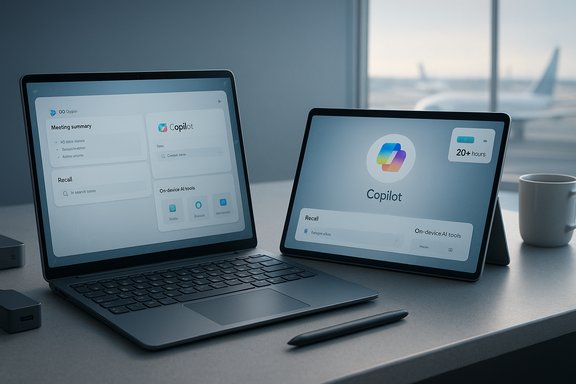
The Surface family has been repositioned around Copilot+ PCs—devices that pair Windows 11 with on‑device neural processing to accelerate Microsoft Copilot and other AI features. That hardware/software pairing is the cornerstone of Microsoft’s pitch: one keystroke to Copilot, faster local AI tasks, and battery figures that stretch a full workday and beyond. Microsoft’s sales pages and technical spec sheets list Copilot keys, Hexagon NPUs in Snapdragon X-series SKUs, and “up to” lab battery numbers as headline features for Surface Laptop and Surface Pro Copilot+ models. Independent community testing and buyer guides broadly confirm the narrative—Surface Copilot+ SKUs generally deliver competitive battery life and strong on‑device AI responsiveness, but ARM vs x86 compatibility, accessory costs, and real‑world thermal/battery behavior remain practical constraints to weigh.
For best results, pair careful SKU selection with disciplined setup: update firmware day one, validate app compatibility, budget for essential accessories, and adopt a simple security baseline (BitLocker, Windows Hello, up‑to‑date Defender). These steps turn Surface’s promises—long battery, on‑device Copilot, and premium portability—into reliable, measurable productivity gains for hybrid work.
Source: Microsoft Best Surface Laptops for Hybrid Work | Microsoft Surface
 Background
The Surface family has been repositioned around Copilot+ PCs—devices that pair Windows 11 with on‑device neural processing to accelerate Microsoft Copilot and other AI features. That hardware/software pairing is the cornerstone of Microsoft’s pitch: one keystroke to Copilot, faster local AI tasks, and battery figures that stretch a full workday and beyond. Microsoft’s sales pages and technical spec sheets list Copilot keys, Hexagon NPUs in Snapdragon X-series SKUs, and “up to” lab battery numbers as headline features for Surface Laptop and Surface Pro Copilot+ models. Independent community testing and buyer guides broadly confirm the narrative—Surface Copilot+ SKUs generally deliver competitive battery life and strong on‑device AI responsiveness, but ARM vs x86 compatibility, accessory costs, and real‑world thermal/battery behavior remain practical constraints to weigh.What hybrid workers should look for in a Surface device
Hybrid work spans remote, airport, cafe, office, and meeting‑room contexts. The right Surface configuration balances portability, battery life, connectivity, input ergonomics, application compatibility, and security.1. Battery life and charging behavior
- Prioritize real-world endurance for mixed workloads (video calls, tabs, editing). Microsoft lab numbers vary by SKU—some Surface Laptop SKUs claim up to 23 hours of local video playback while specific 13.8" and 15" business SKUs list up to ~20–22 hours depending on configuration. Treat vendor “up to” numbers as directional and expect shorter runtimes in heavy mixed use.
- Confirm charging standards: modern Surface models support USB‑C fast charging; some SKUs still include Surface Connect or Thunderbolt/USB4 support depending on SKU. That affects whether a single compact charger can power a phone and laptop on the road.
2. Platform and performance: Snapdragon vs Intel/AMD
- Snapdragon X Plus / X Elite (ARM): excellent for long battery life and low‑latency on‑device AI tasks thanks to Hexagon NPUs (advertised TOPS figures around the 40–45 TOPS class). Great for long flights and always‑connected SKUs, but validate mission‑critical app compatibility—some legacy x86/x64 apps or drivers may run under emulation.
- Intel Core Ultra / AMD Ryzen AI (x86): stronger native x86 compatibility and often better sustained CPU/GPU throughput for heavy multitasking, VMs, or creative workloads. Intel/AMD variants may include integrated NPUs or other AI accelerators on some SKUs. Choose x86 for legacy app reliability.
3. Copilot+ and on‑device NPU: what it really adds
- Copilot+ PCs add a hardware acceleration layer that can make tasks like meeting summarization, Recall (search across local content), transcription, and quick image generation feel faster and more private because some computation happens on the device. However, the degree of benefit depends on app integration and model offload choices; many advanced generative tasks still use cloud models. Measure the features that matter (latency, battery cost for AI tasks) rather than raw TOPS numbers.
4. Ergonomics, input, and form factor
- If typing comfort and a classic laptop posture matter most, choose Surface Laptop. It includes an integrated keyboard, a Copilot key, and clamshell ergonomics. Surface Laptop options span multiple sizes (13", 13.8", 15").
- If pen input, sketching, or tablet mode is essential, choose Surface Pro with a detachable keyboard and Slim Pen support. The Pro models are the tablet‑first option; factor in the extra cost of the keyboard and pen when budgeting.
5. Display and brightness
- Hybrid workers who use outdoor spaces must check brightness (nits) and reflectivity. Premium Surface SKUs offer color‑accurate PixelSense and optional OLED panels on Pro models; confirm the panel variant for the SKU being purchased.
6. Ports, docking, and connectivity
- Choose SKUs with USB‑C/USB4/Thunderbolt if a multi‑monitor dock is part of the workflow; some Snapdragons offer robust display outputs, but port counts and features vary by SKU. Look for Wi‑Fi 6/6E (or Wi‑Fi 7 on newer models) and optional WWAN/5G for always‑connected use.
7. Security and manageability
- For business fleets, demand TPM 2.0 / Microsoft Pluton, Secured‑core PC compliance, BitLocker, and Windows Hello biometric options. Surface business SKUs emphasize these elements and add management features for IT.
Best Surface options by hybrid role
Below are pragmatic picks that align form factor, silicon, and features to typical hybrid worker profiles; the goal is to match trade‑offs to real needs rather than chase headline specs.Road warrior / frequent flyer
- Recommended: Surface Laptop (Snapdragon X Elite or X Plus SKU) or Surface Pro 13" with 5G.
- Why: fanless efficiency on Snapdragon SKUs, long battery life in mixed use, and optional WWAN reduce dependency on spotty Wi‑Fi. Aim for 16 GB RAM minimum and 256–512 GB SSD. Test required carrier bands for international travel.
Desk-first professional who still travels occasionally
- Recommended: Surface Laptop 13.8" or 15" (Core Ultra or Snapdragon depending on compatibility needs).
- Why: conventional keyboard, more port choices for docking, and larger screens for productivity. Choose Core Ultra if x86 app compatibility is critical; choose Snapdragon if battery life and Copilot responsiveness are priorities.
Creatives and note‑heavy workflows
- Recommended: Surface Pro 13" with Snapdragons X Elite, OLED option, and Slim Pen 2.
- Why: tablet mode plus low‑latency pen input, color‑accurate panels for design, and high SSD capacity for local assets. Budget for keyboard and pen.
IT fleet and enterprise buyers
- Recommended: Surface for Business Copilot+ SKUs with Secured‑core, TPM, and Pluton where required.
- Why: centralized manageability, enterprise security features, and an option to standardize on Copilot+ capabilities for productivity gains across knowledge workers. Pilot before mass deployment to validate app compatibility on ARM SKUs.
Best practices for hybrid work with a Surface device
Getting the right device is only part of the equation. These operational best practices maximize uptime, security, and productivity across locations.1. First‑day checklist: firmware, drivers, and app validation
- Run Windows Update and Surface Firmware (UEFI/driver) updates immediately after first boot.
- Install vendor platform drivers and test key workflows (video conferencing, VPN, line‑of‑business apps) while return windows are open.
- Verify that USB hubs, printers, and docks behave correctly with the chosen CPU architecture—some accessories use vendor drivers that vary by platform.
2. Optimize battery life for mixed use
- Use modern charging habits: keep battery firmware up to date, avoid extreme temperatures, and enable Windows’ battery saver modes during long travel days.
- Tune display brightness and background app behavior (Teams, background tabs) before measuring real‑world battery numbers—lab numbers assume controlled settings that rarely mirror daily use.
3. Secure the hybrid setup
- Enable BitLocker, Windows Hello (fingerprint or face), and the Find My Device feature.
- Use Microsoft Defender or enterprise endpoint protection, keep threat definitions current, and consider endpoint encryption on external drives and backups. For fleets, adopt Secured‑core policies and conditional access via Intune or equivalent.
4. Improve remote meeting quality
- Pair Surface’s dual Studio Mics and Omnisonic speakers with Teams/Zoom settings (noise suppression, background blur) for consistent audio.
- Consider the Surface Studio Camera’s Windows Studio Effects for automatic framing and improved video quality in hybrid meetings. If audio is paramount, a small USB‑C headset often beats laptop speakers in noisy environments.
5. Docking and multi‑monitor best practices
- For consistent desk experience, use a certified Thunderbolt/USB4 dock or Surface Thunderbolt™ 4 Dock to power multiple monitors, Ethernet, and charging.
- Confirm display output support (number of 4K monitors at 60Hz) for your exact SKU—Snapdragon and Core Ultra SKUs can differ here.
6. Pen, keyboard and accessory budgeting
- Add the cost of keyboards, Slim Pen, protective folios, and docks into the total cost of ownership—Surface Pro often ships without the keyboard and pen. Plan an extra $150–$350 to get a fully usable tablet‑laptop out of the box if accessories are not included.
7. App compatibility strategy for ARM SKUs
- Create a short list of mission‑critical apps and test them on a matched ARM device or pilot group. If key plugins or driver‑dependent tools fail under emulation, prefer x86 SKUs or adjust workflows. For fleet buys, require an ISV compatibility report or proof of testing before purchase.
Strengths and risks: a balanced assessment
Strengths
- Battery and portability: Copilot+ Surface SKUs—especially Snapdragon‑powered ones—deliver exceptional battery longevity for mixed use and travel, making them ideal for hybrid days that span multiple locations.
- Integrated AI: Copilot key and local NPU acceleration reduce latency for many everyday AI tasks (summaries, transcription, on‑device image tweaks), and the integration into Windows workflows is tight.
- Premium industrial design: Surface still leads with thin profiles, good keyboards, and color‑accurate displays—useful for long writing sessions and creative work.
Risks
- ARM app compatibility: Despite significant improvements in Windows on Arm, there remain edge cases and legacy drivers that may misbehave. Enterprises and power users should validate critical software.
- SKU fragmentation and accessory cost: The same Surface family name can hide multiple CPU, panel, and port configurations. Key accessories (keyboard, pen) are often sold separately, inflating the total cost.
- Real‑world battery vs. lab claims: Vendor “up to” numbers are useful for comparison but often exceed real mixed‑use ratings; independent testing usually shows lower runtimes in realistic workloads.
- Firmware/early‑ship variability: New SKU launches occasionally require firmware patches to correct battery or thermal behavior; plan a short hold‑period for critical fleet deployments or ensure quick firmware update processes.
Practical buying checklist (copy at checkout)
- Confirm exact SKU (model number): CPU family (Snapdragon X Plus/X Elite vs Core Ultra), RAM size (16 GB recommended), storage type and capacity (512 GB recommended for creators), and panel variant (OLED vs LCD).
- Verify Copilot+ / NPU details if on‑device AI features are required.
- Check port list and confirm Thunderbolt/USB4 and multi‑display support for docking.
- Confirm whether keyboard and pen are included; budget for them if not.
- Validate WWAN bands for any 5G SKUs intended for international travel.
- Run a quick online search for firmware or early‑ship issues for the SKU and check for updated firmware before wide deployment.
Conclusion
Surface Copilot+ PCs present a compelling value proposition for hybrid professionals who prioritize battery life, portability, and a growing set of AI tools integrated tightly into Windows. The choice between Surface Laptop and Surface Pro comes down to work posture: clamshell stability and built‑in keyboard vs tablet‑first flexibility and pen support. For organizations and individuals, the practical work is in matching SKU to workload—Snapdragon for long unplugged days and AI snappiness, Intel/AMD for guaranteed x86 compatibility and sustained throughput—and testing mission‑critical apps before committing.For best results, pair careful SKU selection with disciplined setup: update firmware day one, validate app compatibility, budget for essential accessories, and adopt a simple security baseline (BitLocker, Windows Hello, up‑to‑date Defender). These steps turn Surface’s promises—long battery, on‑device Copilot, and premium portability—into reliable, measurable productivity gains for hybrid work.
Source: Microsoft Best Surface Laptops for Hybrid Work | Microsoft Surface
