

Microsoft’s new Start menu for Windows 11 25H2 can be surfaced immediately on most fully patched PCs — but doing so requires understanding Microsoft’s staged rollout model, verifying exact servicing builds, and weighing the trade-offs of using a third‑party feature‑flag tool like ViVeTool to force the UI on now.
Windows 11’s 25H2 release is delivered as an enablement-style update: much of the code has already been shipped through servicing updates, and Microsoft flips visibility using small enablement packages and server-side gating. That means the binaries for features such as the redesigned Start menu are often present on a device before the UI is actually shown to users. Microsoft then stages enablement across devices to reduce risk and monitor telemetry.
The YTECHB piece explains how a community tool, ViVeTool, is commonly used to toggle local feature flags so the new Start appears immediately on machines that already have the required servicing bits. The article gives a simple recipe: confirm your OS has the 25H2 servicing update, download ViVeTool from GitHub, run an elevated Command Prompt, cd into the ViVeTool folder, and run an enable command with specific numeric feature IDs — then reboot to see the new Start. That workflow is consistent with community practice, but it is unsupported by Microsoft and carries real risks.
This article summarizes the YTECHB instructions, verifies the technical prerequisites, cross‑references community and Microsoft guidance, and provides a practical, safety‑first playbook for enthusiasts and IT pros who want the new Windows 11 Start now — or who need to make the supported decision to wait.
Key visible user-facing changes:
Typical community workflow:
Risks and reliability issues:
However, the supported route is safer for the majority:
Source: YTECHB How to Force Enable the New Windows 11 25H2 Start Menu
 Background / Overview
Windows 11’s 25H2 release is delivered as an enablement-style update: much of the code has already been shipped through servicing updates, and Microsoft flips visibility using small enablement packages and server-side gating. That means the binaries for features such as the redesigned Start menu are often present on a device before the UI is actually shown to users. Microsoft then stages enablement across devices to reduce risk and monitor telemetry.The YTECHB piece explains how a community tool, ViVeTool, is commonly used to toggle local feature flags so the new Start appears immediately on machines that already have the required servicing bits. The article gives a simple recipe: confirm your OS has the 25H2 servicing update, download ViVeTool from GitHub, run an elevated Command Prompt, cd into the ViVeTool folder, and run an enable command with specific numeric feature IDs — then reboot to see the new Start. That workflow is consistent with community practice, but it is unsupported by Microsoft and carries real risks.
This article summarizes the YTECHB instructions, verifies the technical prerequisites, cross‑references community and Microsoft guidance, and provides a practical, safety‑first playbook for enthusiasts and IT pros who want the new Windows 11 Start now — or who need to make the supported decision to wait.
What changed in the Windows 11 25H2 Start menu
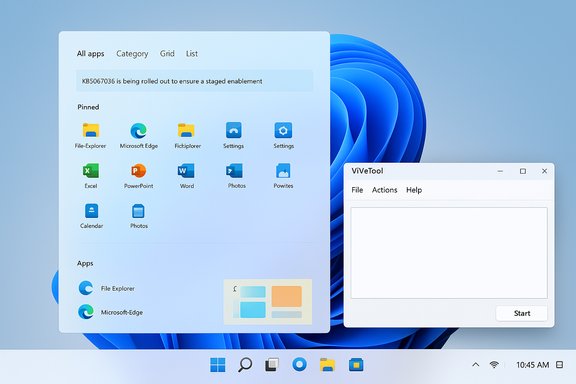
The redesign is evolutionary but meaningful: it moves Start to a single, vertically scrollable canvas that holds Pinned apps, Recommended content (optional), and All apps together, and it introduces three presentation modes for All apps: Category, Grid, and List. The Category view auto-groups apps into topical buckets (Productivity, Games, Creativity, etc., while Grid and List provide denser or classic alphabetical options respectively. The Start surface also adapts responsively to DPI and screen width, and includes hooks for companion Phone Link functionality. These changes were shipped in preview packages tied to specific servicing builds.Key visible user-facing changes:
- Single, scrollable Start canvas (no separate All apps page).
- Three All‑apps views: Category, Grid, List, with remembered preference.
- Auto‑categorization of apps (no manual category editing in the first release).
- Controls to hide or collapse the Recommended area in Settings → Personalization → Start.
The supported (recommended) route to get the new Start
Before attempting any manual flag changes, follow the supported path. This is the recommended option for most users — particularly enterprise and managed devices — because it preserves Microsoft support and reduces risk.- Confirm your Windows version and build. Press Windows+R, type winver, and note the build number. The preview packages that include the Start infrastructure were tied to preview builds in the 26100.xxxx and 26200.xxxx ranges (commonly reported builds: 26100.7019 for 24H2 and 26200.7019 for 25H2 in the October preview cycle).
- Open Settings → Windows Update and check for updates. If you’re enrolled in Release Preview or have optional preview updates enabled, look for the preview rollup labeled KB5067036 (or similar October preview package). Install it and restart.
- Wait for Microsoft’s staged enablement. Even after installing KB5067036, Microsoft may still gate the UI server-side and flip the feature on for your device after telemetry checks — typically within 24–72 hours. This staged rollout reduces the chance of widespread regressions.
- Maintains Microsoft’s support posture and update guarantees.
- Installs complementary fixes and mitigations included in the preview package.
- Avoids unsupported manipulations that might cause regressions or break troubleshooting workflows.
The community (unsupported) method: ViVeTool and feature IDs
Enthusiasts and testers who don’t want to wait commonly use ViVeTool — an open‑source command‑line utility hosted on GitHub — to flip local feature flags that make staged features visible immediately when the necessary binaries are present on disk. ViVeTool does not rewrite OS binaries in normal operation; it writes local feature state so Windows treats the feature as enabled. That said, ViVeTool is not a Microsoft product and using it is unsupported.Typical community workflow:
- Verify your build (winver) is at or above the servicing build tied to the preview (e.g., 26100.7019 / 26200.7019). If not, install the preview/LCU first.
- Download the latest ViVeTool release ZIP from the official GitHub releases page and extract it to a convenient folder (for example, C:\ViVeTool). Choose the artifact matching your CPU architecture.
- Open an elevated Command Prompt (Run as administrator) and change directory to the ViVeTool folder: cd C:\ViVeTool.
- Run the community-reported enable command(s). The most commonly cited single ID is 47205210; community multi‑ID sets that have been used include 57048231,47205210,56328729,48433719 and other IDs such as 49221331,49402389,55495322 depending on build and hardware. Example command:
vivetool /enable /id:47205210
or
vivetool /enable /id:57048231,47205210,56328729,48433719 - Restart Windows and open Start — the new Start should appear if the bits and gating conditions align.
- Numeric feature IDs are community-discovered and undocumented by Microsoft; they can change between servicing builds and are not a stable public API. Treat them as pointers, not official knobs. This is an unverifiable mapping unless Microsoft publishes the mapping.
- ViVeTool cannot create server-side entitlements, licensing, or hardware features. If a feature requires Copilot+ hardware, an NPU, or a cloud subscription, ViVeTool cannot conjure that capability.
- If you manage devices under Group Policy, MDM, or EDR, these agents may block or flag ViVeTool activity; do not run ViVeTool on managed production systems.
Step‑by‑step safety checklist (if you decide to use ViVeTool)
If you opt to force-enable the Start menu with ViVeTool, be conservative and protect recoverability.- Create a full system image or at minimum a System Restore point. Record BitLocker recovery keys and any enterprise recovery credentials.
- Confirm winver shows a compatible build (e.g., 26100.7019 / 26200.7019) and that KB5067036 or the necessary LCUs are installed. ViVeTool toggles only work when the on-disk binaries are present.
- Download ViVeTool only from the official GitHub releases page; pick the correct architecture (x64, x86, ARM64) and verify checksums if you can.
- Open an elevated Command Prompt or Terminal (Admin). cd to the ViVeTool folder. Run a minimal enable first: vivetool /enable /id:47205210. Reboot and verify. If the single ID has no effect, use a cautious multi‑ID set reported for your specific build.
- If anything behaves oddly (Start fails to open, search input is unresponsive, or other regressions), revert the changes: vivetool /disable /id:<same IDs> or vivetool /reset /id:<id> and reboot. If problems persist, uninstall the preview update or restore from backup.
Risks, trade‑offs, and governance considerations
Enabling staged features with ViVeTool has practical benefits but also measurable risks.Risks and reliability issues:
- Unsupported state: Microsoft may decline to troubleshoot problems caused by local flag manipulation. Running ViVeTool may remove your eligibility for certain official support responses.
- ID volatility: Numeric feature IDs can be reassigned between servicing builds; an ID that worked in October may do nothing or map to a different feature in later builds. This fragility increases maintenance overhead for scripts or internal documentation.
- Partial experience: Server-side gating and cloud entitlements mean toggling a local flag may reveal only the client UI, while companion cloud features remain unavailable. Users may see UI elements that don’t fully function.
- Regression reports: Community reporting has flagged issues such as Start menu unresponsiveness, search not accepting input, and occasional Task Manager anomalies with certain preview drops. These are rare but documented and typically resolved by reverting flags or uninstalling the preview.
- Do not run ViVeTool on managed devices without coordinating with IT and validating legal/compliance constraints. EDR solutions and management policies may intercept or block changes, and unauthorized use may violate IT governance rules.
- For corporate deployments, adopt the supported route and pilot KB5067036 in a small ring. Test Start behavior across diverse hardware, DPI scalings, and policy sets before broad rollout.
- Some Start features surface Recommended files and web content tied to account sign-in and activity signals. Administrators should evaluate privacy and DLP implications before enabling Recommended in enterprise environments. The Start settings allow collapsing or disabling Recommended content, which can be useful where privacy or compliance is a concern.
Practical troubleshooting and rollback options
If the new Start is unstable after flipping flags, these are proven recovery steps:- Disable or reset the specific feature IDs you enabled with ViVeTool, then reboot: vivetool /disable /id:<ids> or vivetool /reset /id:<id>.
- If disabling IDs doesn’t restore behavior, uninstall the preview update (Settings → Windows Update → Update history → Uninstall updates) and reboot.
- Restore from the system image or use a System Restore point if the system remains unstable. Keep a recovery USB ready for external tools if OS repair is required.
Final analysis — is forcing the Start menu worth it?
For power users, enthusiasts, and lab testers who want the new Start menu immediately, forcing the UI via ViVeTool often works when done carefully: the required binaries are usually present and ViVeTool flips the client-side flag to reveal the interface. The new Start’s single canvas and multiple views are solid usability improvements that solve long-standing friction points in Windows 11’s original launcher.However, the supported route is safer for the majority:
- It preserves Microsoft support and includes bundled fixes.
- It reduces the chance of encountering undocumented regressions that complicate troubleshooting.
Quick reference: concise commands and checklist
- Confirm build: Windows+R → winver → ensure build around 26100.7019 or 26200.7019.
- Supported path: Settings → Windows Update → install KB5067036 (Optional/Release Preview) → restart → wait 24–72 hours for server enablement.
- ViVeTool minimal enable (unsupported):
- Download ViVeTool from GitHub and extract.
- Run elevated Command Prompt: cd C:\ViVeTool
- vivetool /enable /id:47205210
- Restart Windows.
- Rollback: vivetool /disable /id:<ids> or vivetool /reset /id:<id>, or uninstall KB and restore backup if needed.
Closing thoughts
The redesigned Start menu in Windows 11 25H2 is a practical, user‑focused refinement that addresses long‑standing UX complaints. Microsoft’s staged rollout model means many PCs already have the code for the new Start, and ViVeTool provides a reliable way for experienced users to force the feature on now — but using it trades official support and introduces fragility because the numeric feature IDs are undocumented and can change between builds. For most users and IT teams, the safest path is to install the preview package (KB5067036) and let Microsoft’s staged enablement flip the feature on. For those who accept the trade-offs, careful testing, backups, and a documented rollback plan make forced enablement a practical short‑term option.Source: YTECHB How to Force Enable the New Windows 11 25H2 Start Menu
