

I switched from OneNote to a self‑hosted, privacy‑focused note vault and — after six months of daily use — I can honestly say I haven't looked back: the trade‑offs are real, but for anyone who values control, exportability, and end‑to‑end encryption, the payoff is worth the work.
The movement away from proprietary, cloud‑first note apps has accelerated as users ask a simple question: who can read my notes? OneNote, like many polished consumer apps, offers a great experience—but it ties your data to a vendor ecosystem. Joplin is an open‑source, local‑first notes app built around Markdown, attachments, and flexible sync targets; it has matured into a practical OneNote replacement for privacy‑minded Windows users.
Joplin’s design is intentionally simple: notes are Markdown files with optional attachments, organized into notebooks and tagged for fast retrieval. It supports a Web Clipper, plugins, themes, and an optional server component for syncing. Crucially, Joplin can perform end‑to‑end encryption (E2EE) of your sync payloads so that even if your cloud provider stores the files, they can't read them without your keys.
If you choose to migrate, be deliberate: catalog what you use today, migrate incrementally, enable E2EE from the start, and set up backups and monitoring if you self‑host. For many users, the peace of mind that comes with owning their notes outweighs the small operational overhead of running a lightweight server or paying for a modest managed tier.
Switching tools is as much about reshaping your habits as it is about software. Joplin doesn’t give you OneNote’s exact canvas — but it gives you something arguably more future‑proof: plain‑text notes you control, encrypted sync, and an ecosystem you can influence. For privacy‑conscious Windows users who are willing to invest a bit of time up front, that control is a meaningful upgrade.
Source: How-To Geek I finally ditched OneNote and moved my life to this private, open-source vault
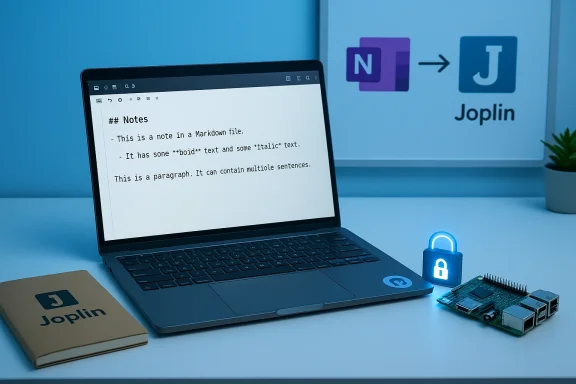 Background / Overview
The movement away from proprietary, cloud‑first note apps has accelerated as users ask a simple question: who can read my notes? OneNote, like many polished consumer apps, offers a great experience—but it ties your data to a vendor ecosystem. Joplin is an open‑source, local‑first notes app built around Markdown, attachments, and flexible sync targets; it has matured into a practical OneNote replacement for privacy‑minded Windows users.Joplin’s design is intentionally simple: notes are Markdown files with optional attachments, organized into notebooks and tagged for fast retrieval. It supports a Web Clipper, plugins, themes, and an optional server component for syncing. Crucially, Joplin can perform end‑to‑end encryption (E2EE) of your sync payloads so that even if your cloud provider stores the files, they can't read them without your keys.
Why I left OneNote (and why you might, too)
OneNote is powerful: rich free‑form pages, ink, and deep Office integration. But the reasons people migrate are consistent.- Privacy concerns — Many users don’t want large vendors indexing or controlling access to their personal knowledge base.
- Vendor lock‑in — Notes stored in proprietary formats are harder to export, audit, or self‑host.
- Desire for local control — Local files, local backups, and the ability to choose your sync stack remove single‑vendor dependency.
What Joplin actually offers
Core features at a glance
- Markdown‑first editing with support for rich formatting, code blocks, and lists.
- Notebooks and sub‑notebooks for hierarchical organization.
- Tags for cross‑cutting labels and search.
- Inline attachments (images, PDFs, audio) embedded in notes.
- Web Clipper for Chrome/Firefox to save pages or screenshots.
- Plugins and themes to extend the editor, add task integrations, or adjust styling.
- Multiple sync backends: Dropbox, OneDrive, Nextcloud, WebDAV, local filesystem, and Joplin Cloud or self‑hosted Joplin Server.
- Optional E2EE for synchronized data so only you can decrypt content.
Writing and drafting vs. free‑form ink
One pleasant surprise: Joplin doubles as a writing app. Markdown makes drafting clean and future‑proof, and inline attachments let you keep screenshots and diagrams in context. The editor’s minimalist UI can help focus on text — a boon if you write more than you scribble. That said, if you rely on OneNote’s free‑form canvas and inking features heavily, be prepared: Joplin does not replicate OneNote’s rapid inking experience natively. You can attach scans or ink images, but it’s not the same as an integrated drawing layer.Plugins: add only what you need
One of Joplin’s strengths is its extension model. Want a table of contents generator, an editor toolbar tweak, or a task manager integration? There are dozens of community plugins. The ecosystem allows you to keep the base app lightweight while adding targeted functionality when you need it.Synchronization: your data, your choice
Sync is the feature that makes or breaks a note app. Joplin takes a flexible approach: it will sync to many backends and lets you choose the privacy level and operational burden you want.- Use consumer cloud providers (Dropbox, OneDrive) for convenience.
- Use Nextcloud or a WebDAV endpoint for a privacy‑oriented hosted solution you control.
- Run Joplin Server on your own hardware (Docker is supported) for a managed, self‑hosted sync service.
- Subscribe to Joplin Cloud if you want managed sync tuned for Joplin (the project offers Basic/Pro/Teams tiers).
Self‑hosting vs managed sync: trade‑offs
- Self‑hosting (Joplin Server, Nextcloud): maximal control, lower recurring cost, higher operational burden (TLS, backups, updates).
- Managed (Joplin Cloud): lower ops overhead, development support for the project, recurring subscription.
- Consumer clouds: easy but dependent on providers; combine with E2EE to regain privacy guarantees.
How I set up Joplin Server on Proxmox (practical notes)
I run a small Proxmox host and chose Docker for deployment because it keeps the stack portable. Below are the practical choices and steps I followed; treat this as a pragmatic outline rather than a one‑click recipe.- Prepare a lightweight VM (Ubuntu Server or Debian) with static IP and TLS plan.
- Install Docker and Docker Compose or use Portainer for GUI orchestration.
- Pull the official Joplin Server Docker image and configure environment variables (database URL, app key, etc.).
- Use PostgreSQL for the database (single‑node is fine for personal use).
- Front the app with a reverse proxy (Nginx/Traefik) and obtain TLS certificates via Let’s Encrypt.
- Configure Joplin Desktop and Mobile apps to point at your server and enable E2EE if you want the additional protection.
Migration: moving notes from OneNote to Joplin
Switching is part technical migration and part workflow change. Here’s a practical migration checklist I used.- Export OneNote content: export notebooks as PDF or use OneNote’s export options. Some third‑party scripts can convert OneNote pages to Markdown; results vary by notebook complexity.
- Decide which notes are active vs. archive. Migrate only what you need to avoid cluttering the new system.
- For notes with heavy drawing/ink, export as high‑resolution PNGs and attach them to Joplin notes (or keep them in an archive notebook).
- Recreate notebooks and tags in Joplin to mirror your mental model.
- Test sync and E2EE on a small set of notes across devices before migrating everything.
Encryption and security: not magic, but strong if used properly
Joplin’s E2EE design encrypts note contents and attachments before they leave your device, meaning a compromised cloud account or server does not reveal your plaintext notes. That’s a big win compared with many consumer sync options that may retain readable copies or scan user data. Still, E2EE brings responsibilities:- Back up your encryption keys and recovery phrases. If you lose the keys, your encrypted notes are unrecoverable.
- Use a strong passphrase and consider a dedicated password manager for storing it.
- Keep the desktop and mobile apps updated to benefit from security fixes.
- If you self‑host, follow best practices: TLS, firewalling, minimal user permissions, and automated backups.
Strengths: what you gain by switching
- Data ownership — Notes are exportable, auditable, and can live anywhere you choose.
- Privacy — E2EE for sync is a real improvement over vendor‑visible clouds.
- Future‑proof formats — Markdown is plain text; your notes survive platform changes.
- Customizability — Plugins let you tailor the app without bloating the default install.
- Cost control — Self‑hosting can cut recurring cloud costs; managed Joplin Cloud supports the project if you prefer convenience.
Risks and trade‑offs: what to watch for
- Operational burden — Self‑hosting means you patch, backup, and troubleshoot. Misconfiguration can expose data.
- Feature gaps — No native OneNote‑style infinite canvas or instant inking experience. If your workflow depends heavily on that, expect compromises.
- Migration friction — Converting large, mixed‑format notebooks can require manual cleanup.
- Plugin reliance — Some advanced features live in community plugins, which may vary in maintenance quality.
- Price and policy drift — Managed service pricing and server licensing can change; verify current terms before committing to a paid tier. The Joplin project offers Basic/Pro/Teams tiers for managed sync, and those tiers evolve. Treat published numbers as time‑sensitive.
A practical, secure migration plan (step‑by‑step)
- Inventory: list notebooks, tags, and note types (text, images, ink).
- Backup: export OneNote notebooks and create a current snapshot of your device.
- Test install: install Joplin Desktop on one machine and import a small subset of notes.
- Choose sync: decide between self‑hosted Joplin Server, Nextcloud/WebDAV, or Joplin Cloud.
- Configure E2EE: enable and test on a small set of notes across devices.
- Migrate: move active notes, recreate tags, and set up retention for archived notebooks.
- Harden: if self‑hosting, secure your server (TLS, firewall, regular updates).
- Validate: use the app daily for a trial period while keeping OneNote available for reference.
Performance, backups, and day‑to‑day maintenance
- Joplin’s desktop client is lightweight and responsive for most note collections; very large attachment stores can slow small devices (Raspberry Pi users should monitor performance).
- Backups remain your safety net. For a self‑hosted Joplin Server, automated database dumps and attachment archive copies are essential.
- Monitor for plugin updates — community extensions improve functionality but can introduce instability if neglected.
When Joplin is the right choice (and when it isn't)
Choose Joplin if you:- Value privacy and control over an integrated vendor experience.
- Prefer plain‑text, Markdown workflows and want exportable notes.
- Are comfortable with occasional operational tasks (or willing to pay for managed sync).
- Write a lot and want a minimalist editor with robust plugin options.
- Rely on OneNote’s ink/canvas features every day.
- Need enterprise‑grade real‑time co‑authoring, SharePoint/Teams integration, or corporate DLP controls.
- Don’t want to manage TLS/backups and also don’t want a paid managed tier.
Final verdict and recommendations
Switching from OneNote to a privacy‑focused, open‑source solution like Joplin is not merely a software swap; it’s an architectural decision about how you want your information governed. For most individual users and small teams who care about exportability, encryption, and vendor independence, Joplin is a mature, pragmatic choice that maps well to real‑world workflows. The app’s Markdown focus, plugin ecosystem, and flexible sync targets give you both control and capability.If you choose to migrate, be deliberate: catalog what you use today, migrate incrementally, enable E2EE from the start, and set up backups and monitoring if you self‑host. For many users, the peace of mind that comes with owning their notes outweighs the small operational overhead of running a lightweight server or paying for a modest managed tier.
Quick checklist to get started (copy this into your notes)
- Install Joplin Desktop on your test machine.
- Export 5–10 representative OneNote pages and try importing or manually recreating them.
- Choose a sync target: Nextcloud/WebDAV, Joplin Server (self‑hosted), or Joplin Cloud.
- Enable E2EE and securely store your recovery keys.
- Set up an automated backup for the server and local note exports.
- Recreate your most used notebooks and tags first, then migrate progressively.
- Evaluate daily for two weeks before fully switching off OneNote.
Switching tools is as much about reshaping your habits as it is about software. Joplin doesn’t give you OneNote’s exact canvas — but it gives you something arguably more future‑proof: plain‑text notes you control, encrypted sync, and an ecosystem you can influence. For privacy‑conscious Windows users who are willing to invest a bit of time up front, that control is a meaningful upgrade.
Source: How-To Geek I finally ditched OneNote and moved my life to this private, open-source vault
