

I swapped Windows 11 for Linux Mint and, after several weeks of real-world use, I found seven areas where Mint consistently outperformed Microsoft’s desktop — from cost and hardware fit to privacy and the simplicity of a live-USB test drive. The move isn’t for everyone, and the trade-offs are real, but for users willing to accept a few limitations, Linux Mint delivers a leaner, more private, and surprisingly polished desktop experience.
Linux Mint is an Ubuntu-based distribution that prioritizes familiarity, stability, and out-of-the-box usability. Its mainstream flavors — Cinnamon, MATE, and Xfce — aim to replicate a classic desktop metaphor while avoiding heavy telemetry, forced cloud sign‑ins, and advertising flows that have become common in modern Windows releases. This story follows a hands-on switch away from Windows 11 to Mint and verifies the core claims behind the most notable advantages proponents name: price, hardware requirements, interface clarity, customization, live‑USB testing, lack of built‑in AI agents, and lighter telemetry. The original impressions that prompted the switch are reflected in community write‑ups and hands‑on journalism captured in the uploaded material and broader reporting. d, explained, and put in context
By contrast, Mint gives you a fully functional desktop distribution with repository access to thousands of packages for no licensing fee. That difference is especially relevant for schools, community labs, hobbyists, and small organizations repurposing older hardware — a common scenario that makes Linux a very practical way to avoid incremental license fees while staying on a supported desktop. Community reporting and transition calculus repeatedly.
Key takeaway:
Why this matters practically:
What Mint gets right:
Practical benefit:
Persistence: by default a live session is ephemeral — settings and installed apps vanish on reboot — but you can create persistent live USBs (a dedicated casper‑rw partition or persistence file) so changes survive reboots. Widely documented community tutorials describe step‑by‑step persistence creation (tools like Rufus, mkfs, or dd + casper‑rw approaches), and PendriveLinux / other how‑tos explain the process for Mint specifically. This makes Mint an especially low‑risk experiment: boot from USB, check hardware and drivers, and only install if the experience satisfies you.
Recommendation:
Linux Mint, by contrast, ships as a classic operating system with no built‑in conversational AI agent. You can, of course, use browser‑based chatbots or install third‑party tools — but Mint itself is not prescriptive about providing an assistant. That purity is a feature for users who want their OS to remain a predictable, lightweight platform rather than a home for always‑listening agents.
Practical note:
Linux Mint’s policy differs: Mint’s System Reports tool collects crash and diagnostic information only when used and packages crash details for developer troubleshooting. The project documentation outlines what a crash report includes (inxi, package lists, stack traces, and optionally core dumps) and emphasizes that users must explicitly upload or share reports; the tool is designed for targeted diagnostics rather than open‑ended, continuous telemetry. That behavior aligns with the community’s “opt‑in” diagnostic model and is more privacy‑friendly for users concerned about telemetry.
Bottom line:
The risks are equally real. If your daily work depends on Adobe Creative Cloud, certain Microsoft 365 desktop features, proprietary hardware management tools, or tightly integrated enterprise systems, Mint is unlikely to replace Windows entirely. For power users willing to adapt and experiment — or organizations focused on cost control, privacy, and long‑life hardware — Mint is a pragmatic, capable alternative.
Bottom line:
If your goal is a lean, privacy‑centred desktop that respects user choice and revives older machines, Linux Mint remains one of the most accessible and defensible options on the market today. The practical approach is simple: test with a live USB, verify your essential apps (web or native alternatives), and then decide whether Mint should be a complementary tool or the machine’s new daily OS.
Source: PCMag Australia I Replaced Windows 11 With Linux Mint. Here Are 7 Things It Does Much Better
 Background / Overview
Linux Mint is an Ubuntu-based distribution that prioritizes familiarity, stability, and out-of-the-box usability. Its mainstream flavors — Cinnamon, MATE, and Xfce — aim to replicate a classic desktop metaphor while avoiding heavy telemetry, forced cloud sign‑ins, and advertising flows that have become common in modern Windows releases. This story follows a hands-on switch away from Windows 11 to Mint and verifies the core claims behind the most notable advantages proponents name: price, hardware requirements, interface clarity, customization, live‑USB testing, lack of built‑in AI agents, and lighter telemetry. The original impressions that prompted the switch are reflected in community write‑ups and hands‑on journalism captured in the uploaded material and broader reporting. d, explained, and put in context1) Price: No license, no catch
Linux Mint is free to download and use. That sounds straightforward, but the implications matter: when you build or refurbish a machine and want to run Windows 11, you typically consider a retail license cost (or rely on OEM‑bundled Windows). Microsoft’s current retail pricing for Windows 11 Home is commonly listed at $139 with Pro at $199 as the standard suggested retail prices — while promotional discounts and reseller bargains sometimes push effective costs down. The Microsoft Store lists the Home edition at the $139 price point.By contrast, Mint gives you a fully functional desktop distribution with repository access to thousands of packages for no licensing fee. That difference is especially relevant for schools, community labs, hobbyists, and small organizations repurposing older hardware — a common scenario that makes Linux a very practical way to avoid incremental license fees while staying on a supported desktop. Community reporting and transition calculus repeatedly.
Key takeaway:
- For anyone cost‑sensitive or repurposing hardware, Mint removes the license barrier entirely and replaces it with a choice-driven, community‑driven model.
2) System requirements: minimal hardware, maximum performance
Linux Mint’s official long‑term‑support releases and mirrors indicate modest system requirements: 2 GB RAM (4 GB recommended) and a 20 GB disk as the baseline for a usable desktop. Those expectations are consistently cited across release notes and mirrors, and the Mint ISOs for recent releases are compact — Cinnamon, MATE and Xfce install images typically range around 2.7–2.9 GB. Mirrors show the 22.2 release ISOs at roughly 2.8 GB each, illustrating that the distro’s download and footprint are smaller than a typical Windows 11 image.Why this matters practically:
- Fewer background processes and no mandatory telemetry services mean lower idle CPU and RAM usage on older machines. That tangible responsiveness on older has most repeated strengths in community tests and refurbishing workflows.
- Real‑world performance depends on the chosen desktop flavor (Cinnamon is friendlier but heavier than Xfce), browser memory usage, and whether you run modern browser tabs or many Electron apps. Practically, a machine that was sluggish under Windows can feel significantly snappier after a Mint install, particularly with Xfce or MATE.
3) Interface: a cleaner desktop without the clutter
Mint’s desktop philosophy is intentionally conservative: simple panels, a compact menu, and an emphasis on discoverable but unobtrusive settings. Compared with recent Windows 11 UI choices — which include integrated promotions, suggestions, and a heavy push toward Microsoft services — Mint keeps the shell focused on launching apps and managing windows. The Files app, for example, supports regular‑expression searching and uses familiar keyboard shortcuts, making day‑to‑day navigation efficient for users coming from Windows. Community discussions and hands‑on reviews consistently highlight Mint’s familiarity while stressing its cleaner default layout.What Mint gets right:
- Clear, modular panels and system settings.
- A main Menu that behaves predictably (Win key = Menu), rather than being a vehicle for ads and promoted content.
- Desktop environments that are intentionally conservative and user‑configurable.
- Some utilities and features still require learning new settings locations or occasional terminal commands. Expect a short acclimation period if you’ve been immersed in Windows for years.
4) Customization: three flavors, three very different experiences
One of Linux’s strongest selling points is variety. Mint ships in three main desktop editions:- Cinnamon — the full, polished Mint experience; visually modern and heavily integrated with Mint’s tooling.
- MATE — a traditional, mid‑weight desktop (a GNOME 2 continuation) that balances features and resource use.
- Xfce — the lightweight choice intended for very old or constrained machines.
Practical benefit:
- You can pick the desktop that matches your hardware and preferences, rather than being stuck with one UI paradigm.
5) Live USB drives: a risk‑free way to test drive Linux
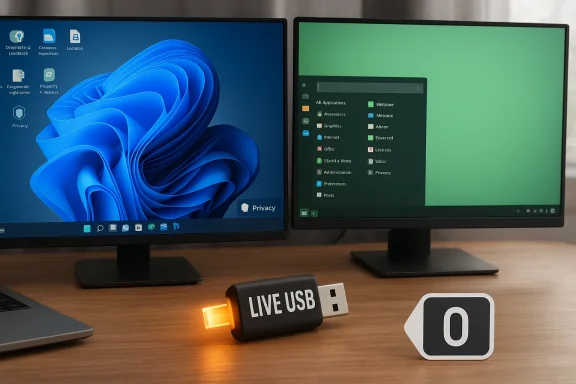
Mint allows and encourages running the OS from a live USB — a full session booted from removable media. Unlike Windows, which restricts live USB usage for most consumer installations, Mint’s live mode is standard and user‑friendly. That means you can try Mint with all your hardware (Wi‑Fi, display, audio, printers) without modifying disks.Persistence: by default a live session is ephemeral — settings and installed apps vanish on reboot — but you can create persistent live USBs (a dedicated casper‑rw partition or persistence file) so changes survive reboots. Widely documented community tutorials describe step‑by‑step persistence creation (tools like Rufus, mkfs, or dd + casper‑rw approaches), and PendriveLinux / other how‑tos explain the process for Mint specifically. This makes Mint an especially low‑risk experiment: boot from USB, check hardware and drivers, and only install if the experience satisfies you.
Recommendation:
- Back up your data.
- Write the ISO to a USB and test in Live mode.
- If satisfied, create a persistent live USB or perform a full install.
6) AI: no built‑in Copilot, no assistants — just an OS
Windows 11 has embraced integrated AI — Copilot is now a visible, built‑in assistant in the OS and increasingly woven into the taskbar and shell. Microsoft documents Copilot as an integrated assistant that can be invoked via the taskbar or voice and is an explicit OS feature. For users who prefer no such embedded assistants, that integration can feel invasive. Microsoft positions Copilot as opt‑in in many cases, but its presence is widespread across Windows experiences.Linux Mint, by contrast, ships as a classic operating system with no built‑in conversational AI agent. You can, of course, use browser‑based chatbots or install third‑party tools — but Mint itself is not prescriptive about providing an assistant. That purity is a feature for users who want their OS to remain a predictable, lightweight platform rather than a home for always‑listening agents.
Practical note:
- If you rely heavily on Copilot’s integration (e.g., Copilot Vision or taskbar prompts), you will need to replicate those workflows with web tools or third‑party software on Mint.
7) Data collection: minimal telemetry, maximum privacy
Windows 11 collects diagnostic and usage data to support telemetry-driven features and updates. Microsoft documents diagnostic tiers (“Required” and “Optional”) and explains that “Required diagnostic data” supports essential operations like updating and security; some of that collection cannot be fully disabled from the consumer settings UI. Microsoft’s privacy documentation also explains how to view and delete some data, but it makes clear that certain telemetry is inherent to the platform.Linux Mint’s policy differs: Mint’s System Reports tool collects crash and diagnostic information only when used and packages crash details for developer troubleshooting. The project documentation outlines what a crash report includes (inxi, package lists, stack traces, and optionally core dumps) and emphasizes that users must explicitly upload or share reports; the tool is designed for targeted diagnostics rather than open‑ended, continuous telemetry. That behavior aligns with the community’s “opt‑in” diagnostic model and is more privacy‑friendly for users concerned about telemetry.
Bottom line:
- Mint defaults to minimal, opt‑in diagnostic sharing. Windows 11 collects required telemetry by design and makes deeper control of telemetry a managed/enterprise action rather than a universal consumer opt‑out.
The trade‑offs: where Mint falls short (and how to mitigate)
Switching to Mint is not a one‑way ticket to Nirvana. The OS shines in several core areas, but significant limitations remain.Application and professional workflows
- Adobe Creative Cloud: Adobe’s official Creative Cloud desktop apps (Photoshop, Premiere Pro, After Effects, Illustrator and the rest) are not supported natively on Linux. Adobe’s own support pages and forum guidance confirm the Creative Cloud desktop suite requires Windows or macOS. That is a major blocker for many creative professionals. Workarounds (WINE, Proton, or running Windows VMs) may work for light tasks but are not a stable replacement for production workflows.
- Microsoft 365 desktop apps: Microsoft Office desktop applications (the full desktop Word/Excel/PowerPoint experience) are not offered as native Linux desktop packages. The practical alternatives are the browser‑based Microsoft 365 web apps, LibreOffice, OnlyOffice, or other compatibility layers. For users requiring the futop feature set, that remains a limitation.
- Use cloud/web versions of apps where feasible.
- Keep a Windows VM for the occasional proprietary app (Hyper‑V, VirtualBox, or a local KVM).
- Explore compatibility tools like Proton/WINE for specific Windows executables (results vary).
Hardware drivers and vendor utilities
- Some OEM utilities, vendor‑specific drivers, and specialized device control panels (for certain audio interfaces, gaming peripherals, or tablets) may lack Linux equivalents or have imperfect support. Nvidia and AMD driver support has improved massively, but edge devices may still be problematic. Community reports and helpdesk migration guides recommend testing hardware in Live mode first.
Phone linking and mobile integration
- The user experience of linking phones to the desktop is different. Windows’ Phone Link (Your Phone) offers a deeply integrated Windows‑centric path for Android devices; Mint does not replicate that same level of preinstalled integration. However, mature Linux alternatives exist — KDE Connect and GSConnect (a GNOME extension) provide feature‑rich phone integration: notifications, clipboard sync, file transfer, multimedia controls, and SMS support (Android primarily). They must be installed and paired, and iOS feature parity is limited by Apple’s sandboxing. So Mint’s ecosystem can cover most phone‑linking needs, but not with the same out‑of‑the‑box polish some users expect.
Learning curve and occasional CLI work
- While Mint is highly approachable, some troubleshooting still requires terminal usage or me.g., firmware and driver hangups, package management edge cases). Community support is strong, but it’s a different model from vendor helpdesks and corporate phone support.
Practical migration checklist (for readers considering the switch)
- Inventory essential apps and map them to: native Linux, web‑based, Wine/Proton, or Windows‑only.
- Create a live USB and test — check Wi‑Fi, printing, sound, GPU acceleration, and peripherals.
- If needed, create a persistent live USB to trial settings across reboots.
- Backup Windows data (image + files) before repartitioning or wiping drives.
- If gaming, check ProtonDB and anti‑cheat compatibility for your titles.
- Reserve a small Windows VM for work‑critical applications that lack good Linux alternatives.
Final analysis — strengths, risks, and an honest verdict
Linux Mint’s strengths are concrete: zero cost, low hardware demands, a clean, no‑nonsense interface, flexible customization through distinct desktop flavors, the ability to test without changing your disk via live USB, no mandatory AI agent baked into the OS, and an opt‑in approach to diagnostic reporting. These are not marketing claims; they are verifiable differences reflected in release notes, mirror file sizes, project documentation, and Microsoft’s own telemetry disclosures.The risks are equally real. If your daily work depends on Adobe Creative Cloud, certain Microsoft 365 desktop features, proprietary hardware management tools, or tightly integrated enterprise systems, Mint is unlikely to replace Windows entirely. For power users willing to adapt and experiment — or organizations focused on cost control, privacy, and long‑life hardware — Mint is a pragmatic, capable alternative.
Bottom line:
- For web‑centric users, students, developers, and those repurposing older machines, Linux Mint offers a cleaner, faster, and more privacy‑respecting daily driver than a heavily instrumented Windows setup.
- For creative professionals bound to Adobe’s native toolchain or enterprises standardized on Windows‑only apps, Mint is a valuable complement (dual‑boot or VM), not a ful## Conclusion
If your goal is a lean, privacy‑centred desktop that respects user choice and revives older machines, Linux Mint remains one of the most accessible and defensible options on the market today. The practical approach is simple: test with a live USB, verify your essential apps (web or native alternatives), and then decide whether Mint should be a complementary tool or the machine’s new daily OS.
Source: PCMag Australia I Replaced Windows 11 With Linux Mint. Here Are 7 Things It Does Much Better
