

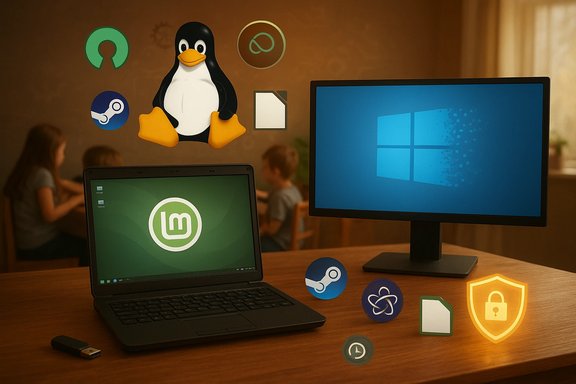
I switched my household from Windows 11 to Linux — and the change forced a hard rethink about what an operating system should do for you, who controls your data, and how much of your computing life you want to outsource to a single vendor. The move wasn’t a panacea, but it rescued three machines, brought faster performance to older hardware, and — importantly — put repair and ownership back in my hands in a way Windows hadn’t for years. Notebookcheck’s recent dispatch captures this same feeling of regained agency and delight in troubleshooting, and it’s a useful starting point for anyone weighing the same jump.
Linux’s desktop renaissance didn’t happen overnight. For years the platform slowly closed gaps that mattered to mainstream users: better out‑of‑the‑box drivers, polished desktop environments, and a practical compatibility path for many games. At the same time, Microsoft’s Windows 10 lifecycle and Windows 11 product decisions — from hardware gatekeeping to tighter cloud and AI integrations — have pushed a subset of users into looking for alternatives. One immovable milestone is Windows 10’s end of support: Microsoft stopped free mainstream updates and technical support for Windows 10 on October 14, 2025, a practical trigger for many users to either move to Windows 11, pay for extended security updates, or consider alternatives. That mix — the maturation of Linux and pressure from Windows lifecycle changes and platform design choices — fuels the argument many journalists and users are making: switching to Linux is no longer merely for tinkerers and sysadmins; it’s a pragmatic, cost‑effective option for homes, classrooms, and small offices. Notebookcheck’s report is a first‑person look at that reality: the writer found Linux rewarding, usable for children, and capable of reviving aging hardware while delivering a more transparent, repairable experience.
Notebookcheck’s experience — more delight in fixing things, revived machines, and a family that could use Mint without constant help — is consistent with what community snapshots, Proton momentum, and distro developer efforts show in the data: Linux’s desktop story has matured to the point where a careful, tested migration is realistic for many users. That said, verify your specific software, peripherals, and game list before switching, keep a Windows image as a fallback if needed, and use snapshots and live USB testing to avoid surprises.
If you’re ready to take the first constrained step:
Source: Notebookcheck I dumped Windows 11 for Linux, and you should too
 Background
Linux’s desktop renaissance didn’t happen overnight. For years the platform slowly closed gaps that mattered to mainstream users: better out‑of‑the‑box drivers, polished desktop environments, and a practical compatibility path for many games. At the same time, Microsoft’s Windows 10 lifecycle and Windows 11 product decisions — from hardware gatekeeping to tighter cloud and AI integrations — have pushed a subset of users into looking for alternatives. One immovable milestone is Windows 10’s end of support: Microsoft stopped free mainstream updates and technical support for Windows 10 on October 14, 2025, a practical trigger for many users to either move to Windows 11, pay for extended security updates, or consider alternatives. That mix — the maturation of Linux and pressure from Windows lifecycle changes and platform design choices — fuels the argument many journalists and users are making: switching to Linux is no longer merely for tinkerers and sysadmins; it’s a pragmatic, cost‑effective option for homes, classrooms, and small offices. Notebookcheck’s report is a first‑person look at that reality: the writer found Linux rewarding, usable for children, and capable of reviving aging hardware while delivering a more transparent, repairable experience.Why people are switching: pain points with Windows 11
Privacy and platform design
Windows 11’s deeper integration of Microsoft services and Copilot-style AI agents has been a point of contention. For users who prize local control and minimal telemetry, that integration is a step in the wrong direction; it nudges the experience toward cloud-first workflows and account‑tethered features that are harder to opt out of. Notebookcheck’s author frames the decision partly as a reaction to this design trajectory: a desire for an environment that doesn’t bake in telemetry and vendor lock‑in.Lifecycle pressure
The end of Windows 10 support is real and consequential. After October 14, 2025 Microsoft ceased providing security patches and standard support for Windows 10, which increases the long‑term maintenance burden for users on older systems. That deadline forced many to evaluate whether to upgrade hardware in order to run Windows 11, buy into Microsoft’s extended security program, or consider replacements such as Linux distributions or ChromeOS Flex.Friction in modern Windows flows
Beyond lifecycles and telemetry, people cite friction like forced Microsoft account sign‑ins in OOBE, frequent and intrusive updates, and OEM utilities that only run on Windows. Those are valid operational annoyances that make Linux’s predictable model (install once, manage updates on your terms) appealing to privacy‑minded and cost‑sensitive users.What Linux gives you: freedom, performance, and variety
A distribution for every user
One of Linux’s greatest strengths is variety. If you want a plug‑and‑play desktop with a gentle learning curve, distributions like Linux Mint, Zorin OS, or Ubuntu are explicitly designed for that audience. If you want a gaming‑focused experience, Pop!_OS and tailored distributions like CachyOS or Nobara ship with driver helpers and tuned kernels. For maximum control, Arch‑based or Gentoo setups let you build the stack from the ground up.- Linux Mint (Cinnamon, MATE, Xfce) aims for familiarity and easy migration.
- Pop!_OS focuses on performance, driver support, and the needs of gamers and creators.
- Zorin OS targets Windows migrants with familiar layouts and migration tools.
Reliability and system snapshots
Linux’s ecosystem includes accessible snapshot and restore tools that make experimenting safer. Timeshift, widely packaged in Mint and other distributions, provides system snapshot capability akin to Windows System Restore or macOS Time Machine for system files, letting you roll back after a problematic update or tweak. The tool’s architecture (rsync or BTRFS snapshots, scheduled jobs) makes it a practical safety net for new Linux users.Reviving older hardware and reducing e‑waste
Linux tends to run leaner than a full Windows image burdened with telemetry, preinstalled OEM suites, and services. Lightweight desktop environments (XFCE, MATE, LXQt) and minimal base images can give old laptops new life — a factor that matters if you want to avoid buying new Windows‑11‑compatible machines to stay supported. Community projects and campus programs often highlight Linux installs as a cost‑effective way to keep hardware useful.Gaming on Linux: big strides — with caveats
Gaming is the single largest barrier for many potential Linux switchers, but it’s also where the largest technical progress has been made.Valve, Proton, and the compatibility layer
Valve’s Proton (a Wine fork with DirectX→Vulkan translation) has radically changed the landscape, making thousands of Windows titles playable on Linux. Community compatibility trackers and industry reporting show that a substantial portion of the Steam library now runs well under Proton; compatibility ratings and verification programs (Steam Deck Verified / SteamOS compatibility) help users set expectations. Practical reality: many popular single‑player and less‑protected titles are playable, sometimes with only minor tweaks.Anti‑cheat remains the wild card
Anti‑cheat systems are still a mess for Linux gaming. Over the last few years Epic’s Easy Anti‑Cheat (EAC) and BattlEye added pathways for Linux/Proton support, and Valve worked with those vendors to enable compatibility, but adoption is ultimately a publisher decision. Some developers explicitly refuse Proton support because of cheating concerns; other titles have been made playable only when developers opt in and ship Linux/EAC artifacts. Epic and others simplified EAC’s Proton integration for new SDK versions, but older titles or those tied to kernel‑level anti‑cheat architectures (like EA’s Javelin, or some custom kernel hooks) may remain unsupported. The upshot: many games work, but competitive titles or those with strict kernel‑level anti‑cheat may not.Practical gaming reality
- Single‑player, DRM‑free, and many cooperative titles are frequently playable via Proton.
- Competitive multiplayer often depends on developer adoption of Proton‑friendly anti‑cheat libraries.
- ProtonDB, Steam Deck verification, and news coverage are the best pre‑migration checks for specific titles.
Hardware and driver realities: the painful, and the manageable
GPU drivers and proprietary modules
NVIDIA’s proprietary driver remains the most common source of friction: installation is typically straightforward on Ubuntu‑based distros via packaged drivers, but special fun begins if Secure Boot is enabled — kernel modules must be signed or a Machine Owner Key (MOK) enrolled. Distributions such as Pop!_OS and some OEM‑backed builds try to simplify this, but users should test driver behaviour on a live USB before committing a full install.Secure Boot and MOK: what you need to know
Modern distros handle Secure Boot via the shim bootloader and MOK flow. If you use third‑party kernel modules (for proprietary drivers or non‑signed modules), a MOK will usually be generated and a one‑time enrollment step done at first boot to allow that module to load under Secure Boot. That process is well‑documented, but it’s a technical step many casual users don’t encounter on Windows. Plan to test your Wi‑Fi, fingerprint reader and GPU drivers from a live session before wiping the disk.Firmware and OEM utilities
Some vendors ship firmware‑flashing utilities and IME/management software that only run on Windows. In practice this is rarely a day‑to‑day blocker for a home user, but if your hardware needs frequent firmware updates (BIOS/EC), you’ll either need to keep a Windows image handy or use vendor update tools that run from USB or a Windows PE environment.Migration: a pragmatic playbook
If you’re tempted to try Linux but don’t want to be reckless, follow a staged, test‑first approach:- Create a recovery plan
- Back up user data to an external drive and create a full disk image of your Windows installation; image backups let you roll back completely if needed.
- Try before you commit
- Boot a live USB of your chosen distro (Linux Mint, Ubuntu, or Pop!_OS) and test Wi‑Fi, audio, GPU, and peripherals.
- Test specific workflows
- Confirm that the web apps, office suite (LibreOffice or Office web apps), and any required browser plugins work.
- Validate games and anti‑cheat
- Use ProtonDB, Steam shop compatibility badges, and vendor statements to check game compatibility. Try installing and running the most important titles from a live or secondary disk if possible.
- Use snapshots and recovery
- Activate Timeshift (or BTRFS snapshots) immediately after installing to have a quick restore point if things go sideways.
Strengths: what Linux does better today
- Transparency and control — You can see and audit most of the stack, choose what runs, and opt out of vendor telemetry.
- Longevity for older machines — Lightweight distros give new life to old hardware and reduce upgrade churn.
- Repairability and skill building — Learning to fix problems on Linux teaches durable skills and reduces helplessness when a wizarded UI fails.
- Cost and waste reduction — Free distros plus community support can delay hardware replacements and lower e‑waste.
Risks and reality checks
- Application compatibility — Some Windows‑only professional apps (certain Adobe or industry vertical tools) still require Windows. Virtualization or keeping one machine dual‑booted with Windows is a pragmatic fallback for those workflows.
- Gaming anti‑cheat — Competitive titles and some publishers remain blockers; verify before switching if online competitive gaming is core to your use.
- Peripheral oddities — Printers, scanners, and niche hardware occasionally lack drivers; always test critical peripherals on a live USB.
- Vendor firmware and OEM services — BIOS/EC updates and some manufacturer tools are Windows‑only; plan accordingly.
- Learning curve and support model — Linux requires learning and an occasional trip to forums or documentation; it’s not an instant “set and forget” replacement for every Windows feature.
Recommended distros and when to pick them
- Linux Mint (Cinnamon/MATE/Xfce) — Best for Windows migrants seeking familiarity and stability; excellent desktop defaults and Timeshift snapshots.
- Zorin OS — Polished Windows‑like UI and onboarding tools for newcomers.
- Pop!_OS — Good choice for creators and many gamers; streamlined driver support and performance tuning.
- Ubuntu — Massive community support, OEM compatibility, and broad app availability.
- ChromeOS Flex — For strictly web‑centric users and institutions, a low‑maintenance path with automatic updates.
Final analysis: when Linux is the right choice (and when it isn’t)
Linux is not a silver bullet. It won’t magically make every workflow perfect, nor will it remove the need to plan for driver quirks or vendor‑specific tools. But it does restore agency: the freedom to choose updates, control telemetry, and keep devices running longer without being forced into a hardware upgrade cycle. If your priorities are privacy, low cost, staying on older hardware, or learning a deeper understanding of your system — and if you’re ready to accept a little troubleshooting and planning for edge cases like anti‑cheat or proprietary Windows apps — Linux is increasingly a pragmatic, mainstream option.Notebookcheck’s experience — more delight in fixing things, revived machines, and a family that could use Mint without constant help — is consistent with what community snapshots, Proton momentum, and distro developer efforts show in the data: Linux’s desktop story has matured to the point where a careful, tested migration is realistic for many users. That said, verify your specific software, peripherals, and game list before switching, keep a Windows image as a fallback if needed, and use snapshots and live USB testing to avoid surprises.
If you’re ready to take the first constrained step:
- Back up everything and make a full disk image.
- Create a live USB for Linux Mint or Ubuntu and test your key hardware.
- Check ProtonDB or the Steam compatibility badge for your games.
- Enable Timeshift immediately after install to protect yourself from misconfiguration.
Source: Notebookcheck I dumped Windows 11 for Linux, and you should too
