

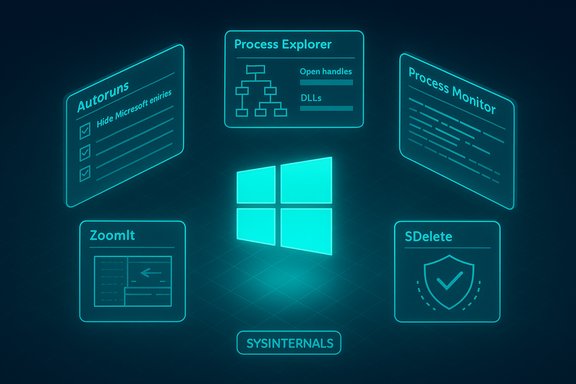
If you use Windows and haven’t installed the Sysinternals toolkit yet, you’re missing some of the most powerful, low‑level utilities available to troubleshoot, analyze, and harden your PC — and a recent roundup highlighted five of them that deliver immediate, practical benefits for power users and IT pros. The XDA piece singled out Autoruns, Process Explorer, Process Monitor, SDelete, and ZoomIt as tools that “instantly make Windows better,” and that shortlist is a solid starting point for anyone who wants to move beyond the surface-level tools that ship with Windows.
Source: XDA 5 SysInternals tools that instantly make Windows better
 Background
Why Sysinternals still matters
Sysinternals began as a collection of utilities from Mark Russinovich and Bryce Cogswell (originally Winternals / NTInternals), tools designed to expose the inner workings of Windows. Microsoft acquired Winternals and Sysinternals in 2006 and has since maintained and updated the suite, making the official downloads and documentation available through Microsoft Learn and the Sysinternals portal. The acquisition and continued stewardship mean these utilities are both powerful and officially supported for modern Windows releases. The suite is packaged as the Sysinternals Suite (a single download that includes all the utilities) and individual tool pages are regularly updated on Microsoft’s documentation site. That makes the suite a safe, authoritative place to download these utilities instead of relying on obscure mirrors.Overview of the five essential Sysinternals tools
- Autoruns — find everything that starts automatically on your PC and disable the leftovers you don’t need.
- Process Explorer — a Task Manager on steroids that shows process trees, handles, DLLs, and deep per‑process details.
- Process Monitor — a real‑time monitor for file system, registry and process/thread activity that’s indispensable for troubleshooting and forensics.
- SDelete — a command‑line secure‑delete utility that overwrites file data so it’s far harder to recover.
- ZoomIt — a lightweight screen zoom/annotation/recording tool for demos and tutorials (also available as a PowerToys module).
Autoruns — take control of auto‑start behavior
What it does, quickly
Autoruns shows every location where Windows or third‑party code can be configured to start automatically: logon items, Run/RunOnce registry keys, scheduled tasks, drivers, Explorer shell extensions, and more. It exposes those entries in a single, filterable interface so you can spot unnecessary or suspicious entries and disable them.Why it’s better than fiddling with individual menus
Windows exposes startup items in several places across registry hives, Task Scheduler, and file system locations. Autoruns aggregates them into one view and includes features like “Hide Microsoft entries” to focus on third‑party items and VirusTotal integration to surface file reputation when available. That centralization is why Autoruns is a go‑to first step when you suspect unwanted background components or slow boot times.Practical tips and caveats
- Always review before disabling: some services or shell extensions are required by other applications; indiscriminate disabling can break functionality.
- Use the Options → Hide Microsoft entries to reduce noise, and right‑click an item to jump to its registry key or file location.
- Autoruns includes a command‑line equivalent, Autorunsc, for scripted analysis and reporting.
Process Explorer — Task Manager who?
What Process Explorer gives you
Process Explorer is a compact, high‑information process viewer that reveals process trees, open handles, loaded DLLs, thread stacks, and per‑process properties such as command line and account owner. It can show which process holds a file handle (useful for “file in use” problems), highlight suspicious processes, and even query VirusTotal for file hashes. Microsoft documents Process Explorer as a purpose‑built tool for these exact problems.Where Process Explorer beats Task Manager
- Granularity: thread call stacks, handle lists, and DLL view.
- Control: suspend or kill a process tree, change priorities or affinities, and inspect a process’s environment and token.
- Forensics: see who opened what file or registry key and when.
Real‑world uses and safety
- Use Process Explorer to find which process blocked a backup or prevented safe removal of a drive.
- Don’t change process priorities or terminate system processes unless you know the consequences — critical services and drivers can make the system unstable if stopped.
- Run Process Explorer elevated to access system process details; the tool is designed to be run on modern Windows versions (Windows 10 / 11 and server SKUs).
Process Monitor — watch the system breathe
What Process Monitor is for
Process Monitor captures and displays every file system, registry, process/thread, and DLL activity in real time with rich, machine‑readable event properties and thread stacks. It merged the older Filemon and Regmon utilities and adds powerful non‑destructive filtering and logging. For debugging, malware analysis, and diagnosing intermittent errors, it’s indispensable.How to use it effectively
- Always start with filters. Process Monitor’s default capture generates millions of events in minutes; focus on process name, path, or operation types to keep logs useful.
- Use boot‑time logging to capture early startup failures that occur before a user session loads.
- Save PML logs and analyze them offline; Process Monitor’s native log format preserves stack data and full event details.
Performance and privacy notes
- Continuous, unfiltered capture is resource‑intensive and can produce large files. Capture only what you need and clear the buffer frequently.
- Because ProcMon records registry and file access, logs may contain sensitive pathnames or secrets — treat stored logs as sensitive data.
SDelete — delete files without a trace (mostly)
What SDelete claims and how it works
SDelete (Secure Delete) overwrites file content and can also cleanse free space to make previously deleted files far less likely to be recoverable. The official documentation states that SDelete implements the Department of Defense clearing standard DOD 5220.22‑M for overwrite patterns and describes the exact mechanisms it uses (including handling NTFS compressed, sparse, and encrypted files). SDelete can overwrite files directly or fill and overwrite free space on a volume.How to run SDelete (concise, practical)
- Download SDelete from the official Sysinternals page and extract the zip.
- Open an elevated terminal in the folder containing sdelete64.exe.
- To overwrite a single file once:
- sdelete64.exe -p 1 C:\Path\to\file.txt
- To cleanse free space (helpful for reclaiming deleted file data):
- sdelete64.exe -c C:
- Increase passes with -p N (default is 1); more passes make recovery less likely but cost time.
Critical caveats — SSDs, TRIM, and what secure delete doesn’t guarantee
SDelete’s overwrite approach is effective on traditional magnetic disks, but it cannot reliably erase data on most modern SSDs because of wear‑leveling, over‑provisioning and TRIM behavior. Overwriting logical sectors on an SSD does not guarantee the underlying physical NAND cells that previously stored the data are overwritten; firmware and controller behaviors can leave remnants. The recommended approach for full-drive secure erasure on SSDs is the drive’s built‑in ATA/NVMe secure erase or using vendor utilities; where drive‑level secure erase isn’t available, full‑disk encryption and secure key destruction are practical mitigations. Multiple vendor and industry analyses echo these limitations — treat single‑file overwrites on SSDs as less reliable than on HDDs.When to use SDelete
- Use SDelete for specific sensitive files on HDDs or to cleanse free space on systems with spinning drives.
- On SSDs, prefer device secure erase or strong encryption plus key destruction; use SDelete only with the expectation of limited guarantees.
ZoomIt — make presentations and tutorials cleaner
What ZoomIt does and why it’s handy
ZoomIt is a tiny utility that lets you zoom, annotate, and record the screen for demos and tutorials. It runs in the tray and activates with hotkeys, providing a drawing overlay on the zoomed screen and simple capture options. Microsoft has incorporated ZoomIt into PowerToys (so it’s available as both a Sysinternals standalone and a PowerToys module), and recent updates added LiveDraw/live‑zoom features. This makes ZoomIt an excellent one‑button choice for walkthroughs and ad‑hoc teaching scenarios.Tips for presenters
- Remap hotkeys to avoid collisions with other apps.
- Use the recording or screenshot features to capture annotated walkthroughs without juggling multiple utilities.
- For repeatable, polished videos consider a dedicated screen‑recording tool — ZoomIt is ideal for quick, low‑friction live annotations.
Practical safety checklist before using Sysinternals tools
- Download only from the official Sysinternals pages or the Microsoft Store to avoid tampered binaries.
- Run tools elevated only when required; many tools need admin rights to show full system data.
- Back up data and create a system restore point before making changes with Autoruns or deleting files with SDelete.
- When capturing with Process Monitor, use filters to limit log growth and protect sensitive information.
- For secure erasure on SSDs, rely on ATA/NVMe secure erase procedures or full‑disk encryption and key destruction rather than file‑level shredders alone.
Critical analysis — strengths, limits, and risks
Strengths
- Depth of insight: Sysinternals tools expose internals that are otherwise hidden, enabling precise root‑cause analysis. Process Explorer and Process Monitor remain unmatched for interactive system forensics and debugging on Windows.
- Official support and updates: Microsoft maintains and documents the suite on Learn, meaning the tools receive timely updates and clear compatibility notes for modern Windows versions. That reduces supply‑chain risk versus unknown third‑party utilities.
- Portability and low overhead: Most Sysinternals tools are portable single EXEs; they won’t bloat the system and can be run from a USB stick for emergency troubleshooting.
Limits and risks
- Human error: Disabling the wrong Autoruns entry or killing a system process in Process Explorer can break applications or cause instability. Tools provide power; they also impose responsibility.
- Data‑safety misconceptions: Tools like SDelete are powerful but not universally effective (especially on SSDs). Misunderstanding physics of modern storage leads to false confidence about “irrecoverable” deletion.
- Log and privacy exposure: Process Monitor captures detailed paths, registry keys, and sometimes credentials embedded in paths or parameters. Treat its logs as sensitive artifacts and store or share them accordingly.
How to mitigate risk
- Test changes in a controlled environment (virtual machines) before applying them to production systems.
- Use read‑only views or “disable, don’t delete” when cleaning autoruns entries so you can roll back easily.
- Keep Sysinternals tools updated from Microsoft Learn to avoid old versions with bugs or missing device compatibility.
How to get started — a safe first session (step‑by‑step)
- Download the latest Sysinternals Suite from Microsoft Learn and extract it to a tools folder.
- Run Autoruns first (as Administrator), check Options → Hide Microsoft entries, and mark items you don’t recognize for later review rather than deleting immediately.
- Open Process Explorer to observe process trees and CPU usage; hover a process to see its command line and use “Find → Find Handle or DLL” to trace file locks.
- When debugging an app that fails to read or write files, start Process Monitor with tight filters (process name and operation) to collect targeted traces. Save PML files for offline analysis.
- If you need to permanently remove highly sensitive files on an HDD, run SDelete with an appropriate pass count; if the drive is an SSD, prioritize device secure erase tools or encryption key destruction.
- Install ZoomIt (or enable it in PowerToys) for quick on‑the‑fly presentation zooms and annotations.
The long view — where Sysinternals fits in your toolkit
Sysinternals sits between casual Windows utilities and full-fledged enterprise tools: accessible to an individual enthusiast yet deep enough for enterprise incident response and application debugging. Because Microsoft maintains the suite and documents it thoroughly, Sysinternals occupies a rare niche — powerful, portable, and trusted. If you are troubleshooting boot issues, investigating “what changed” after a problematic update, debugging an installer, or preparing a secure‑deletion workflow (with the right storage caveats in mind), these tools pay for themselves in minutes.Conclusion
The XDA shortlist of Autoruns, Process Explorer, Process Monitor, SDelete, and ZoomIt is a pragmatic entry point into Sysinternals that delivers immediate, measurable improvements in visibility and control over Windows systems. Use them responsibly: download from the official Microsoft Sysinternals pages, learn the read‑only inspection flows before changing system state, and treat secure delete operations with caution on modern solid‑state storage. When wielded with care, these small utilities transform Windows troubleshooting from guesswork into measurable, repeatable diagnostics — which is exactly why Sysinternals remains essential more than a decade after Microsoft acquired the project.Source: XDA 5 SysInternals tools that instantly make Windows better
