
A new community release called the "Multiple APO Effect Pack" has re‑ignited a long‑running debate about how Windows applies audio processing: the pack promises to install and activate APO‑style effects across all audio output endpoints on modern PCs, but it also raises significant compatibility and stability questions because it targets the deeply layered, driver‑dependent Windows audio stack and — according to the thread — is compatible only with Windows 11. The idea is powerful: give users a single, system‑wide way to apply equalization, virtual surround, loudness compensation and other DSP to every output device, without needing per‑app tools or vendor suites. The reality is more complex and demands cautious testing, careful rollbacks, and a clear understanding of how Audio Processing Objects (APOs) interact with drivers, exclusive modes, and third‑party audio software on Windows systems.
If you decide to experiment:
Conclusion: the Multiple APO Effect Pack is an interesting, potentially useful community tool — but not a one‑click fix for everyone. With careful validation, conservative rollouts, and an eye toward rollback, it can be a welcome addition to a Windows 11 enthusiast’s toolkit; without that caution, it’s likely to cause more support headaches than it solves.
Source: TechPowerUp Multiple APO Effect Pack - For ALL Audio Output Endpoints -...
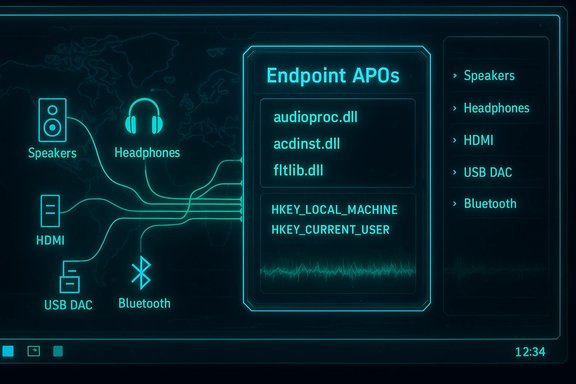 Background
What an APO is (the technical baseline)
Audio Processing Objects (APOs) are the building blocks vendors and developers use to modify audio inside Windows’ audio pipeline. APOs are implemented as in‑process COM objects (DLLs) that attach to various points in the stack and run real‑time DSP on audio streams. They can be registered in different scopes: per‑stream, per‑mode, or per‑endpoint, which determines whether the effect is applied to a specific application stream, all streams mapped to a playback mode, or at the device endpoint itself. Because APOs run in the real‑time audio path, Microsoft requires they be non‑blocking and avoid pageable memory — but vendor or community APOs still frequently cause buffering, latency, or sample‑rate mismatches when multiple layers of processing stack up.Why Windows 11 keeps coming up
Windows 11 has continued to evolve the audio stack — adding support for LE Audio, new Bluetooth profiles, and other audio routing features — and recent updates (notably 24H2 onward) introduced plumbing that changes how certain features like super wideband stereo or LE Audio behave. That evolution means some community tools and driver behaviors are now Windows‑11–specific or at least tested primarily on Windows 11 builds; the TechPowerUp thread’s assertion that the APO pack is “compatible only with Windows 11” aligns with the broader pattern that audio tooling and driver packaging vary by OS version and OEM driver models. That said, an absolute claim of Windows‑11‑only compatibility should be treated cautiously unless the pack’s author documents the specific API calls or registration methods that are unavailable on Windows 10.What the Multiple APO Effect Pack claims to do
- Apply a set of APO effects to every output endpoint enumerated by Windows, not just the default device.
- Register endpoint APOs (endpoint‑level effects) that sit closest to the hardware so every app’s output receives the same processing.
- Offer a single, unified installer that automates DLL registration, COM registration and the necessary registry entries that make Windows load the APOs for each endpoint.
Why this matters: benefits for users and workflows
Unified sound profile across devices
For casual listeners who switch frequently between laptop speakers, wired headphones, USB DACs, and HDMI receivers, a single APO pack can provide a consistent volume profile, bass compensation, or dialog clarity improvements without per‑device fiddling.Easier accessibility adjustments
Some APO suites offer speech enhancement and loudness equalization that improve intelligibility for users with hearing challenges. Applying these at the endpoint level ensures assistive processing is applied regardless of which app produces sound.Centralized experimentation for custom DSP
Power users who want to test spatializers, convolution reverbs or system‑wide EQ presets gain a one‑stop installation point rather than juggling Equalizer APO configs, vendor apps, and per‑app spatial sound settings. It’s a fast way to audition how endpoint APOs change movies, games, and music without rebuilding multiple profiles.Risks, tradeoffs and real‑world incompatibilities
1) Latency and timing problems
Each APO layer introduces buffering and scheduling complexity. That can add measurable latency — harmless for video playback but damaging for live monitoring, DAW sessions, and competitive gaming. APOs must be real‑time safe, but community packs cannot change the fundamental buffering behavior of stacked processing, and problems can appear when endpoint drivers or GPU/CPU scheduling vary.2) Driver and vendor stacking conflicts
Many OEMs move their audio controls to vendor apps (Dolby, Realtek Audio Console, DTS, Nahimic), and those apps often inject proprietary APOs or coordinate processing in ways the OS‑level toggle (Enhance audio / Device default effects) does not fully expose. Installing a pack that overwrites or silently adds endpoint APOs can clash with vendor suites, creating double processing, audio coloration, or unpredictably disabled vendor features. Community troubleshooting archives show that the Enhancements tab is frequently hidden or controlled by vendor software rather than Windows alone.3) Endpoint heterogeneity: not all outputs are equal
Windows enumerates outputs differently: Bluetooth endpoints, USB audio class devices, HDMI audio over GPU drivers, and proprietary USB headsets present separate endpoints — some mediated by their own driver stacks that do not accept endpoint APOs the same way. A claim of “for ALL audio output endpoints” is optimistic without careful device‑by‑device validation. Mixed setups (one wired, one Bluetooth) complicate synchronized effects and can expose timing mismatches.4) Stability, crash and boot‑time risks
APOs are DLLs loaded into the audio engine process. Poorly written or unsigned APOs can cause the audio service to crash, result in sample‑rate mismatches, or prevent the device from initializing cleanly. Because APOs run in the real‑time path, any exception or blocking call can propagate into audible artifacts (pops, crackles) or a full audio failure that requires driver reinstallation to fix. Community threads repeatedly point to disabling enhancements as a top troubleshooting step when artifacts appear.5) Security and trust concerns
Any third‑party package that registers COM objects and installs DLLs into system audio paths must be treated like a driver: if it’s unsigned or distributed by an untrusted source, it could be a vector for malware or persistence. The Windows driver model and Kernel‑mode signing policies protect kernel drivers; APOs, while user‑mode, still require trust because they can alter runtime behavior and access audio data streams. The pack’s provenance and code quality should be verified before deployment.How to evaluate the pack safely (a short checklist)
Before installing:- Create a full system Restore Point and an image backup of the Windows partition.
- Note the exact Windows build (Settings → System → About) and save current audio driver installer packages from your OEM/motherboard vendor.
- Identify critical endpoints you cannot afford to break (audio interface used for streaming, USB DAC for music production) and exclude them from testing initially.
- Test on a non‑production machine or a virtualized test image if possible.
- Install the pack and verify only one endpoint first (for example, the laptop’s internal speakers) to gauge behavior.
- Use audio test files that exercise a range of content: dialog‑heavy videos, high‑dynamic music, and latency‑sensitive inputs (monitoring a live mic) to reveal coloration and timing issues.
- If problems appear, disable the pack and revert using System Restore; if that fails, reinstall OEM drivers and reset the default audio endpoint. Community guides emphasize updating OEM DCH drivers as a reliable fallback.
How to undo or recover if things go wrong
- Disable the APOs: If the pack exposes a control panel or a list of registered APOs, use it to unregister or disable the endpoint effects first.
- Use the classic Sound control panel (mmsys.cpl) → Playback → Properties → Enhancements/Advanced to toggle processing off. Many vendors place controls here or in their store apps. If the Enhancements tab is absent, reinstall the correct OEM driver package.
- Roll back drivers: In Device Manager, choose the audio device and roll back to a previous driver or select the generic High Definition Audio Device as a diagnostic step.
- System Restore or image recovery if the audio engine becomes unstable.
- For DAW users: switch to an ASIO interface or exclusive mode device while debugging, as ASIO bypasses much of the system mixer and its APO chain.
Practical recommendations for specific user groups
For audiophiles and music production pros
Avoid system‑level APOs in your main workstation. Use a dedicated audio interface with an appropriate ASIO driver and disable Windows enhancements for that endpoint. APO packs are useful for casual listening but can compromise fidelity and monitoring accuracy.For gamers
Test the APO on non‑competitive sessions first. Virtual surround or loudness changes can harm spatial cues critical for competitive play. If latency or positional accuracy matters, keep wired or low‑latency RF headsets as a fallback.For everyday multimedia users
A carefully configured APO pack can be a convenient way to improve dialog clarity, low‑volume intelligibility, and small‑speaker bass. Still, keep a rollback path and confirm settings after Windows updates — updates can reset or re‑enable enhancements unexpectedly.For IT admins and rollouts in organizations
APO packs that modify system audio globally should be treated like driver changes: pilot on representative hardware, ensure driver provenance, document rollback steps, and communicate to end users about what to expect. Because vendor packages and Windows builds vary, expect heterogenous results across a fleet.What to verify in the TechPowerUp thread and download package (validation checklist)
- Confirm the authorship and digital signature of the installers/APO DLLs.
- Look for explicit statements of which Windows builds and KB updates the pack requires (e.g., references to 24H2 or later).
- Check whether the pack modifies registry keys in HKLM\Software\Microsoft\Windows\CurrentVersion\Audio or registers endpoint APOs with specific endpoint GUIDs — those details tell you whether the method will survive driver reinstall or Windows updates.
- Ask for a manifest listing the included effects and their prerequisites (sample‑rate support, channel mapping).
- If possible, run the APOs through static checks (PE signature verification) and dynamic tests on a sandboxed machine before trusting them on a daily driver system.
Critical analysis — strengths, weaknesses, and where this fits in the ecosystem
Strengths- The pack addresses a real pain point: fragmented per‑device and per‑app audio settings that frustrate casual users and accessibility scenarios.
- Endpoint APOs are a sensible place to centralize processing when done correctly: they sit closest to the device and can ensure consistent processing for all audio streams.
- The Windows audio stack is layered and fragile. APOs interacting with vendor suites and Bluetooth stacks are a frequent source of community troubleshooting threads; installing global APOs increases the attack surface for conflicts and regressions.
- Vendor moves to hide or relocate the Enhancements tab into their own store apps means global assumptions (e.g., “this will work on all PCs”) often break in the field.
- Latency and real‑time safety are non‑trivial and can render the pack unsuitable for pro audio or gaming on some systems.
- The pack is best framed as an experimental, convenience‑oriented tool for non‑critical listening and accessibility improvements rather than a universal replacement for vendor stacks or professional monitoring setups.
- It’s also a useful platform for power users to prototype endpoint APOs, provided they respect the testing and rollback discipline described earlier.
Final verdict and recommended next steps
The Multiple APO Effect Pack concept is compelling: it answers a clear need for system‑wide audio customization. However, the Windows audio environment — with its diversity of endpoint drivers, separate vendor control panels, and evolving Windows 11 audio features — makes broad, universal claims risky. Proceed only after verifying the pack’s code/signature, testing on a non‑production machine, and preparing a recovery plan (restore point, offline driver copies). Disable or avoid installing the pack on machines used for live audio work, critical streaming, or competitive gaming until you’ve validated latency and stability in real workflows.If you decide to experiment:
- Back up the system and drivers.
- Test on one non‑critical endpoint first.
- Measure impacts on latency, CPU usage and audio artifacts with representative content.
- Keep an easy rollback process documented.
Quick reference: safe test plan (two‑minute checklist)
- Create a System Restore point.
- Save OEM audio driver installers to external media.
- Install on a test machine or VM snapshot first.
- Test with dialog, music, and a live mic monitor.
- Revert if you see clicks, crackles, or latency that breaks live workflows.
Conclusion: the Multiple APO Effect Pack is an interesting, potentially useful community tool — but not a one‑click fix for everyone. With careful validation, conservative rollouts, and an eye toward rollback, it can be a welcome addition to a Windows 11 enthusiast’s toolkit; without that caution, it’s likely to cause more support headaches than it solves.
Source: TechPowerUp Multiple APO Effect Pack - For ALL Audio Output Endpoints -...
