

Microsoft Edge’s appetite for RAM isn’t a mystery or a single bug — it’s the sum of modern browser design, heavy web pages, background extensions, and default behaviors — but the browser now gives you multiple, built‑in tools to diagnose, limit, and control that appetite, and using them together can turn Edge from a memory hog into a well‑behaved multitasking workhorse.
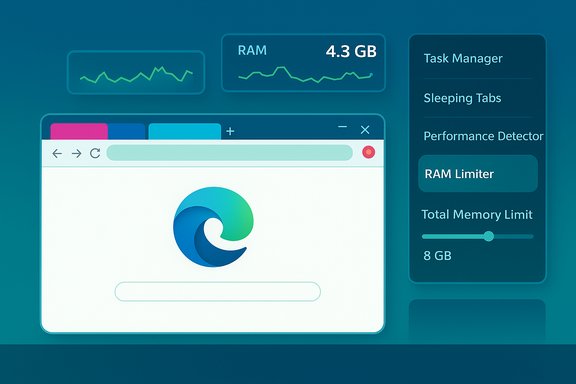
Modern browsers are complex, multiprocess applications that deliberately trade memory for responsiveness. Each tab, extension, and renderer process is isolated so a crash or a malicious site won’t take down the whole browser — that design buys safety and stability, but it also multiplies memory use as you open more tabs and add more extensions. The browser task model, renderer processes, and Javascript heaps all contribute to what users perceive as “Edge is eating RAM.” Microsoft has been building features into Edge to address that exact trade‑off rather than forcing users into extremes (close tabs or switch browsers). The three practical controls you’ll rely on most are: the built‑in Browser Task Manager for diagnosis, Sleeping Tabs / Efficiency Mode for automatic background suspension, and the newer Resource Controls (RAM limiter) to cap how much memory the browser may consume. A complementary feature — the Performance Detector — watches for runaway tabs or extensions and nudges you to act. These are native to Edge (not third‑party add‑ons), and they work together when configured sensibly.
Source: MakeUseOf Microsoft Edge was eating all my RAM — these fixes finally stopped it
 Background / Overview
Modern browsers are complex, multiprocess applications that deliberately trade memory for responsiveness. Each tab, extension, and renderer process is isolated so a crash or a malicious site won’t take down the whole browser — that design buys safety and stability, but it also multiplies memory use as you open more tabs and add more extensions. The browser task model, renderer processes, and Javascript heaps all contribute to what users perceive as “Edge is eating RAM.” Microsoft has been building features into Edge to address that exact trade‑off rather than forcing users into extremes (close tabs or switch browsers). The three practical controls you’ll rely on most are: the built‑in Browser Task Manager for diagnosis, Sleeping Tabs / Efficiency Mode for automatic background suspension, and the newer Resource Controls (RAM limiter) to cap how much memory the browser may consume. A complementary feature — the Performance Detector — watches for runaway tabs or extensions and nudges you to act. These are native to Edge (not third‑party add‑ons), and they work together when configured sensibly. Diagnose first: Spot the culprits with Edge’s Browser Task Manager
Why diagnosis matters
Before changing settings, find the actual cause. High RAM numbers do not always mean “Edge is broken.” Often a single rogue tab (heavy video, complex single‑page app, or streaming site) or a misbehaving extension is responsible. Killing a problem process is far preferable to blind tweaks that may make browsing slower.How to inspect processes (quick)
- While Edge is open, press Shift + Esc to open the Browser Task Manager.
- Click the Memory column to sort and reveal the heaviest consumers.
- Right‑click the header to add columns such as JavaScript memory for deeper insight.
Sleeping Tabs: low friction, high ROI
What Sleeping Tabs does
Edge can “put tabs to sleep,” freeing memory and CPU from pages you’re not actively viewing. Sleeping doesn’t lose your tab; it suspends activity until you click into it again. Default timing and behavior are configurable, and the feature is available across platforms. For users who habitually keep dozens of tabs open, Sleeping Tabs is the single easiest setting to reduce steady‑state RAM use without changing workflow.How to enable and tune Sleeping Tabs
- Settings → System and performance → Performance → turn on Save resources with sleeping tabs.
- Choose the idle timeout (30 seconds up to 12 hours in current builds) and add sites to the “never sleep” list for pages that must stay active.
Real‑world impact and caveats
Microsoft’s internal testing and subsequent reporting showed measurable per‑tab savings (tens of megabytes per tab on average) and CPU reductions for sleeping tabs — useful data points but framed as aggregate, vendor‑reported telemetry. Treat large marketing tallies skeptically: your mileage depends on which sites you visit and how many tabs you keep open. Also, some web apps (live feeds, background playback, certain collaboration tools) may be adversely affected; use the whitelist for those sites.Performance Detector: the browser watches for trouble and tells you
What it is and how it helps
Edge’s Performance Detector is a proactive tool that monitors background tabs (and extensions) for abnormal CPU or RAM usage. When the detector finds a problem it will surface a red dot on the performance/Browser Essentials icon in the toolbar, list the offending tabs or extensions, and offer quick actions such as “Sleep tab” or “Close tab.” It’s designed to bridge the gap for users who don’t routinely check Task Manager but need actionable guidance.Enabling the detector
- Settings → System and performance → Performance → toggle on Performance detector.
- You can show the performance button on the toolbar via Settings → Appearance → Show performance button to keep the detector visible.
Extensions performance alerts
Edge is also testing and gradually rolling out an Extensions Performance Detector that alerts when add‑ons cause slowdowns, letting you disable offending extensions from the same UI. This reduces the “mystery extension” problem where background add‑ons silently consume resources. The feature is gated and undergoing staged rollouts; admins can manage it via policies when enterprise control is required.Resource Controls (RAM limiter): set a hard ceiling
What the RAM limiter does
Resource Controls is the most direct control: Edge lets you set a cap on how much system memory the browser may allocate. When the browser reaches that cap it will take corrective steps (suspend background work, sleep tabs, etc. to stay within limits. This prevents the browser from monopolizing RAM and is particularly useful on machines used for gaming, video editing, or heavy multitasking.Where to find it and how it behaves
- Settings → System and performance → Performance → Enable resource controls → choose a RAM ceiling with the slider and select whether the limit applies Always or only When you’re PC gaming.
Enterprise control and policies
For admins, Microsoft exposes Group Policy / ADMX options (RAMResourceControlsEnabled and TotalMemoryLimitMb) so organizations can enforce or lock settings centrally. That capability means IT can cap Edge across fleets to prevent user machines from reclaiming excessive resources during critical workloads.Extensions, Startup items, and other low‑hanging fruit
Sleeping Tabs and a RAM cap will handle many scenarios, but you still must be methodical:- Audit extensions: disable or remove anything you don’t actively use. The Browser Task Manager and the Extensions Performance Detector make this easy.
- Trim Windows startup apps: non‑essential background agents (sync clients, updaters) consume RAM immediately on login. Use Settings → Apps → Startup to reduce background pressure.
- Use Efficiency Mode: Edge’s Efficiency Mode reduces background activity on low battery or when you explicitly request it; pair it with Sleeping Tabs for maximal savings.
Practical step‑by‑step: apply these fixes in 10–15 minutes
- Open Edge and update to the latest stable build (Settings → About Microsoft Edge). New performance features appear in recent versions.
- Diagnose: press Shift + Esc, sort by Memory, and identify heavy tabs/extensions; end any obviously runaway processes.
- Sleeping Tabs: Settings → System and performance → Performance → toggle on Save resources with sleeping tabs and choose a timeout that suits your workflow (1 hour is a sensible default). Add important sites to the “Never put these sites to sleep” list.
- Performance Detector: in the same Performance pane, toggle on Performance detector and pin the performance button to the toolbar so alerts are visible.
- Resource Controls: enable the RAM limiter, set the slider to a conservative but usable value (e.g., 40–60% of total RAM as a starting point) and choose Always if you want a continuous cap or While PC gaming if you only care about freeing RAM for games. Adjust after a day or two.
- Extensions: use edge://extensions or the Task Manager to find and disable costly add‑ons; re‑enable only those you need.
- Reboot and measure: restart the browser and optionally the PC, then watch Task Manager and Resource Monitor for improved commit and swap behavior. If problems persist, use Performance Monitor traces for deeper diagnosis.
How to choose sensible RAM limits (balancing performance and stability)
- On 8 GB systems: cap Edge at roughly 3–4 GB if you need headroom for heavy desktop apps, but expect more tab reloads.
- On 16 GB systems: a 6–10 GB cap generally preserves responsiveness while limiting runaway use.
- On 32 GB+ systems: larger caps are fine; only cap if you regularly run GPU‑ or memory‑intensive apps in parallel.
Testing and measuring success
Measure before and after with these tools:- Edge Browser Task Manager (Shift + Esc) for per‑tab metrics.
- Windows Task Manager → Performance and Resource Monitor for system‑level memory and commit charging.
- For repeatable tests, use Performance Monitor traces to record memory and working set behavior across an identical session. If you still experience persistent memory leaks (process memory grows without bound under the same workload), that’s a sign to contact the site or extension vendor.
Strengths, limits, and safety flags — a measured critique
Strengths
- Built into Edge: These are native controls — no third‑party “memory boosters” required. That reduces risk and improves compatibility.
- Actionable diagnosis and remediation: Task Manager + Performance Detector + Resource Controls form a feedback loop: find the problem, act, and enforce a remedy.
- Enterprise policy hooks: Admins can centrally enable/disable or enforce limits (RAMResourceControlsEnabled, TotalMemoryLimitMb), which helps manage performance across fleets.
Limits and trade‑offs
- Not a substitute for hardware: If you constantly need dozens of heavyweight tabs plus VMs and editors, the real fix is more RAM or a faster drive for paging. Built‑in tools can only manage, not create, resources.
- Over‑aggressive limits harm browsing: Too low a RAM cap will produce frequent tab reloads, slower Javascript responsiveness, and a degraded browsing experience. Expect to tune gradually.
- Vendor telemetry vs. individual results: Microsoft’s aggregate numbers for Sleeping Tabs and other features (large totals of saved memory across many devices) are useful for scale but don’t guarantee per‑device results; treat those figures as indicative, not prescriptive.
Risks and administrative cautions
- Group policy misconfiguration: Enforcing overly restrictive RAM policies across an organization can create support tickets; pilot changes before broad deployment.
- Disabling background services carelessly: Turning off background access for backup or security agents may break protections. Don’t aggressively block critical services without understanding consequences.
When to escalate: signs you need deeper action
- Memory usage grows indefinitely for a process despite restarts (true memory leak).
- System shows “Memory pressure” in Resource Monitor and frequent paging persists after cleanup.
- Edge’s Resource Controls or Sleeping Tabs have no effect (possible bug or unsupported build). In these cases, test a clean profile, try Edge Canary for new features, and if needed, report telemetry and logs through Edge’s feedback tool.
Final verdict: practical, low‑risk knobs that deliver real benefit
Edge’s suite of built‑in features — Browser Task Manager for diagnosis, Sleeping Tabs and Efficiency Mode for background suspension, Performance Detector for nursemaid‑style alerts, and Resource Controls for a hard memory ceiling — form a pragmatic toolkit that lets you stop blaming the browser and start managing it. Used together, they restore predictable memory behavior without forcing users to abandon tabs or extensions they rely on every day. The key is measured application: diagnose first, enable sleeping tabs and the detector, then apply a conservative RAM cap and iterate. For admins, the policy hooks provide the governance needed to roll these gains out at scale. In short: don’t uninstall Edge out of frustration — tame it. The built‑in tools make that straightforward, and for most users the result is a quieter, more responsive PC and fewer fan‑spinning panic moments.Quick-reference checklist (one page)
- Check Task Manager in Edge (Shift + Esc) and sort by Memory.
- Turn on Sleeping Tabs and set timeout; whitelist live sites.
- Enable Performance Detector and pin the performance button.
- If needed, enable Resource Controls and start with a conservative RAM limit; prefer While PC gaming if unsure.
- Audit and disable unused extensions; use the Extensions Performance Detector when available.
Source: MakeUseOf Microsoft Edge was eating all my RAM — these fixes finally stopped it
