

Microsoft Teams now lets meeting participants change the name that other attendees see — temporarily, and only for the duration of the meeting — a small but thoughtful tweak that smooths identity clarity, protects privacy in hybrid settings, and creates a handful of new admin and compliance considerations for IT teams.
Microsoft has steadily been polishing Teams' meeting experience with incremental, user‑focused improvements that favor usability over flash. Over the last two years the product team has pushed a string of refinements — pop‑out panes, improved multitasking in meetings, real‑time transcription improvements, and selective UI cleanups — and the ability to edit your display name in meetings fits squarely in that pattern. The change was flagged publicly in community and product channels and has been covered by tech outlets picking up the feature note from Microsoft’s own announcements.
This is not a permanent profile edit. Instead, Teams now offers a meeting‑scoped display name edit: attendees can change how their name appears to others while the meeting is live. Microsoft’s product notes and blog posts spell out the scope, the admin control, and the user experience — including the explicit design choice that permanent identity information (People cards, calendar invites, attendance reports, and transcriptions) remains unchanged. That separation is the defining characteristic of the feature: temporary display personalization without altering system identity.
Coverage across community reporting and product posts shows the expected timeline and rings:
Microsoft’s approach shows a consistent pattern: ship opt‑in improvements, give admins control, and maintain authoritative records in back‑end artifacts. That pattern is a pragmatic compromise for enterprise customers who must balance agility and governance.
Strengths:
For helpdesk teams and IT leaders, the work is straightforward: decide which meeting categories should allow ephemeral name edits, configure tenant policies accordingly, and teach moderators how to reconcile live names with canonical artifacts. For everyday users, the change is an intuitive convenience: a simple click to show the name that makes sense for the room you’re in.
This small change is a reminder that in collaboration software, incremental UX wins often drive the greatest real‑world productivity gains — provided they’re paired with clear governance and common sense.
Source: Neowin Microsoft Teams just got a simple new feature that I absolutely love
 Background
Microsoft has steadily been polishing Teams' meeting experience with incremental, user‑focused improvements that favor usability over flash. Over the last two years the product team has pushed a string of refinements — pop‑out panes, improved multitasking in meetings, real‑time transcription improvements, and selective UI cleanups — and the ability to edit your display name in meetings fits squarely in that pattern. The change was flagged publicly in community and product channels and has been covered by tech outlets picking up the feature note from Microsoft’s own announcements.This is not a permanent profile edit. Instead, Teams now offers a meeting‑scoped display name edit: attendees can change how their name appears to others while the meeting is live. Microsoft’s product notes and blog posts spell out the scope, the admin control, and the user experience — including the explicit design choice that permanent identity information (People cards, calendar invites, attendance reports, and transcriptions) remains unchanged. That separation is the defining characteristic of the feature: temporary display personalization without altering system identity.
What the feature does — and what it doesn’t
The feature in plain terms
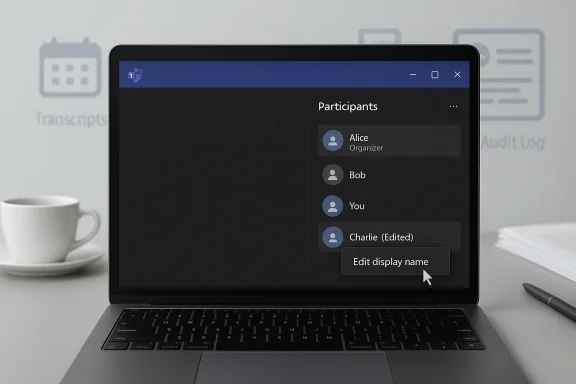
- During a live Teams meeting, attendees can hover over their name in the Participants pane and select a new “Edit display name” option. The new name takes effect immediately for other meeting participants and lasts only for the meeting’s duration.
- Edited names are marked with an (Edited) label in the meeting UI so other participants can tell a name was changed from the original People card name.
- The change is ephemeral: the People card (the canonical user profile) and permanent artifacts such as attendance reports, meeting transcripts, and calendar invites continue to reflect the original, system‑registered name. This avoids breaking audit trails and official records while still giving users control over how they present themselves in a given context.
Not included
- This is not a profile rename. It does not change a user’s account, email address, or Azure AD display name.
- Edited names do not replace the canonical name in meeting recordings, transcripts, or the attendance report — areas that organizations often use for compliance and recordkeeping.
Why Microsoft shipped it: usability, context, and privacy
Small features often solve surprisingly big friction points. The “edit display name in meetings” capability addresses several persistent, real‑world problems:- Contextual clarity. Users who go by nicknames, initials, or titles can show a name that makes sense for a particular audience — for example a short name in large all‑hands, or a title + team during a customer demo. This saves awkward introductions and reduces “who’s who” confusion in large meetings.
- Privacy and safety. People who prefer a truncated or less personal name during open calls (e.g., parents joining a school PTA meeting from a shared device) can protect personal identity without requesting org‑wide name changes.
- Temporary role identifiers. Guests, temporary contractors, or rotating presenters can append role context on the fly (e.g., “Alex — Presenter”) without asking IT to change profile metadata.
How to use it — step‑by‑step for attendees and organizers
Microsoft’s published steps are short and practical. Here’s a distilled, actionable guide that both end users and helpdesk teams can adopt for quick adoption training.- Join a Teams meeting using the desktop or web client on Windows, Mac, or a supported browser.
- Open the Participants list by clicking the People / Show participants control in the meeting toolbar.
- Hover over your name in the Participants pane and select the More options (ellipsis) menu.
- Choose “Edit display name,” type the temporary name you want other participants to see, and select Save. Your new display name immediately replaces the previous one for the length of the meeting.
- The change displays an (Edited) flag so others know the name differs from the person’s official profile.
- If you require the ability to edit names in meetings, organizers must allow it in meeting options (see next section).
Rollout timeline and availability
According to Microsoft’s product communications and message center entries, the feature rolled through preview and targeted release rings before broad availability. Early previews were visible to Public Preview and Microsoft 365 Targeted Release users; general rollout followed thereafter. Administrators must enable the capability via policy; it is turned off by default.Coverage across community reporting and product posts shows the expected timeline and rings:
- Preview/Targeted Release: early March 2025 for initial rollout to select users.
- General Availability: staged rollout during March–April 2025 depending on tenant rings and regions; admins can enable or delay access at the tenant level.
Admin controls and governance
This is where the seemingly small feature expands into a broader administrative conversation. Microsoft intentionally made the feature opt‑in and controllable by tenant admins for good reasons.- The control sits in the Teams admin options and meeting policy configuration. Admins can enable or disable the ability for meeting participants to edit display names. When disabled, the UI option is hidden to avoid confusion.
- Because permanent artifacts (attendance reports, transcripts) remain unchanged, administrators retain auditable records in compliance scenarios. However, display name edits affect what other participants see in real time — a consideration for any meeting that relies on visible attendee identity for authorization or decision‑making.
- IT shops should consider whether to allow this capability for external/guest participants. Many organizations will want to restrict name edits to internal users to prevent impersonation in large cross‑tenant calls. Microsoft’s policy model supports selective configuration to address that use case.
- Audit: Evaluate meeting classes where identity integrity is mandatory (e.g., regulated committee meetings). Keep the feature disabled for those meeting types.
- Communication: Announce policy choices to employees widely and include instructions for proper use to prevent confusion during external meetings.
- Guest handling: If you host frequent cross‑tenant events, consider restricting edits for guest users until you establish clear guidelines.
- Logging: Incorporate post‑meeting checks into compliance processes where name changes could matter for records or billing.
Benefits for typical users and teams
For everyday Teams users the feature is a positive UX win. Practical gains include:- Faster onboarding to large meetings — no need for everyone to introduce themselves when names are concise and meaningful.
- Safer participation for people joining from shared or public devices.
- Better presenter identification in webinars and training sessions, where role or topic context helps the audience follow along.
- Simpler hybrid etiquette: attendees can choose to display team abbreviations or pronouns for the meeting while leaving their full People card intact for corporate systems.
Risks, abuse scenarios, and compliance trade‑offs
No feature is purely beneficial; the display‑name edit capability introduces a set of manageable risks that IT and security teams should acknowledge.- Impersonation and social engineering. In the absence of clear controls, a malicious or careless participant could adopt another attendee’s display name to confuse or mislead others in a meeting. While the (Edited) tag helps, it’s visual and can be missed in fast conversations.
- Record‑keeping mismatch. Because transcripts and attendance reports use the canonical People card name, there is a deliberate divergence between the live UX and the recorded artifacts. That design reduces audit risk but may create confusion if a meeting moderator tries to reconcile a live interaction with the attendance report after the fact.
- External meeting dynamics. Cross‑tenant or public webinars provide fertile ground for confusion if many participants can change names freely. This is why many organizations will opt to restrict the capability in externally visible forums.
- Accessibility and moderation burdens. Moderators may need to spend extra effort policing names in large sessions; audiences with assistive technologies might also experience ephemeral naming differently than sighted participants.
- Enforce policies that disable edits for guests by default.
- Require meeting registration or use authenticated joins for high‑assurance meetings.
- Train moderators on quick checks (e.g., use the Participants list to confirm canonical names) and communicate the presence of potential transient name changes to attendees.
Practical governance playbook for IT teams
Adopting the feature responsibly only takes a few concrete steps. Here’s a short playbook IT teams can adopt this week.- Inventory meeting types. Classify meetings into categories (internal, external, regulated) and decide which categories will allow meeting‑scoped name edits.
- Configure Teams policies. Use the Teams admin center to set the default behavior; restrict edits for guest access and public webinars where identity consistency is important.
- Communicate to users. Announce the change: what it does, where it’s enabled, and best practices (prefer canonical names in client lists for formal meetings).
- Update meeting templates. For recurring meetings used for compliance or audit trails, add a note in the invite reminding attendees that display name edits will not change attendance reports.
- Train moderators. Add a short checklist to meeting moderator guidance on how to spot edited names and where to confirm canonical identity in the Teams client.
Real‑world examples and use cases
- Education: An instructor running a large lecture can let students show preferred names for privacy (e.g., “Sam K.”) while academic rosters and attendance remain unchanged for recordkeeping.
- Customer-facing demos: A consultant can temporarily append role context (“Maria — Sales Lead”) to help customers know who to direct questions to, without IT altering the consultant’s global profile.
- Cross‑functional town halls: Speakers can shorten names or add titles to make presentation slides and the participants list consistent with spoken introductions.
Where this fits in Microsoft’s Teams strategy
The rollout of this tiny but thoughtful capability is emblematic of Microsoft’s current product approach: conserve identity integrity and compliance while delivering targeted UX wins that reduce micro‑friction. It also complements other recent Teams improvements — such as multi‑window workflows, pop‑out panes for Copilot/Chat, and UI refinements — that collectively make meetings more flexible and more in line with knowledge workers’ multitasking needs.Microsoft’s approach shows a consistent pattern: ship opt‑in improvements, give admins control, and maintain authoritative records in back‑end artifacts. That pattern is a pragmatic compromise for enterprise customers who must balance agility and governance.
Final assessment: a small feature with outsized value — if governed well
The ability to edit display names during a Teams meeting is a classic example of product thinking that focuses on reducing friction where it matters most. It solves several everyday annoyances with minimal technical complexity and — crucially — with clear guardrails that preserve the integrity of system records.Strengths:
- Improves clarity and privacy in large and hybrid meetings.
- Minimal learning curve; the UX is discoverable and straightforward.
- Admins retain control and auditability; permanent artifacts remain authoritative.
- Potential for impersonation and social engineering in laxly controlled environments.
- User confusion if moderators rely on live display names without consulting canonical reports.
- Requirement for active governance choices by IT: default off, and admins must decide the right balance for their tenant.
- Embrace the feature for general internal use but govern deliberately. Enable it where benefit outweighs risk, restrict it for external/guest scenarios, and communicate policy decisions clearly to end users. This keeps the positive usability gain while minimizing the predictable misuses.
Conclusion
What might have been an easily overlooked tweak instead delivers a crisp improvement to meeting ergonomics: a practical, low‑risk way to present the right identity in the right context. Microsoft shipped the capability with sensible guardrails — temporary scope, visible edited markers, and admin control — reflecting how modern collaboration tool design can enhance user agency without upending enterprise governance.For helpdesk teams and IT leaders, the work is straightforward: decide which meeting categories should allow ephemeral name edits, configure tenant policies accordingly, and teach moderators how to reconcile live names with canonical artifacts. For everyday users, the change is an intuitive convenience: a simple click to show the name that makes sense for the room you’re in.
This small change is a reminder that in collaboration software, incremental UX wins often drive the greatest real‑world productivity gains — provided they’re paired with clear governance and common sense.
Source: Neowin Microsoft Teams just got a simple new feature that I absolutely love
