

The “The network security key isn’t correct” message on Windows is an authentication symptom, not a single root cause: it means Windows failed the WPA/WPA2/WPA3 handshake with the access point, and that failure can be triggered by anything from a simple typo to driver/firmware mismatches, corrupted saved profiles, MAC‑address rules or router-side quirks — so the correct repair is methodical elimination rather than a one-click cure. In practice the fastest, least-destructive fixes are restarting devices, removing the old Windows profile and reconnecting; more invasive fixes (network resets, router factory resets, driver reinstallation) often solve stubborn cases but carry configuration loss and operational risk, so they should be used in sequence after the simple steps.
What Windows is telling you with “The network security key isn’t correct” is that the authentication exchange between your PC and the router failed. That can happen when:
Practical tip: If the router has separate SSIDs for 2.4 GHz and 5 GHz, try both — sometimes the adapter or driver has a band‑specific compatibility issue.
Windows 11 / Windows 10 steps:
How to change it (per‑network):
Steps:
In an elevated Command Prompt run, one line at a time:
When to use: after driver and profile fixes fail, or when multiple network components appear corrupted.
How to run:
Source: Appuals Fix: “The Network Security Key Isn’t Correct” on Windows
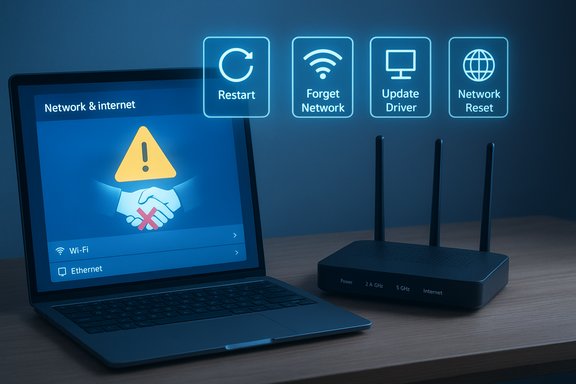 Background / Overview
What Windows is telling you with “The network security key isn’t correct” is that the authentication exchange between your PC and the router failed. That can happen when:- The password was mistyped or the saved profile contains an old password.
- Windows is delivering a different MAC (random hardware address) or uses corrupted profile metadata that the router rejects.
- The router’s settings (security mode, band, client limits, MAC filtering) or firmware produce a handshake mismatch.
- The PC’s Wi‑Fi driver or the Windows network stack is corrupted or incompatible with the router’s chosen authentication (WPA2/ WPA3) or radio mode.
Quick checklist (start here)
- Confirm you’re connecting to the correct SSID (2.4 GHz and 5 GHz networks can look similar).
- Carefully retype the password; watch for O vs 0, I vs l, and Caps Lock.
- Reboot the router and the PC (soft restart).
1) Restart the router and PC (first and fastest fix)
Why this helps: a router reboot clears transient states, dropped authentication sessions and overloaded Wi‑Fi modules; many authentication failures vanish after a simple power cycle. Unplug the router (and modem if separate) for 30–60 seconds, plug it back in, wait until its radios are fully up, then retry the Windows connection.Practical tip: If the router has separate SSIDs for 2.4 GHz and 5 GHz, try both — sometimes the adapter or driver has a band‑specific compatibility issue.
2) Forget the Wi‑Fi network on Windows and reconnect (very often fixes it)
Why this helps: stored profiles can become corrupted or retain obsolete credentials/security metadata; forgetting the profile forces Windows to build a fresh handshake and re-enter the key. This is usually the single most effective user‑level repair.Windows 11 / Windows 10 steps:
- Press Win + I → Network & Internet → Wi‑Fi.
- Click Manage known networks.
- Find the SSID and click Forget.
- Reconnect from the Wi‑Fi list and retype the password.
- Open an elevated Command Prompt (Run as Administrator).
- List profiles: netsh wlan show profiles
- Delete the offending profile: netsh wlan delete profile name="YourSSID"
- Reconnect from the UI and enter the password.
3) Watch special characters and copy/paste artifacts (verify before reusing)
Some users report connection failures when passwords contain unusual or non‑ASCII characters, emoji, or characters introduced by mobile keyboards (curly quotes, non‑breaking spaces). While this is not universal, it can occur because of router firmware/UI encoding bugs or because copy/paste operations insert invisible characters. If you suspect this:- Re‑enter the password manually rather than pasting it.
- Temporarily change the router’s Wi‑Fi password to a simple alphanumeric string, test the Windows connection, then restore a stronger password once you confirm it’s not the issue.
4) Disable / toggle Random Hardware Addresses (MAC randomization)
What it is: Windows can present a random hardware address (a privacy feature) to Wi‑Fi networks so each connection uses a different MAC. Some routers apply device‑specific rules (MAC filtering, DHCP reservations) and may misidentify or block randomized MACs; corrupted network metadata combined with a randomized MAC can also fail authentication.How to change it (per‑network):
- Windows 11: Settings → Network & Internet → Wi‑Fi → Manage known networks → select network → Properties → Random hardware addresses → Off/On.
- Windows 10: Settings → Network & Internet → Wi‑Fi → Manage known networks → select network → Properties → Use random hardware addresses → Off/On.
After changing, toggle Wi‑Fi off and on and reconnect. If the network has MAC‑based access lists, set the device to use the device MAC and add that MAC to the router’s allow list if necessary.
5) Check router security mode and compatibility (WPA2 vs WPA3)
If the router was recently changed to require WPA3‑only or to use a mixed WPA2/WPA3 setting, older Wi‑Fi adapters or drivers may fail the handshake. Best practice:- Prefer WPA2‑Personal (AES) for broad compatibility or use WPA2/WPA3 transition mode if available.
- If you run a legacy adapter, temporarily set the AP to WPA2 and test connectivity.
- Revisit the router’s wireless settings (SSID, security type, channel width) and try a conservative configuration if troubleshooting.
6) Update or roll back the Wi‑Fi driver
Why: driver/firmware mismatches after Windows updates are common causes for authentication failures and protocol quirks.Steps:
- Device Manager → Network adapters → right‑click your Wi‑Fi adapter → Properties → Driver.
- Try Roll Back Driver if the problem started after an update. If not, choose Update Driver → Search automatically.
- If Windows updates do not help, download the vendor/OEM driver (Intel, Qualcomm, Realtek) from your laptop/motherboard vendor page and install it manually.
7) Reset the Windows networking stack (Winsock / TCP‑IP) — command line
When corruption in Winsock or TCP/IP is the root cause, a small command sequence often works.In an elevated Command Prompt run, one line at a time:
- netsh winsock reset
- netsh int ip reset
- ipconfig /flushdns
- ipconfig /release
- ipconfig /renew
8) Use Windows Network Reset (nuclear but effective)
What it does: Network Reset removes and reinstalls all network adapters, clears saved Wi‑Fi profiles and virtual adapters (VPN/Hyper‑V), and returns the network stack to default configuration.When to use: after driver and profile fixes fail, or when multiple network components appear corrupted.
How to run:
- Windows 11: Settings → Network & Internet → Advanced network settings → Network reset → Reset now.
- Windows 10: Settings → Network & Internet → Status → Network reset → Reset now.
Prepare: have Wi‑Fi passwords and any VPN reinstallation resources handy; expect to reconfigure virtual adapters and re‑pair Bluetooth devices.
9) If the router is suspect: check MAC filtering, DHCP client limits, firmware and, as last resort, factory reset
Router checks (do these before a factory reset):- Confirm the router isn’t running client limits, MAC filtering or aggressive DHCP lease churn. Log into the router UI and review connected clients and DHCP settings. If many IoT devices are connected some consumer routers can hit internal client limits and start rejecting new clients.
- Update router firmware to the latest stable release from the vendor support page; firmware updates frequently fix authentication quirks and security interop issues.
- Temporarily disable MAC filtering or add the device’s fixed MAC (disable randomization first) and test.
10) Advanced diagnostics and isolation
If the problem persists after the previous steps, isolate the failing element:- Test with another network: create a phone hotspot and try to connect the PC. If it connects, the router is likely the problem. If it fails on another network, the PC is suspect.
- Test with a USB Wi‑Fi dongle: if an external adapter connects, the built‑in NIC or its driver is suspect.
- Capture traces: netsh trace start capture=yes tracefile=c:\temp\nettrace.etl and collect ETL traces for vendor support. Use Event Viewer to inspect Dhcp‑Client, DNS‑Client and WLAN‑AutoConfig logs for authentication errors.
- Ping checks: ping your router (e.g., ping 192.168.1.1) to test local connectivity, ping 8.8.8.8 to check IP routing and run nslookup to verify DNS.
Critical analysis — strengths, risks and recommended escalation order
Strengths of the recommended sequence- The escalation from simple (reboot, forget) to advanced (network reset, driver reinstall, factory reset) minimizes user disruption and preserves configuration where possible. Many real‑world cases resolve in the early steps.
- Command‑line resets and netsh sequences are surgical and reversible without throwing away all saved networks, making them suitable before a full Network Reset.
- Network Reset and router factory resets are destructive: they remove VPN clients, virtual adapters, saved Wi‑Fi networks, router customizations, and may require reconfiguration or IT coordination. Always back up router settings if possible, and don’t perform those steps on managed devices without approval.
- Disabling MAC randomization reduces privacy on public networks. If you need privacy, re-enable it after testing and instead add the device’s randomized MAC to an allow list only if the router supports that.
- Claims that special characters always break Wi‑Fi are not universally verifiable; behavior depends on the router, firmware and how the password was entered. Treat special‑character problems as plausible but not proven in every environment — test by switching temporarily to a simpler password.
- Confirm SSID, retype password, check Caps Lock.
- Reboot router and PC.
- Forget the Wi‑Fi network on Windows and reconnect.
- Toggle Random Hardware Addresses / MAC randomization per network.
- Update or roll back the Wi‑Fi driver and disable adapter power‑saving options.
- Run Winsock/TCP‑IP reset commands.
- Use Network Reset (Windows) if the problem persists.
- Troubleshoot router: firmware, DHCP limits, MAC filtering; test with hotspot and USB adapter.
- Router factory reset only when you can reconfigure the router or after vendor support suggests it.
Short troubleshooting script you can copy
- Confirm correct SSID and password (watch O vs 0).
- Reboot router (unplug 30s) and PC.
- On Windows: Settings → Network & Internet → Wi‑Fi → Manage known networks → Forget "YourSSID". Reconnect.
- If still failing, open elevated CMD and run:
- netsh winsock reset
- netsh int ip reset
- ipconfig /flushdns
- ipconfig /release && ipconfig /renew
Reboot and try again. - If still failing, update NIC driver from OEM support page; test with USB hotspot or USB dongle.
When to call your ISP, vendor, or corporate IT
- If every device fails to connect after a router reboot: contact your ISP or router vendor; the router or upstream service is likely the culprit.
- If only your managed corporate device fails and you’re under Group Policy: coordinate with IT before resetting network settings. Network Reset can break managed connections and VPNs.
- If a vendor firmware update or official support article references a known authentication bug for your model, follow vendor instructions or apply a vendor-provided patched firmware.
Conclusion
“The network security key isn’t correct” is a symptom that spans user, OS and router domains. Most home cases are resolved by the basic sequence: confirm the SSID/password, restart your router and PC, forget and reconnect, then escalate into driver, stack and router checks only as needed. Use the network‑reset and factory‑reset options as last resorts because they erase configuration and require rework; always document credentials and backup router settings before hitting destructive steps. When you follow the methodical flow described here — from the least to most invasive — you maximize the chance of a quick repair while minimizing side effects and downtime.Source: Appuals Fix: “The Network Security Key Isn’t Correct” on Windows
