

You’re in the middle of a video conference and the room goes silent—literally—because your microphone or headset refuses to cooperate; welcome to one of the most persistent annoyances of modern remote work. Audio problems on Windows 10 and Windows 11 are startlingly common, but the root causes are usually mundane: a loose jack, the wrong default device, a muted app, or a driver/profile hiccup. This feature walks through a complete, practical troubleshooting flow—from the simplest physical checks to advanced fixes—so you can get back to the meeting without embarrassing silence. It synthesizes the core steps from established troubleshooting guides and community experience while highlighting hidden pitfalls, recent update-related caveats, and protections to prevent repeat problems.
Audio on Windows has become more complex because modern machines support many simultaneous endpoints: internal microphones, USB headsets, Bluetooth profiles, HDMI audio to monitors or TVs, and external DACs. That flexibility is powerful but also creates more opportunities for things to go wrong: Windows can switch outputs silently, apps can take exclusive control over audio devices, and driver stacks from hardware vendors sometimes clash with OS updates. The result is a frequent pattern: a device is connected, but Windows or the conferencing app is using the wrong endpoint, or a driver/setting prevents the audio path from functioning correctly. Built-in troubleshooters and methodical checks resolve the majority of cases, but a few less common problems require deeper measures. The following sections present a prioritized, testable checklist that helps you isolate and fix the issue quickly.
Following the checklist above will get most users back in the conversation quickly—and keep the awkward silences where they belong: out of your meeting.
Source: PCWorld Mute in a meeting? How to solve audio problems under Windows 10 & 11
 Background / Overview
Audio on Windows has become more complex because modern machines support many simultaneous endpoints: internal microphones, USB headsets, Bluetooth profiles, HDMI audio to monitors or TVs, and external DACs. That flexibility is powerful but also creates more opportunities for things to go wrong: Windows can switch outputs silently, apps can take exclusive control over audio devices, and driver stacks from hardware vendors sometimes clash with OS updates. The result is a frequent pattern: a device is connected, but Windows or the conferencing app is using the wrong endpoint, or a driver/setting prevents the audio path from functioning correctly. Built-in troubleshooters and methodical checks resolve the majority of cases, but a few less common problems require deeper measures. The following sections present a prioritized, testable checklist that helps you isolate and fix the issue quickly.Quick sanity checks (the five-minute check)
Start here before you dive into settings or driver surgery. Many problems are fixed in under five minutes.- Check physical connections: Verify that 3.5 mm plugs are fully seated, USB headsets show activity (LED or sound), and Bluetooth devices report as “Connected.” If a TRRS cable is used, make sure it’s inserted fully; partial insertion often disables mic pins.
- Toggle power and reboot: Switch the headset off and on, unplug and replug a USB device, or simply restart Windows. Many device handshakes complete only after a fresh connection or boot.
- Confirm headset hardware mute: Many headsets include inline mute toggles or buttons; check those first.
- Do a quick app test: Use the conferencing app’s test call or preview function (Teams, Zoom, Google Meet all offer this) to determine whether the app or Windows is the problem.
1. Check the plug: cables, ports and Bluetooth range
Why it matters
A loose cable or wrong jack is still the most common cause of “silent” audio. Modern headsets use TRRS 3.5mm jacks, separate mic+headphone sockets, USB A/C, and Bluetooth — each possible failure point.How to verify
- Inspect 3.5 mm jacks: Ensure the plug is pushed fully into the socket. If the PC uses split mic and headphone jacks, confirm you’re in the correct port.
- Try a different USB port: If a USB headset doesn’t register (no LED, no “ping”), move it to a different physical port to rule out a failing port or a power-limited hub.
- Bluetooth pairing: Open Settings → Bluetooth & devices to confirm the headset shows as “Connected.” If it’s paired but not connected, remove the device and pair again.
- Test the headset on another device: If the headset behaves the same on a phone or another PC, it’s likely hardware.
2. Select the correct audio input and output in Windows and the app
Windows sound settings (fast path)
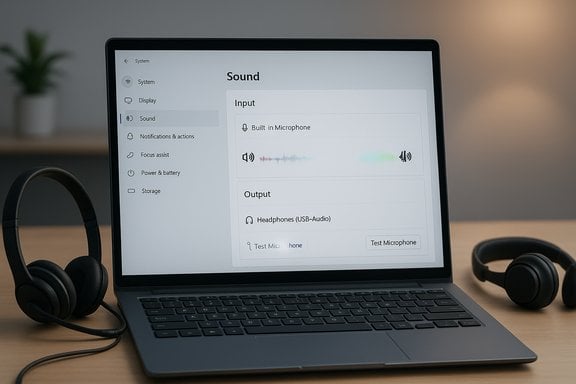
- On Windows 10 and Windows 11, right-click the speaker icon in the taskbar and choose Sound settings (or Settings → System → Sound).
- Under Output, select your headset or speakers.
- Under Input, pick the microphone you intend to use and run the Test microphone function to confirm Windows is receiving audio.
App-level audio settings
Many conferencing apps maintain their own audio device lists and defaults. Before joining a meeting:- Open the app’s audio settings (Teams, Zoom, Discord, Google Meet) and ensure both input and output are set to the headset you selected in Windows.
- Use the app’s test call or preview to confirm the full path—from mic input through the app to playback.
3. If Windows does not recognize the device: Device Manager and reinstallation
Device Manager basics
- Open Device Manager (right-click Start → Device Manager).
- Check under Audio inputs and outputs and Sound, video and game controllers for your hardware.
- If the device is missing or listed with an error icon, try uninstalling and reinstalling the device entry: right-click → Uninstall device, then unplug and plug the device back in or restart Windows to force re-detection.
Bluetooth specific: remove and pair again
- In Settings → Bluetooth & devices, select the headset and click Remove device.
- Put the headset into pairing mode and re-add it via Add device → Bluetooth.
- Re-pairing resets Bluetooth audio profiles and frequently restores proper stereo and call profiles.
4. When Bluetooth connects but no sound appears
Windows separates headset modes: stereo for music and headset/call for microphone use. If the PC selects the wrong profile or another endpoint for output, you may be connected but still hear nothing.- Check both Input and Output selections in Settings to ensure the headset appears for both roles.
- Re-pair if the profile looks incorrect, and check the app’s audio selector too.
- Check the physical distance and interference: Bluetooth audio degrades with range or competing devices.
5. Volume levels, mute buttons and app controls
Before blaming drivers or Windows:- Check the headset’s hardware mute switch and inline volume controls.
- Click the speaker icon → Open Volume Mixer and verify the conferencing app isn’t muted or set very low.
- Confirm the conferencing app’s own mute/volume settings and use the built-in test call function.
6. Drivers: update, reinstall, or roll back
Drivers are the most common non-physical cause for audio failures, and how you handle them depends on the scenario.- Update driver: Device Manager → right-click the audio device → Update driver → Search automatically. If Windows finds a newer driver, install it.
- Reinstall driver: Device Manager → right-click → Uninstall device, then reboot and let Windows reinstall the driver automatically.
- Roll back driver: If audio broke after a driver update, use Device Manager → device Properties → Driver tab → Roll Back Driver if available.
7. Windows audio services and troubleshooters (advanced-but-safe)
When symptoms persist across devices and apps, check Windows audio services and run built-in troubleshooters.- Run the built-in audio troubleshooter: Windows 10: Settings → Update & Security → Troubleshoot → Playing Audio. Windows 11: Settings → System → Troubleshoot → Other troubleshooters → Playing Audio.
- Restart audio services: Win + R → services.msc → restart Windows Audio and Windows Audio Endpoint Builder. If either service is not running, set Startup Type to Automatic and start it.
8. Disable exclusive mode and audio enhancements
Certain apps (or Windows settings) can take exclusive control of an audio device, which can cause unpredictable behavior in conferencing scenarios.- Go to Sound settings → Input/Output device → Device Properties → Additional device properties → Advanced tab.
- Uncheck Allow applications to take exclusive control of this device.
- On the Enhancements tab (if present), check Disable all enhancements.
9. Microphone gain, sensitivity and room acoustics
A live mic that’s too quiet or noisy is functionally useless in calls.- Adjust the mic gain: Settings → Sound → Input → Device properties (Windows 10/11) → increase microphone level or gain slightly and test.
- Avoid pushing gain too high; that amplifies background noise and triggers automatic noise suppression that can stifle speech.
- Use a pop filter or foam windscreen and position the mic 5–15 cm from your mouth to balance clarity and background suppression.
- Consider software features: many conferencing apps include noise suppression and echo cancellation; try toggling these to see which combination yields the clearest results.
10. Advanced diagnostics and remediation
When the above steps fail, move to deeper diagnostics:- Test on another system: If the mic works on another PC, the problem is local to the original Windows machine. If it fails elsewhere, it’s hardware.
- Try different USB ports (USB 2.0 vs 3.0) and avoid USB hubs for audio devices unless powered.
- Check sample rate and bit depth: Playback device → Properties → Advanced → try a lower default format (e.g., 16-bit, 44100 Hz).
- Run system integrity checks: sfc /scannow and DISM /Online /Cleanup-Image /RestoreHealth (note: these are heavier steps and take time).
- Event Viewer: Look for driver or device errors under Windows Logs → System.
11. Update-related and uncommon bugs: what to watch for
Windows updates and security patches occasionally introduce audio regressions that affect particular devices or drivers. Recently, users reported audio breakages tied to specific updates that affected USB-based DACs and specialized vendor stacks. If audio stopped immediately after a Windows update, consider these options:- Check vendor support: confirm the headset or DAC vendor has updated drivers or compatibility notes.
- Roll back the update (as a last resort): This restores functionality but also the security patch—evaluate the risk before rolling back.
- Monitor official Windows release health channels for acknowledgment and a patch schedule.
12. When it’s time to replace hardware
If you’ve tried the full troubleshooting flow and the microphone or headset still shows inconsistent behavior across multiple hosts, hardware degradation could be the cause.- Intermittent mute buttons, crackly cables, or an internal fail in a USB headset often indicate irreversible wear.
- Headphones and mics with years of use can develop contact issues in the cable or jack.
- If hardware fails the “works-on-other-PC” test, contact the manufacturer for warranty support or replacement.
Practical checklist to follow when you’re muted in a meeting
- Check physical mute on headset and volume in Windows.
- Verify the device is selected in Windows Sound settings (Input and Output).
- Confirm app audio settings match Windows and perform a test call.
- Reboot the headset and/or PC if the device doesn’t appear or acts strange.
- In Device Manager, uninstall and reinstall the audio device or update the driver.
- Remove and re-pair Bluetooth headsets; check profiles.
- Run Windows audio troubleshooter and restart Windows audio services.
- Disable exclusive mode and audio enhancements.
- If the issue began after a Windows update, check vendor advisories and consider rollback only if necessary.
- Replace hardware if it fails on multiple systems.
Safety, privacy and configuration recommendations
- Microphone privacy: Check Settings → Privacy & security → Microphone to make sure the app has permission to use the mic.
- Avoid third-party “driver updater” tools unless you trust the vendor; prefer official drivers from the headset/motherboard manufacturer.
- Create a restore point before making major driver or registry changes.
- Document the working configuration (device names, driver versions, Windows update KB numbers) so you can revert changes if an update later breaks audio again.
Conclusion
Audio problems in meetings are a ubiquitous pain, but the fix is usually methodical, predictable, and within reach. Start with the physical checks—plugs, mute toggles, and the simple reboot—then confirm Windows and app device selections. Use Device Manager to refresh drivers, re-pair Bluetooth devices, and rely on Windows’ troubleshooter and audio services for mid-level remediation. Disable exclusive mode and enhancements if apps are behaving erratically, and reserve rolling back updates or running deep system repairs for persistent, update-linked failures. Finally, don’t ignore hardware: if a microphone fails on multiple machines, replacement is often the most reliable solution.Following the checklist above will get most users back in the conversation quickly—and keep the awkward silences where they belong: out of your meeting.
Source: PCWorld Mute in a meeting? How to solve audio problems under Windows 10 & 11
