

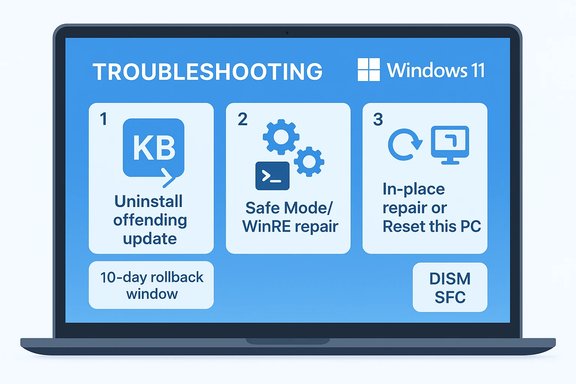
Windows 11 updates that break a PC are maddening, but before you reach for a fresh install, there are three targeted, field‑tested fixes that resolve the vast majority of post‑update failures—and they’re exactly the steps recommended by troubleshooting guides and community responders who live through these scenarios daily.
Windows updates come in different flavours—quality (monthly) updates, cumulative security patches, driver updates, and feature updates—and any one of these can interact badly with firmware, device drivers, or third‑party software. When a problem appears immediately after an update, the most reliable strategy is to treat the update as the likely cause, then escalate from the least destructive fix (uninstall or rollback) to stronger repairs (Safe Mode / WinRE repairs, in‑place repair) before committing to a full reinstall. This three‑step approach is the one used by Microsoft guidance and numerous community runbooks.
Why it works
Why Safe Mode / WinRE first?
In‑place repair (keep files and apps)
Conclusion
Most Windows 11 update failures are solvable without a clean reinstall if you follow a measured, evidence‑based sequence: identify the offending update, attempt a rollback, use Safe Mode and WinRE tools to repair the component store and drivers, and reserve Reset / in‑place repair or a clean install for cases where all non‑destructive options are exhausted. This ordered approach saves time, preserves data, and reduces the risk of introducing new problems while you fix the old ones.
Source: Yahoo! Tech https://tech.yahoo.com/computing/articles/windows-11-disaster-3-fixes-131515033.html]
 Background
Windows updates come in different flavours—quality (monthly) updates, cumulative security patches, driver updates, and feature updates—and any one of these can interact badly with firmware, device drivers, or third‑party software. When a problem appears immediately after an update, the most reliable strategy is to treat the update as the likely cause, then escalate from the least destructive fix (uninstall or rollback) to stronger repairs (Safe Mode / WinRE repairs, in‑place repair) before committing to a full reinstall. This three‑step approach is the one used by Microsoft guidance and numerous community runbooks. Quick summary of the Yahoo! Tech advice (what triggered this story)
- The Yahoo! Tech piece draws its practical checklist from How‑To Geek and community practice: first confirm which update changed the system, then try uninstalling the offending KB if possible, use Safe Mode or the Windows Recovery Environment (WinRE) to repair or remove updates if you can’t boot normally, and only then move to Reset / reinstall if those options fail. The article emphasizes the order of least intrusion first and highlights the limited time window for GUI rollbacks.
Why reinstalling Windows should be the last resort
A full reinstall or clean install fixes many problems by giving you a pristine OS image, but it is disruptive and time‑consuming: user apps, custom settings, installed drivers, and many system tweaks can be lost unless you have a current image backup. Community troubleshooting data and Microsoft docs both show that most update failures are resolved with less destructive steps—rollback, Safe Mode repair, DISM/SFC remediation, or an in‑place repair that keeps files and apps. Prioritize these before a reset.The three fixes to try before reinstalling (detailed, ordered, and verifiable)
1) Identify and uninstall the offending update (rollback first)
When the timing is obvious—your PC broke immediately after a recent update—the simplest, fastest fix is to remove that update.Why it works
- Uninstalling restores the previous package state and often restores functionality without touching user files or installed apps.
- GUI uninstall is the least invasive option and should be tried first whenever the update is listed as removable.
- Open Settings → System → Windows Update → Update history and note recent entries (Quality updates, Driver updates, Other updates). Record the KB number and installation date. A clear correlation between the install time and the failure is your best evidence.
- Settings → Windows Update → Update history → Uninstall updates.
- Find the KB you recorded, select it and choose Uninstall, then restart when prompted. Microsoft warns not all updates are removable via the GUI.
- Force WinRE by interrupting boot a few times or use recovery media: Troubleshoot → Advanced options → Uninstall Updates.
- Choose Uninstall latest quality update or Uninstall latest feature update and follow prompts. This uses the same retained artifacts Windows keeps for rollback.
- If the rollback window elapsed (Windows deletes rollback artifacts by default), the GUI will not show the uninstall option. You can still uninstall some packages using an elevated Command Prompt and wusa (wusa /uninstall /kb:<KB_NUMBER>), or use DISM to remove packages if they’re available in the servicing store—but this is advanced and not guaranteed for every package.
- Removing a security update lowers immediate protection; treat uninstallations as temporary mitigations and reapply patched updates when Microsoft releases fixes.
- The rollback window is limited by default—usually 10 days after a feature upgrade—so act quickly or extend the window in advance for mission‑critical machines. Microsoft documents the 10‑day default and the available extension mechanism.
2) Boot into Safe Mode/WinRE and run targeted repairs (DISM, SFC, reset update components)
If uninstalling isn’t available or didn’t fix the situation, boot to a safe environment and repair corrupted components.Why Safe Mode / WinRE first?
- They load Windows with a minimal driver and service set, preventing third‑party software from interfering with repairs.
- WinRE offers automatic startup repair, uninstall options, System Restore, System Image Recovery, and an elevated Command Prompt for manual fixes. These tools often recover systems that otherwise appear irreparable.
- DISM and SFC are the standard repair pair—run DISM first, then SFC:
- DISM /Online /Cleanup-Image /CheckHealth
- DISM /Online /Cleanup-Image /ScanHealth
- DISM /Online /Cleanup-Image /RestoreHealth
- sfc /scannow
- DISM /RestoreHealth repairs the Windows component store (which Windows updates rely on).
- SFC /scannow then verifies and repairs protected system files. Run both in sequence; Microsoft and community guides recommend this order. Expect 10–30+ minutes for DISM on many systems.
- Stop services, rename caches, restart services:
- net stop wuauserv
- net stop bits
- ren C:\Windows\SoftwareDistribution SoftwareDistribution.old
- ren C:\Windows\System32\catroot2 catroot2.old
- net start bits
- net start wuauserv
- This forces Windows Update to download fresh payloads and resolves many repeated‑failure scenarios. Community runbooks and Microsoft troubleshooting notes include this sequence.
- In Safe Mode, open Device Manager and roll back or uninstall drivers that look suspicious (GPU, storage, NIC, or USB drivers are frequent culprits). Reinstall vendor drivers (Intel, AMD, NVIDIA, OEM) once you boot normally. Community and vendor guidance both favour vendor-supplied drivers over Windows Update drivers for complex hardware stacks.
- If you created a restore point or a full image before the update, restore it. A System Image Recovery from WinRE returns the machine to the exact pre‑update state—this is the safest non‑destructive rollback if it’s available.
- DISM/SFC may not repair when the underlying issue is hardware (failing SSD/HDD) or when the component store is severely corrupted; in those cases, imaging the drive before further writes is prudent. Community reports show DISM/SFC fail if storage has CRC or hardware issues—in those cases, back up and replace failing hardware first.
3) Perform a repair install (in‑place upgrade) or Reset this PC before a clean install
If the repairs above fail, there are still softer alternatives to a clean wipe.In‑place repair (keep files and apps)
- Run Windows Setup from a current ISO or use Microsoft’s Installation Assistant and choose the option to keep personal files and apps. This reinstalls system files and the component store while preserving your environment. It’s often effective for corruption that DISM/SFC can’t fix. Microsoft documents this path as a supported remediation.
- Settings → System → Recovery → Reset this PC → Keep my files. This reinstalls Windows and preserves personal files but removes most apps and drivers. Use this when in‑place repair isn’t available or doesn’t fix the problem.
- If WinRE is damaged, the component store is irrecoverable, or hardware faults persist—even after imaging the drive—the clean install is the final option. Back up everything first, create installation media with the Media Creation Tool, and verify device firmware/drivers are available to reinstall. Community runbooks underscore clean installs as the true last resort.
Practical step‑by‑step checklist (ordered sequence to follow)
- Pause and document
- Note the exact symptom and the time it started; open Settings → Windows Update → Update history and record KB numbers.
- Try GUI uninstall
- Settings → Windows Update → Update history → Uninstall updates → choose offending KB → Uninstall → Reboot.
- If GUI uninstall not present or fails, enter WinRE (power-cycle boot interruptions) and use Troubleshoot → Advanced options → Uninstall Updates.
- Boot Safe Mode; run DISM then SFC:
- DISM /Online /Cleanup-Image /RestoreHealth
- sfc /scannow.
- Reset Windows Update components (rename SoftwareDistribution / catroot2).
- Roll back or uninstall suspect drivers in Safe Mode; reinstall vendor drivers after normal boot.
- If problem persists: try an in‑place repair using current ISO or Reset this PC (Keep my files).
- Only then, if nothing else works, create backups and perform a clean install.
Verification of key technical claims
- Rollback window: Windows retains the files needed to go back to a previous version for about 10 days by default; this is Microsoft’s documented default and can be extended using DISM up to 60 days if you set the OS uninstall window proactively. Do not rely on that rollback flag unless you confirmed the window and kept Windows.old intact.
- Uninstall availability: Microsoft explicitly warns that some updates cannot be uninstalled, and the Windows Recovery Environment exposes Uninstall latest quality update / feature update options when the desktop is inaccessible.
- Repair commands sequence: Community and Microsoft guidance both recommend running DISM first to repair the component store and then SFC to restore system files. Expect DISM to take tens of minutes on some systems.
Strengths of this three‑step approach
- Least disruption first: Uninstalling or rolling back preserves your apps and user files in most cases.
- Well validated: The sequence—identify → rollback → Safe Mode repairs → in‑place repair—is supported by Microsoft documentation and countless community troubleshooting threads.
- Actionable for non‑admins: Guided GUI flows and WinRE options make these steps accessible for most power users and IT generalists.
Risks and limitations you must accept
- Security exposure: Uninstalling a security patch leaves a window of vulnerability. If you remove a security update, limit risky activities (no banking, untrusted downloads) until a patched replacement is available.
- Rollback time limits: If rollback artifacts have been cleaned (Disk Cleanup, Storage Sense) or the 10‑day period elapsed, GUI rollback is gone; you’ll need a restore image or a clean install. Plan and extend the uninstall window proactively for mission‑critical systems.
- Hardware masquerading as software bugs: Repeated file corruption, chkdsk fixes, SMART warnings, or DISM/SFC failures can indicate failing storage—image the disk before further repairs in such cases. Community reports show failed repairs are sometimes symptoms of hardware failure.
- Partial fixes: Rolling back an LCU may fix immediate symptoms but not underlying driver or firmware incompatibilities—expect to update vendor drivers or firmware as a follow‑up.
Proactive steps to avoid repeat disasters
- Pause feature updates on critical machines for at least two weeks after release to let telemetry and community reports surface regressions.
- Keep regular full‑image backups or create a recovery USB using the Media Creation Tool—these shorten recovery time dramatically.
- Maintain vendor drivers (GPU, storage, chipset) from OEM sites rather than relying solely on Windows Update for major hardware stacks.
- Enable System Restore or set automated restore‑point policies before major updates. Windows Central and community experts recommend restore points and Quick Machine Recovery as quick fallbacks.
When to stop trying and accept a reinstall
- Repeated failures after attempted DISM/SFC runs, multiple boot failures, or a corrupted WinRE are strong signals a reinstall may be the fastest reliable path forward.
- If you lack a valid system image, or rollback artifacts are gone and repairs are inconclusive, plan a reinstall—but only after backing up user data and exporting license keys and installer payloads for critical apps. Community troubleshooting threads repeatedly show that clean installs are the final, reliable cure when the component store is beyond recovery.
Final verdict: practical, safe, and time‑efficient
The Yahoo! Tech recommendation—try rollback, then Safe Mode/WinRE repairs, then Reset/reinstall—is a concise restatement of a field‑proven recovery runbook. It balances data preservation, risk control, and practicality. Microsoft’s official guidance supports every step of the sequence, and real‑world community evidence shows the same pattern works for most cases. Follow the ordered checklist above before committing to a clean install, and always back up critical files first. If you’ve already tried these steps and need targeted command sequences or help interpreting DISM/SFC results, collect the exact error messages or sfc logs and consult detailed runbooks—these diagnostics are the keys to a cleaner recovery and to avoiding unnecessary reinstalls.Conclusion
Most Windows 11 update failures are solvable without a clean reinstall if you follow a measured, evidence‑based sequence: identify the offending update, attempt a rollback, use Safe Mode and WinRE tools to repair the component store and drivers, and reserve Reset / in‑place repair or a clean install for cases where all non‑destructive options are exhausted. This ordered approach saves time, preserves data, and reduces the risk of introducing new problems while you fix the old ones.
Source: Yahoo! Tech https://tech.yahoo.com/computing/articles/windows-11-disaster-3-fixes-131515033.html]
