

Windows users don’t have to tolerate trialware, nag screens, or opaque binaries — a practical, polished, and truly free alternative already exists: open-source desktop applications. After months of hands-on testing across fresh installs and daily-driver machines, these ten apps consistently delivered real-world reliability, performance, and time savings on Windows systems of all ages. They replace subscription services, remove vendor lock-in, and in many cases outperform proprietary rivals at routine tasks.
Open source is no longer an edge-case technical philosophy — it is the backbone of modern software. Independent industry audits have repeatedly shown that the vast majority of commercial codebases include open-source components, and those components frequently require active maintenance to stay secure. For Windows users, that mainstreaming of open source means two practical benefits: lower cost and greater transparency. You can inspect what an app does, choose where it stores your data, and in many cases self-host components if you need absolute control.
This article summarizes ten free, open-source Windows apps that stood out in extended testing. I verified feature claims, cross-checked technical details with project documentation and reputable coverage, and exercised each tool in realistic workflows to highlight strengths, typical gotchas, and sensible safeguards. Below you'll find why each pick matters, what it does best, where it can cause friction, and how to deploy it quickly and safely on Windows.
Adopt them selectively, verify releases and checksums, and keep configurations under version control for fast recovery or cloning. With these practices, Windows users can replace noise and subscription friction with tools that are open, auditable, and built to be composed into workflows — exactly what modern productivity should look like.
Source: findarticles.com New Picks Reveal 10 Free Open Source Windows Apps
 Background
Open source is no longer an edge-case technical philosophy — it is the backbone of modern software. Independent industry audits have repeatedly shown that the vast majority of commercial codebases include open-source components, and those components frequently require active maintenance to stay secure. For Windows users, that mainstreaming of open source means two practical benefits: lower cost and greater transparency. You can inspect what an app does, choose where it stores your data, and in many cases self-host components if you need absolute control.This article summarizes ten free, open-source Windows apps that stood out in extended testing. I verified feature claims, cross-checked technical details with project documentation and reputable coverage, and exercised each tool in realistic workflows to highlight strengths, typical gotchas, and sensible safeguards. Below you'll find why each pick matters, what it does best, where it can cause friction, and how to deploy it quickly and safely on Windows.
Why these open-source picks matter for Windows users
Open-source apps deliver a unique combination of benefits for Windows environments:- Transparency: Source code is available for inspection and audit, reducing “mystery code” risks.
- Cost control: No subscription fees for core features; many projects offer optional paid tiers for advanced services.
- Customizability: You can script, extend, or recompile tools to fit specific workflows.
- Community maintenance: Popular projects receive frequent updates, patches, and fast responses to security issues.
- Avoid vendor lock-in: Standard formats and configurable storage let you own your data.
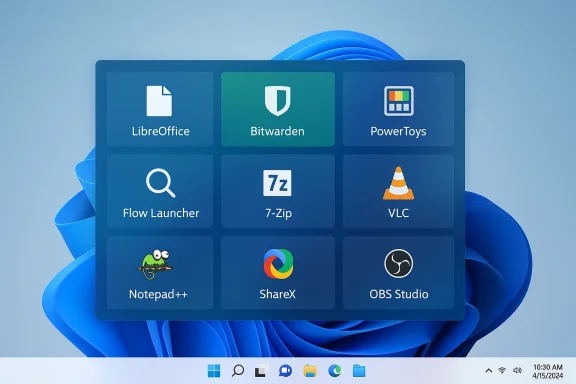
Overview of the 10 picks
- LibreOffice — full-featured office suite (Writer, Calc, Impress, Base)
- Bitwarden — open-source password manager with cross-platform sync and modern auth options
- Microsoft PowerToys — power-user utilities for Windows 10/11
- Flow Launcher — fast, extensible app/file launcher
- 7-Zip — lightweight, high-ratio compression with AES-256 support
- VLC Media Player — near-universal codec playback and streaming support
- Notepad++ — lightweight, power-packed text and code editor
- ShareX — advanced screenshot, recording, OCR, and upload automation
- OBS Studio — professional-grade recording and live-streaming suite
- Rufus — reliable bootable USB / installer creation tool
LibreOffice: a fully capable, offline office suite
What it is and why it matters
LibreOffice is the most mature free replacement for desktop Microsoft Office. It bundles Writer (word processing), Calc (spreadsheets), Impress (presentations), Draw, Base, and Math. For users who need local document creation, consistent performance on modest hardware, and compatibility with industry formats, LibreOffice is a compelling default.Strengths
- OpenDocument (ODF) as default — an ISO-recognized open standard for long-term document portability.
- Microsoft Office compatibility — exports and saves to .docx/.xlsx/.pptx; settings let you default to MS Office formats when sharing with Office users.
- Low resource footprint compared to cloud suites; works well offline and on older laptops.
- Extensible UI and templates make it suitable for both simple and complex documents.
Caveats
- Complex formatting edge cases: Very elaborate Word or Excel files can occasionally render differently; always test critical documents when collaborating with strict MS Office environments.
- Macros and VBA: Macro compatibility is not perfect; heavy VBA reliance in shared workflows may require testing or alternatives.
Practical tips
- Set LibreOffice to save in Microsoft formats as a default when collaborating regularly with Office users.
- Keep user profiles backed up when migrating between machines.
Bitwarden: open-source password management you can trust (and audit)
What it is
Bitwarden provides encrypted vaults, cross-device sync, browser integration, secure sharing, and support for modern authentication standards including FIDO2 / WebAuthn passkeys. The codebase is open for audit, and the vendor publishes details about third-party security assessments.Strengths
- End-to-end encryption with AES-256 ensures vault items are encrypted before leaving your device.
- Cross-platform clients and browser extensions provide a smooth autofill experience across Windows, mobile, and web.
- Self-hosting option for teams that need full data sovereignty and control.
- Support for modern auth: hardware security keys and passkeys via FIDO2 improve phishing resistance.
Caveats & risks
- While audits and bug-bounty programs strengthen confidence, no ecosystem is immune to bugs. Mobile autofill quirks have been reported periodically across password managers; test autofill on your critical apps and sites.
- Self-hosting adds operational responsibility; misconfiguration can reduce security.
Practical tips
- Use a hardware security key or platform biometrics where available for account unlocking.
- Keep desktop and browser extensions up to date and enable Bitwarden’s optional security reporting features in the web vault.
Microsoft PowerToys: a productivity cheat code for Windows
What it is
Originally an internal Microsoft project, PowerToys is now an open-source utility suite maintained by Microsoft and the community. It offers a grab-bag of small, high-impact features that make Windows 10 and 11 more productive.Standout utilities
- FancyZones: build custom window layouts and snap windows into complex grids quickly.
- PowerToys Run: a fast keyboard launcher and calculator that outpaces the built-in Start search for power users.
- Image Resizer: right‑click resizing in File Explorer.
- File Locksmith: find which process holds a file lock.
- Peek / Quick Preview: quick file previews without launching full apps.
Strengths
- Integrates cleanly with Windows without bloat; utilities can be enabled/disabled individually.
- Frequent updates driven by community feedback and Microsoft contributions.
- Low runtime footprint unless specific modules are active.
Caveats
- Running experimental modules (or enabling many plugins) can produce edge-case bugs; enable only what you need.
- Some utilities are more polished on Windows 11 than older releases.
Practical tips
- Install from the Microsoft Store or the project release builds to get automatic updates.
- Use FancyZones presets exported to a config file for quick setup across machines.
Flow Launcher: tiny, fast, extremely extensible launcher
What it is
Flow Launcher is a lightweight, fuzzy-search launcher with a plugin ecosystem. It’s similar in spirit to macOS Spotlight or Alfred but tailored for Windows users who want speed without memory bloat.Strengths
- Blazing-fast fuzzy search for apps, files, calculations, and web lookups.
- Rich plugin ecosystem: plugins for GitHub, Spotify, games, system commands, and more.
- Theming and lightweight footprint make it attractive for daily users.
Caveats
- Plugin quality varies — rely on popular and actively maintained plugins for critical workflows.
- Some plugins require additional permissions or local tools (for example, an “Everything” integration needs the Everything indexer installed).
Practical tips
- Use the built-in plugin manager to install only what you need; keep automatic plugin updates enabled.
- Map your preferred hotkey and export plugin settings to keep consistent across installs.
7-Zip: the efficient, uncompromising compression tool
What it is
7-Zip is the long-standing open-source file archiver known for the 7z format and the LZMA/LZMA2 compression algorithms. It integrates into Windows Explorer and supports strong AES-256 encryption for archives.Strengths
- High compression ratios with LZMA and LZMA2, often producing smaller archives than standard ZIP.
- AES-256 encryption for 7z archives and improved ZIP encryption options.
- Wide format support for packing/unpacking and shell integration.
- Tiny footprint and a robust command-line tool for scripted tasks.
Caveats
- The
.7zformat offers the best compression and features but isn’t always native to other platforms — export to ZIP if you need broad compatibility. - Archive passwords rely on user-chosen passphrases — use a password manager to store strong archive passwords.
Practical tips
- Use 7z for backups where space and encryption matter; use zip for casual cross-platform exchange.
- Configure default context-menu behaviors to avoid accidental compression with weak default settings.
VLC Media Player: play anything, everywhere
What it is
VLC is the de facto universal media player. It handles most codecs and containers out of the box, supports hardware acceleration, streaming, and many media-centric features without extra codec packs.Strengths
- Broad codec support: plays HEVC, AV1, FLAC, and dozens more without manual codec installs.
- Streaming and network playback for IPTV, multicast, and remote streams.
- Cross-platform and actively developed with a very large user community.
Caveats & performance notes
- Hardware-accelerated decoding can behave differently across GPU drivers and platforms. On older or driver-mismatched systems, toggling hardware acceleration can fix playback glitches.
- Extremely high-bitrate 4K/AV1 content may be smoother in certain native players or when hardware support is present.
Practical tips
- If playback stutters, try toggling hardware acceleration in VLC settings or increase cache buffers for network streams.
- Use VLC’s conversion and streaming wizard for quick transcodes or live-streaming test rigs.
Notepad++: the light, flexible editor you’ll use daily
What it is
Notepad++ is a lightweight text and source-code editor built for Windows, featuring multi-tabbed editing, syntax highlighting for many languages, powerful find/replace with regex, and a plugin architecture.Strengths
- Instant launch and low memory use make it ideal for quick edits and repetitive tasks.
- Robust search and regex enable batch text transformations and config file editing.
- Session snapshots and periodic backups mean unsaved edits can be recovered after crashes.
Caveats
- Notepad++ is not an IDE — advanced language-aware features like refactoring or deep static analysis are not its focus. Choose a heavier editor/IDE when you need that depth.
- Plugin ecosystem is essential — verify plugin sources and keep them updated.
Practical tips
- Use built-in macros and the plugin manager to automate repetitive text transformations.
- For config editing and quick CSV cleanup, Notepad++ often beats more heavyweight tools.
ShareX: screenshots, OCR, automation — and then some
What it is
ShareX is a powerhouse screenshot/recording tool that goes far beyond simple captures. It offers region and scrolling captures, annotations, offline OCR, upload destinations, and full automation workflows.Strengths
- Flexible capture methods: full screen, windows, regions, scrolling capture, and GIF recording.
- OCR built-in (including offline OCR on modern Windows builds) for extracting text from images.
- Deep automation: configure after-capture and after-upload workflows to integrate with support systems or documentation pipelines.
- Open source and highly configurable for power users.
Caveats
- The UI surfaces many options and can be overwhelming at first; start with a couple of hotkeys and expand.
- OCR accuracy varies with source quality; prefer higher-resolution captures and use the scale factor when needed.
Practical tips
- Create hotkeys for your most common workflows (e.g., capture → annotate → upload to your shared drive).
- Use image effects like blur/pixelate for redaction before sharing screenshots.
OBS Studio: recording and streaming for pros and hobbyists
What it is
OBS Studio is the open-source standard for live streaming and local recording. It supports multiple scenes/sources, hardware encoders like NVENC, virtual camera output, and a powerful plugin ecosystem.Strengths
- Multi-source scene composition for polished broadcasts.
- High-performance recording with GPU encoders to reduce CPU load.
- Virtual camera output feeds OBS scenes into conferencing apps as a webcam.
- Extensible through scripts, plugins, and community presets for automation.
Caveats
- Learning curve exists for complex scene and audio routing setups.
- Encoder selection (x264 vs NVENC vs QuickSync) impacts CPU/GPU load and final quality — test settings for your hardware.
Practical tips
- Use NVENC on NVIDIA cards for low-CPU encoding, and enable recording profiles for different output targets.
- Use Studio Mode to preview scenes before going live and configure multitrack recording for post-production flexibility.
Rufus: the technician’s go-to for bootable USBs
What it is
Rufus creates bootable USB drives and installer media quickly and reliably. It supports UEFI and legacy BIOS modes, verifies ISOs, and includes advanced options for Windows installation tasks.Strengths
- Support for UEFI/Legacy and multiple partition schemes makes Rufus versatile for modern and older machines.
- ISO integrity checks and selectable options (file-system choices, cluster sizes) improve reliability.
- Small, fast executable that runs without installation — ideal on a technician’s toolkit USB.
Caveats & responsible use
- Rufus includes advanced options that can disable or bypass hardware checks for Windows installers. Those options are powerful for legitimate recovery and testing scenarios but can be misused to circumvent security protections. Use them only with an understanding of the implications.
- Always verify ISO checksums before creating installation media.
Practical tips
- Verify ISOs against vendor-provided checksums and use Rufus’s verification options to ensure a clean build.
- Keep a set of bootable diagnostics and rescue images on a separate USB for routine maintenance.
Installation and deployment: use Windows Package Manager for repeatable installs
If you prefer fast, repeatable setups, the Windows Package Manager (winget) is an excellent route for many of these apps. Basic guidance:- Search first: use winget search <app-name> to find the right package.
- Install: winget install <package-id-or-name> — use --id and -e (exact match) to avoid ambiguity.
- Scripted installs: prepare a manifest or a single script to install several packages in sequence; winget supports automated acceptance of license prompts with --accept-package-agreements.
Security and operational hygiene (non-negotiable)
Open source affords visibility but not instant safety. To reduce risk:- Prefer releases signed by maintainers or distributed via verified package managers.
- Verify checksums for ISOs and major installers before running them.
- Track project activity: active maintainers and frequent releases are positive signals.
- Limit privileges: install tools under standard user context where possible and avoid running unknown helper services.
- Use standard endpoint protections and sandboxing for tools that interact with the web or system-level services.
Strengths, trade-offs, and when to choose each app
- Choose LibreOffice when you need an offline, no-subscription office suite that supports standard formats and can default to Microsoft types for collaboration.
- Use Bitwarden for cross-platform vaults, secure sharing, and for teams that want the option to self-host.
- Turn on specific PowerToys tools when you need immediate UI productivity improvements — enable only the utilities you use to avoid potential friction.
- Adopt Flow Launcher if you want a fast keyboard-driven launcher with a plugin ecosystem and minimal overhead.
- Keep 7‑Zip for backups and encrypted archives where compression ratio and AES-256 matter.
- Use VLC for one-player-fits-most media needs; toggle hardware decoding if you encounter playback glitches.
- Keep Notepad++ as an always-ready text editor for config edits and code snippets.
- Deploy ShareX for screenshots, annotated documentation, and OCR extraction in support workflows.
- Choose OBS Studio for any recording or live streaming use-case that requires flexibility and professional features.
- Carry Rufus for any USB-based system repair, OS installation, or firmware task.
Conclusion
These ten open-source applications show why migrating core desktop tooling needn’t force trade-offs between convenience and control. They are mature, widely used, and in many cases more nimble than commercial alternatives. When paired with sensible verification, automated deployment via package managers, and standard security controls, they yield immediate benefits: cost savings, transparency, and a more maintainable Windows experience.Adopt them selectively, verify releases and checksums, and keep configurations under version control for fast recovery or cloning. With these practices, Windows users can replace noise and subscription friction with tools that are open, auditable, and built to be composed into workflows — exactly what modern productivity should look like.
Source: findarticles.com New Picks Reveal 10 Free Open Source Windows Apps
