

If your Windows desktop has become a sameness machine—static wallpaper, predictable taskbar, and the same Start menu—you’re not alone. A new generation of lightweight, community-driven customization tools can make Windows feel like an entirely different operating system: a top-mounted status bar like macOS, a dashboard of live widgets, a mod store that lets you surgically change the taskbar and Start menu, and animated, interactive wallpapers that breathe life into your lock screen. These tools are powerful, free, and often open source—but they also carry tradeoffs around performance, compatibility, and security that every tinkerer should understand before diving in.
Windows has historically balanced compatibility and flexibility, but recent versions—especially Windows 11—lean toward a more opinionated shell. That shift left power users craving granular control over the taskbar, Start menu, and overall desktop composition. The community responded with specialized tools that target different layers of the experience:
Customization is a two-way street: the tools outlined here can transform the look and utility of Windows in minutes, but thoughtful, incremental change is the key to keeping your system stable. If you approach Windhawk, Rainmeter, YASB, and Lively with respect for their tradeoffs—backup first, audit mods, and test multi‑monitor behavior—you can make your Windows PC feel like a different operating system while keeping the parts you depend on intact.
Source: MakeUseOf 4 Windows customization tools that make it feel like a different OS
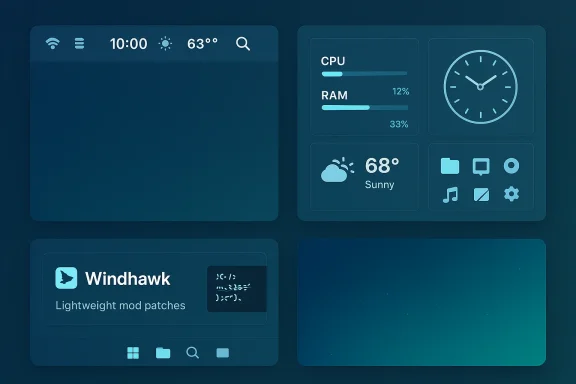 Background
Windows has historically balanced compatibility and flexibility, but recent versions—especially Windows 11—lean toward a more opinionated shell. That shift left power users craving granular control over the taskbar, Start menu, and overall desktop composition. The community responded with specialized tools that target different layers of the experience:- Engines that inject focused mods into system processes (e.g., Windhawk),
- Widget frameworks that turn the desktop into a live dashboard (Rainmeter),
- Lightweight top-mounted status bars that mimic macOS behavior (YASB — Yet Another Status Bar), and
- Animated wallpaper engines that use video, web content, or shaders (Lively Wallpaper).
- Windhawk: A mod marketplace for surgical UI tweaks—taskbar repositioning, Start menu restyles, and Explorer fixes—delivered as small, auditable modules. It’s modular, transparent, and powerful, but it injects code into running processes, which can trigger anti‑cheat or AV software.
- Rainmeter: The veteran desktop skin platform that turns your desktop into a live information canvas. Thousands of skins let you display system sensors, clocks, launchers, and custom UIs without replacing Windows’ shell. It’s extremely flexible; the main tradeoff you overload it.
- YASB (Yet Another Status Bar): A modern status-bar project that places a lightweight, highly styleable bar at the top (or other edges) of the screen. It supports composable widgets—Pomodoro timers, launchpads, even AI chat widgets—that give macOS-style glanceability while keeping Windows under the hood.
- Lively Wallpaper: A polished, open-source live wallpaper engine that accepts video, GIFs, webpages, and shader effects. It offers pause/resume logic for fullscreen apps, GPU-accelerated playback, and extensive customization so your background can be interactive without becoming a system hog. Community testing has refined its performance features, but multi‑monitor edge cases still show up from time to time.
Windhawk — the mod store for surgical Windows changes
What it does and how it works
Windhawk is best described as an engine plus catalog: the runtime loads compact mods that patch live processes (for example, File Explorer, explorer.exe, or StartMenuExperienceHost.exe) to alter UI behavior and appearance. Mods are usually authored as single C++ files and compiled into small DLLs that Windhawk injects into target processes at runtime. That model makes Windhawk extreful of small modules can restore behavior Microsoft removed, reposition or resize the taskbar, or add focused quality‑of‑life tweaks.Why it dramatically changes the feel of Windows
Because Windhawk can patch small parts of the shell without replacing it, you can make the taskbar behave like older Windows versions, pin a macOS-style dock, or give the Start menu a different layout—without committing to a full shell replacement. That granular approach is why most users report that Windhawk can make Windows "feel like a different OS" while leaving apps and system services intact.Strengths
- Granularity: Install only the tweaks you want.
- Transparency: Mods are source files; you can read them before installing.
- Lightweight: The runtime is small and designed to be unobtrusive.
- Active ecosystem: Hundreds of community mods let you mix and match.
Risks and practical limits
- Injection-based model: Because Windhawk injects code into processes it touches, some antivirus engines and anti-cheat systems may flag its activity. Competitive games or protected environments might refuse to launch while Windhawk is active. Users should either exit Windhawk before gaming or use exclusions where supported.
- Compatibility with Windows updates: Mods that rely on internal behaviors can break after major Windows updates. Expect occasional maintenance and version compatibility checks.
- Supply-chain tradeoffs: Windhawk can compile mods locally, but there are conveniences—precompiled mod downloads—that trade convenience for absolute reproducibility. Power users who want the maximum trust model should prefer local compilation and audit mod source.
How to use Windhawk safely (practical checklist)
- Install Windhawk from the official distribution and verify signatures where offered.
- Review or spot‑check mod source before enabling it.
- Keep a restore point or disk image before applying broad UI changes.
- Maintain an exclusions list for games or AV as needed.
- Disable Windhawk when troubleshooting strange system behavior.
Rainmeter — turn your desktop into a dashboard
What makes Rainmeter special
Rainmeter has been the go‑to desktop skin engine for years. It lets you add modular "skins"—widgets that show system telemetry, clocks, weather, music visualizers, notes, and launchers—laid out anywhere on your desktop. The community has produced thousands of skins and full desktop suites, so you can replicate utility-focused looks, retro styles, or polished, minimal dashboards. Official Rainmeter resources and community galleries are full of ready-to-run setups.Why it can make Windows feel like a different OS
Instead of hiding the Windows taskbar or rep, Rainmeter augments the desktop surface itself. With the right set of skins you can create a persistent command center: system health at a glance, a search bar, app shortcuts, and productivity widgets that remove the need for separate apps. That concentrated, bespoke UI is why users often say their PC “feels like another OS.”Strengths
- Extremely customizable: Every element of a skin is editable.
- Large community: Tons of prebuilt skins and layouts.
- Offline and local: Many skins are purely local and don’t rely on cloud services.
- Low barrier to entry: Install a skin, tweak a few settings, and you’re done.
Performance and resource notes
Rainmeter itself is lightweight, but skins can be CPU‑ or GPU‑intensive—particularly those with animations or frequent web queries. Best practice: pick a base skin, limit update intervals for network widgets, and test CPU impact before adding many widgets. If you run Rainmeter alongside live wallpapers or many background services, watch RAM and CPU to avoid cumulative slowdowns.Recommended use-cases
- Single-screen productivity dashboards with CPU/RAM/disk meters, calendar, and quick app launchers.
- Aesthetic desktops that combine launchers with music visualizers and a unified theme.
- Lightweight overlay for power users who want glanceable telemetry without replacing core shell components.
YASB — Yet Another Status Bar (a top-mounted macOS-style bar)
What YASB brings to Windows
YASB (Yet Another Status Bar) is a modern, configurable status bar that sits at the top of the screen. Built for power users, it ships with composable widgets—clock, CPU/RAM meters, media controls, Pomodoro timers, a Launchpad, and even AI chat widgets—so you can centralize glanceable information without cluttering the desktop. YASB has a “reborn” community project and multiple open-source implementations; contemporary builds emphasize YAML-based configuration and CSS theming for fast iteration.Why it can trick your brain into thinking Windows is another OS
The top-mounted status bar changes the primary visual anchor of the screen. Instead of looking down at a bottom taskbar, your eyes find a unified strip at the top—app titles in the center, system icons to the right, and utilities to the left—mimicking a macOS-like mental model. Coupled with themed visuals, a YASB setup can make Windows feel curated and consistent.Strengths
- Composability: Pick only the widgets you need.
- Style control: CSS and YAML let you match system-wide themes.
- Lightweight: Designed to integrate with the Windows shell, not replace it.
- Extensible: Community widgets add integrations for tools like OBS, Spotify, and tiling managers.
Things to watch
- Font requirements: Many themes recommend Nerd Fonts for icon glyphs; missing fonts can break layouts.
- Multi-monitor behavior: Some configs require per-screen YAML settings—test on your setup.
- Process-level stability: As with any UI overlay, interactions with other shell enhancements (Start menu replacers, shells) can cause subtle conflicts; trial incremental changes.
Lively Wallpaper — animated and interactive backgrounds
What it does
Lively Wallpaper turns your static wallpaper into a live canvas: video files, GIFs, interactive web pages, and shader effects are all valid wallpaper sources. It provides GPU-accelerated playback, controls for frame rate and quality, and intelligent pausing rules so the wallpaper suspends when you run fullscreen apps or games. That mix of aesthetics and utility is why many users call it the finishing touch for a “different OS” vibe.The performance question
Live wallpapers always raise a CPU/GPU concern. Lively addresses this by:- GPU acceleration for playback where possible.
- Pause-on-fullscreen and pause-on-battery options to prevent resource waste during gaming or when unplugged.
- Adjustable frame-rate and resolution limits.
Strengths and caveats
- Strengths: Immediate visual lift, wide format support, and smart pause rules.
- Caveats: Some wallpapers (particularly web-based ones) may not pause perfectly across multiple screens; complex interactive wallpapers may consume more RAM and CPU than static ones. Community-maintained fixes arrive regularly for edge-case bugs.
Putting them together: strategies and example setups
You don’t have to commit to one extreme. Here are three tested approaches that create distinct “other OS” vibes while minimizing risk.1) The minimal macOS vibe (low friction)
- Install YASB as a top bar (only clock, active app title, and Launchpad).
- Use Windhawk only for a single, well‑audited taskbar mod (e.g., move taskbar icons to center or hide the native taskbar when YASB is present).
- Keep Rainmeter off and use a simple Lively animated wallpaper with “pause on fullscreen” enabled.
2) The power-user dashboard
- Rainmeter for system telemetry and quick-launch modules.
- YASB for top-aligned global controls (Pomodoro timer, AI notes).
- Windhawk forxplorer improvements (human-readable file sizes, middle-click taskbar close).
- Lively set to a subtle particle shader that reacts to system audio.
3) The full shell re-skin (higher risk, higher reward)
- Install Seelen UI (a web‑first shell alternative) if you want a complete visual overhaul (dock, top bar, custom flyouts).
- Use Rainmeter sparingly for special widgets that Seelen doesn’t replicate.
- Avoid Windhawk or use it only for non-invasive Explorer tweaks; Seelen and Windhawk can conflict.
- Keep Lively to a minimum or disabled—shell replacements add overhead already.
Security, maintenance, and troubleshooting (what to do when things go wrong)
- Always install from official sources or the project’s canonical repository and verify digital signatures if available. Many of these projects are open source, which improves auditability; however, community-contributed skins, mods, and resources still require scrutiny.
- Create a Windows Restore Point or a system image before applying multiple UI mods. That gives you a rollback path if an update or mod causes instability. This is basic but crucial insurance.
- If a game or anti-cheat fails to run, check Windhawk or other injection-based tools first. Closing those tools or adding exclusions usually resolves the issue. For isolated UI glitches, disable recent mods and re-enable them one by one to isolate the cause.
- Watch multi-monitor edge cases carefully: live wallpapers and some top-bar overlays occasionally behave unexpectedly on spanning or differently scaled displays. If you rely on multi-monitor productivity, test thoroughly before committing to a full setup.
- When community projects issue updates fixing bugs (for example, Lively pausing quirks or Seelen UI taskbar bugs), follow release notes and pin a recovery plan. Community issue threads and GitHub issues are useyou experience odd behavior.
Final verdict and practical recommendations
If your goal is to make Windows feel like a different operating system without losing functionality, these four tools are the clearest, most flexible path:- Use Windhawk if you want surgical control over the taskbar, Start menu, and explorer behavior—but accept the need for vigilance around anti‑cheat and AV interactions.
- Use Rainmeter for a dashboard-first approach; it delivers deep customization with minimal shell interference. Keep widget refresh intervals sensible to control resource use.
- Use YASB to adopt a macOS-style top bar and consolidated glanceability; it’s modern, themeable, and integrates well with existing workflows.
- Use Lively Wallpaper to add motion and personality to your desktop; enable pause-on-fullscreen and battery-friendly settings on laptops.
Quick starter checklist (15-minute setup)
- Create a Windows restore point.
- Pick one primary visual change (top bar or live wallpaper).
- Install that single tool (YASB or Lively) and verify basic function.
- Add one Rainmeter skin or one Windhawk mod—test for conflicts.
- If everything is stable after 24 hours, add another small tweak; otherwise roll back.
- Keep automatic updates off for mods until you verify compatibility after major Windows updates.
Customization is a two-way street: the tools outlined here can transform the look and utility of Windows in minutes, but thoughtful, incremental change is the key to keeping your system stable. If you approach Windhawk, Rainmeter, YASB, and Lively with respect for their tradeoffs—backup first, audit mods, and test multi‑monitor behavior—you can make your Windows PC feel like a different operating system while keeping the parts you depend on intact.
Source: MakeUseOf 4 Windows customization tools that make it feel like a different OS
