

Many Windows users and IT teams are waking up to two uncomfortable realities at once: Cloud‑hosted Windows desktops can be blocked by a surprisingly mundane mix of account, network and policy problems — and the generative‑AI assistants Microsoft is embedding into Windows and Microsoft 365 continue to produce hallucinations that complicate, and sometimes obstruct, real work.
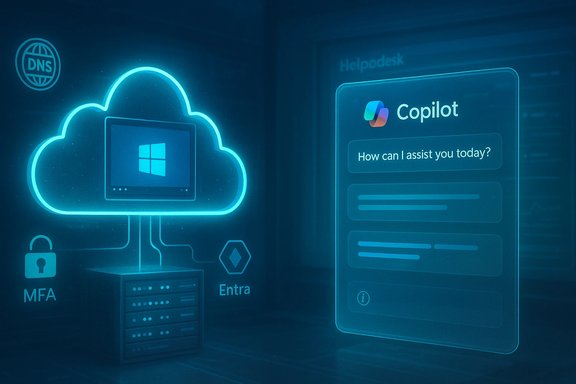
Microsoft’s Cloud PC (Windows 365) and its Copilot family (Bing Chat / Copilot in Microsoft 365 and Windows) are now core parts of many organisations’ workflows. Cloud PCs promise predictable, centrally managed Windows instances delivered from Microsoft’s cloud; Copilot promises instant drafting, summarisation and in‑app automation. Together they blur the line between endpoint and cloud services — which is convenient, but it also concentrates new failure modes into business‑critical paths.
In recent weeks and months administrators and end users have reported widespread connection failures, confusing license or sign‑in messages, and session timeouts when trying to reach Cloud PCs. Separately, researchers and journalists continue to document hallucination episodes from Bing Chat / Copilot where the assistant fabricates facts, invents sources, or returns inconsistent answers — a behaviour that has measurable operational impact when Copilot automations are relied on for compliance, legal drafting or technical instructions. The operational reality and technical causes for both issues are well documented in Microsoft’s troubleshooting guidance and in independent reporting and analysis.
Cloud PCs and Copilot are powerful, but their power comes with operational cost and new cognitive hazards. Treat them as strategic platforms — instrumented, governed and backed by fallbacks — rather than convenience features. Doing so preserves the productivity promise while containing the risk of sudden access failures and the subtle but real hazards of AI hallucinations.
Source: TechRadar https://www.techradar.com/pro/unabl...blamed-by-uk-police-chief-for-soccer-fan-ban]
 Background
Microsoft’s Cloud PC (Windows 365) and its Copilot family (Bing Chat / Copilot in Microsoft 365 and Windows) are now core parts of many organisations’ workflows. Cloud PCs promise predictable, centrally managed Windows instances delivered from Microsoft’s cloud; Copilot promises instant drafting, summarisation and in‑app automation. Together they blur the line between endpoint and cloud services — which is convenient, but it also concentrates new failure modes into business‑critical paths.In recent weeks and months administrators and end users have reported widespread connection failures, confusing license or sign‑in messages, and session timeouts when trying to reach Cloud PCs. Separately, researchers and journalists continue to document hallucination episodes from Bing Chat / Copilot where the assistant fabricates facts, invents sources, or returns inconsistent answers — a behaviour that has measurable operational impact when Copilot automations are relied on for compliance, legal drafting or technical instructions. The operational reality and technical causes for both issues are well documented in Microsoft’s troubleshooting guidance and in independent reporting and analysis.
Why users can’t access Cloud PCs: an operational checklist
Cloud PC access failures usually fall into three broad categories: account/subscription and entitlement problems, client or local device issues, and network or service‑side faults. Each category carries distinct symptoms and fixes.1) Account, licensing and entitlement problems
- The most common consumer and admin headaches come from signing in with the wrong account (personal vs. work) or from missing/expired licences. If a Cloud PC simply doesn’t appear in the Windows 365 portal, the account is the most likely culprit. Microsoft’s troubleshooting pages explicitly call this out as the first check.
- Tenant‑level entitlements and Microsoft Entra (Azure AD) configuration can prevent provisioning or connecting to Cloud PCs. Conditional Access policies, misapplied MFA rules or missing device registration state can block session establishment at the identity layer.
- Enterprise admins sometimes accidentally restrict Cloud PC access with AppLocker, Intune device filters, or by assigning a Cloud PC SKU incorrectly; those mistakes can make a fully provisioned Cloud PC inaccessible until policies are corrected.
2) Local client and OS integration problems
- The Windows 365 app and the Azure Virtual Desktop HostApp are the local pieces that launch the remote session. Incorrect file‑type associations for .avd files or an outdated HostApp can prevent the local machine from opening the Cloud PC session. Microsoft documents explicit steps (change default app, clear old Remote Desktop cache) for the “Can’t connect to Cloud PC” symptom.
- PKU2U and device registration requirements may produce logon errors when the Cloud PC or the local device refuses proximity‑based authentication requests. Microsoft’s guidance details PKU2U as a cause for the “Logon attempt failed” symptom and offers device configuration policy guidance as remediation.
3) Network, gateway and cloud‑side service faults
- Errors like “We couldn't connect to the gateway” point to DNS, firewall, Network Virtual Appliance (NVA) blocks, or misconfigured Network Security Groups (NSGs). The Cloud PC connect path traverses on‑prem and cloud networking components — a stray route or blocked endpoint will stop sessions cold. Microsoft’s articles list those exact network configuration settings to review.
- Resource exhaustion on the Cloud PC plane (no available VM capacity) will produce “no available resources” errors; the typical fix is to restart or reprovision the Cloud PC. Microsoft’s reset/restore guidance is explicit that resets reimage the Cloud PC and will make it unavailable during the operation.
- Finally, regional or service‑level outages and autoscaler behaviour can cause wide‑area disruptions. Community reconstructions and incident logs show that when autoscalers lag or edge routing misconfigurations occur, user requests can queue or time out — producing symptoms across many tenants at once. Those kinds of incidents have been tracked in multiple community and service health posts.
Practical troubleshooting — a concise operator’s playbook
Below is a compact, ordered checklist IT teams and power users can follow before opening a high‑urgency support ticket.- Confirm the account and licence
- Sign into account.microsoft.com and verify the subscription and that the user is using the Cloud PC‑provisioned work/school identity.
- Check client version and HostApp association
- Update the Windows 365 app and Azure Virtual Desktop HostApp; set .avd files to the Azure Virtual Desktop (HostApp) default if prompted. Clear the old Remote Desktop client cache if needed.
- Validate identity and MFA flows
- Ensure the user’s device is registered/joined as required, confirm Conditional Access policies and check for authentication loops. Try an alternate authentication method temporarily to isolate the issue.
- Reboot or reset the Cloud PC (admin action)
- If resource exhaustion or kernel/state corruption is suspected, restart or reset the Cloud PC via the admin portal; be aware reset is destructive and will reinstall Windows.
- Inspect network paths and gateway logs
- Review DNS, NSGs, NVAs and any firewalls that sit between the client and the Cloud PC; ensure required endpoints are allowed and the AVD host can reach Microsoft’s control plane.
- If the problem is regional or persistent, check service health and incident codes
- For broad disruptions, consult Microsoft 365 Service Health and Admin Center incident codes. Community reconstructions of past incidents show that Microsoft records and posts incident identifiers for admin visibility. If you see an incident code, follow Microsoft’s rolling updates and mitigation guidance.
The bigger technical picture: why Cloud PCs are fragile in certain failure modes
Cloud PCs are delivered by a chain of interdependent components: local host apps, edge/API gateways, identity systems (Microsoft Entra), orchestration microservices, and GPU/VM compute hosts. Failures or constraints in any one layer manifest as user‑facing timeouts because Cloud PC sessions are synchronous and time‑sensitive.- Identity and entitlement are gatekeepers. If token issuance stalls or a Conditional Access policy blocks an authentication flow, requests won’t reach the session plane.
- Edge routing and load balancers concentrate failure. As operators have observed, misrouting or asymmetric backend health can amplify demand on a subset of nodes; manual load balancing or capacity scaling is sometimes required to rebalance traffic. Community reconstructions of Copilot incidents highlight similar concentrated failure modes when autoscalers are surprised by spikes in demand.
- Network policy complexity grows attack surface. NVAs, custom DNS, and tightly scoped NSGs are appropriate security measures but can inadvertently block legitimate Cloud PC endpoints.
Bing Chat / Copilot hallucinations: the operational risk
Hallucinations — confident but incorrect outputs from large language models — are not simply an academic nuisance. They are operational hazards when Copilot is used to draft policy, generate code, summarise meeting decisions, or compose legal‑adjacent documents.- Investigations and reporting have documented that Bing Chat and Copilot can invent facts, misattribute quotes, or create fabricated events and sources. Independent reporting highlighted election‑related fabrications, and subsequent research found measurable rates of factual errors across languages and domains.
- Microsoft has invested in mitigation tooling — features that attempt to detect ungrounded content, correction tools to align outputs with trusted sources, and groundedness detection to identify when the model lacks a reliable basis. Those mitigations reduce frequency, but experts warn they’re not a panacea. Even with detection, hallucinations can slip through under certain prompts, data gaps or system messages.
How hallucinations propagate risk inside organisations
- Compliance and auditability risks: When Copilot fabricates a source citation or incorrectly summarises a contract clause, downstream audit trails and compliance reviews may be contaminated.
- Operational mistakes: Copilot‑generated code snippets or system commands that are subtly incorrect can introduce vulnerabilities or break automation playbooks.
- Reputational exposure: Public‑facing content drafted with hallucinated claims can lead to misinformation being published under the organisation’s brand.
Mitigations and admin guidance for Copilot hallucinations
- Use grounding and source‑anchoring where possible. Force Copilot to cite a specific, auditable document or data source before acting on policy‑critical text.
- Treat Copilot outputs as drafts, not authoritative answers. Implement a human‑in‑the‑loop policy for any generation that impacts compliance, contracts, or code deployments.
- Train and monitor prompts. Teach frequent users safe prompt patterns and encourage short, precise queries that reduce model extrapolation.
- Employ detection tools and guardrails. Microsoft and third‑party tools now offer groundedness detection, correction layers and content‑safety APIs; these should be configured in production flows. However, these tools lower risk but do not eliminate it.
Cross‑verification: what the record shows about recent outages and hallucination episodes
- For Cloud PC accessibility issues, Microsoft’s own troubleshooting pages explain the exact connection errors, the relationship to PKU2U and the network path problems administrators commonly face; those pages are the authoritative reference for step‑by‑step fixes.
- For Copilot/Bing Chat hallucinations, independent reporting and academic analysis document both examples and systematic patterns of error; Microsoft’s mitigation announcements (groundedness detection and correction tooling) acknowledge the problem and indicate a roadmap to reduce — but not eliminate — hallucinations. These claims are corroborated by investigative journalism and peer‑reviewable research.
- Community and operational post‑mortems show that autoscaler stress and load‑balancer misconfigurations have been central to regional Copilot outages; those reconstructions, collected from admin feeds and community archives, align with Microsoft’s publicly posted incident codes and rolling updates in several reported disturbances. Flagging the exact root cause of each incident is sometimes limited by Microsoft’s public disclosures, and where Microsoft has not published an explicit causal chain, the community reconstructions should be treated as highly probable but not definitively proven.
Recommended policies for organisations that rely on Cloud PCs and Copilot
- Enforce layered observability
- Collect and centralise logs from identity (Entra), Windows 365, network gateways and the local client HostApp. Correlate events to quickly differentiate a local misconfiguration from a cloud outage.
- Define escalation and runbooks
- Maintain a runbook that maps common Cloud PC symptoms (no Cloud PC shown, gateway errors, PKU2U failures) to immediate mitigations and longer corrective actions. Include vendor incident channels and admin‑portal checks.
- Harden AI usage governance
- Require manual review for any Copilot‑generated content used in external‑facing or legally binding contexts. Keep a policy that explicitly defines low vs high risk use cases for Copilot outputs.
- Build fallback workflows
- Prepare contingency plans: desktop versions of critical applications, alternate collaboration channels and explicit offline processes to continue work during cloud outages.
- Train users and administrators
- Provide short, practical training on Cloud PC troubleshooting steps for helpdesk tiers, and run workshops on prompt safety and hallucination recognition for Copilot users.
Notable strengths and remaining risks
Strengths
- Cloud PCs deliver centrally managed Windows instances that simplify provisioning and enable remote, policy‑controlled desktops.
- Copilot accelerates routine tasks — drafting, summarisation and data triage — and can materially reduce cognitive load when properly supervised.
- Microsoft’s ongoing investments in groundedness detection and correction tooling show a pragmatic approach to managing hallucinations rather than pretending they no longer exist.
Risks and caveats
- The Cloud PC delivery chain spans many moving parts; a single misconfigured network rule or an identity policy mismatch can stop access for many users.
- Hallucinations remain an intrinsic property of current generative models: mitigation reduces frequency but does not remove the possibility of confident falsehoods. Organisations must treat generated content as provisional and verifiable.
- Public incident disclosures may not include full causal detail. Community reconstructions and outage trackers are useful, but where Microsoft has not published a root‑cause statement the definitive blame assignment should be labelled as probable rather than certain.
Bottom line and action checklist
Cloud PCs and Copilot are now production‑grade tools with important productivity upsides — but the ease of deployment does not eliminate complexity. When users “can’t access Cloud PC” the correct triage starts with account and licence checks, then moves to client/HostApp validation, and finally to network and service‑level diagnostics. For Copilot, the correct posture is one of cautious enablement: use the assistant to speed drafting and triage, but require human review and source anchoring for decisions that matter.- Immediate actions for IT teams:
- Verify accounts and licences first, then client versions and .avd associations.
- Centralise logs (identity, network, Windows 365) to shorten mean time to resolution.
- Produce a Copilot governance policy: low‑risk use vs high‑risk use must be explicitly defined.
- Immediate actions for knowledge workers:
- Treat Copilot outputs as drafts; demand citations or supporting documents before trusting facts.
- If Cloud PC access fails, try a different browser or the Windows 365 desktop app after confirming account identity.
Cloud PCs and Copilot are powerful, but their power comes with operational cost and new cognitive hazards. Treat them as strategic platforms — instrumented, governed and backed by fallbacks — rather than convenience features. Doing so preserves the productivity promise while containing the risk of sudden access failures and the subtle but real hazards of AI hallucinations.
Source: TechRadar https://www.techradar.com/pro/unabl...blamed-by-uk-police-chief-for-soccer-fan-ban]
