

Windows’ built‑in security stack is deep, integrated, and — for most home users — remarkably effective. But that strength is also the source of friction for power users: User Account Control, Microsoft Defender SmartScreen, Controlled Folder Access, overly zealous admin‑level blocks, and unpredictable BitLocker recovery prompts can interrupt workflows, break quick testing loops, and lock you out if you aren’t prepared. The problem isn’t that these protections are useless — it’s that their defaults, UI surfacing, and interaction with firmware or niche software sometimes create more operational pain than protection value unless you tune them deliberately. The following feature‑by‑feature analysis summarizes what’s happening, explains why the protection exists, shows how to tune or work around the friction safely, and calls out the real security tradeoffs you should understand before changing anything.
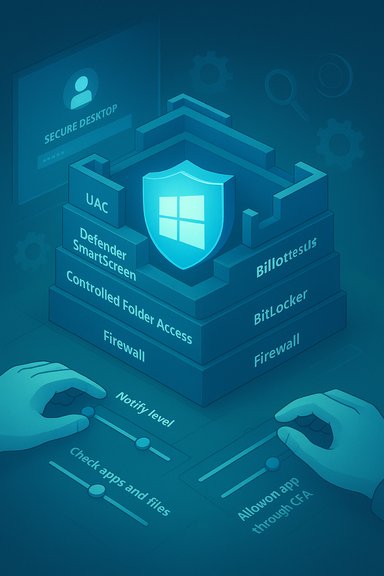
Windows ships with layered protections that operate at different points in the attack chain: elevation controls (UAC), reputation filters (SmartScreen), ransomware mitigation (Controlled Folder Access), full‑disk encryption (BitLocker), and an endpoint policy surface that can block or quarantine apps. That layered approach reduces reliance on any single control, but it also increases the chance two protections will collide or produce confusing prompts when the platform encounters unusual hardware or unsigned software. Community reports and how‑to guides show this tension: many of these features are on by default and recommended for everyday safety, yet they generate frequent interruptions for developers, IT pros, and power users.
By treating security settings as configurable instruments rather than immovable defaults, you keep the best of both worlds: the protection that stops real threats, and the flexibility to work quickly when you know what you’re doing.
Source: How-To Geek 5 Windows security features that mostly just get in the way
 Background
Windows ships with layered protections that operate at different points in the attack chain: elevation controls (UAC), reputation filters (SmartScreen), ransomware mitigation (Controlled Folder Access), full‑disk encryption (BitLocker), and an endpoint policy surface that can block or quarantine apps. That layered approach reduces reliance on any single control, but it also increases the chance two protections will collide or produce confusing prompts when the platform encounters unusual hardware or unsigned software. Community reports and how‑to guides show this tension: many of these features are on by default and recommended for everyday safety, yet they generate frequent interruptions for developers, IT pros, and power users.User Account Control (UAC): annoyance vs. necessity
What UAC does and why it nags
User Account Control (UAC) is a core Windows safety mechanism that prevents unprivileged processes from making system‑level changes without explicit approval. It intercepts attempts to perform admin‑level operations and prompts the user to allow or deny the action. That prompt is the reason malware launched from a low‑privileged app can’t silently elevate itself and change system settings. Microsoft documents the UAC slider and describes four notification levels — from Always notify down to Never notify (which effectively disables UAC). The default and recommended setting is a middle level that notifies when apps try to make changes while avoiding prompts for user‑initiated settings changes.Why it frustrates power users
For people who install and test many small tools, or who frequently tweak drivers and services, the UAC prompt becomes a repetitive gate. The “dimmed desktop” secure desktop can also slow down scripted or fast manual workflows. Power users often see the prompt dozens of times during a setup session, which tempts some to disable UAC entirely — a choice that removes a critical defense-in-depth control.Safe ways to reduce friction
- Change the UAC notification level rather than disabling it. Open Control Panel > System and Security > Change User Account Control settings and pick a lower level if the prompts are too noisy — but avoid “Never notify.”
- Use a standard daily account for routine work and only sign in as an administrator when required; this reduces exposure and keeps UAC in place when needed.
- For reproducible scripted installs or lab environments, use controlled automation (Task Scheduler configured to run elevated tasks, or signed installer packages) instead of turning UAC off systemwide.
Risk assessment
Lowering or disabling UAC increases the chance of silent privilege escalation by malicious software. The prompt is not mere annoyance — it’s a human‑readable breakpoint where an attacker must induce a user action (or exploit a vulnerability) to gain elevated control. Keep at least one UAC level active for real machines and only reduce it in trusted, test‑only images.Microsoft Defender SmartScreen: reputation protection that flags the unfamiliar
What SmartScreen protects
SmartScreen consults Microsoft’s cloud reputation telemetry and local heuristics to block downloads and untrusted apps. It’s effective at catching drive‑by downloads, phishing content, and some supply‑chain threats by preventing a file with poor reputation from running or by warning the user. SmartScreen settings are exposed inside Windows Security’s App & Browser Control and can be configured to either block or warn for downloads and apps.Why power users see too many warnings
SmartScreen flags many legitimate but rarely distributed artifacts — unsigned test builds, community tools, portable utilities hosted on GitHub, and bespoke diagnostic binaries. For people who install several such programs during a session, the repeated SmartScreen warnings interrupt flow. The most common user workaround is the “More info → Run anyway” bypass, but that still produces a friction hit for each file.How to tune SmartScreen safely
- To temporarily reduce prompts: open Settings > Privacy & security > Windows Security > App & Browser Control > Reputation‑based protection settings and toggle Check apps and files as needed. This turns off reputation-based blocking of apps and files. Do not leave this off permanently on machines used for general browsing or file downloads.
- Better: keep SmartScreen on and use targeted approaches: digitally sign your own builds where practical, avoid extracting installers in protected folders, or add trusted developer tools to exclusions if they’re repeatedly flagged.
Tradeoffs and warnings
Disabling SmartScreen removes an important early detection layer for opportunistic malware. It’s a reasonable short‑term step while testing known files in an otherwise locked‑down lab, but it widens exposure if left off during normal use. SmartScreen’s policy controls can also be enforced by Group Policy or Intune in managed environments, so you might not always be able to toggle it locally.Controlled Folder Access (CFA): strong ransomware guard, occasional workflow breakage
What Controlled Folder Access protects
Controlled Folder Access is Windows’ built‑in ransomware mitigation: it prevents untrusted apps from modifying files inside defined protected folders (Documents, Pictures, Desktop, and any custom folders you add). The mechanism blocks write access unless the app is on a whitelist; when a block occurs it appears in Protection History and a notification is posted. Microsoft documents the feature and how to add protected folders or allow apps through CFA.Why CFA annoys users
Many legitimate apps (image editors, converters, backup tools, portable utilities) expect to write to Documents or Desktop and will be blocked until whitelisted. That creates an ongoing administrative chore for users who frequently try new tools and don’t want to add every binary to the allowed list.Practical tuning options
- Limit the protected folder set to only the folders that matter: add only the project or data directories you absolutely must shield. This reduces false positives.
- Add trusted apps explicitly rather than broad folders. Use Windows Security > Virus & threat protection > Manage ransomware protection > Allow an app through Controlled Folder Access to grant write access to a specific executable.
- Redirect new apps to save outside protected folders by changing their default save location where possible.
Risk analysis
Controlled Folder Access is a very effective barrier against ransomware that opportunistically scrambles files, and pairing it with off‑site backups or versioned cloud backups (OneDrive, external storage) provides strong recovery capability. The security benefit usually outweighs the administrative friction — but the feature is only useful if you manage the allow‑list conservatively and maintain reliable backups.“This app has been blocked by your system administrator”: when Windows locks you out even as admin
Why Windows sometimes blocks an app even for admins
That message can appear on personal devices, not just corporate machines. Typical causes include SmartScreen reputation blocking, attachments marked by the Attachment Manager, Group Policy restrictions, tamper protections, or leftovers from previous device management enrollment. Corrupted permissions or a mismatched launcher path (e.g., running from an extracted, blocked ZIP) can also trigger the block. Community and troubleshooting guides show this is an often‑encountered frustration when working with portable tools.Fast, safe workarounds
- Check the file’s properties and use the Unblock option: Right‑click → Properties → on the General tab, find the security message “This file came from another computer…” and click Unblock, then Apply/OK. That clears the Zone.Identifier mark of the web zone and often allows the app to run. This is the least invasive, fastest fix.
- Try running the app elevated: Right‑click → Run as administrator. If the block is UAC related, elevation often helps.
- If SmartScreen is the culprit, use App & Browser Control to check whether “Check apps and files” is blocking the file; temporarily toggling the setting lets you test whether SmartScreen is the cause. Re‑enable it immediately after your test.
- When you’re dealing with multiple files (for example lots of extracted files from an archive), unblock the ZIP before extraction or use PowerShell’s Unblock‑File to mass‑unblock.
When it’s deeper than a checkbox
If the system is managed (work/school), Group Policy or MDM policies may enforce blocks — those cannot be bypassed locally. If you’ve previously been part of an organization and leftover policies remain, check the Group Policy Editor (gpedit.msc) for active rules, or inspect registry and local policy keys before attempting registry hacks. Misguided registry changes (for UAC, Attachment Manager, etc. can harm system stability — back up and caution are required.Security implications
Unblocking individual known, trusted files is fine. But persistent routine unblocking of many files — or wholesale disabling of SmartScreen or tamper protections — removes critical detection layers and should be avoided on primary systems. Maintain a conservative approach: unblock only files you audited and trust.BitLocker recovery prompts: essential protection, painful timing
Why BitLocker asks for the 48‑digit recovery key
BitLocker ties drive access to boot‑time measurements (TPM and PCR values). When the platform detects changes to firmware, boot order, TPM state, connected hardware (docking or USB devices in the boot path), Secure Boot settings, or other elements that affect the measured boot, it can trigger recovery mode — and ask for the 48‑digit recovery key — to prevent a tampered system from booting silently. Firmware updates, BIOS changes, motherboard replacement, or even docking/undocking events can cause this behavior. Microsoft documents causes and recommends suspending BitLocker before firmware or BIOS updates to avoid unexpected recovery prompts. OEMs (Dell, etc. also publish guidance because docked USB/Thunderbolt devices in the boot path frequently change the boot configuration and trigger recovery.How to prepare and reduce the chance of being locked out
- Back up your recovery key proactively. If the device used a Microsoft account when BitLocker was enabled, the recovery key may be stored in that account (account.microsoft.com/devices/recoverykey). For corporate devices, keys may be stored in Azure AD or Active Directory. Confirm where your keys are stored before you need them.
- Suspend BitLocker before firmware/BIOS updates or major hardware changes: run manage‑bde or use the Windows Security UI to suspend protection. This prevents a firmware update from triggering recovery mode; resume protection after updates complete. Microsoft explicitly recommends suspending BitLocker for TPM 1.2 firmware updates and similar maintenance activity.
- If you’re building or repairing systems, be mindful that motherboard swaps and TPM clears will invalidate stored keys and typically require re‑provisioning BitLocker protectors. Plan for recovery key retrieval in those scenarios.
What to do if BitLocker unexpectedly prompts for the key
- If you have the key, enter it and then investigate the recent changes (BIOS update, connected devices, changes in boot order).
- If you don’t have the key, use another device to sign in to your Microsoft account and retrieve stored recovery keys if available, or contact your organization’s IT for Azure AD/AD‑stored keys. Without the recovery key, data recovery is infeasible — that’s the point of encryption.
Risk and governance
BitLocker is a powerful last‑line defense for physical theft and offline attacks, but it introduces operational risk: if keys aren’t escrowed or users aren’t taught where to find them, legitimate users can be locked out. For organizations, enforce key backup to Azure AD or Active Directory and document maintenance procedures (suspend before firmware updates) to avoid helpdesk load.Practical, risk‑aware tuning checklist
- Keep these protections enabled by default on any machine used for general browsing or hosted data: Real‑time protection, Tamper Protection, Firewall, SmartScreen, and BitLocker where applicable. These are the low‑maintenance baseline for consumer security.
- Where friction is high but the risk is controlled (lab machines, isolated test VMs), apply targeted relaxations:
- Use virtual machines or Windows Sandbox for running untrusted builds.
- Lower UAC notifications for test images rather than turning off UAC on your primary device.
- Temporarily disable SmartScreen only while testing known good binaries, and re‑enable it immediately.
- Add narrow Controlled Folder Access allow‑lists for specific executables rather than removing protection for whole directories.
- Always escrow BitLocker keys (Microsoft account, Azure AD, or printed/USB backups) and suspend BitLocker before firmware or BIOS updates.
Strengths, blind spots, and recommended tradeoffs
Strengths
- Windows’ native protections are broadly effective and well integrated: Microsoft Defender provides strong baseline detection, the Defender firewall is reliable, and features like Core Isolation and Controlled Folder Access offer modern mitigations without third‑party bloat. Many independent evaluations and community guidance point to Defender’s viability as a primary defense for most home users.
Blind spots and UX friction
- The platform’s safety mechanisms assume a typical user model; power users break that model by running unsigned builds, toggling firmware settings, and swapping devices frequently. That leads to repeated prompts and policy conflicts. UI inconsistencies and mixed diagnostic messages in Windows Security can also create a confidence gap — users get warnings without clear remediation steps.
Recommended tradeoffs
- Adopt a risk‑based posture. For machines containing sensitive personal or corporate data, prefer conservative settings (SmartScreen on, Controlled Folder Access on, BitLocker enabled, UAC at default). For dedicated test rigs, relax the controls but isolate those systems from sensitive networks and data. Document any changes and ensure a rollback plan.
Quick reference: safe commands and navigation
- Change UAC level: Control Panel > System and Security > Change User Account Control settings. Avoid “Never notify.”
- SmartScreen toggle: Settings > Privacy & security > Windows Security > App & Browser Control > Reputation‑based protection settings > Check apps and files. Use this only for short‑term testing.
- Controlled Folder Access: Windows Security > Virus & threat protection > Manage ransomware protection > Controlled Folder Access > Protected folders / Allow an app through Controlled Folder Access.
- Unblock a file: Right‑click file → Properties → General tab → check Unblock (or click Unblock) → Apply → OK. Useful for downloads and extracted ZIPs.
- Suspend BitLocker before firmware update: manage‑bde -protectors -disable C: (and re‑enable afterward). Back up recovery keys to your Microsoft account or AD/Azure AD before maintenance.
Final analysis: tune, don’t dismantle
The five features most commonly labeled “annoying” are not mistakes — they are deliberate safety gates designed after decades of malware evolution. The right approach for any user is not to dismantle defenses, but to tune them for the machine’s role and threat model. That means:- Keep protective defaults on for daily machines.
- Use virtualized test environments for frequent experimentation.
- Whitelist sparingly and document changes.
- Escrow BitLocker keys and suspend protection before firmware work.
- Teach users where to find recovery keys and how to use the Unblock checkbox safely.
By treating security settings as configurable instruments rather than immovable defaults, you keep the best of both worlds: the protection that stops real threats, and the flexibility to work quickly when you know what you’re doing.
Source: How-To Geek 5 Windows security features that mostly just get in the way
