

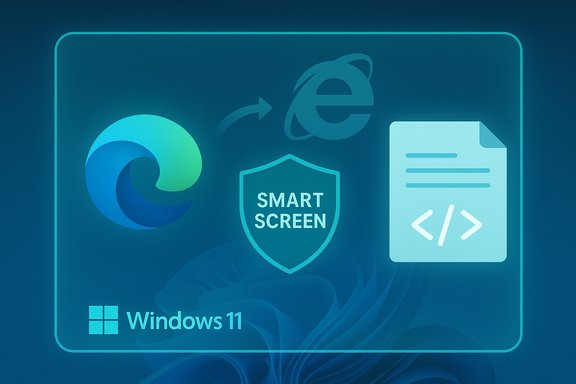
Microsoft has deprecated Microsoft Defender SmartScreen inside Internet Explorer and IE Mode on Windows 11, removing in-process SmartScreen URL and download checks from the legacy IE runtime while preserving platform-level protections such as the Windows Shell SmartScreen and Mark‑of‑the‑Web handling.
Microsoft Defender SmartScreen is a reputation-based security feature that defends against phishing, malicious websites, and suspicious downloads by checking URLs and file metadata against cloud-managed reputation services and local heuristics. It operates across several surfaces: Microsoft Edge, the Windows Shell (the “Check apps and files” control in Windows Security), and historically, Internet Explorer and IE Mode. Internet Explorer as a standalone browser has been deprecated for some time on modern Windows releases, with Microsoft redirecting IE launches to Microsoft Edge and supporting legacy compatibility via IE Mode inside Edge for enterprise legacy web apps. The new advisory clarifies that SmartScreen will no longer run inside Internet Explorer or IE Mode on Windows 11 builds starting with the update referenced in the Microsoft bulletin (KB ID: 5071357, published November 4, 2025). This change is scoped: SmartScreen remains active and supported in Microsoft Edge, the Windows Shell, and in Internet Explorer / IE Mode on older Windows versions where the legacy SmartScreen code paths still exist. The deprecation affects only SmartScreen’s in-process checks within IE/IE Mode on Windows 11.
The immediate priorities are simple and time-sensitive: audit IE Mode site lists, enforce Edge for internet browsing, verify Windows Shell SmartScreen is active and centrally managed, and harden file processing and EDR telemetry. Those steps will preserve defense‑in‑depth while enterprises complete longer-term modernization of legacy web applications.
Microsoft’s support bulletin and independent reporting provide consistent guidance; administrators should treat the bulletin as primary technical reference and follow the recommended policy and operational steps to close the gap created by the deprecation.
Source: Neowin SmartScreen for Internet Explorer and IE Mode on Windows 11 deprecated
 Background
Microsoft Defender SmartScreen is a reputation-based security feature that defends against phishing, malicious websites, and suspicious downloads by checking URLs and file metadata against cloud-managed reputation services and local heuristics. It operates across several surfaces: Microsoft Edge, the Windows Shell (the “Check apps and files” control in Windows Security), and historically, Internet Explorer and IE Mode. Internet Explorer as a standalone browser has been deprecated for some time on modern Windows releases, with Microsoft redirecting IE launches to Microsoft Edge and supporting legacy compatibility via IE Mode inside Edge for enterprise legacy web apps. The new advisory clarifies that SmartScreen will no longer run inside Internet Explorer or IE Mode on Windows 11 builds starting with the update referenced in the Microsoft bulletin (KB ID: 5071357, published November 4, 2025). This change is scoped: SmartScreen remains active and supported in Microsoft Edge, the Windows Shell, and in Internet Explorer / IE Mode on older Windows versions where the legacy SmartScreen code paths still exist. The deprecation affects only SmartScreen’s in-process checks within IE/IE Mode on Windows 11. What changed — the technical specifics
Where SmartScreen used to run
- In-process URL reputation checks and download reputation dialogs executed inside IE or within the IE Mode rendering process.
- SmartScreen used both cloud lookups and local caches to present interstitial warnings and to block or warn about downloads and phishing pages.
What Microsoft removed on Windows 11
- SmartScreen runtime integration inside Internet Explorer and IE Mode on Windows 11 has been deprecated; those checks no longer execute in the IE/IE Mode process. SmartScreen remains active in Edge and at the Windows Shell boundary.
- Microsoft states the removal is tied to eliminating legacy binary components that the IE SmartScreen implementation depended upon; retaining those components would reintroduce legacy attack surface and maintenance burden.
What protections remain
- Files downloaded through IE/IE Mode on Windows 11 still receive a Mark‑of‑the‑Web (MoTW) Zone.Identifier tag; when later opened from File Explorer or other Shell-hosted contexts, the Windows Shell SmartScreen and Attachment Manager will evaluate them.
- System-level defenses such as Windows Defender and Microsoft Defender for Endpoint continue to provide runtime and endpoint protections.
Why Microsoft deprecated SmartScreen in IE/IE Mode
Microsoft cited several overlapping reasons for the change:- Narrow intended use of IE Mode: IE Mode is designed for enterprise-managed, trusted intranet and line‑of‑business applications rather than general internet browsing. SmartScreen’s URL-based anti‑phishing checks are less critical when administrators strictly control the IE Mode site list.
- Legacy binary dependencies: The SmartScreen codepaths used by Internet Explorer relied on legacy binary components that Microsoft removed during broader platform modernization; maintaining those binaries would reintroduce risk and complexity.
- Consolidation to modern surfaces: Microsoft aims to centralize protections in actively developed surfaces — Edge and the Windows Shell — where updates, telemetry, and machine‑learning improvements are applied more rapidly. This allows Microsoft to iterate on SmartScreen features without maintaining fragile legacy runtime integrations.
Immediate impact for users and IT administrators
Practical effects for everyday browsing
- For end users, Microsoft Edge remains the recommended browser for internet-facing browsing; it continues to host SmartScreen interstitials and newer protections such as the Edge scareware blocker.
- On Windows 11, opening Internet Explorer will still redirect to Edge; the change primarily affects the behavior of IE Mode within Edge — the legacy in-process SmartScreen interstitials will no longer appear there. Expect fewer in-context phishing/download warnings in the IE Mode runtime itself.
For enterprise administrators
- IE Mode should be strictly limited to trusted, internal applications and configured via precise Enterprise Site Lists. The security model assumes administrators explicitly control which sites are allowed to run in IE Mode.
- Files downloaded via IE Mode will still be scanned later by the Windows Shell because of MoTW tagging, but administrators must verify file-handling workflows and extraction behaviors that could strip or bypass MoTW metadata.
- Group Policy and MDM remain the channels to centrally control SmartScreen behavior across the estate (Edge SmartScreen settings and the Windows Security “Check apps and files” control).
Verified timeline and scope
- The advisory is effective with the update referenced in Microsoft’s support article (Original publish date: November 4, 2025). This applies to Windows 11 (24H2 and 25H2) and Windows Server 2025 as stated in Microsoft’s bulletin.
Security analysis — strengths and trade-offs
Strengths of Microsoft’s approach
- Reduced legacy attack surface: Removing outdated binary dependencies that support in-process SmartScreen for IE eliminates additional maintenance and potential vulnerabilities in the OS image. This simplifies security hardening.
- Concentrated defenders on modern surfaces: Edge and Windows Shell are actively developed and receive faster updates (including AI-assisted features like the Edge scareware blocker). This consolidation enables better telemetry, ML tuning, and faster patching cycles.
- Preserved platform boundary checks: MoTW tagging and Windows Shell SmartScreen still provide a safety net for files inserted into the system via IE/IE Mode, preserving a form of defense-in-depth.
Significant trade-offs and risks
- Reliance on correct site-list configuration: IE Mode’s safety now depends heavily on administrators maintaining accurate, minimal, and precise site lists. Misconfiguration (wildcards, overly broad domains) can create implicit trust that bypasses in-process URL filtering.
- Mark‑of‑the‑Web limitations: MoTW is a useful provenance signal but not infallible. Extraction of files from archives, copying across non‑NTFS volumes, or certain toolchains may strip or fail to apply MoTW tags — enabling payloads to bypass Shell-level SmartScreen until execution. Administrators must validate extraction pipelines and automated workflows.
- User expectations and behavior: Users accustomed to seeing Edge-style interstitials while using IE Mode may assume the same protections remain active in the legacy runtime. That mismatch can lead to riskier user behavior if not communicated and enforced by policy.
- Exploitation surface for targeted attacks: Public research has shown edge cases where SmartScreen could be bypassed (for example, malformed or specially crafted signatures in downloaded installers), emphasizing that reputation systems are one piece of a layered defense, not a silver bullet. Administrators should treat this as an operational reality, not solely a theoretical risk.
Actionable checklist for IT administrators (prioritized)
- Audit IE Mode site lists immediately.
- Inventory every entry and confirm it maps to a legitimate, internal LOB app or intranet host.
- Replace broad entries (for example, *.example.com) with exact hostnames where possible.
- Remove sites no longer required by business processes.
- Enforce Edge for external browsing.
- Configure Edge as the default browser via policy or MDM and block IE/IE Mode usage for internet‑facing content where feasible.
- Verify Windows Shell SmartScreen and Defender settings.
- Ensure Windows Security > App & browser control > Check apps and files is enabled.
- Lock SmartScreen settings centrally with Group Policy or Intune to prevent user overrides.
- Harden file-handling workflows and extraction tools.
- Test archive extraction, document processing, and pipeline tools to confirm MoTW is preserved, or add compensating EDR/AV scans post-extraction.
- Integrate endpoint telemetry with Defender for Endpoint.
- Enable EDR telemetry to correlate suspicious downloads originating from IE Mode with later process activity. Use automated detection rules to elevate anomalies.
- Update user guidance and helpdesk scripts.
- Clearly communicate that IE Mode on Windows 11 no longer performs in-context SmartScreen checks and instruct users to use Edge for untrusted browsing. Update support documentation and run internal training.
- Test and monitor.
- Run a pilot across representative endpoints, capture event logs (including Zone.Identifier ADS status), and verify end-to-end behavior before broad rollout. If unexpected behavior appears, escalate with detailed telemetry to vendor support.
How to verify and troubleshoot specific behaviors
Confirming whether SmartScreen ran in your environment
- Check the Windows Event Log and browser telemetry on endpoints for SmartScreen verdicts and interstitial events.
- Verify Zone.Identifier alternate data streams (ADS) on downloaded files to confirm MoTW tagging. If files lack MoTW metadata but originated from the web, investigate the download path (proxy, gateway, extraction service).
Reproducing and triaging bypass scenarios
- If a suspicious installer bypasses SmartScreen warnings in the shell, collect:
- The installer file and its Zone.Identifier ADS.
- Defender/EDR alerts and process trees.
- Any gateway/proxy logs that handled the download.
- Submit these artifacts to Microsoft or your security vendor for analysis if suspicious behavior persists. Note that SmartScreen bypasses have occurred in the wild before and were patched when vendor-supplied signals (for example malformed signatures) were identified.
If administrators need to disable SmartScreen behavior in IE Mode
- Microsoft documents a manual method via Internet Options: Start > type “internet options” > Security tab > Trusted Sites > Custom Level > under “Use Windows Defender SmartScreen” select Disable and click OK. This is intended for diagnostic or compatibility cases — not a long-term security posture. Use centralized policies to manage this at scale when necessary.
Mitigations for Mark‑of‑the‑Web and extraction pitfalls
- Require EDR/AV scanning of files immediately after any automated extraction step in server-side or desktop workflows.
- Avoid storing or transporting web-originated files via non-NTFS file systems that may strip ADS metadata.
- Where archives are unpacked by server-side services, implement an explicit policy that tags or re-tags files with provenance metadata, and run behavioral scanning on extracted items.
- Add sandbox or detonation queues for unknown or unsigned executables that require human verification before moving into broad distribution.
Broader context: SmartScreen’s evolution and modern defenses
Microsoft continues to invest in SmartScreen and related protections — but primarily on modern surfaces such as Edge and the Windows platform. Recent innovations include local machine‑learning scareware detection in Edge and automated sensors that accelerate SmartScreen indexing of scam pages when the local blocker detects suspicious full‑screen behavior. These improvements increase detection speed and lower the reliance on slow, manual blocklist updates. At the same time, public security research has shown that no single reputation-based control is perfect; combined approaches — reputation, runtime behavior detection, EDR, secure content handling, and administrative policy — remain essential. The deprecation forces enterprises to think more deliberately about where trust should be assigned and to invest in process and policy hardening around legacy compatibility features.Recommended multi-layered security architecture (concise)
- Enforce Edge for external web browsing and restrict IE Mode strictly to whitelisted internal apps.
- Keep Windows Shell SmartScreen on and lock settings via Group Policy or MDM.
- Deploy and maintain Microsoft Defender for Endpoint or equivalent EDR with telemetry enabled.
- Harden file ingestion and extraction pipelines; preserve MoTW or add compensating scans.
- Monitor telemetry for anomalies and integrate ingestion alerts with SIEM/EDR playbooks.
Closing analysis — pragmatic, but not risk‑free
The deprecation of SmartScreen in Internet Explorer and IE Mode on Windows 11 is a defensible, pragmatic engineering move: it simplifies the platform, reduces legacy attack surface, and channels security investment into actively maintained surfaces where Microsoft can iterate faster and apply machine‑learning protections. For the majority of modern deployments, this will be a net benefit so long as organizations follow Microsoft’s guidance and treat IE Mode as a narrow compatibility bridge, not a general-purpose browser. That said, this change places additional responsibility on IT teams. Accurate site‑list management, rigorous file‑handling hygiene, and strong endpoint detection are now more important than ever. Administrators must assume that the in-process URL and download verdicts they saw in legacy IE are no longer present on Windows 11, and they should validate their environments accordingly. Failure to tighten trust boundaries, secure extraction workflows, or to enable platform protections can create operational gaps that attackers may target.The immediate priorities are simple and time-sensitive: audit IE Mode site lists, enforce Edge for internet browsing, verify Windows Shell SmartScreen is active and centrally managed, and harden file processing and EDR telemetry. Those steps will preserve defense‑in‑depth while enterprises complete longer-term modernization of legacy web applications.
Microsoft’s support bulletin and independent reporting provide consistent guidance; administrators should treat the bulletin as primary technical reference and follow the recommended policy and operational steps to close the gap created by the deprecation.
Source: Neowin SmartScreen for Internet Explorer and IE Mode on Windows 11 deprecated
