

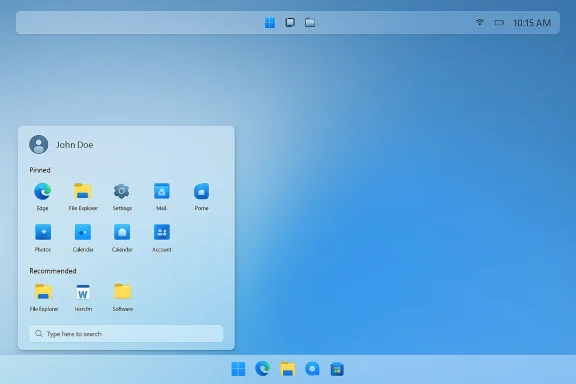
KDE Plasma’s ability to masquerade as Windows 11 is not a parlor trick — it’s a practical, approachable way to make a Linux desktop feel familiar to Windows refugees while keeping the power and polish of Plasma under the hood. The basic recipe is simple: apply a Windows‑style Global Theme, swap the app launcher for a Windows‑like menu widget, and nudge the panel layout to center the launcher. But the devil lives in the details — Plasma 6 compatibility, installation methods, and security trade‑offs matter — and they determine whether the experience is delightfully seamless or a maintenance headache. rview
KDE Plasma is deliberately modular: panels are collections of widgets, themes are composite packages (global themes or “look-and-feel” bundles), and third‑party components — plasmoids and global themes — are widely available in the KDE Store and GitHub. That modularity is what makes a Windows‑like conversion quick and flexible: you can mix and match a Windows‑style look-and-feel, an app launcher widget that imitates the Windows 11 Start menu, and icon / font packs to complete the illusion. At the same time, Plasma 6 introduced architectural changes (Wayland-by-default, refreshed APIs and themes) that have broken or modified how older Plasma 5 themes and widgets install and behave, so a few extra steps and checks are necessary.
This feature walks through what the ZDNET quick guide described — and then expands it: verified installation paths, safe installation methods, troubleshooting tips for Plasma 6, and a clear security warning about third‑party themes and widgets.
ZDNET’s how‑to demonstrates a straightforward path:
Compatibility note: some Menu 11 variants and other Windows‑like menus were authored for Plasma 5 and have reported issues on Plasma 6 (missing QML modules or API mismatches). Expect to try a few variants (Menu 11, Menu 11 Next, Menu 11 Enhanced, Eisteed forks) and read the widget’s description for Plasma 6 compatibility before installing. Community reports show Menu 11 family widgets sometimes misbehave on Plasma 6 or Wayland sessions.
Practical safety steps:
If your goal is a low‑friction migration for a Windows user, KDE Neon (or another Plasma‑current distro) plus carefully chosen, Plasma‑6‑ready packages gives you the quickest path. If your priority is long‑term stability and minimal maintenance, recreate the Windows look using vetted components (icons, fonts, Breeze tweaks) rather than importing an entire, unvetted “look‑and‑feel.” Above all: backup first, inspect packages, and test in a disposable environment before changing a productive machine. The result — a fast, customizable desktop that looks like home and behaves like Linux — can be well worth the modest precautionary work.
Source: ZDNET Want your Linux looking more like Windows? KDE Plasma makes it easy - here's how
KDE Plasma is deliberately modular: panels are collections of widgets, themes are composite packages (global themes or “look-and-feel” bundles), and third‑party components — plasmoids and global themes — are widely available in the KDE Store and GitHub. That modularity is what makes a Windows‑like conversion quick and flexible: you can mix and match a Windows‑style look-and-feel, an app launcher widget that imitates the Windows 11 Start menu, and icon / font packs to complete the illusion. At the same time, Plasma 6 introduced architectural changes (Wayland-by-default, refreshed APIs and themes) that have broken or modified how older Plasma 5 themes and widgets install and behave, so a few extra steps and checks are necessary.
This feature walks through what the ZDNET quick guide described — and then expands it: verified installation paths, safe installation methods, troubleshooting tips for Plasma 6, and a clear security warning about third‑party themes and widgets.
 What ZDNET shows — the short summary
ZDNET’s how‑to demonstrates a straightforward path:- Use System Settings → Appearance → Global Theme to search and install a Windows‑style theme (examples named like “Windows Eleven Plasma 6”).
- Add a Windows‑style application menu widget (Menu 11 or Menu 11 Enhanced) by downloading and installing the widget, then adding it to the panel.
- Center the launcher by inserting Panel Spacer widgets so the launcher and task manager sit in the middle of the panel.
Why KDE Neon (or a Plasma‑current distro) is the easiest place to start
If you want an out‑of‑the‑box Plasma experience with the latest releases and minimal packaging lag, KDE Neon is a logical test bed — it packages KDE software directly from upstream and typically shows new Plasma releases quickly. That means a Neon live USB or install will usually have the Plasma 6 series and the refreshed settings UI that ZDNET demonstrates. If you run another distribution, check which Plasma version you have before applying themes or widgets designed for Plasma 6.Step‑by‑step: a robust, up‑to‑date guide
Below are the same high‑level steps, but with concrete commands, file locations, and Plasma‑6 caveats.1) Pick the right base: check your Plasma version first
- Open System Settings → About This System (or KInfoCenter).
- Confirm the KDE Plasma Version shown. If you see Plasma 6.x, use themes/widgets that explicitly state Plasma 6 support. If you’re on Plasma 5, use the older packages or expect some visual differences.
2) Install a Windows‑style global theme (GUI method)
- Open System Settings → Appearance → Global Theme (or Look and Feel).
- Click “Get New Global Themes…” (or “Get New” / “Get New Look and Feel”). Search for “Win” or “Windows”. Install a theme you trust (names like Windows Eleven Plasma 6 appear in store listings).
- After install, select the theme and click Apply.
- If the Get New dialog fails to load categories or shows “All categories missing,” that’s a known problem in some Plasma environments (the newstuff/ocs backend can be flaky). In that case, manually download and install the theme (see next subsection).
3) Manual installation locations (when one‑click fails)
If the one‑click install doesn’t work, manually place files into the correct directories:- Global Themes (look‑and‑feel): ~/.local/share/plasma/look-and-feel/
- Plasma Styles / desktop styles: ~/.local/share/plasma/desktoptheme/
- Plasmoids (widgets): ~/.local/share/plasma/plasmoids/
- Color schemes: ~/.local/share/color-schemes/
- Icons: ~/.local/share/icons/
4) Install a Windows‑style menu (Menu 11 / Menu 11 Enhanced)
There are two ways to install a menu plasmoid:- GUI: Right‑click the panel → Add Widgets → Add Widgets (or Install widget from local file...) → choose the .plasmoid file.
- CLI: Unpack the widget directory into ~/.local/share/plasma/plasmoids/<widgetname> and install with kpackagetool5 or plasmapkg2.
- If the widget is provided as a folder:
- kpackagetool5 -i ./menu11 (installs a kpackage-style plasmoid)
- If you have a packaged plasmoid file:
- plasmapkg2 --install ./Menu11.plasmoid (older systems)
- Or use the GUI “Install widget from local file…” to avoid CLI tools.
Compatibility note: some Menu 11 variants and other Windows‑like menus were authored for Plasma 5 and have reported issues on Plasma 6 (missing QML modules or API mismatches). Expect to try a few variants (Menu 11, Menu 11 Next, Menu 11 Enhanced, Eisteed forks) and read the widget’s description for Plasma 6 compatibility before installing. Community reports show Menu 11 family widgets sometimes misbehave on Plasma 6 or Wayland sessions.
5) Center the launcher using Panel Spacers
- Right‑click the panel → Show Panel Configuration (or enter Edit Mode).
- Click Add New → choose Spacer (or Panel Spacer). Add one spacer to the left of the launcher and one to the right, then drag them until your launcher and task manager sit centered.
- Exit Edit Mode.
Troubleshooting and compatibility checklist
- “Get New” shows nothing or errors: try manual install to ~/.local/share/plasma/look-and-feel or update the newstuff/ocs packages. Running System Settings from a terminal can reveal error messages like missing category IDs.
- Menu widget crashes or shows QML errors: check for missing dependencies (some menus rely on kdeplasma-addons or specific KWin modules). Installing kdeplasma-addons or other runtime packages often resolves missing QML module errors.
- Plasmoid not appearing after copying to ~/.local/share/plasma/plasmoids/: use kpackagetool5 -i <folder> or the “Install widget from local file…” GUI; log out/in if necessary.
- If things break on Wayland but work on X11 (or vice versa): try the other session type; some plasmoids or effects still behave differently under Wayland in early Plasma 6 rollouts.
Security and stability — the most important caveats
This is the critical section: third‑party global themes and widgets can execute code and have, in documented cases, performed destructive filesystem operations when packaged maliciously or carelessly. A widely discussed incident involved a global theme that executed removal commands and wiped user‑mounted drives; the incident prompted community alarm and calls for safer packaging and curation. In short: global themes are not just colors and icons — they can include scripts and installers. Do not install packages blindly.Practical safety steps:
- Inspect the package before installing. Many plasmoids and themes are just zipped QML + metadata you can open and read. Look for scripts or unusual calls.
- Prefer packages that provide a GitHub repo or clear changelog and that have community reviews.
- Test in a VM or a throwaway live environment before applying to a production machine.
- Back up your home directory or use filesystem snapshots (Timeshift, Btrfs snapshots, LVM snapshots) before bulk theming operations.
- Keep your distro’s security model in mind: installing SDDM login themes or anything that asks for root can be dangerous; understand why a package needs elevated privileges before granting them.
Polishing touches that move the look from “similar” to “convincing”
- Icons: install a Fluent / Candy / Windows‑style icon pack and apply via System Settings → Icons. Consistent icons are a big part of the illusion.
- Fonts: choose a neutral sans; many Windows‑like packs recommend Google Sans / Segoe‑like fonts. Install and select in System Settings → Fonts.
- Kvantum and Plasma Style: some theme packs include Kvantum styles for finer control of widget rendering. Kvantum can help make GTK apps blend better.
- Window decorations: choose a border style that matches Windows 11’s rounded look (some window decorations mimic that).
- Animations and transitions: reduce or fine‑tune the desktop effects to match the snappy – but non‑overly animated — feel of Windows 11.
Advanced: how to revert safely if something goes wrong
- Undo the Global Theme: System Settings → Global Theme → select Breeze (or your distro default) → Apply.
- Remove custom plasmoids: right‑click the panel → Enter Edustom widget.
- Remove manually copied files: delete the relevant entries from ~/.local/share/plasma/look-and-feel/ or ~/.local/share/plasma/plasmoids/.
- If you used plasmapkg2 or kpackagetool5 to install, use the matching remove command (kpackagetool5 -r <pluginname> or plasmapkg2 --remove <name>).
Why you might still choose to do it — and when you might not
Benefits:- Familiarity: Windows‑migrants feel at home quickly.
- Flexibility: KDE lets you keep the window manager, compositor and Linux advantages while changing the shell aesthetics.
- Performance and control: Plasma is lightweight and highly tweakable; you don’t lose functionality by moving away from Windows.
- Maintenance overhead: Theme and widget updates may break across Plasma upgrades — especially moving to Plasma 6. You may need to reapply tweaks or switch to maintained alternatives.
- Security exposure: Unvetted themes/widgets can run scripts or network calls. Vet everything you install.
Final practical checklist before you start
- Verify your Plasma version. If Plasma 6, prefer packages that explicitly say “Plasma 6 compatible.”
- Back up your home directory and/or take a system snapshot.
- Test installs in a VM if you care about production stability.
- Prefer installing widgets via the GUI “Install from local file” or kpackagetool5 / plasmapkg2 instead of blindly trusting web browser one‑clicks if your newstuff integration is flaky.
- After installation, log out and back ikillall plasmashell && kstart5 plasmashell) to ensure changes take effect cleanly.
Conclusion
Turning KDE Plasma into a Windows‑11‑like desktop is both easy and gratifying: a Global Theme, a Windows‑style launcher, and a couple of spacers are all it takes to get a convincing look. But the simplicity of the visual trick hides real technical choices: Plasma 6 changed the landscape for theme and widget compatibility, the KDE Store and newstuff backends are not always seamless, and third‑party themes and plasmoids can include scripts that run with surprising permissions.If your goal is a low‑friction migration for a Windows user, KDE Neon (or another Plasma‑current distro) plus carefully chosen, Plasma‑6‑ready packages gives you the quickest path. If your priority is long‑term stability and minimal maintenance, recreate the Windows look using vetted components (icons, fonts, Breeze tweaks) rather than importing an entire, unvetted “look‑and‑feel.” Above all: backup first, inspect packages, and test in a disposable environment before changing a productive machine. The result — a fast, customizable desktop that looks like home and behaves like Linux — can be well worth the modest precautionary work.
Source: ZDNET Want your Linux looking more like Windows? KDE Plasma makes it easy - here's how
