

Microsoft’s Copilot may feel like a pop‑up co‑worker: sometimes helpful, sometimes intrusive, and for many users it raises questions about control, privacy, and billing. If you want Copilot out of your Microsoft 365 apps—or off for your whole organization—there are now documented, supported ways to do that. This article walks through the practical steps for individual users and IT admins, explains how Copilot is surfaced differently across apps, and lays out the policy and subscription options you should know before you click “Disable.” ([support.microsoft.microsoft.com/en-us/office/how-to-turn-off-copilot-in-microsoft-365-family-and-personal-subscriptions-bc7e530b-152d-4123-8e78-edc06f8b85f1)
Microsoft built Copilot to act as an assistant inside Word, Excel, PowerPoint, Outlook, OneNote and other Microsoft 365 surfaces. For many users it speeds up repetitive work—summaries, quick drafts, chart explanations and slide generation. For others it’s a distraction, a perceived privacy risk, or an unwanted reminder of a subscription feature they didn’t ask for.
Community discussions and IT threads show a steady stream of users looking for reliable ways to remove or limit Copilot at the app, device, and tenant levels. Those threads also show confusion absing Copilot off is permanent (it isn’t—often it’s per‑device or per‑app unless an admin enforces a tenant policy).
Practical points:
For individual users:
However, there are clear risks and friction points:
This guide gave you the exact steps and the admin‑level controls you’ll need to act now, plus the governance checklist to avoid surprises later. If you follow the paths described here, you can regain control of your Office experience while keeping the option to enable Copilot later—on your terms.
Source: Guiding Tech Tired of the AI Assistance? Here’s How to Disable Copilot in Office 365
 Background: why people want to turn Copilot off
Microsoft built Copilot to act as an assistant inside Word, Excel, PowerPoint, Outlook, OneNote and other Microsoft 365 surfaces. For many users it speeds up repetitive work—summaries, quick drafts, chart explanations and slide generation. For others it’s a distraction, a perceived privacy risk, or an unwanted reminder of a subscription feature they didn’t ask for.Community discussions and IT threads show a steady stream of users looking for reliable ways to remove or limit Copilot at the app, device, and tenant levels. Those threads also show confusion absing Copilot off is permanent (it isn’t—often it’s per‑device or per‑app unless an admin enforces a tenant policy).
Overview: the three levels of control
Disabling Copilot generally falls into three levels. Which you use depends on whether you’re a single user, an IT admin for a small org, or an enterprise administrator.- Device / app level: turn Copilot off inside the Office app on the specific computer you’re using. This is the simplest method for personal control.
- Account / subscription level: change privacy settings tied to your Microsoft account or choose a plan that doesn’t include Copilot (Microsoft has offered “Classic” plans in some markets). This affects how Copilot features are provisioned for your account.
- Tenant / admin level: IT administrators can manage Copilot availability across an organization using the Microsoft 365 admin center (Integrated Apps), Intune, or other device/tenant controls. This is the only reliable way to prevent Copilot from reappearing for business users.
For individuals: the simplest in‑app disable (Word, Excel, PowerPoint, OneNote)
If you’re a personal or family subscriber, or you have local admin rights on your machine, the easiest fix is inside each Office 365 app.Step‑by‑step: turn Copilot off in Word (same process applies to Excel, PowerPoint, OneNote)
- Open the Office app (for example, Word).
- Go to File > Options.
- In the left column look for Copilot (it sits between Proofing and Save when present).
- Clear the Enable Copilot checkbox and choose OK.
- Close and restart the app to complete the change.
- The Enable Copilot checkbox is app‑ and device‑specific. If you want Copilot disabled in Word and Excel on the same PC you must change both apps. If you use multiple devices, you must change each device separately.
- Outlook uses a different control: a Turn on Copilot toggle in Outlook’s Quick Settings (or Settings on the web), which applies across devices for the signed‑in account. This means turning it off in Outlook on one device affects other devices using the same account.
- If you don’t see the Copilot entry in Options, your app build may not yet expose the checkbox; updating Office may add it. Version requirements are documented by Microsoft (see the support notes below).
If you can’t find the in‑app option: privacy settings and “Connected experiences”
If your app lacks the “Enable Copilot” checkbox, Microsoft provides another way: disable the connected experiences that allow cloud‑based AI features to analyze your content.How to change account privacy (Windows apps)
- In an Office app go to File > Account > Account Privacy > Manage Settings.
- Under Connected experiences, clear Turn on experiences that analyze your content.
- Restart the app. This will disable a group of features (including Copilot‑style capabilities) across Office apps.
Version notes and platform limits — what Microsoft documents
Microsoft documents the app versions that added the Enable Copilot checkbox and where the Outlook toggle lives. These version numbers matter—if your Office build is older the checkbox won’t appear.- As documented by Microsoft: starting in March 2025 the checkbox was made available in specific builds: Word (Windows) Version 2412, Excel/PowerPoint (Windows) Version 2501, and OneNote Version 2502; Mac builds also have version thresholds.checkbox, update Office.
- You cannot turn off Copilot in the iOS, Android, or web versions of Word, Excel or PowerPoint through the in‑app checkbox; you must use account privacy or admin controls for those platforms.
For IT admins: tenant-level controls and Integrated Apps
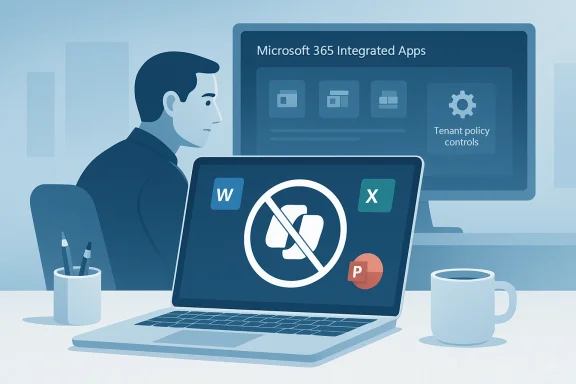
If you manage Microsoft 365 for a business or school, the only reliable route to block Copilot for your users is from the admin console.Integrated Apps in the Microsoft 365 admin center
Microsoft provides an admin control to manage the Copilot app via Integrated Apps in the Microsoft 365 admin center. From there you can:- Deploy or remove the Copilot app.
- Select whether all users can install or only specific groups can install.
- Block the Copilot app tenant‑wide (this blocks Copilot Chat on web and in Outlook as well).
- Blocking the Copilot app through Integrated Apps is tenant‑wide for all users, including those with Microsoft 365 Copilot licenses. If you need a mixed approach—some users with Copilot and some without—you must use group‑based provisioning.
- The “Let users access Microsoft apps in your tenant” setting is not sufficient to block Copilot—the admin should manage the Copilot app directly.
Additional admin options
- Use Intune or AppLocker to restrict the Copilot app or its installation packages on managed devices. Community guidance and IT playbooks reference these options as practical device‑level defenses for managed fleets. However, those approaches require careful testing and are not a substitute for proper tenant policy.
Subscription choices: switch to a “Classic” plan?
Microsoft has introduced new subscription tiers and in some regions offers a “Classic” (non‑AI) plan intended to exclude Copilot. For personal and family subscribers, Microsoft’s guidance suggests downgrading or switching to plans that do not include Copilot if you want to avoid the feature entirely.Practical points:
- Eligibility and the availability of a Classic plan vary by region and by Microsoft’s current marketade options when you manage subscriptions from your Microsoft account—look for offers to move to a “Classic” plan during cancellation flows or billing changes. Microsoft’s own help pages describe these options.
- Regulators have scrutinized Microsoft’s pricing and communications around Copilot and Classic plans in some jurisdictions. For example, Australian authorities investigated how the Classic plan was presented to customers amid price increases, and Microsoft responded with concessions. That case underlines that plan availability and the messaging around downgrades have been contentious. If you’re considering a downgrade primarily to avoid Copilot, check the exact terms offered in your account.
Edge cases and future changes: forced installs, applets, and the product roadmap
Microsoft’s roadmap for Copilot and its distribution has evolved rapidly. Two important developments to keep in mind:- Microsoft has moved toward embedding Copilot across more surfaces (desktop Copilot app, Copilot button in Windows, Copilot Chat sidebar inside Office apps). In some reporting, Microsoft planned or began forced installs of the Copilot app for many desktop users—effectively making Copilot present by default on machines with Microsoft 365 desktop apps unless an admin blocks it for enterprise accounts. This is a major shift in distribution policy that increases the importance of admin controls for organizations.
- Microsoft’s Copilot strategy is two‑tiered: a broadly available in‑app Copilot Chat experience (free to qualifying subscribers) and a paid, tenant‑aware Microsoft 365 Copilot seat that provides deeper, cross‑document, tenant‑sensitive capabilities. This means that blocking the Copilot app stops the in‑app chat for most users, but tenant‑licensed Copilot features may still be provisioned differently for paid seats if the org allows them.
- Monitor Microsoft’s message center and admin center notices for changes to Copilot deployment.
- Test tenant controls in a staging environment before rolling them out.
- Prepare communications for users explaining what’s being disabled and why.
Troubleshooting: common questions and gotchas
- “I unchecked Enable Copilot but the icon returns”—A local uncheck only affects the current app on that device;rovisioning can reintroduce Copilot. Use tenant controls to stop re‑provisioning. ([support.microsoft.comrosoft.com/en-us/office/how-to-turn-off-copilot-in-microsoft-365-family-and-personal-subscriptions-bc7e530b-152d-4123-8e78-edc06f8b85f1)
- “I can’t find the Copilot option in Options”—Update Office to the latest supported version; Microsoft documents the exact build numbers that added the checkbox. If you’re on an organizational account, admins may have blocked the option or provisioned Copilot as a subscription‑level add‑in instead of showing a per‑app toggle.
- “Does turning it off affect my documents?”—Clearing Copilot only disables the assistant. It does not delete or alter your documents. If you switch Connected Experiences off, some AI‑driven features will stop working, so expect a functional trade‑off.
Security, privacy, and compliance considerations
Beyond annoyance and interface preferences, many organizations care about Copilot because of data governance.- Copilot Chat and tenant‑aware Copilot behave differently when it comes to data handling. Tenant‑aware Copilot uses Microsoft Graph and tenant signals to produce answers that respect organizational context; in contrast, public Copilot Chat may rely more on web‑grounded grounding. Admins must evaluate which model is allowed by their compliance posture.
- Turning off connected experiences reduces cloud processing of content and can be an immediate privacy mitigation for individual devices—but it’s blunt and will disable other cloud features. Evaluate the trade‑off if your team relies on services like Designer, text predictions, or suggested replies.
- Because Microsoft’s Copilot rollout and licensing have been subjects of regulatory attention in some countries, procurement and legal teams should track communications from Microsoft closely before making large subscription or policy changes. Recent regulatory scrutiny underscores the importance of transparency in licensing and billing when AI features are introduced.
A practical, conservative checklist for individuals and IT teams
Whether you’re an end user or an IT leader, follow this checklist to avoid surprises.For individual users:
- Update Office to the latest build.
- Check File > Options > Copilot in each app and clear Enable Copilot if present.
- For Outlook, use the Quick Settings Turn on Copilot toggle and note it applies across devices.
- If the checkbox isn’t available, use Account Privacy > Connected experiences to restrict cloud analysis (understand the trade‑offs).
- Evaluate whether Copilot should be allowed at the tenant level and which users (if any) should have access.
- Use Integrated Apps in the Microsoft 365 admin center to control Copilot app availability and to block tenant‑wide if needed.
- Consider Intune/AppLocker or device configuration policies for managed devices as an extra layer of enforcement, but don’t rely on them alone.
- Communicate changes to end users and provide alternatives if connected experiences are disabled.
Strengths and risks: balanced analysis
Microsoft’s approach gives users and admins multiple levers to control Copilot. That flexibility is a strength: individual users can disable the assistant locally without changing org‑level policies, while admins can block Copilot across a tenant when required.However, there are clear risks and friction points:
- Fragmentation risk: the presence of per‑app toggles, account privacy settings, admin controls, and subscription tiers means users can be confused about where to manage Copilot. That confusion increases helpdesk overhead. Community posts confirm frequent user confusion when toggles do not appear or reappear.
- Reprovisioning risk: rollout and forced installs (reported in the press) could make Copilot present by default on devices, putting pressure on admins to adopt blocking strategies. That increases the need for robust tenant governance.
- Compliance and complexity: Copilot’s different modes (free in‑app chat vs paid tenant‑aware Copilot) complicate data governance. Organizations must explicitly map product behavior to compliance requirements.
Final recommendations
- If you’re a personal user who simply finds Copilot distracting: update Office, then uncheck Enable Copilot in each app you use and disable Outlook’s Copilot toggle if needed. This is quick and reversible.
- If you’re an IT admin: evaluate the business need, then use Integrated Apps in the Microsoft 365 admin center to control Copilot at scale. Combine tenant controls with clear user communications and test in a pilot before broad rollout.
- If avoiding Copilot is your reason to change subscriptions: verify the availability and exact terms of any “Classic” plan in your Microsoft account before switching. Regulatory action in some regions shows Microsoft’s subscription messaging has been challenged, so confirm the final bill and feature matrix for your account.
Closing thought
Copilot’s emergence has highlighted a central tension in modern productivity tools: the desire for powerful AI helpers versus the need for clear user control, privacy, and predictable billing. Microsoft has provided multiple ways to disable Copilot—from a simple in‑app checkbox to tenant‑wide admin gates—but the presence of many layers means organizations and users should be intentional. If you want a predictable, AI‑free Office environment, treat Copilot like any other enterprise service: document the policy, assign ownership, and test your controls regularly.This guide gave you the exact steps and the admin‑level controls you’ll need to act now, plus the governance checklist to avoid surprises later. If you follow the paths described here, you can regain control of your Office experience while keeping the option to enable Copilot later—on your terms.
Source: Guiding Tech Tired of the AI Assistance? Here’s How to Disable Copilot in Office 365
