

I converted a regular Windows desktop into a small, resilient automation server by wrapping long‑running tools and scripts with the Non‑Sucking Service Manager (NSSM), and the result was a surprisingly robust, low‑effort way to keep background tasks alive, logged, and automatically restarted — even though NSSM’s last widely published stable build dates back to 2014.
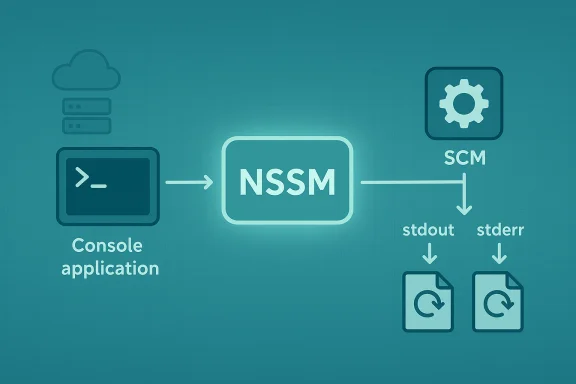
NSSM — the Non‑Sucking Service Manager — is a lightweight Windows service wrapper that lets you run arbitrary executables, scripts, or commands as native Windows services. It provides a small GUI for one‑time configuration, a command‑line interface for scripting, and a number of operational knobs (I/O redirection, restart throttles, log rotation, environment variables, priority and affinity control) that make it suitable for hobbyist automation, development machines, and certain production scenarios. NSSM does not need a formal installer: copy the binary, add it to PATH if desired, and use its commands to install or manage services. Despite its age, NSSM remains widely used because it solves a simple problem extremely well: many programs (including scripts and console tools) are not written as Windows services and therefore do not integrate with the Service Control Manager (SCM). NSSM acts as the lightweight shim that translates SCM service lifecycle events into launching and supervising a normal executable, while retaining SCM compatibility. That capability is what lets an otherwise transient process run continuously before login, after logout, and across reboots.
For mission‑critical, regulated, or enterprise‑scale systems, prefer actively maintained wrappers or vendor‑backed tools with signing, auditing, and formal support. For local automation, development servers, or tightly controlled home‑lab environments, NSSM remains a fast and effective solution — provided that administrators treat it as a powerful tool that must be guarded and audited.
NSSM turns ordinary programs and scripts into persistent services with surprisingly little friction. When used thoughtfully — with secure downloads, least‑privilege service accounts, and logging — it’s an elegant way to turn a Windows PC into a reliable automation server.
Source: XDA I turned my Windows PC into an automation server with nssm
 Background
NSSM — the Non‑Sucking Service Manager — is a lightweight Windows service wrapper that lets you run arbitrary executables, scripts, or commands as native Windows services. It provides a small GUI for one‑time configuration, a command‑line interface for scripting, and a number of operational knobs (I/O redirection, restart throttles, log rotation, environment variables, priority and affinity control) that make it suitable for hobbyist automation, development machines, and certain production scenarios. NSSM does not need a formal installer: copy the binary, add it to PATH if desired, and use its commands to install or manage services. Despite its age, NSSM remains widely used because it solves a simple problem extremely well: many programs (including scripts and console tools) are not written as Windows services and therefore do not integrate with the Service Control Manager (SCM). NSSM acts as the lightweight shim that translates SCM service lifecycle events into launching and supervising a normal executable, while retaining SCM compatibility. That capability is what lets an otherwise transient process run continuously before login, after logout, and across reboots. Why install processes as services (not just scheduled tasks)
Windows offers multiple ways to run programs automatically: Task Scheduler, login/startup entries, and services. Each has trade‑offs.- Task Scheduler is ideal for scheduled, once‑off, or event‑driven jobs that can run under a user’s context and exit when finished. It’s straightforward for maintenance tasks (cleanup, backups, database jobs) and for things that should run when a user is present.
- Services are managed by the SCM and run independently of interactive user sessions. They can start at boot, survive logouts, and be configured to auto‑restart or to run under specific service accounts.
- Wrapping an application as a service is the right choice when the process must run continuously, provide persistent network services (local servers), monitor resources, or maintain uptime across reboots without relying on an interactive session.
What NSSM gives you (feature highlights)
NSSM provides a compact but powerful feature set:- Intuitive GUI installer and equivalent command‑line interface (nssm install <name> [application] [args]).
- Persistent service integration with Windows Service Control Manager (SCM) — start at boot, run before user logon, survive logouts.
- Configurable I/O redirection (AppStdout / AppStderr) and file rotation to capture logs cleanly.
- Restart throttling and restart delay settings to avoid crash loops and provide graceful back‑off.
- Registry‑driven configuration allowing scripted control (nssm set/get) for automation and reproducible setups.
- Environment block control, process priority, and CPU affinity tuning for performance-sensitive services.
A practical walkthrough: turning apps and scripts into services
Below is a compact, practical guide that follows real‑world patterns I used while converting a few utilities into services on a Windows desktop.1. Get NSSM and place it where you’ll keep it
- Download NSSM and extract the appropriate architecture (32‑ or 64‑bit).
- Put nssm.exe somewhere permanent — if you move it after installing services, the SCM will still point at the old location, and services may break. Adding it to your PATH makes it convenient to call from any terminal.
2. Install a simple service with the GUI
- Open an elevated command prompt or PowerShell where nssm.exe lives.
- Run:
nssm install MyService - Use the Application tab to point to your executable (or script runner like cmd.exe or python.exe) and specify arguments. Set the Startup directory and Display name as appropriate.
- Use the Details tab to set the service start type to Automatic (SERVICE_AUTO_START) so it launches at boot.
3. Install from the command line (headless / scripted)
You can bypass the GUI entirely:- Install the service in one command:
nssm install MyService "C:\path\to\binary.exe" --arg1 --arg2 - Configure common settings:
nssm set MyService AppDirectory C:\path\to
nssm set MyService AppStdout C:\var\logs\myservice.log
nssm set MyService AppStderr C:\var\logs\myservice.err
nssm set MyService Start SERVICE_AUTO_START
4. Capture logs and rotate them
- Use AppStdout and AppStderr to capture the service’s output. You can point both to the same file for combined logging.
- NSSM supports file rotation (AppRotateFiles, AppRotateBytes, AppRotateSeconds) and an online rotation option to rotate even while the service is running. Use rotation cautiously: online rotation increases complexity and risk because NSSM intercepts output to implement it.
5. Control restart behavior
- TTL and throttle: configure AppRestartDelay and AppThrottle to avoid instant restart loops that thrash CPU. When NSSM waits between restarts, the service reports as Paused until the delay expires — this is expected behavior.
Real use cases and examples
- Local server daemons (development web servers, reverse proxies, self‑hosted services).
- Watchdogs and monitor scripts that need to run 24/7 without a user session — e.g., ping‑based health monitors that log timestamps and produce alerts.
- Wrapping console utilities or apps that don’t offer built‑in Windows service entry points.
- Enabling persistent background tasks on machines that do not host a full server OS.
Command cheat‑sheet (common nssm commands)
- Install using interactive GUI:
nssm install <ServiceName> - Install from command line:
nssm install <ServiceName> "<path to exe>" [args...] - Configure settings:
nssm set <ServiceName> AppDirectory C:\path\to\app
nssm set <ServiceName> AppStdout C:\logs\stdout.log
nssm set <ServiceName> AppStderr C:\logs\stderr.log
nssm set <ServiceName> Start SERVICE_AUTO_START - Start/Stop/Restart:
nssm start <ServiceName>
nssm stop <ServiceName>
nssm restart <ServiceName> - Remove a service:
nssm remove <ServiceName> confirm
Alternatives to NSSM — when to pick something else
NSSM is one of several service wrappers; choice depends on requirements:- sc.exe (Windows built‑in): Use sc create to register a native Windows service executable, but note that plain interpreters or batch files are not true Windows service programs and will fail unless wrapped. Use sc.exe when you have a proper service binary or when you want minimal dependency.
- WinSW (Windows Service Wrapper): XML‑driven wrapper favored in some CI and enterprise contexts (e.g., Jenkins). WinSW has more modern development, robust XML config, and is actively maintained. Choose WinSW if you want a more feature‑rich or XML‑first approach.
- Commercial wrappers (AlwaysUp, FireDaemon): These provide polished GUIs, enterprise support, and extra reliability features — useful for production servers where vendor support matters.
- SRVANY: an older Microsoft tool; it works but is outdated and less feature‑complete than modern wrappers.
Security — the legitimate power and the danger
NSSM’s power to convert arbitrary programs into services is a double‑edged sword. That same convenience has made it attractive for misuse: adversaries have leveraged NSSM (or modified variants) to persistently install miners, backdoors, and other unwanted payloads as services. Security vendors frequently flag NSSM usage in forensic traces and sometimes classify NSSM as riskware or hacktool because of the way it can be abused in post‑exploitation scenarios. Key risk points:- Running services as SYSTEM or with overly broad privileges increases lateral‑movement and persistence risk.
- Unverified NSSM binaries or modified builds may contain backdoors; always obtain NSSM from the official distribution and verify checksums.
- Attackers may bundle NSSM within a malicious installer to persist their payload; detection engines often flag packages that include NSSM alongside clearly malicious content.
- Many security products generate alerts when NSSM appears in unusual contexts (e.g., on endpoints where it’s not part of the standard toolchain).
- Download only from the official project distribution and verify integrity if authors publish signatures or checksums. Treat random third‑party builds with suspicion.
- Limit who can install services via local security policy and group policy (only administrators should register services).
- Avoid running untrusted scripts or binaries as SYSTEM; prefer service accounts with the minimum privileges necessary.
- Monitor and alert on new services, changes to service ImagePath, and unexpected use of service wrappers. Maintain a baseline of approved services.
- Use EDR/AV policy to flag or block suspicious wrappers on systems where they are not required. Vendor engines sometimes label NSSM detections as riskware, so coordinate whitelisting carefully if you authorize it in a managed environment.
Operational caveats, hard lessons, and best practices
- Don’t move nssm.exe after installing services. The SCM entry references the wrapper’s path; moving or deleting the binary breaks the service.
- Service identity matters. If a wrapped script accesses network resources, file shares, or credentials, ensure the service runs under an appropriate account with scoped privileges.
- Logging under system contexts: choose log locations that the service account can write to. Avoid writing to user profiles, which may not exist at service start.
- Watch out for interactive programs. GUI apps or anything that requires desktop interaction is a poor fit for services and may hang or fail.
- Test stop/start behavior. NSSM provides stop methods (console, kill, etc.; ensure your app responds gracefully to stop signals and that NSSM’s configured stop method matches your app’s behavior.
When NSSM is the right tool — and when it’s not
Use NSSM when:- You need a quick, reliable way to run a console program or script as a background service.
- You want simple, scriptable service management with logging and restart policies.
- You’re running on a desktop or small server where a lightweight wrapper is preferable to a larger dependency stack.
- You require signed, vendor‑supported service infrastructure for enterprise compliance.
- The application must integrate deeply with Windows service APIs (stop/pause notifications at the SCM level are limited by wrapper semantics).
- You need features unique to other wrappers (complex XML config, automatic update hooks, or vendor‑backed support).
Example: turning a watchdog script into a resilient service (step‑by‑step)
- Write the script (watchdog.ps1 or watchdog.py) to run an infinite loop with sleeps and health checks, and ensure it writes logs to a deterministic folder.
- Place the script and interpreter in a permanent location, e.g., C:\srv\watchdog.
- Install NSSM and run:
nssm install WatchdogService "C:\Windows\System32\WindowsPowerShell\v1.0\powershell.exe" -File "C:\srv\watchdog\watchdog.ps1" - Configure stdout and stderr:
nssm set WatchdogService AppStdout C:\srv\watchdog\watchdog.log
nssm set WatchdogService AppStderr C:\srv\watchdog\watchdog.err - Set automatic start and a restart delay:
nssm set WatchdogService Start SERVICE_AUTO_START
nssm set WatchdogService AppRestartDelay 60000 - Start the service:
nssm start WatchdogService
The maintenance story: support status and long‑term concerns
NSSM’s most widely distributed stable builds show version strings from 2014 and subsequent community builds and forks exist. The official project documentation notes version and bugline details, and a number of community forks and mirrors exist to address compatibility or patch issues on newer Windows releases. Because of this, baseline compatibility with modern Windows tends to be community‑driven rather than centrally maintained. That makes it essential to test NSSM thoroughly in your target environment and, if necessary, prefer actively maintained alternatives for long‑lived production workloads.Final verdict — pragmatic, not panacea
NSSM is a pragmatic, high‑ROI tool for turning a Windows workstation into a small automation server. Its ease of use, simple GUI, and scriptable command line make it an outstanding choice for developers, home labs, and small operations where you need a process supervised by SCM without writing a full Windows service. Its age is not a liability in itself — the code does what it sets out to do — but its stagnation and the fact that it is easy to misuse means you should apply operational discipline: download official builds, restrict who can install services, and monitor service changes.For mission‑critical, regulated, or enterprise‑scale systems, prefer actively maintained wrappers or vendor‑backed tools with signing, auditing, and formal support. For local automation, development servers, or tightly controlled home‑lab environments, NSSM remains a fast and effective solution — provided that administrators treat it as a powerful tool that must be guarded and audited.
NSSM turns ordinary programs and scripts into persistent services with surprisingly little friction. When used thoughtfully — with secure downloads, least‑privilege service accounts, and logging — it’s an elegant way to turn a Windows PC into a reliable automation server.
Source: XDA I turned my Windows PC into an automation server with nssm
