

Windows 11’s new Start Menu can be reshaped into a near‑perfect replica of an Android app drawer — and with a few deliberate toggles and a little patience you can achieve a fast, alphabetical, one‑page app launcher that feels more like a phone than a relic of the 1990s GUI era.
When Microsoft first shipped the Start Menu in 1995 it solved a core usability problem: quickly find and launch applications. Over three decades the Start Menu has evolved, sometimes dramatically, but its role has remained the same: a centralized place to access apps, search, and system controls. Windows 11’s recent Start Menu refresh pushes that evolution into a new direction: a scrollable, customizable hub that borrows concepts from mobile OS launchers — grid layout, category grouping, and a compact “all apps” experience — while retaining desktop functionality. Early coverage and documentation show Microsoft repositioning the “All apps” list into the main Start surface and adding multiple display modes: Category, Grid (alphabetical), and a legacy List view. Microsoft has rolled this redesign out gradually via the company’s controlled feature rollout process and through cumulative updates (the October/November 2025 updates and related non‑security previews are commonly cited). That gradual distribution is why some PCs see the new Start menu immediately while others don’t — the change is gated by build number and rollout targeting rather than a single, instant global flip. At the same time Microsoft integrated Phone Link (formerly Your Phone) more tightly into Start with a collapsible mobile device pane that surfaces recent calls, messages, and photos. That feature is indexable via Settings and can be toggled on and off per user. Microsoft’s support documentation lists the exact toggle path and outlines Phone Link prerequisites. This article walks through the exact steps to reproduce the Android app‑drawer aesthetic on Windows 11, verifies the critical settings and requirements, and offers a balanced analysis of strengths, risks, and alternatives.
Below is a verified, polished how‑to with additional context and troubleshooting.
However, there are real compromises. Microsoft’s coupling of Recommended controls to File Explorer and Jump List behaviors is clumsy: users who only want to hide suggestions end up sacrificing recents that are genuinely useful. The controlled rollout model also produces inconsistent experiences across machines, which is a management headache for IT and a confusing user experience for households with multiple PCs. The presence of registry and ViVeTool workarounds highlights that some users will push the UI earlier than Microsoft intends — and that carries risk. The approach is overall a net positive for those who want a simplified, app‑drawer experience. It’s a thoughtful modernization that brings Windows closer to the discovery patterns users already use on phones and tablets. But the details matter: read the settings and understand the privacy and productivity trade‑offs before toggling everything off.
Source: Pocket-lint I transformed my Windows 11 Start Menu into an Android app drawer - here's how
 Background
When Microsoft first shipped the Start Menu in 1995 it solved a core usability problem: quickly find and launch applications. Over three decades the Start Menu has evolved, sometimes dramatically, but its role has remained the same: a centralized place to access apps, search, and system controls. Windows 11’s recent Start Menu refresh pushes that evolution into a new direction: a scrollable, customizable hub that borrows concepts from mobile OS launchers — grid layout, category grouping, and a compact “all apps” experience — while retaining desktop functionality. Early coverage and documentation show Microsoft repositioning the “All apps” list into the main Start surface and adding multiple display modes: Category, Grid (alphabetical), and a legacy List view. Microsoft has rolled this redesign out gradually via the company’s controlled feature rollout process and through cumulative updates (the October/November 2025 updates and related non‑security previews are commonly cited). That gradual distribution is why some PCs see the new Start menu immediately while others don’t — the change is gated by build number and rollout targeting rather than a single, instant global flip. At the same time Microsoft integrated Phone Link (formerly Your Phone) more tightly into Start with a collapsible mobile device pane that surfaces recent calls, messages, and photos. That feature is indexable via Settings and can be toggled on and off per user. Microsoft’s support documentation lists the exact toggle path and outlines Phone Link prerequisites. This article walks through the exact steps to reproduce the Android app‑drawer aesthetic on Windows 11, verifies the critical settings and requirements, and offers a balanced analysis of strengths, risks, and alternatives.Overview of the transformation
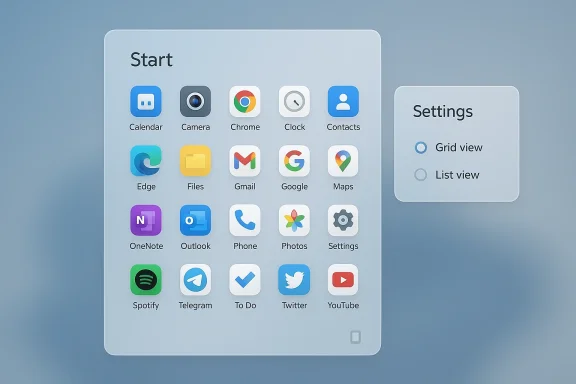
The “app drawer” effect is achieved by combining four actions:- Remove the mobile device pane or collapse it to reclaim Start real estate.
- Disable the Recommended/Most used sections that introduce dynamic, context‑sensitive clutter.
- Switch the All apps view to Grid (alphabetical) so apps appear in a tight, icon‑first layout.
- Remove pinned apps from the Pinned area so the Start surface is dominated by the grid of all installed apps.
Below is a verified, polished how‑to with additional context and troubleshooting.
Step‑by‑step: Turn Windows 11 Start into an app drawer
Before you begin — check compatibility and updates
- Confirm your Windows build and update channel. The new Start has been rolled out to builds shipped with the 2025 feature updates and related previews; if you don’t see the new menu, check Windows Update and your build with winver. Some reporting points to builds released with the October/November 2025 updates (and specific builds like those in the 26100/26200 family) as the baseline for the redesign.
- Ensure Phone Link is up to date if you plan to use or hide the mobile pane. Phone Link version requirements and Wi‑Fi/Bluetooth prerequisites are documented in Microsoft’s Start/Phone Link guidance.
1. Turn off or collapse the mobile device pane
The Start menu now offers a small phone icon that expands or collapses a mobile device pane. If a linked phone is present, this pane provides a quick view of your phone’s battery, messages, photos, and calls. For a clean app‑drawer look you can either hide it completely via Settings or collapse it from the Start surface itself.- Settings path: Settings > Personalization > Start > Show mobile device in Start — toggle off to remove the mobile pane. Microsoft’s support documentation explicitly explains this control and lists Phone Link prerequisites.
- Quick collapse: If you’d like to keep the functionality but not the space, use the small phone icon in the top right of Start to collapse/expand the pane quickly. This gives you the best of both worlds: functionality on demand, minimal footprint by default.
2. Disable Recommended and Most used sections
The Recommended section aggregates recently added apps, recommended files, and frequently used content — useful for discovery, but noisy if you want a pure app list.- Settings: Settings > Personalization > Start — toggle off the following options:
- Show recently added apps
- Show recommended files in Start, recent files in File Explorer, and items in Jump Lists
- Show recommendations for tips, shortcuts, new apps, and more
- Show websites from your browsing history
- Show most used apps
3. Switch to Grid View (the heart of the app drawer)
The Grid or Name Grid option converts All apps into an alphabetical grid much like Android’s app drawer. This is the single most important change to imitate a mobile launcher.- Open Start, click View (the drop‑down inside All apps).
- Select Grid from the drop‑down (alternatively choose Name Grid, depending on your exact Start build — Microsoft has been rolling multiple labels during the testing phase).
- Start will remember your selection across reboots.
4. Remove all pinned apps
To ensure the Start surface shows the full grid, unpin the apps at the top of Start. The pinned area can be removed automatically when empty.- Right‑click or long‑press pinned apps and choose Unpin from Start.
- Repeat until the pinned area disappears and the grid becomes the dominant visual element.
Why this works (and why Microsoft added it)
- Faster app discovery: a dense alphabetical grid reduces the need to scroll through categories or dig into subpages. For users with hundreds of installed apps, an alphabeticald grid is often the fastest path to find an app visually, especially for touch or keyboard input.
- Cross‑device familiarity: many users now spend equal time between phone and PC; copying mobile metaphors (grid icons, collapsible phone pane) reduces cognitive friction when switching contexts.
- Customizability: Microsoft’s updated Start settings let users tailor the experience to preferences — you can keep pins and recommendations if you value curated content, or remove them for an app‑drawer hygiene. Multiple sources confirm the new toggles and options.
Risks, trade‑offs, and caveats
No UI change is free of trade‑offs. Here are the key issues to understand.- Loss of file and recent‑activity convenience: disabling Recommended removes recent files from Start and affects Jump Lists and File Explorer recents. If you rely on Start for quick access to documents, you may lose that convenience. Microsoft groups those toggles together, so this is a real functional trade‑off.
- Inconsistent rollout and support: because Microsoft uses a controlled feature rollout, some users will get the new Start earlier than others. The result is a fragmented experience across machines and potentially across user accounts — the setting might be present for one account and absent for another on the same machine. Community threads and Microsoft Q&A report cases where the toggle is missing, or the pane behaves differently depending on account type. If you administer multiple machines, expect staggered availability.
- Reversion is limited: once the new Start arrives there’s usually no official “switch back” to the legacy layout. You can hide or disable elements inside the new Start, but the modern shell is the delivered default. Third‑party workarounds exist but carry risk.
- Registry and ViVeTool risks: power users have used ViVeTool and registry edits to force the new Start earlier or enable hidden options. These methods can work but are unsupported and can break with updates; they should be considered advanced and used with caution. Microsoft’s official guidance warns about relying on such tooling. Community threads also show registry edits used to toggle Phone Link visibility, but those are stop‑gap measures.
- Privacy and data surface area: the Recommended section can surface websites from browsing history and file activity; hiding it reduces exposure of recent activity to other people who might glance at your Start menu. That’s a privacy plus — but it comes at the cost of some contextual productivity cues.
Advanced tips, alternatives and third‑party options
- If you want a different launcher model or restore a legacy Start UI, third‑party tools like Start11, StartAllBack, or Classic Start alternatives remain viable. These tools give deeper control over the Start UI and can replicate Windows 10 or even pre‑Windows 95 styles. Community resources recommend these apps for users who need very specific behavior, but they are not free in all cases and can conflict with Microsoft updates.
- For users who enjoy deep customization beyond Start, Rainmeter remains the tool of choice to build bespoke launchers and widgets — but that’s a different approach and requires skinning and configuration.
- If the mobile pane toggle is missing, try:
- Confirm Windows is fully updated and on a supported build.
- Check Settings > Personalization > Start for the Show mobile device toggle.
- If missing, ensure Phone Link is installed and updated and that your account conditions meet the documented prerequisites.
- As a last resort, follow community‑documented registry keys that toggle the Start companion entry — but only if you understand registry risk. Microsoft Q&A threads document both the registry key path and community workarounds.
Troubleshooting common issues
- “I don’t have the Grid option”: Confirm the new Start rollout is present on your PC (winver/build). If you’re on an older build the grid/category options may not exist. If you have the new Start and still see only Category/List, the UI labels might differ between builds — look for “View” in the All apps area.
- “The mobile pane appears but I can’t hide it”: In some reported cases the toggle is missing. Community solutions include collapsing the pane via the phone icon or toggling the feature at Settings > Personalization > Start. If none of that works, ensure Phone Link is functional and try signing in to a Microsoft account — some users report differences between local and Microsoft accounts. Microsoft Q&A threads are a good diagnostic starting point.
- “Updates broke my Start layout”: If an update changes Start unexpectedly, review the new Start settings and reapply your preferred toggles. If a third‑party Start replacement was in use, uninstall it before major updates and reinstall if necessary after confirming compatibility.
Practical recommendations
- For day‑to‑day users who prefer minimalism: follow the four-step process (hide mobile pane, disable Recommended, set Grid, clear pins). Keep frequently used apps on the taskbar instead of Start pins.
- For power users who rely on recent files and Jump Lists: don’t disable Recommended unless you’re comfortable using alternative quick‑access tools (Quick Access in File Explorer, taskbar pinning, or productivity launchers).
- For administrators: pilot the change on a small set of devices before broader deployment. Controlled feature rollouts mean some users will update faster than others; align expectations and provide a short how‑to for toggles and privacy controls.
- For those who need both worlds: collapse the mobile pane rather than fully hiding it and use the grid view while retaining a small set of pinned app folders for very frequently used tools.
Final analysis — strengths and weaknesses
The new Start Menu makes a sensible concession: desktop users increasingly expect mobile ergonomics. The grid layout and category grouping are not mere cosmetics; they materially change discovery and reduce friction when you want to find an app quickly. The collapsible Phone Link pane is a smart move — it surfaces cross‑device continuity without permanently consuming space.However, there are real compromises. Microsoft’s coupling of Recommended controls to File Explorer and Jump List behaviors is clumsy: users who only want to hide suggestions end up sacrificing recents that are genuinely useful. The controlled rollout model also produces inconsistent experiences across machines, which is a management headache for IT and a confusing user experience for households with multiple PCs. The presence of registry and ViVeTool workarounds highlights that some users will push the UI earlier than Microsoft intends — and that carries risk. The approach is overall a net positive for those who want a simplified, app‑drawer experience. It’s a thoughtful modernization that brings Windows closer to the discovery patterns users already use on phones and tablets. But the details matter: read the settings and understand the privacy and productivity trade‑offs before toggling everything off.
Quick reference: concise checklist
- Update Windows and confirm build supports new Start (use winver).
- Settings > Personalization > Start: toggle off mobile pane (or collapse it from Start).
- Settings > Personalization > Start: disable the Recommended/Most used toggles you don’t want.
- Start > View > Grid (Name Grid) to get alphabetical, dense icons.
- Unpin all apps to remove the Pinned area and maximize grid space.
Closing thoughts
Turning Windows 11’s Start into an Android‑style app drawer is an elegant example of modern OS design thinking: adopt familiar metaphors where they improve usability, and give users clear toggles to tailor complexity. Microsoft’s implementation provides meaningful flexibility, but it’s not a one‑size‑fits‑all win — there are privacy trade‑offs, administrative considerations, and edge cases in rollout behavior. For users who value a clean, app‑centric launcher, the new Start delivers precisely what’s needed: a fast, scannable, and familiar grid that makes large app libraries manageable again.Source: Pocket-lint I transformed my Windows 11 Start Menu into an Android app drawer - here's how
