

My Windows lock screen was a blank, forgettable slab of gray for years—now it’s a concise, personal dashboard that greets me with useful info and a little motion, and it took just a few deliberate changes to get there. As the MakeUseOf walkthrough that inspired this overhaul explains, a few targeted tweaks—theme, animated wallpaper tools, widgets, and desktop skins—turn the lock screen from wasted space into a welcome, productive surface without breaking your workflow. lock screen is more than decoration: it’s the first screen you see when waking a PC and the last one when you put it aside. Windows exposes a set of built‑in personalization and status features—background selection, Windows Spotlight, app status, and a new generation of widgets—that let the lock screen do more than sit there. Microsoft documents these settings in the official lock screen personalization guide and explains the built‑in “Weather and more” integration that surfaces quick updates and context without unlocking your device.
At the same time, third‑party tools let you push aesthetics and functionality further. Free, open‑source apps such as Lively Wallpaper and Rainmeter are prominent in the Windows customization community: Lively enables animated and interactive wallpapers, while Rainmeter is a long‑standing toolkit for desktop widgets (known as “skins”). Both projects are actively maintained and explicitly position themselves as lightweight, open alternatives to closed ecosystems.
This article summarizes the MakeUseOf approach, validates the major claims against public documentation and project repositories, and offers a practical, security‑minded guide for turning a boring Windows lock screen into something you’ll enjoy seeing every time you open your laptop.
The MakeUseOf piece lays out four practical pillars for a lock‑screen makeover:
Important caveat: Lively is designed to set animated desktop wallpapers and screensavers, and while it can handle screensaver formats, setting the Windows lock screen background is controlled by the OS. The MakeUseOf article suggests Lively “extends to the lock screen,” but that depends on how you interpret “extends”: Lively can make animated wallpapers and screensavers and may be used in creative workflows, but changing the official lock‑screen image via third‑party apps is limited by Windows APIs and may require workarounds. Treat any claim that Lively will reliably replace the lock screen background across Windows builds with caution unless you test it on your machine.
Performance and battery: Lively documents sensible safeguards (pause on battery, pause during fullscreen apps), but animated wallpapers are still more resource‑intensive than static images. If you rely on battery life or thermals, test before committing.
Security note: Rainmeter skins often execute small scripts, fetch web data (for weather or feeds), or rely on third‑party plugins. Only install skins from trusted sources and inspect skin bundles before running them if you’re concerned about privacy or network activity.
A well‑designed lock screen does two things at once: it makes waking your PC a nicer moment, and it saves you tiny seconds across the day by surfacing essential information at a glance. The MakeUseOf method gives a sensible, testable recipe for turning a wasted slab of gray into a polished, productive surface—while the official Windows docs and reputable community tools provide the technical foundation to do it safely and reversibly.
Source: MakeUseOf Your boring Windows lock screen is wasted space, here’s how I fixed mine
At the same time, third‑party tools let you push aesthetics and functionality further. Free, open‑source apps such as Lively Wallpaper and Rainmeter are prominent in the Windows customization community: Lively enables animated and interactive wallpapers, while Rainmeter is a long‑standing toolkit for desktop widgets (known as “skins”). Both projects are actively maintained and explicitly position themselves as lightweight, open alternatives to closed ecosystems.
This article summarizes the MakeUseOf approach, validates the major claims against public documentation and project repositories, and offers a practical, security‑minded guide for turning a boring Windows lock screen into something you’ll enjoy seeing every time you open your laptop.
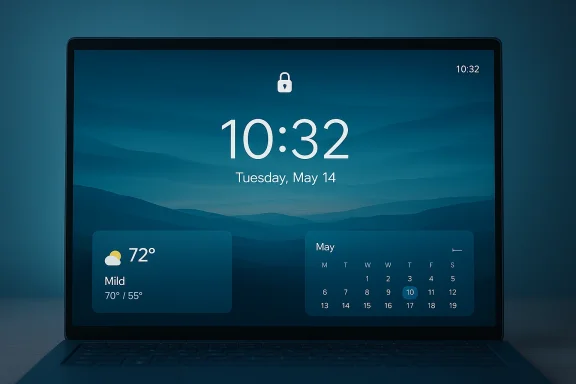 Overview of the MakeUseOf makeover
The MakeUseOf piece lays out four practical pillars for a lock‑screen makeover:- Start with a theme to refresh the visual baseline.
- Add motion using Lively Wallpaper to make the device feel alive.
- Make the lock screen customizing widgets (Windows 11’s Widgets/Weather and more).
- Go all in with Rainmeter for deep desktop-level customization and skins.
What you can change in Windows itself (the safe baseline)
Built‑in personalization (themes, Spotlight, slideshow)
Windows exposes a clear path for lock screen customization in Settings > Personalization > Lock screen. You can choose:- Windows Spotlight (rotating curated imagery and occasional tips),
- Picture (single image), or
- Slideshow (folder of images).
Microsoft’s support documentation also describes options like “Make the lock screen image react when I move my PC” (subtle parallax) and whether to show the background on the sign‑in screen. These are the least risky, most reversible changes you can make.
Lock screen status and notifications
Windows allows a detailed status app (for example, the “Weather and more” app) and multiple quick status indicators for apps like Mail or Calendar. You can also disable lock‑screen notifications entirely if you prefer privacy. These controls live in Settings and are the primary safety knobs for information exposure on the lock screen.Widgets on the lock screen (Windows 11)
Recent Windows 11 builds expanded lock‑screen widget support—Microsoft’s Weather and Widgets ecosystem powers small, glanceable cards you can show or hide. Third‑party reporting and how‑tos note that widgets are enabled by default on many systems and can be managed from the Widgets panel and Lock screen settings. If you want a clean lock screen, you can remove or restrict these widgets; if you prefer utility, you can pin a few essential widgets such as weather or calendar.Third‑party tools: what they really do, and what the risks are
Lively Wallpaper — motion for your desktop
Lively Wallpaper is an open‑source project that supports videos, GIFs, web pages, shaders, live streams, and more as animated wallpapers. It has features to pause playback during fullscreen apps, on battery, or during remote sessions to minimize performance impact. The project’s GitHub README and releases show active development and a GPL license, making it a zero‑cost way to add motion to your desktop.Important caveat: Lively is designed to set animated desktop wallpapers and screensavers, and while it can handle screensaver formats, setting the Windows lock screen background is controlled by the OS. The MakeUseOf article suggests Lively “extends to the lock screen,” but that depends on how you interpret “extends”: Lively can make animated wallpapers and screensavers and may be used in creative workflows, but changing the official lock‑screen image via third‑party apps is limited by Windows APIs and may require workarounds. Treat any claim that Lively will reliably replace the lock screen background across Windows builds with caution unless you test it on your machine.
Performance and battery: Lively documents sensible safeguards (pause on battery, pause during fullscreen apps), but animated wallpapers are still more resource‑intensive than static images. If you rely on battery life or thermals, test before committing.
Rainmeter — advanced desktop widgets and ‘skins’
Rainmeter is a mature, open‑source toolkit for desktop customization that displays modular skins showing system stats, clocks, weather, app launchers, and much more. It’s explicitly intended for the desktop and is not a lock‑screen tool per se. Rainmeter’s official site and GitHub repo document the software, its GPL license, and an active community distributing thousands of skins. Rainmeter is generally lightweight and designed to use minimal resources, but heavy or complex suites can still tax older machines.Security note: Rainmeter skins often execute small scripts, fetch web data (for weather or feeds), or rely on third‑party plugins. Only install skins from trusted sources and inspect skin bundles before running them if you’re concerned about privacy or network activity.
A step‑by‑step makeover (concrete, verifiable steps)
This checklist blends MakeUseOf’s recommendations with validated Windows controls and community tools. It’s written so you can apply the changes safely and roll them back if needed.- Backup current personalization settings and a system restore point (optional, for peace of mind).
- Start with a theme: Settings > Personalization > Themes. Pick a theme or create one from your favorite wallpaper and accent colors. This is quick and reversible and immediately lifts the visual baseline.
- Choose your lock screen background:
- In Settings > Personalization > Lock screen, select Picture, Slideshow, or Windows Spotlight.
- Uncheck “Get fun facts, tips, tricks, and more on your lock screen” if you want fewer distractions.
- Configure lock‑screen status and widgets:
- Under Lock screen settings, select one app for detailed status (Weather and more is common) or choose None for privacy.
- Open the Widgets panel (Win + W) to customize the feed and widget behavior; remove or hide widgets you don’t want to appear.
- Install Lively Wallpaper (optional, for motion):
- Download Lively from the official GitHub releases and run the installer. Configure playback rules (pause on battery, pause during fullscreen apps) in the app settings. Test resource usage and responsiveness. Note Lively’s strengths are animated desktop wallpaper and screensavers; changing the lock screen background may be limited.
- Install Rainmeter (optional, advanced):
- Get Rainmeter from rainmeter.net and install a starter skin or suite. Position skins around your desktop for glanceable info (system stats, calendar, media controls) and keep network‑fetching skins to a minimum if privacy or data usage is a concern.
- Fine‑tune privacy settings:
- Settings > System > Notifications to control whether notifications appear on the lock screen.
- Settings > Accounts > Sign‑in options to hide account details on the sign‑in screen if you’re in shared spaces. These prevent sensitive details from leaking before authentication.
Security and privacy: what to watch for
A beautiful lock screen is great, but convenience has trade‑offs. These are the highest‑impact considerations.- Exposed notifications and account details: If you allow notifications or choose to show account details on the sign‑in screen, anyone with physical access can read them. Unless you exclusively use your laptop in a private environment, disable unnecessary lock‑screen notifications and hide account details. Windows documents these exact toggles in Settings.
- Widgets and dynamic cards: Widgets are convenient but may show content sourced from cloud services. Keep only the widgets you need and disable open suggestion features that automatically add content. Windows Central notes that widgets are enabled by default on many systems.
- Third‑party apps and skin sources: Lively and Rainmeter themselves are open source and widely used, but skins, widgets, or web‑based wallpapers can include remote content. Vet and download skins from reputable repositories; avoid executing arbitrary scripts from unknown authors. Rainmeter’s discover and community pages stress caution when sourcing skins.
- Performance vs. aesthetics: Animated wallpapers and data‑heavy skins add CPU/GPU load and may reduce battery life. Both Lively and Rainmeter provide controls and community guidance to minimize impact (pause rules, efficient skins). Test on your hardware before making an animated setup permanent.
Advanced customization: how to make it uniquely yours
For enthusiasts who want a truly bespoke experience, the combination of Rainmeter suites and Lively backgrounds opens near‑endless possibilities. Here are practical, reproducible ideas.- Use Rainmeter skins as a desktop control center and reserve the lock screen for critical glanceable items like weather and calendar. This keeps privacy high while letting the desktop be expressive.
- Use Lively to set an animated wallpaper that reacts to audio or time of day—paired with a subtle Rainmeter clock in the center, it can feel like a living, helpful interface. Remember to enable Lively’s performance rules so full‑screen apps and battery usage aren’t impacted.
- Create a “transition” visual identity so the lock screen and desktop feel consistent: choose the same accent color, pick wallpapers from the same image family, and use matching font styles inside Rainmeter skins.
- If you want the lock screen to show more than the standard Windows cards, explore the Widgets panel to add and configure the available cards; however, resist giving lock‑screen widgets access to data you wouldn’t want visible when the device is locked.
Compatibility, version notes, and verifications
- Lively Wallpaper is actively maintained on GitHub and distributed under GPL; official repo details confirm features like video/GIF/web wallpapers, performance controls, and screensaver support. Check the project’s releases for the latest installer and changelog.
- Rainmeter is an established, actively developed desktop customization toolkit. The official site and GitHub repo document version history, installation instructions, and community resources for skins and suites. Recent Rainmeter releases and documentation confirm that it runs on Windows 7 through Windows 11 and emphasizes low resource usage.
- Windows lock‑screen features and widgets are controlled by the OS. Microsoft’s support pages explain the official personalization settings and privacy toggles; independent outlets like Windows Central provide practical walkthroughs and testing notes for managing lock‑screen widgets in Windows 11. If you’re running a specialized enterprise build or an older Windows release, behavior may differ—group policy and IT restrictions can lock down personalization options.
Pros, cons, and final verdict
Pros
- Immediate visual payoff: A theme change or a well‑chosen static wallpaper yields instant improvement.
- Glanceable utility: Lock‑screen status and carefully selected widgets deliver fast info (weather, calendar) without unlocking.
- Customization scale: You can stop at subtle tweaks or go deep with Lively + Rainmeter to craft a signature environment.
Cons / Risks
- Privacy leakage: Notifications, account details, or the wrong widget can reveal sensitive information to ayour device. Always double‑check lock‑screen notification settings.
- Performance / battery cost: Animated wallpapers and heavy skins increase resource usage; both Lively and Rainmeter include mitigations, but you should measure on your hardware.
- OS limitations: Third‑party tools are powerful, but Windows ultimately controls the lock screen. Expect variation across Windows builds and corporate/managed devices.
Quick checklist to finish the job (copy‑and‑paste)
- [ ] Apply a new Theme in Settings > Personalization > Themes.
- [ ] Set Lock screen background to Picture or Slideshow (or Spotlight) and disable “Get fun facts…” if you want less noise.
- [ ] Open Widgets (Win + W), remove unwanted widgets, and pin only essentials to the lock screen.
- [ ] Install Lively Wallpaper for animated desktop backgrounds; enable pause‑on‑battery and fullscreen pause. Test battery and CPU usage.
- [ ] Install Rainmeter and a trusted skin suite for desktop widgets; avoid untrusted skin sources.
- [ ] Audit Notifications and Sign‑in options to prevent info leakage from the lock screen.
A well‑designed lock screen does two things at once: it makes waking your PC a nicer moment, and it saves you tiny seconds across the day by surfacing essential information at a glance. The MakeUseOf method gives a sensible, testable recipe for turning a wasted slab of gray into a polished, productive surface—while the official Windows docs and reputable community tools provide the technical foundation to do it safely and reversibly.
Source: MakeUseOf Your boring Windows lock screen is wasted space, here’s how I fixed mine
