

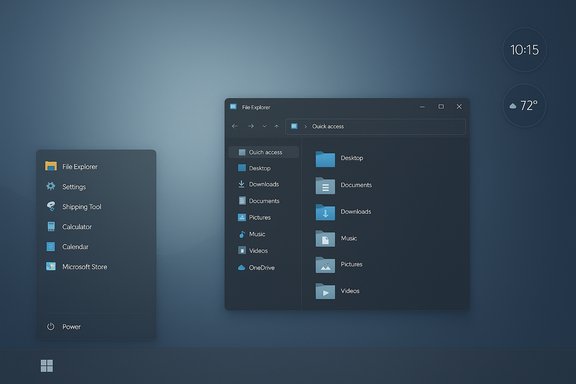
Windows can look cleaner than macOS — sometimes far cleaner — with a handful of deliberate visual decisions and a small set of community tools that tidy the interface without breaking productivity or habit. The MakeUseOf walk-through that inspired this approach reduced visual clutter and added cohesion with just four practical tweaks: rework the Start menu and taskbar, pick a restrained wallpaper and cursor, clear the desktop and add a couple of widgets, and swap File Explorer for a modern file manager. The result is a desktop that feels calmer, more intentional, and—critically—workable, not just decorative. The original MakeUseOf walkthrough and the community notes that followed lay out the same basic sequence of changes and trade-offs that any Windows user should weigh before customizing.
Windows has long been the platform of choice for customization. Where macOS favors a highly curated, tightly controlled visual language, Windows provides freedom: system settings, third‑party utilities, and an active modding ecosystem let users reshape the environment to taste. That freedom is both a strength and a risk. A few modest, well-chosen tweaks produce a clean, cohesive desktop. Too many tweaks—or the wrong combination—produce instability, odd behavior after updates, or security headaches.
The four-step recipe that follows is informed by the MakeUseOf piece and community experience: focus first on the interface elements you interact with constantly (Start, taskbar, desktop), then refine the small details (wallpaper, cursor, widgets), and finally replace core apps only when the replacement demonstrably improves daily workflows. The balance to strike is between aesthetics and reliability: pick tools that are reputable, minimize system‑level patches when possible, and create backups or restore points before you modify system behavior.
However, the approach isn’t universally suitable. If you manage corporate fleets, a local admin policy will likely restrict many of these customizations. If your workload requires heavy file I/O across network shares, the new file managers’ UI polish might not compensate for stability or performance gaps; in those cases, stick with Explorer or invest in a professionally vetted file manager (Total Commander, Directory Opus). Community mods, especially those that inject into system processes, can break after an OS feature update; plan to test after each feature update and keep backups of any custom configurations.
The MakeUseOf guide and the wider community show that modest, intentional design choices produce outsized returns in clarity and pleasure when working on a PC—without sacrificing the power and flexibility that makes Windows worth customizing in the first place.
Source: MakeUseOf I made Windows look cleaner than macOS with 4 simple tweaks
 Background
Windows has long been the platform of choice for customization. Where macOS favors a highly curated, tightly controlled visual language, Windows provides freedom: system settings, third‑party utilities, and an active modding ecosystem let users reshape the environment to taste. That freedom is both a strength and a risk. A few modest, well-chosen tweaks produce a clean, cohesive desktop. Too many tweaks—or the wrong combination—produce instability, odd behavior after updates, or security headaches.The four-step recipe that follows is informed by the MakeUseOf piece and community experience: focus first on the interface elements you interact with constantly (Start, taskbar, desktop), then refine the small details (wallpaper, cursor, widgets), and finally replace core apps only when the replacement demonstrably improves daily workflows. The balance to strike is between aesthetics and reliability: pick tools that are reputable, minimize system‑level patches when possible, and create backups or restore points before you modify system behavior.
Overview of the four tweaks
- Give your Start menu and taskbar a targeted makeover using a Start‑menu replacement or a modular tweak engine.
- Choose a minimal wallpaper and a clean cursor scheme to make the UI feel intentional.
- Clear desktop clutter and use a restrained set of widgets for glanceable info.
- Replace File Explorer with a modern file manager only if it improves your daily file work.
1. Makeover: Start menu and taskbar
Why the Start menu and taskbar matter
The Start menu and taskbar are the first and most persistent parts of the desktop experience. They frame your screen, organize launching behavior, and provide context for app state. A mismatched Start menu or a chunky taskbar undermines any otherwise clean desktop because your eyes land there dozens of times an hour.Tools that actually work
- Start11 (Stardock) — a commercial, full-featured Start menu replacement that gives granular control over Start styles, icon placement, transparency, textures, and taskbar behavior. Start11’s official product page documents options to change styles, restore classic behaviors, and even pin folders to the taskbar; it also exposes trial and purchase paths.
- Windhawk — a free, community-driven mod framework that applies modular “mods” (taskbar height, Start tweaks, context menu behavior) without replacing the entire shell. Windhawk’s design centers on light, reversible mods and an open mod library. The project’s GitHub and website detail the injection model it uses and the large selection of community mods.
How I used them (practical recipe)
- Install Start11 (or Windhawk + relevant Start/taskbar mods). If you use Start11, try the free trial first to confirm the style you want, then decide on purchase.
- Choose a Start style that minimizes noise: hide “Recommended” or “Suggested” sections, remove tiles or large icons, and pick a layout where icons are grouped and aligned.
- Enable a Mica or subtle blended background effect for the Start menu if you like the soft, wallpaper‑tinted look. (Mica is Microsoft’s opaque material that subtly inherits wallpaper tone; it’s designed to be lightweight and harmonious with modern Windows visuals.
- Set taskbar transparency to around 20–40% and add a subtle texture (grid, noise, or a faint fabric) for depth while keeping contrast readable. If you prefer a free path, Windhawk has a taskbar height/texture mod that replicates many of these controls.
Strengths and practical benefits
- A consistent Start + taskbar creates a “visual frame” that makes an otherwise colorful wallpaper feel calm.
- Granular control (icon size, spacing, alignment) reduces visual clutter and makes your frequently used items easier to hit.
- Reversible changes: both Start11 and Windhawk provide options to restore defaults quickly.
Risks and caveats
- Start11 is commercial software; pricing and licensing terms change and should be checked before purchase. The vendor’s page documents trial and purchase options.
- Windhawk uses process injection to apply mods. Its design includes exclusion lists and configurable targets, but injection-based mods are more sensitive to Windows updates and can conflict with anti-cheat systems or managed enterprise policies. Review the project’s GitHub/wiki before installing and consider excluding critical apps.
- Avoid tools that patch protected system files unless you explicitly need them; patchers that modify system DLLs make future Windows updates riskier.
2. Visual mood: wallpaper and cursor
Choosing a wallpaper that supports a clean layout
A wallpaper sets the emotional tone. Clean, minimal wallpapers — abstract shapes, muted gradients, or low-contrast textures — do the work of “looking intentional” without competing for attention.- Choose wallpapers with subtle contrast and a focal area away from where taskbar icons and widgets sit.
- Consider dynamic wallpaper tools (Lively Wallpaper, Wallpaper Engine) if you want motion; but be conservative: motion should be subtle and suspend itself during full-screen apps to avoid distraction.
The cursor: small, consistent, visible
The cursor is the most constantly visible UI element. Switching to a clean, macOS‑style cursor pack (or a custom minimalist cursor) can elevate perceived polish.- Cursor packs and installers are widely available on community sites (DeviantArt, Pling and others). Use reputable downloads and scan files for malware. Community guides and tutorials show how to install a cursor scheme via Windows’ Mouse Properties.
- If you prefer a managed approach, CursorFX (Stardock) and similar tools provide curated, tested cursor themes and safe installers.
Small recommendations
- Use a single cursor scheme across devices for muscle-memory consistency.
- Test at your usual DPI and scaling settings — cursor visibility can vary on high‑DPI displays.
- Keep a default restore point in case an installer adds shell hooks you later want to remove.
3. Clean desktop + widgets: restraint is everything
Decluttering the desktop
A messy desktop destroys any carefully chosen wallpaper. Two practical steps produce dramatic improvements:- Hide desktop icons (right-click desktop → View → uncheck Show desktop icons) to create a clean canvas.
- Move shortcuts into a small set of organized folders or use the Start menu for launching instead of desktop scatter.
Add a couple of restrained widgets
Rainmeter is the canonical tool for tasteful, lightweight widgets: clocks, weather, and small system monitors. It’s free, open-source, and optimized to be low‑resource when configured carefully. Rainmeter’s own project page and community skins provide plug‑and‑play modules for minimalists.- Install Rainmeter and pick two to three widgets (clock, weather, one system monitor).
- Match widget colors and placement to the wallpaper and the Start/taskbar color palette.
- Avoid overloading Rainmeter with dozens of skins; the point is useful glanceable info, not a gadget wall.
Why widgets beat icons
Widgets provide intelligent, glanceable data without creating dozens of file shortcuts. For task-focused desktop setups, fewer, aligned widgets support attention and look purposeful.Risks and performance notes
- Rainmeter is lightweight but can be configured poorly. Heavy skins with animations or frequent polling can increase CPU usage at startup. Test skins and remove behavior that causes unnecessary overhead.
- If you use multiple monitors, check widget placement on each; some skins don’t behave predictably across different DPI settings. Community documentation and forums will often note monitor caveats.
4. Replace File Explorer only if it improves your workflow
Why replace File Explorer?
File Explorer is serviceable, but power users who manage many files, use column-based navigation, or want dual-pane workflows sometimes prefer a modern alternative. A cleaner, consistently themed file manager can match your desktop aesthetic and improve day-to-day file work.Files (Files Community) — modern alternative
- Files (by Files Community) is a modern, open‑source file manager with themes, dual-pane, column view, tabs, and integrated previews. The official site lists features such as dual-pane, column view, Git integration, cloud drive support, and theming.
- The MakeUseOf write-up suggested the Files app as a visually complementary replacement, noting column view and dual-pane features specifically.
Verify before you swap
- Files is actively developed and open-source; you can download official installers from the project site or build from source, and the GitHub repository is public. That said, community feedback reveals mixed experiences: while many praise the clean UI, some users report sluggish behavior or stability problems under heavy file operations. Evaluate Files on a test machine and avoid replacing Explorer system-wide until you confirm reliability for your workload. Community posts on Reddit contain repeated reports of performance or stability issues for some users, especially on older hardware.
If you decide to use Files
- Back up important files and create a system restore point.
- Install Files alongside Explorer (don’t uninstall Explorer).
- Use Files for your day-to-day dual-pane or heavy file manipulation sessions; revert to Explorer if you encounter compatibility issues with legacy tooling (some older utilities expect Explorer behavior).
- If you register Files as the default file manager, keep an emergency plan (run explorer.exe or use Task Manager to restore defaults) in case of startup anomalies.
Alternatives
- Total Commander, Directory Opus, Q-Dir: established, high-performance alternatives for heavy file work.
- If you only need preview functionality similar to macOS QuickLook, consider QuickLook or PowerToys Peek as low-risk additions.
Security, stability, and enterprise considerations
Customizing Windows visually is a low-friction hobby for many, but you should treat certain classes of tools with more caution:- Injection-based tweak engines (Windhawk) and shell patchers change runtime behavior or system files. They are effective and widely used, but they are more likely to break after cumulative Windows updates, and they can trigger enterprise/anti-cheat safeguards. Review their documentation and opt‑out lists before installing.
- Theme patchers that modify system files (e.g., UltraUXThemePatcher) make permanent changes to protected files and complicate updates. Community guides reference them, but they increase repair costs after OS upgrades or corruption. If you need deep theming, prefer minimal runtime mods instead.
- Always download installers and packages from official sites (Stardock for Start11, Files Community for Files, Rainmeter’s official page or GitHub). Scan downloaded installers with up-to-date AV and consider verifying checksums (if provided).
- For managed machines (work or school), consult IT and follow MDM/Intune policies; do not install system-modifying tweaks on devices subject to corporate compliance.
Cross-checking common claims (verifications & corrections)
Several claims from the community can be inaccurate or have changed over time. Here are important verifications and corrections:- Claim: “Start11 offers a 30‑day free trial.” Verified — Start11’s product page shows a trial/try option and clearly documents licensing and support terms. Always check the vendor page for current trial length and pricing before purchase.
- Claim: “Files is a paid app but the installer is free on the website.” Correction: Files is an open-source project and the Files Community site advertises it as free and community‑driven; some store listings or packaged releases may be commercial or handled differently, so prefer the official site or GitHub releases for the most transparent distribution. Community feedback indicates variable performance on older hardware. Test before committing.
- Claim: “Mica is purely decorative and heavy.” Clarification: Microsoft designed Mica as an opaque, wallpaper‑tinted material for title bars and primary surfaces. It was specifically engineered to be higher-performance than older acrylic-style translucency, and Microsoft’s developer guidance stresses reasonable performance. Still, Mica’s visual benefit is subtle and depends on wallpaper choice and system GPU resources.
- Claim: “Windhawk is risk-free.” Reality: Windhawk is a well-engineered, open project with safeguards, but it uses global injection/hooking techniques. That design allows powerful, reversible mods but requires care: add process exclusions for sensitive apps (games, security tools), and check mod compatibility after major Windows updates.
A step-by-step minimal checklist (quick implementation)
- Create a restore point, or an image backup for safety.
- Tidy: right-click desktop → View → uncheck Show desktop icons. Move essential shortcuts into a single folder in Documents.
- Install Start11 (trial) or Windhawk + taskbar/starter mods. Configure a minimal Start layout and set taskbar transparency to ~30%. Test for a day to confirm reliability.
- Pick a minimal wallpaper that complements the Mica tint and set it as the desktop background. Consider using a dynamic wallpaper app only if it respects performance (suspends during fullscreen apps).
- Replace the system cursor with a clean macOS‑style pack or use CursorFX if you prefer a curated installer. Test cursor visibility at your normal scaling.
- Install Rainmeter, add a single clock and weather skin, align them to the left or right margin, and check CPU usage.
- Try Files (download from files.community) in parallel with Explorer. Use Files for file-heavy sessions and switch back if you encounter slowdowns. Validate performance with large folder operations before making it your default.
Final critique: why this approach works — and when it won’t
The strength of this method is economy: four focused changes produce a large visual and functional improvement. They optimize attention and create a coherent visual hierarchy that guides the eye to useful elements, not clutter. The community tools cited (Start11, Windhawk, Rainmeter, Files) each solve a specific problem and do so in a way that is either reversible or easily isolated.However, the approach isn’t universally suitable. If you manage corporate fleets, a local admin policy will likely restrict many of these customizations. If your workload requires heavy file I/O across network shares, the new file managers’ UI polish might not compensate for stability or performance gaps; in those cases, stick with Explorer or invest in a professionally vetted file manager (Total Commander, Directory Opus). Community mods, especially those that inject into system processes, can break after an OS feature update; plan to test after each feature update and keep backups of any custom configurations.
Conclusion
A minimalist Windows desktop that beats macOS’s perceived cleanliness is achievable without radical changes. Focus on the elements you use most: the Start menu and taskbar, the wallpaper and cursor, the desktop canvas, and the file manager you use daily. Apply one change at a time, validate for reliability, and prefer well-documented tools from reputable maintainers. Where community tools or undocumented tweaks are used, proceed cautiously: read the project documentation, check community feedback, and keep a restore point handy.The MakeUseOf guide and the wider community show that modest, intentional design choices produce outsized returns in clarity and pleasure when working on a PC—without sacrificing the power and flexibility that makes Windows worth customizing in the first place.
Source: MakeUseOf I made Windows look cleaner than macOS with 4 simple tweaks
