

Changing your desktop or lock‑screen wallpaper in Windows 11 should be one of the simplest customizations you do — but the split between desktop and lock screen, multiple wallpaper modes (Picture, Solid color, Slideshow, Windows Spotlight), and a handful of small system quirks can turn a one‑click job into a troubleshooting session. This guide compiles every built‑in and common third‑party method to change wallpapers on Windows 11, explains the options and best image sizes, and walks through fixes when your new background refuses to stick — with tested, practical steps and a critical look at strengths and risks.
Windows 11 separates the desktop background (what you see while signed in) from the lock screen (what appears before sign‑in). That design gives you flexibility — you can run a slideshow on the desktop while keeping a single photo or Windows Spotlight on the lock screen — but it also causes confusion when people expect a single change to affect both. The Settings app is the central place to control both, and there are faster shortcuts and third‑party tools for advanced needs.
Supported static image formats for wallpapers include JPG/JPEG, PNG, BMP, and other common formats; for practicality, most users will use JPG or PNG. Animated wallpapers are not a first‑class feature in stable Windows 11 releases, so GIF or video backgrounds require third‑party apps. Insider builds have experimented with native video wallpaper support, but that remains experimental and should be treated as such.
Caveat: Animated wallpapers consume CPU/GPU resources and may reduce battery life on laptops. Both Lively and Wallpaper Engine include pause or “pause when fullscreen” logic to minimize interference with games and video playback; enable those options to avoid performance problems.
Final note: some experimental features (native video wallpapers in Insider builds) and package names can change between builds. Treat experimental behavior as potentially transient and confirm on your specific Windows 11 build before relying on it in production environments.
Source: H2S Media How to Change Wallpaper on Windows 11 (All Methods)
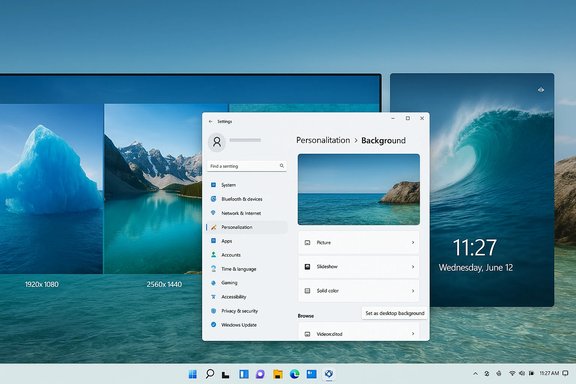 Background / Overview
Windows 11 separates the desktop background (what you see while signed in) from the lock screen (what appears before sign‑in). That design gives you flexibility — you can run a slideshow on the desktop while keeping a single photo or Windows Spotlight on the lock screen — but it also causes confusion when people expect a single change to affect both. The Settings app is the central place to control both, and there are faster shortcuts and third‑party tools for advanced needs.Supported static image formats for wallpapers include JPG/JPEG, PNG, BMP, and other common formats; for practicality, most users will use JPG or PNG. Animated wallpapers are not a first‑class feature in stable Windows 11 releases, so GIF or video backgrounds require third‑party apps. Insider builds have experimented with native video wallpaper support, but that remains experimental and should be treated as such.
Quick summary: the methods covered
- Settings > Personalization > Background (Picture, Solid color, Slideshow)
- Right‑click an image → Set as desktop background (fastest)
- Settings > Personalization > Lock screen (Picture, Slideshow, Windows Spotlight)
- Slideshow options (folder, interval, shuffle, battery behavior)
- Troubleshooting: Explorer restart, TranscodedWallpaper cache reset, Group Policy / activation checks
- Third‑party options: Lively Wallpaper (free, open source), Wallpaper Engine (paid)
- Tips for multi‑monitor setups, best resolutions, and when to avoid animated wallpapers
How to change wallpaper using Settings (step‑by‑step)
1. Open Personalization
- Right‑click anywhere on the desktop and select Personalize, or press Windows + I to open Settings and choose Personalization. This always arrives at the same set of controls.
2. Choose Background
- Click Background. Under Personalize your background you can choose:
- Picture — a single static image
- Solid color — minimal, low overhead
- Slideshow — rotate through images in a folder
- (On some installs) Windows Spotlight — curated images from Microsoft for the lock screen (Spotlight is typically for the lock screen, not the desktop).
3. Pick an image or folder
- If you pick Picture, click Browse photos and choose a file.
- If you pick Slideshow, click Browse and select a folder containing the images you want rotated.
- The preview updates immediately; you can then choose the Fit mode (Fill, Fit, Stretch, Tile, Center, Span). Fill is usually the best default for single‑monitor setups.
Fast method: right‑click the image file
While in File Explorer, find the image you want, right‑click it and choose Set as desktop background. Windows applies the image immediately and uses the last chosen Fit option in Settings. This is the fastest route when you’ve downloaded a wallpaper or exported a photo and want it applied without extra clicks.Slideshow wallpapers: setup and power options
A slideshow rotates images from a folder at a chosen interval. To enable:- Settings > Personalization > Background > choose Slideshow.
- Click Browse and select the folder that contains your images.
- Choose Change picture every interval (1 minute to 1 day).
- Toggle Shuffle to randomize order.
- Laptops: there’s an option Let slideshow run even if I’m on battery power — Windows disables slideshows on battery by default to save power; enable this only if you accept the battery impact.
Lock screen decisions: Picture, Slideshow, or Windows Spotlight
Open Settings > Personalization > Lock screen and use the dropdown to select:- Windows Spotlight — Microsoft’s curated images that update regularly. Good for fresh, professional photography without searching yourself, but it requires internet access and you cannot pick specific images.
- Picture — a single image you choose via Browse.
- Slideshow — rotates images from a folder, similar to desktop slideshow options.
Best image sizes and fit options
- For the sharpest results, use an image that matches your display resolution:
- 1920×1080 for Full HD
- 2560×1440 for 2K / QHD
- 3840×2160 for 4K / UHD
- Ultrawide monitors (e.g., 3440×1440) should use ultrawide assets to avoid automatic cropping.
- Fit options explained:
- Fill — scales to fill the screen; may crop edges (best default)
- Fit — shows whole image; may leave bars on sides
- Stretch — forces fill but can distort
- Tile — repeats the image
- Center — places image at original size in center
- Span — stretches one image across multiple monitors
Common problems and fixes
Wallpaper won’t change — checklist and fixes
- Windows not activated: Personalization options can be disabled on non‑activated installations. Check Settings > System > Activation. If not activated, wallpaper settings may be grayed out.
- Organizational policy (Group Policy): Work or school devices may have policy that prevents changing wallpapers. If Settings shows a message about your organization managing settings, contact your IT admin.
- Restart Windows Explorer: Press Ctrl + Shift + Esc to open Task Manager, find Windows Explorer, right‑click and select Restart. This refreshes the desktop shell and often forces a wallpaper refresh.
- TranscodedWallpaper cache corruption: Windows stores a cached copy of your wallpaper in %APPDATA%\Microsoft\Windows\Themes. Deleting the file named TranscodedWallpaper (no extension) and then reapplying your wallpaper will rebuild the cache and usually fix stubborn display issues. Use care when deleting system files; only remove the named cached wallpaper file.
- Driver issues: Outdated or malfunctioning display drivers can cause presentation problems. Update your GPU drivers if colors look wrong or the wallpaper displays incorrectly.
Where Windows stores wallpapers and Spotlight assets
- The default Windows wallpapers are located in C:\Windows\Web\Wallpaper.
- The cached current wallpaper is at %APPDATA%\Microsoft\Windows\Themes, and the filename TranscodedWallpaper may be present. Deleting it forces Windows to reconstruct the cache when you set a new wallpaper.
- Windows Spotlight downloads images to a package area: %LOCALAPPDATA%\Packages\Microsoft.Windows.ContentDeliveryManager_cw5n1h2txyewy\LocalState\Assets; files there lack extensions and must be renamed (for example to .jpg) to view. This location is useful if you want to extract Spotlight images for personal use.
Animated/video wallpapers — third‑party solutions
Windows 11 stable channel does not provide native animated wallpapers for everyday users. For motion or interactive backgrounds you must use third‑party apps. Two popular options:- Lively Wallpaper (free, open source): Supports video files (MP4/MKV), animated GIFs, web pages, YouTube streams, shaders and more. It’s available in the Microsoft Store and includes intelligent pause rules (pause on fullscreen, pause on battery, etc., multi‑monitor support, and per‑wallpaper performance settings. Because Lively is open source and actively developed, it’s a safe and flexible choice for animated backgrounds.
- Wallpaper Engine (paid, via Steam): The most feature‑rich option, with a massive Workshop of user content and fine performance controls. It’s the go‑to for power users who want complex, interactive scenes. Trusted Community builds and documentation explain best practices for battery and performance management.
Caveat: Animated wallpapers consume CPU/GPU resources and may reduce battery life on laptops. Both Lively and Wallpaper Engine include pause or “pause when fullscreen” logic to minimize interference with games and video playback; enable those options to avoid performance problems.
Power users: scripting and automation
Power users can automate wallpaper changes via scripts or scheduled tasks:- Use PowerShell or the Windows API (SystemParametersInfo) to change the wallpaper programmatically.
- Use a folder watcher or scheduled task to rotate wallpapers on a custom schedule if the built‑in slideshow options aren’t flexible enough.
Security, privacy and risk analysis
- Third‑party apps and trust: Lively is open‑source (verifiable code) and available on the Microsoft Store; Wallpaper Engine is a paid, well‑established product. Avoid random wallpaper apps from unknown sources; they may request unnecessary permissions or bundle unwanted software. Prefer Store or verified vendor downloads.
- Animated wallpaper performance: Animated or video wallpaper apps use CPU/GPU cycles and may conflict with battery or thermals on thin laptops. Use built‑in pause rules and cap playback frame rates where available.
- Group Policy and enterprise locks: Devices managed by organizations can have personalization disabled. Attempting to override such policies is not advisable; instead, coordinate with IT.
- Spotlight content and ads: Windows Spotlight occasionally surfaces promotional material or tips along with photography. If this is unacceptable for your environment, choose Picture or Slideshow instead.
- File deletion risks: Deleting cached system files (like TranscodedWallpaper) is effective for troubleshooting, but always ensure you target the correct file and avoid removing unrelated system data. Backups are recommended for uncertain users.
Practical recommendations and quick checklist
- For single images: right‑click image → Set as desktop background (fastest).
- For a rotating gallery: use Slideshow in Settings and keep images in one folder; enable Shuffle if desired.
- To match desktop and lock screen: change each separately — desktop and lock screen are independent by design.
- For animated wallpapers: pick Lively Wallpaper for a free, robust solution or Wallpaper Engine for the deepest feature set. Limit playback on battery and enable pause‑on‑fullscreen.
- If wallpaper won’t change: confirm activation and group policy, restart Explorer, delete TranscodedWallpaper in %APPDATA%\Microsoft\Windows\Themes and reapply.
Frequently misunderstood points (mythbusting)
- Myth: “Changing the desktop will change the lock screen too.” — False. They are separate settings by design. You must change both if you want them to match.
- Myth: “GIF is a viable native animated wallpaper format.” — Largely false for stable Windows 11. GIFs are inefficient and not supported natively as animated wallpapers; use third‑party apps or convert GIF → MP4.
- Myth: “Windows Spotlight controls desktop wallpapers.” — Spotlight is primarily a lock‑screen feature and won’t replace your desktop background unless you use a separate tool to extract and set Spotlight images on the desktop.
Conclusion
Changing wallpapers on Windows 11 is simple in practice but layered in options: static images, solid colors, slideshows, Spotlight, and animated wallpapers via third‑party tools. The built‑in Settings app covers most use cases quickly and reliably; right‑clicking an image is the fastest route for one‑off changes; and Lively or Wallpaper Engine are the practical choices when motion or interactivity matter. Keep image resolution matched to your display for the sharpest results, watch battery life when using slideshows or animated backgrounds, and follow the troubleshooting checklist (activation, group policy, Explorer restart, TranscodedWallpaper cache) when changes don’t stick. These methods and cautions reflect the current Windows 11 behavior and community best practices.Final note: some experimental features (native video wallpapers in Insider builds) and package names can change between builds. Treat experimental behavior as potentially transient and confirm on your specific Windows 11 build before relying on it in production environments.
Source: H2S Media How to Change Wallpaper on Windows 11 (All Methods)
