

I switched to a multi‑monitor desktop and discovered the frustrating truth: Windows still won’t let you adjust the backlight of most external monitors from the built‑in brightness slider — but a tiny, smart app called Twinkle Tray fills that gap elegantly and safely, putting per‑monitor brightness, contrast, power and automation controls into the system tray and dramatically improving the day‑to‑day experience of multi‑display setups.
Windows provides convenient brightness controls for built‑in laptop displays, exposed in Quick Settings and Settings, but that functionality historically does not extend to most external monitors. That limitation is rooted in how display brightness is exposed to the operating system versus how external monitors present controls via hardware protocols and drivers. The most common workaround is software that speaks DDC/CI (Display Data Channel / Command Interface) to the monitor; Twinkle Tray is one of the best examples of that approach. WindowsForum readers have long discussed the same problem and recommended DDC/CI tools as the practical fix for desktops and docked laptops. Community threads show users trying vendor utilities, Monitorian, DisplayLink Manager, and Twinkle Tray to varying degrees of success depending on cables, docking stations, and monitor firmware. These real‑world discussions are consistent with technical guidance from Microsoft and the DDC/CI standard: the operating system can only control external monitor brightness where the hardware and driver stack exposes the capability.
Twinkle Tray solves this by:
Twinkle Tray fills a long‑standing usability gap in Windows multi‑monitor workflows. It won’t rewrite the laws of hardware compatibility, but for users with DDC/CI‑capable displays it turns a fiddly, multi‑button chore into a single hotkey or scheduled profile — a seemingly small change that pays dividends every day.
Source: MakeUseOf I’ll never use an external monitor on Windows without this app
 Background
Windows provides convenient brightness controls for built‑in laptop displays, exposed in Quick Settings and Settings, but that functionality historically does not extend to most external monitors. That limitation is rooted in how display brightness is exposed to the operating system versus how external monitors present controls via hardware protocols and drivers. The most common workaround is software that speaks DDC/CI (Display Data Channel / Command Interface) to the monitor; Twinkle Tray is one of the best examples of that approach. WindowsForum readers have long discussed the same problem and recommended DDC/CI tools as the practical fix for desktops and docked laptops. Community threads show users trying vendor utilities, Monitorian, DisplayLink Manager, and Twinkle Tray to varying degrees of success depending on cables, docking stations, and monitor firmware. These real‑world discussions are consistent with technical guidance from Microsoft and the DDC/CI standard: the operating system can only control external monitor brightness where the hardware and driver stack exposes the capability.What Twinkle Tray Does (and what it doesn’t)
The feature set in plain terms
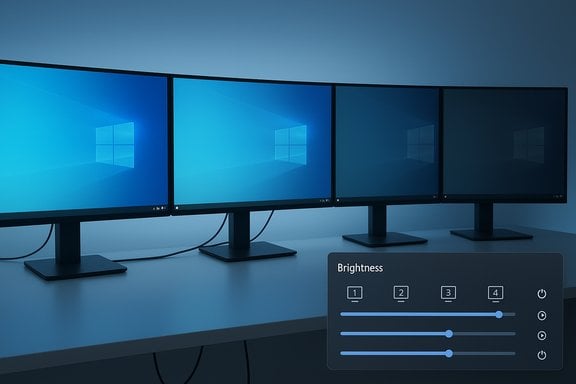
- Adds brightness sliders for each detected monitor to the system tray so you can change backlight without using monitor OSD buttons.
- Talks to monitors using DDC/CI (and where applicable uses Windows APIs) to set brightness, contrast, and power state.
- Supports per‑monitor controls or synced group adjustments, hotkeys, time‑of‑day automations, idle dimming, and profiles that can automatically apply brightness levels when particular apps are focused.
- Offers a GUI that mimics Windows’ native flyout aesthetics and can be installed from the Microsoft Store, GitHub, or via package managers like winget.
Important caveats
- Twinkle Tray only works with monitors that accept DDC/CI commands; not all displays, adapters, cables or docking stations support that channel. If a monitor’s DDC/CI is disabled in its OSD or if the connection (e.g., certain USB‑C adapters, inexpensive HDMI→USB extenders, or some DisplayLink docks) blocks DDC/CI, Twinkle Tray cannot control it. This is a hardware/firmware limitation, not a software bug.
- The app cannot magically change color calibration or true HDR backlight behavior in monitors that separate backlight control from other display pipelines; it adjusts the monitor’s exposed backlight/brightness setting only. If you need color‑accurate calibration for photo/video work, use a proper colorimeter and profile the display.
- Vendor and OEM drivers can override or limit which displays Windows exposes as controllable; Microsoft documents that OEMs may designate one external connector or require specific INF entries and registry values for OS‑level brightness control. That means system‑level fixes sometimes require vendor driver or firmware updates, not just the third‑party app.
How Twinkle Tray Communicates with Your Monitors
Twinkle Tray uses the industry’s standard monitor control channels (DDC/CI and the Monitor Control Command Set) to query and set levels on individual displays. The protocol has existed for years and is widely adopted, but the precise behavior varies by monitor model and by connection path (native DisplayPort/HDMI vs. docked DisplayLink or USB‑C). The DDC/CI model is bidirectional: software requests a monitor’s capabilities, and if the monitor responds as expected, software can issue brightness and power commands. Microsoft’s documentation also makes clear that for some laptop configurations an external connector can be marked as brightness‑controllable by the OEM driver; otherwise, Windows limits system brightness controls to integrated panels. That’s why desktop users rely on DDC/CI tools for external screens while laptop users usually use the built‑in slider.Why this truly matters for daily productivity
Brightness is one of those settings you either set once or tweak constantly depending on daylight, eye fatigue, and whether you’re watching a movie or editing photos. When you have multiple screens with different brightness levels, normalizing them or quickly dimming everything for evening work becomes a repeated hassle if you must use OSD buttons or menus on every monitor.Twinkle Tray solves this by:
- Letting you set unified brightness across monitors with one slider, or fine‑tune each monitor independently.
- Letting you bind hotkeys so a single keypress reduces eye strain when the room gets darker, or restores brightness for color work.
- Offering automations/profiles so brightness reacts to time of day, idle state, or even to which app is focused — useful for switching between photo editors and music players automatically.
Installing and configuring: practical steps
- Choose your installation path:
- Microsoft Store is simplest and keeps auto‑updates.
- GitHub releases give installer and portable options; use winget if you prefer package management.
- Verify DDC/CI is available:
- Open each monitor’s OSD, look for a DDC/CI or “DDC/CI” toggle and ensure it’s enabled.
- Prefer direct DisplayPort/HDMI connections where possible; test without a dock if you suspect the dock blocks DDC/CI. Monitorian’s documentation lists common failure modes that mirror Twinkle Tray’s limitations.
- Configure Twinkle Tray:
- Right‑click the tray icon → Settings → DDC/CI Features to enable contrast, power, and volume controls if your monitor supports them.
- Use Monitor Settings inside the app to rename, reorder, or hide monitors in the flyout for a tidier interface.
- Set hotkeys and automations:
- Hotkeys: Settings → Hotkeys to assign global shortcuts to adjust all or selected monitors.
- Time Adjustments / Profiles: Create time‑based brightness changes or per‑app profiles to adapt brightness automatically.
- Troubleshoot:
- If a monitor doesn’t appear: try a direct cable, enable DDC/CI in OSD, test a different input, or check for dock/adapter firmware updates. If using a DisplayLink dock, consult vendor docs — DisplayLink’s manager started exposing brightness/contrast control in recent releases and requires particular versions to work correctly.
Compatibility, limits and the realistic edge cases
Cables and docks matter
DDC/CI commands are sent over the link between GPU and monitor. Cheap adapters, some USB‑C hubs, or older docking solutions may not forward the DDC/CI channel. Community troubleshooting threads show many users solving “missing monitor” or “no DDC/CI” problems by switching to a direct DisplayPort cable or updating dock firmware.DisplayLink and USB graphics
If your external monitors are driven by a USB graphics adapter (DisplayLink), the monitor control path is different: DisplayLink’s software has added support for brightness/contrast controls, but it requires a compatible DisplayLink driver version. If a monitor is connected through a DisplayLink chain, check that the DisplayLink manager version supports DDC/CI passthrough or provides its own API.HDR, PWM, and color workflows
Twinkle Tray adjusts the monitor’s exposed brightness setting; it does not replace color grading workflows. Monitors that use HDR or have complex local dimming may respond in non‑linear ways to brightness changes. For color‑critical work, restore a profile with a hardware colorimeter after changing brightness. Mentioning this avoids surprises for creative pros.Enterprise management and security
Corporate images may block unsigned drivers, or group policy could prevent utilities from intercepting monitor APIs. IT departments often require signed, centrally managed tools; check with IT before deploying third‑party utilities across managed fleets.Security and safety considerations
- Twinkle Tray communicates locally with your hardware via standard monitor control protocols. It does not require cloud access to function, though some optional features (like sun position estimation) may query a service for geolocation if you enable them. If privacy is a concern, review the settings and documentation; the core DDC/CI controls are local and do not transmit personal data.
- Use official channels to download: Microsoft Store, GitHub releases, or trusted package managers. Avoid random executables from unknown sites. Community moderation and the GitHub project’s open‑source MIT license make Twinkle Tray reasonably trustworthy, but standard caution applies.
- Be cautious with power state toggles and monitor resets: sending power‑off/standby commands can behave differently across brands; test any power‑state automations on your particular monitors before relying on them. Twinkle Tray includes settings to adjust the “Power State Signal” to match monitor quirks.
Alternatives and how Twinkle Tray compares
- Monitorian: A lightweight, open‑source slider app available in the Microsoft Store and GitHub. It focuses on simple brightness controls and is actively maintained; like Twinkle Tray it depends on DDC/CI for external monitors. Use Monitorian if you want a minimal, Microsoft‑Store‑native experience.
- ClickMonitorDDC: A veteran utility with hotkeys and scripting for advanced users. It’s feature‑rich but older in UI. It’s an alternative when you need very granular scripting support.
- Display vendor utilities: Some vendors provide their own monitor control apps, and DisplayLink Manager exposes controls for monitors driven through DisplayLink hardware. For docks and special setups, vendor tools can sometimes be more compatible than generic DDC/CI apps.
Real stories from users: what community threads reveal
Community troubleshooting threads are full of the same patterns: the native Windows slider won’t move an external monitor’s backlight; a DDC/CI app fixes it, but only after the user enables DDC/CI in the monitor’s OSD or swaps a dock for a direct cable. Those discussions are useful because they reflect the real variability of hardware setups, and they consistently end with the same practical advice: test DDC/CI with a simple tool, try a direct cable, and if necessary update dock/display firmware.Step‑by‑step checklist to get Twinkle Tray working reliably
- Update Windows and GPU drivers.
- Connect your monitor via DisplayPort or HDMI (avoid unknown USB adapters initially).
- Enable DDC/CI in the monitor’s OSD.
- Install Twinkle Tray from the Microsoft Store or GitHub.
- Open Twinkle Tray → Settings → DDC/CI Features and enable the controls you want.
- Test brightness, contrast and power toggles; if a monitor is missing, try a different cable or port.
- Configure hotkeys and time‑based automations, then test them in a low‑risk scenario (don’t rely on a power‑off automation before testing).
When Twinkle Tray might not be the right tool
- If your monitors are non‑DDC/CI or connected through hardware that strips DDC/CI, Twinkle Tray cannot help; you’ll need vendor utilities or monitor OSD.
- For enterprise fleets with strict software policies, IT may prefer centralized vendor or MDM‑approved tools.
- If you need ICC‑profile precision after every brightness change (e.g., color grading at professional studios), Twinkle Tray should be used alongside color‑management hardware/software workflows, not as a substitute.
Final verdict — strengths and risks
Twinkle Tray is thoughtful, practical and designed around the exact pain point Windows leaves unresolved: convenient control of external monitor brightness. Its strengths are clear:- Convenience: system tray integration and hotkeys reduce friction.
- Automation: time‑based and per‑app profiles turn a manual nuisance into a solved routine.
- Flexibility: supports brightness, contrast, volume and power where monitors expose those controls.
- Hardware variability: DDC/CI support depends on monitor model, cables and docks; results vary. This is a practical, not technical, limitation.
- Enterprise constraints: corporate policies and unsigned software requirements can block deployment.
- Potential for automation misbehavior: power/state automations should be tested carefully to avoid unintended monitor behavior.
Quick reference — what to do right now
- Install Twinkle Tray from the Microsoft Store or GitHub and test basic brightness control.
- If a monitor doesn’t appear, enable DDC/CI in the OSD and try a direct cable.
- If you use a dock or DisplayLink device, verify driver versions and vendor documentation; DisplayLink added brightness/contrast features in recent releases.
Twinkle Tray fills a long‑standing usability gap in Windows multi‑monitor workflows. It won’t rewrite the laws of hardware compatibility, but for users with DDC/CI‑capable displays it turns a fiddly, multi‑button chore into a single hotkey or scheduled profile — a seemingly small change that pays dividends every day.
Source: MakeUseOf I’ll never use an external monitor on Windows without this app
