

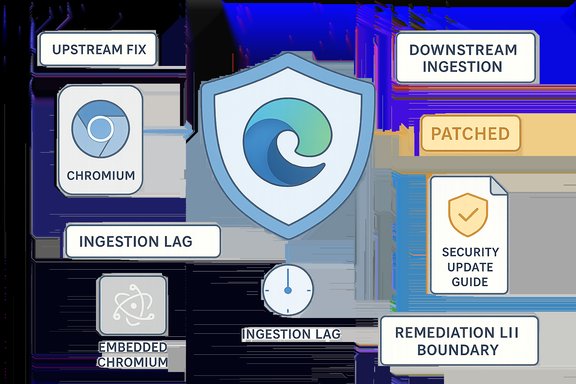
Chromium‑assigned vulnerabilities like CVE‑2025‑12036 show up in Microsoft’s Security Update Guide because Microsoft Edge (Chromium‑based) consumes upstream Chromium code — the Security Update Guide is Microsoft’s way of telling Edge users which Edge builds have ingested the Chromium fix and are therefore no longer vulnerable.
Chromium is an open‑source browser engine that powers Google Chrome and serves as the upstream codebase for Microsoft Edge (Chromium‑based) and many other browsers and embedded runtimes. When a vulnerability is discovered in Chromium — for example, an inappropriate implementation in V8 identified as CVE‑2025‑12036 — the fix is implemented upstream and then propagated downstream to vendors that consume that code. Microsoft tracks these upstream CVEs in its Security Update Guide so administrators and end users can determine whether their installed Edge build still contains the vulnerable Chromium code or has been updated to a non‑vulnerable build.
This arrangement matters because the time between Google shipping a Chrome/Chromium fix and Microsoft shipping an Edge build that includes that fix is non‑zero: Microsoft must ingest the upstream change, run internal validation and tests, and then publish the downstream Edge update. The Security Update Guide explicitly documents that downstream status for Edge customers.
If your environment uses Microsoft Edge and you want step‑by‑step help mapping a specific Edge build number to the Security Update Guide entry for CVE‑2025‑12036, consult the Edge About/version page for that build and compare it to the SUG remediation build recorded for the CVE.
Source: MSRC Security Update Guide - Microsoft Security Response Center
 Background
Chromium is an open‑source browser engine that powers Google Chrome and serves as the upstream codebase for Microsoft Edge (Chromium‑based) and many other browsers and embedded runtimes. When a vulnerability is discovered in Chromium — for example, an inappropriate implementation in V8 identified as CVE‑2025‑12036 — the fix is implemented upstream and then propagated downstream to vendors that consume that code. Microsoft tracks these upstream CVEs in its Security Update Guide so administrators and end users can determine whether their installed Edge build still contains the vulnerable Chromium code or has been updated to a non‑vulnerable build.This arrangement matters because the time between Google shipping a Chrome/Chromium fix and Microsoft shipping an Edge build that includes that fix is non‑zero: Microsoft must ingest the upstream change, run internal validation and tests, and then publish the downstream Edge update. The Security Update Guide explicitly documents that downstream status for Edge customers.
What “Inappropriate implementation in V8” means in practice
V8, attack surface and impact
V8 is the JavaScript and WebAssembly engine used by Chromium. Vulnerability summaries that say “inappropriate implementation” typically point to a logic, validation, or integration error rather than a raw memory‑safety bug — although outcomes can still be serious depending on the context. In the V8 engine, logic errors can allow untrusted web content to trigger unexpected behavior, manipulate internal engine state, or bypass intended checks. When V8 misbehaves, the consequences can range from page crashes to powerful exploitation primitives such as arbitrary read/write or code execution when chained with other flaws.Why V8 bugs are high value to attackers
- V8 executes code delivered by web pages, which makes it reachable from remote, low‑privilege attack vectors.
- Many V8 flaws (type confusion, off‑by‑one, use‑after‑free, logic errors) have historically been weaponized into reliable exploits.
- A successful exploit can act as the first stage in sandbox escape chains and lead to system compromise.
Why the CVE appears in Microsoft’s Security Update Guide
Microsoft’s Security Update Guide (SUG) serves two practical functions when the vulnerability originates in Chromium:- It records the upstream CVE so Edge administrators know the issue exists in the Chromium code that Edge consumes.
- It declares which downstream Edge build(s) contain the Chromium ingestion that removes the vulnerable code so administrators can confirm whether their Edge installations are patched.
How to see the browser version (step‑by‑step)
Knowing the exact browser version installed is the fastest way to confirm whether your browser has ingested a Chromium security fix. Below are clear instructions for Microsoft Edge and Google Chrome across desktop and mobile.Microsoft Edge — desktop (Windows, macOS, Linux)
- Open Microsoft Edge.
- Click the three‑dot menu (Settings and more) in the top‑right corner.
- Choose Help and feedback → About Microsoft Edge.
- Edge will show the full version string and automatically check for updates; allow it to update and then relaunch if an update is available.
Google Chrome — desktop
- Open Chrome.
- Click the three‑dot menu → Help → About Google Chrome (or chrome://settings/help).
- Chrome will show the version string and check for updates.
Edge / Chrome — mobile (Android, iOS)
- Open the app, go to Settings → About, and read the version string.
- Mobile builds may not expose the full Chromium revision; for exact mapping, consult vendor guidance. Mobile releases are still versioned and should be compared against the remediation thresholds documented by vendors.
How to interpret version strings
- A version string looks like: Microsoft Edge 140.0.7339.xxx or Google Chrome 140.0.7339.xxx.
- Vendors often list a minimum patched build (e.g., Chrome 140.0.7339.185) as the remediation boundary. If your browser’s major/minor/build numbers are equal to or newer than that boundary, your browser is expected to be patched.
- For Edge, always prefer the Security Update Guide’s downstream statement to decide whether Edge is patched — Edge may lag Chrome until Microsoft finishes ingestion and testing.
Mapping Chromium fixes to Edge builds: operational realities
Ingestion lag exists
When Chromium ships a patch, downstream vendors must ingest, test and ship a vendor‑specific update. That means Chrome users may receive a fix hours (or sometimes days) earlier than Edge users. Microsoft records this ingestion mapping in the Security Update Guide so admins can confirm whether their installed Edge build includes the Chromium fix. Don’t assume parity with Chrome on day‑zero.Embedded Chromium runtimes are a special case
Many applications embed Chromium (Electron apps, kiosks, vendor appliances, internal tools). Those embedded runtimes often do not auto‑update with the system browser and may remain vulnerable even after Chrome and Edge update. Inventory and patch embedded Chromium instances separately.Recommended actions — from single users to large enterprises
Immediate steps for end users
- Update Microsoft Edge or Google Chrome via the About page and relaunch the browser.
- Enable automatic updates if not already enabled.
- If you use multiple Chromium‑based browsers, update them all.
Priorities for IT and security teams
- Inventory all endpoints and apps that include Chromium or V8 (browsers, Electron apps, kiosks, headless services).
- Verify installed versions against the remediation boundaries published upstream (Chrome) and downstream (Microsoft SUG for Edge).
- Stage updates in test pools, validate critical web applications, and deploy broadly using normal patch management tools (SCCM/Intune, WSUS, Jamf, etc..
- If vendor ingestion for Edge hasn’t arrived, treat the Chromium patch as relevant and apply compensating controls for vulnerable endpoints (isolation, network restrictions).
Short‑term mitigations when immediate patching isn’t possible
- Enforce stricter web filtering to block untrusted domains and known malicious hosts.
- Restrict JavaScript execution on high‑risk endpoints where feasible.
- Apply remote browser isolation or sandboxing for users requiring broader web access.
- Use URL allowlists for privileged admin stations and block potentially risky content.
- Monitor EDR and telemetry for abnormal browser crashes, unusual child processes, or post‑exploit behaviors.
Detection and monitoring: what to watch for
Effective detection focuses on signs exploitation attempts would leave:- Spikes in renderer crashes or V8‑related error messages in crash telemetry.
- Unexpected child processes spawned by browser processes.
- Unusual outbound connections originating from browser processes shortly after rendering heavy script content.
- EDR alerts indicating post‑exploit persistence artifacts or privilege escalation attempts.
Risks and limitations
Strengths of the current ecosystem
- The Chromium community and commercial vendors respond quickly to major V8 and engine issues.
- Microsoft’s Security Update Guide gives Edge admins a clear downstream mapping between Chromium CVEs and Edge builds.
- Built‑in browser update mechanisms make it straightforward for most users to obtain fixes.
Remaining risks and operational challenges
- Ingestion lag: Edge can lag Chrome by a window of time while Microsoft ingests and validates fixes. During that window, Edge installations remain potentially vulnerable even if Chrome is patched upstream. Always check the SUG entry, not just Chrome’s release notes, to confirm Edge protection.
- Embedded Chromium: Applications bundling Chromium (Electron apps, kiosks, vendor consoles) often require separate updating processes and are frequently overlooked in patch cycles.
- Limited public details: For high‑value V8 bugs, public technical details are commonly withheld until the majority of users are patched. This limits defensive research but is a deliberate tradeoff to reduce immediate exploit weaponization. Treat “no public exploit published” as provisional, not assurance of safety.
- False sense of parity: Administrators sometimes assume that because Chrome is patched, Edge is automatically safe — that assumption is incorrect until Microsoft publishes the ingestion and SUG marks Edge as non‑vulnerable.
How to verify Edge ingestion if you want certainty
- Check your Edge local version: edge://version or edge://settings/help. If your Edge build number is equal to or newer than the Edge build listed in Microsoft’s Security Update Guide for the CVE, Edge is expected to be patched.
- If you manage a fleet, cross‑reference the SUG entry (which documents the Edge build that ingested Chromium’s fix) against your asset inventory. The SUG entry is the authoritative downstream statement for Edge.
- For embedded Chromium instances, consult the vendor of that product for their remediation timetable and plan to replace or update binaries as required. Do not assume system browser updates will fix embedded runtimes.
Verification, cross‑checks, and caveats
Key factual claims in this article were cross‑checked against independent vendor and advisory summaries in the available records:- The reason Chromium CVEs appear in Microsoft’s Security Update Guide and the ingestion model (upstream → ingest → test → downstream ship) is explicitly documented as the operational rationale used by Microsoft to inform Edge customers.
- The practical method to verify a local Edge installation (edge://version and the About page) and to compare it against the SUG entry is standard guidance for administrators.
- V8 vulnerability classes and why they are treated with urgency are consistent across multiple advisories; when public exploit evidence exists, vendors and government catalogs escalate urgency for remediation.
Practical checklist (quick reference)
- For individuals
- Open Edge → Help and feedback → About Microsoft Edge and update now.
- If you use Chrome, open About Google Chrome and update.
- Restart browser after updates.
- For administrators
- Inventory all browsers and embedded Chromium instances across your estate.
- Identify Edge builds and compare against the Microsoft Security Update Guide entry for CVE‑2025‑12036 to confirm ingestion status.
- Stage and deploy updated Edge/Chrome builds via your standard patching channels.
- Apply compensating network and policy controls for any remaining vulnerable endpoints.
- Monitor crash telemetry and EDR for signs of attempted exploitation.
Conclusion
CVE‑2025‑12036 is recorded in Microsoft’s Security Update Guide because Microsoft must tell Edge users whether the Chromium‑level fix has been consumed and shipped in Edge builds. The simplest and most reliable way to confirm protection is to check your local browser version (edge://version or About Microsoft Edge) and compare it to the remediation information Microsoft publishes in the Security Update Guide. While Chrome receives upstream fixes quickly, downstream ingestion and distribution mean Edge may lag; inventorying and patching all Chromium consumers — including embedded runtimes — and applying compensating mitigations where necessary is the responsible posture for both individual users and enterprise administrators.If your environment uses Microsoft Edge and you want step‑by‑step help mapping a specific Edge build number to the Security Update Guide entry for CVE‑2025‑12036, consult the Edge About/version page for that build and compare it to the SUG remediation build recorded for the CVE.
Source: MSRC Security Update Guide - Microsoft Security Response Center
