

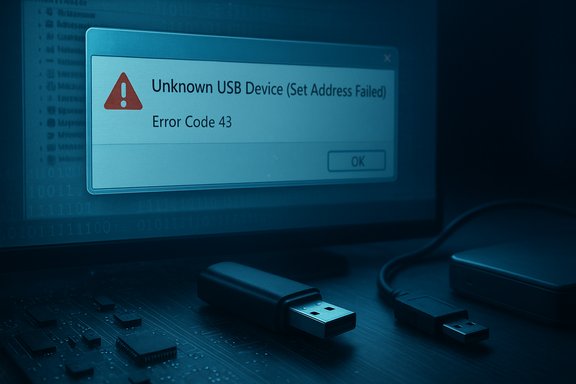
You plug a USB drive into Windows and instead of the familiar chime you get a terse: “Unknown USB Device (Set Address Failed)” — a small message with big consequences that can put your files and workflow at risk in seconds.
The “Unknown USB Device (Set Address Failed)” message — frequently accompanied by Error Code 43 in Device Manager — means Windows failed to complete the USB enumeration handshake. The system could not assign the device an address on the USB bus, so the device never becomes usable. That single failure can have multiple causes: everything from simple power-management settings to terminal device or enclosure faults, driver or firmware mismatches, motherboard/BIOS quirks, or even malware and encryption complications.
This feature article walks through why the problem happens, how to rescue inaccessible data, seven practical fixes you can try on Windows 10 and Windows 11 (step‑by‑step), and how to decide when to stop troubleshooting and send the device to a specialist. Where appropriate, claims and procedures are validated against Microsoft documentation, community diagnostics, and vendor resources; any vendor-supplied claims (for example, recovery‑software success rates) are flagged where they cannot be independently verified.
Common patterns seen in community and official reports include:
Professional recovery tools and services have different strengths:
How (GUI):
Steps:
How:
Steps:
How:
What to do:
Practical approaches:
Use the stepwise sequence above: prioritize safe data extraction, follow the least-invasive fixes first, verify any vendor claims with independent sources, and keep a clear record (logs and device IDs) if you need vendor or specialist support. Community threads and vendor forums show repeated success with the same pragmatic sequence; when those steps fail, the device is often the root cause rather than the host — and hardware repair becomes the responsible next step.
If the drive is presenting intermittently, capture logs immediately after the next failure and consider imaging the device if you can get even brief access — that single image can make the difference between a recoverable and an unrecoverable case.
Source: Technology Org [Solved] Unknown USB Device Set Address Failed Error - Technology Org
 Overview
The “Unknown USB Device (Set Address Failed)” message — frequently accompanied by Error Code 43 in Device Manager — means Windows failed to complete the USB enumeration handshake. The system could not assign the device an address on the USB bus, so the device never becomes usable. That single failure can have multiple causes: everything from simple power-management settings to terminal device or enclosure faults, driver or firmware mismatches, motherboard/BIOS quirks, or even malware and encryption complications.This feature article walks through why the problem happens, how to rescue inaccessible data, seven practical fixes you can try on Windows 10 and Windows 11 (step‑by‑step), and how to decide when to stop troubleshooting and send the device to a specialist. Where appropriate, claims and procedures are validated against Microsoft documentation, community diagnostics, and vendor resources; any vendor-supplied claims (for example, recovery‑software success rates) are flagged where they cannot be independently verified.
Background: why “Set Address Failed” is important
USB enumeration is the handshake that tells Windows what device is attached, what drivers are required, and which address on the bus the device will use. When enumeration fails — specifically at the “set address” phase — Windows may report the device as “Unknown” and set a Code 43. That means the kernel tried to initialize the device but the device or the bus rejected or failed the request.Common patterns seen in community and official reports include:
- Devices that briefly connect then drop out and reappear as “Unknown USB Device (Set Address Failed)”.
- Devices that worked previously and suddenly fail after a power event, interrupted transfer, or driver update.
- Multiple machines showing the same failure with the same device — a strong sign of device-side or enclosure failure rather than the host.
What commonly causes “Set Address Failed”?
Multiple independent sources and community threads converge on the same list of likely causes:- USB driver corruption or mismatch (host or device-side). Driver issues can prevent proper enumeration.
- Power delivery problems — insufficient power from the port, or Windows selectively suspending the port. Devices that draw more current than a single port can supply will fail to initialize.
- Faulty USB cable or damaged USB port — intermittent wiring or degraded connectors manifest as resets and enumeration failures.
- Device or enclosure electronics failure — on external HDDs or SSDs, the bridge board or enclosure can fail while the drive itself remains OK. Community diagnostics often recommend removing the drive from its enclosure and testing with a SATA-to-USB adapter as a recovery step.
- Fast Startup / hybrid shutdown leaving old driver/device state active and preventing fresh initialization. Turning Fast Startup off forces a full kernel/drivers reload.
- USB Selective Suspend / power-management race conditions that can put ports into low-power states the device cannot correctly resume from. Microsoft documents the feature and the trade-offs of disabling it.
- BIOS/UEFI or chipset firmware issues — occasionally a firmware reflash or BIOS update/reset resolves intermittent USB enumeration problems. Vendor threads report reinstalling or updating BIOS as a workaround for devices that drop with “Set Address Failed.”
- Malware or encryption (e.g., BitLocker) interactions — encrypted or compromised devices may appear inaccessible to Windows until they are unlocked or cleaned. Community reports and Microsoft guidance emphasize safe handling and data recovery precautions.
Rescue first: extract your files before wide-ranging fixes
When the device repeatedly fails to enumerate, the top priority is preserving your data. If the device intermittently connects long enough to appear as a drive, copy critical files immediately to another device. If it never mounts, you’ll need a data-recovery approach.Professional recovery tools and services have different strengths:
- Software-based recovery tools (when the device is at least recognized by Windows long enough to be scanned) can rebuild deleted structures and extract files from formatted or corrupted partitions.
- Specialized commercial tools claim high success rates, can preview files before purchase, and sometimes handle BitLocker-encrypted volumes if you provide the recovery keys.
- If the drive or enclosure has a hardware failure, professional lab recovery may be required (costly but often successful for important data).
7 proven ways to fix “Unknown USB Device (Set Address Failed)” on Windows 10/11
Below are the seven practical fixes matched to common causes. Apply them in order from least invasive to most; stop when the device begins to enumerate and you can copy your files.Way 1 — Disable USB Selective Suspend (power management)
Why: Windows can idle and selectively suspend USB ports to save battery. Some devices don’t recover properly from that suspended state and fail enumeration.How (GUI):
- Press Win+R → type powercfg.cpl → Enter.
- Click your active power plan’s “Change plan settings” → “Change advanced power settings.”
- Expand “USB settings” → “USB selective suspend setting.” Set both “On battery” and “Plugged in” to Disabled. Click OK.
- Open an elevated Command Prompt or PowerShell (Run as administrator).
- Get your active GUID: powercfg /getactivescheme
- Disable for AC and DC using the active GUID (replace with your GUID):
powercfg -setacvalueindex <GUID> SUB_USB USBSELECTSUSPEND 0
powercfg -setdcvalueindex <GUID> SUB_USB USBSELECTSUSPEND 0 - Apply: powercfg -S <GUID>
Way 2 — Update or reinstall USB drivers (Device Manager)
Why: Corrupt or outdated host drivers (chipset/USB controller) cause enumeration failures.Steps:
- Connect the device. Open Device Manager (Win+X → Device Manager).
- Expand “Universal Serial Bus controllers.” Right-click the device showing the error (or the USB Host Controller) and choose Uninstall device. If uninstalling the device, then disconnect the USB and reconnect it after a minute to force reinstall.
- For chipset drivers: download the latest Intel/AMD/motherboard chipset package from the vendor site and install it (chipset drivers often include USB host controller updates).
- Reboot and test.
Way 3 — Run the Hardware and Devices troubleshooter
Why: The legacy Hardware & Devices troubleshooter can detect configuration and driver issues that more specific troubleshooters miss.How:
- Open an elevated Command Prompt or PowerShell.
- Run: msdt.exe -id DeviceDiagnostic
- Click Next and allow the tool to detect and repair issues, or run it in “Advanced” mode to view problems before applying fixes.
Way 4 — Uninstall the Unknown USB device and replug
Why: Removing the device entry forces Windows to create a clean device instance when you reconnect.Steps:
- Open Device Manager → Universal Serial Bus controllers.
- Right-click the “Unknown USB Device (Set Address Failed)” entry and choose Uninstall device.
- Physically remove the USB device and wait ~30 seconds. Reconnect it. Windows should recreate the device node and reinstall drivers.
Way 5 — Disable Fast Startup
Why: Fast Startup is a hybrid shutdown that can preserve kernel/driver state across reboots. That state occasionally prevents fresh device negotiation.How:
- Win+R → powercfg.cpl → Enter.
- Click “Choose what the power buttons do” → “Change settings that are currently unavailable.”
- Uncheck Turn on fast startup (recommended) and Save changes. Reboot.
Way 6 — Update BIOS/UEFI and chipset firmware
Why: Unexpected USB controller behavior can be caused by firmware bugs; vendor threads report that reinstalling or updating BIOS temporarily resolves “Set Address Failed” for devices such as Kinect sensors or external docks.What to do:
- Identify motherboard/vendor model and current BIOS version.
- Download the latest BIOS/UEFI from the vendor site and follow manufacturer instructions carefully.
- Also update chipset drivers from the motherboard/OEM site.
Way 7 — Professional repair or enclosure swap
Why: When a device consistently fails across many hosts, the device or its bridge/enclosure is often faulty. For important data, a repair lab is the safest route; for less-critical drives, replacing the enclosure or trying a SATA/USB adapter is a reasonable, low-cost test.Practical approaches:
- If the drive is inside an external HDD enclosure, remove it and connect the bare drive to a known-good SATA port or adapter. If the drive appears, recover files and then replace the enclosure.
- If the drive is physically damaged, seek a professional data recovery service — they have tools for board-level repairs and platters/firmware extraction.
- For USB thumb drives that fail to enumerate, a lab with chip-off capability might be required for critical recoveries.
How to verify success and capture diagnostic evidence
If you want to keep troubleshooting or provide clear evidence to a support technician, capture these logs immediately after the next failure:- Get a list of USB devices: Get-PnpDevice -PresentOnly -Class USB | Format-List FriendlyName, InstanceId, Status
- Collect recent system USB events: use Get-WinEvent filtered for Kernel-PnP, USBHUB3, and USB messages (the community has ready PowerShell snippets).
- Note the Device Manager error text and the device Instance ID (VID/PID). That helps identify whether the host recognized the hardware at any stage.
The recovery-software question: can 4DDiG or similar tools reliably recover data?
If the device is not recognized at all — never mounts as a logical disk — no user‑level recovery software will read its file system. If the drive intermittently enumerates or the device is recognized as a disk but its file system is corrupted, a software recovery tool can often recover files.- Vendor claims: Tenorshare 4DDiG advertises broad device support, BitLocker‑aware recovery, and preview features. These are standard features for modern recovery apps. However, vendor recovery‑rate claims (e.g., “99% success”) are marketing statements and should be treated cautiously until proven in independent tests.
- Independent feedback: Review sites and user reviews are mixed — some users report successful recoveries and straightforward recovery workflows, while other users report failures and customer-support issues. Always evaluate trial/free-preview features first (preview capability is critical) and recover to a separate disk.
Safety, trade‑offs, and final cautions
- Disabling Selective Suspend will reduce battery life on laptops; re-enable it once you’ve validated stability. Microsoft documents the power trade-offs and implementation details.
- Reflashing BIOS is effective in some cases but risky. Back up settings, read vendor instructions, and ensure reliable power. Community reports show success but also highlight the hassle of mass‑deploy BIOS reinstalls as a workaround.
- Avoid low-quality or unknown driver sources — prefer OEM or Microsoft-signed drivers. Community guidance repeats this as a basic safety practice.
- If the data is critical and software recovery steps are not yielding progress, stop repeated software experiments (which risk further writes) and consider an imaging/recovery service; a professional can create a forensically safe image and try offline recovery.
Quick-reference checklist (actionable sequence)
- Unplug device and try a different USB port and cable (rear motherboard port preferred).
- Try the device on another PC to determine whether the problem is host or device.
- Disable USB selective suspend (temporary) and uncheck “Allow the computer to turn off this device to save power” on root hubs.
- Run msdt.exe -id DeviceDiagnostic and apply repairs.
- Uninstall the Unknown USB device in Device Manager, then reconnect.
- Turn off Fast Startup and reboot.
- Update chipset and USB host controller drivers from OEM. Reboot.
- If still failing: remove drive from enclosure (if applicable) and test with a known-good adapter.
- If recovery is critical and software cannot see files: consider a professional data‑recovery lab.
Conclusion
“Unknown USB Device (Set Address Failed)” is an ugly, but often solvable, problem. In many cases this is not a catastrophic data loss event — careful troubleshooting, power‑management adjustments, driver reinstall, or an enclosure swap will restore access. When the device is truly unreadable, a disciplined recovery workflow (don’t write to the failing device, attempt imaging, use preview-capable recovery tools, or escalate to a lab) protects your data and maximizes the odds of a successful recovery.Use the stepwise sequence above: prioritize safe data extraction, follow the least-invasive fixes first, verify any vendor claims with independent sources, and keep a clear record (logs and device IDs) if you need vendor or specialist support. Community threads and vendor forums show repeated success with the same pragmatic sequence; when those steps fail, the device is often the root cause rather than the host — and hardware repair becomes the responsible next step.
If the drive is presenting intermittently, capture logs immediately after the next failure and consider imaging the device if you can get even brief access — that single image can make the difference between a recoverable and an unrecoverable case.
Source: Technology Org [Solved] Unknown USB Device Set Address Failed Error - Technology Org
