

If you’ve never opened Windows Terminal, you’re sitting on one of the most flexible, modern command-line hubs Microsoft has ever shipped—and ignoring it means missing a live, extensible bridge between classic Windows shells, PowerShell’s object model, and the full Linux toolchain via WSL.
Windows has always worn a graphical coat, but a large part of its power still lives under the surface in text-mode tools. For decades admins, devs, and power users have relied on Command Prompt, batch files, and PowerShell to automate, troubleshoot, and script complex workflows. In recent years Microsoft turned the corner: it built a modern, open-source terminal host that treats all of those command-line worlds as first-class citizens.
Windows Terminal debuted as an official Microsoft project at Build and on GitHub; since then it has evolved from a developer preview into the recommended terminal host on modern Windows installations. The terminal bundles a GPU-accelerated text renderer, multi-tab and split-pane workflows, a fully scriptable settings model, and dynamic profiles that make shells (PowerShell, Command Prompt, WSL distributions, cloud shells, and third-party shells) feel like native tabs in one window. The project moved quickly through preview releases that introduced features like “Quake mode” (a drop-down console), a live Settings UI, and the option to become the default terminal for the OS.
These are not cosmetic niceties. Terminal choice affects developer productivity, system recovery, and how teams standardize automation. A modern host that can present PowerShell objects, bash pipelines, and Linux CLI tools in a consistent UI is a practical productivity improvement for Windows-first developers and admins alike.
Key platform facts to anchor the discussion:
What to do:
What to do:
That said, the feature set introduces responsibility. The same convenience that lets you paste a one-liner to install a tool can be abused by attackers who weaponize social engineering. Terminals, by nature, interpret text—so both individuals and IT organizations must adopt safety practices: review and audit commands, centralize trusted install mechanisms, manage Terminal channels for enterprise control, and educate users about the risks of unvetted code.
If you’ve never opened Windows Terminal, take ten minutes today: pin it, add profiles for PowerShell and your preferred WSL distro, and try a split pane. The first time you run a Linux tool, a PowerShell command, and an SSH session side-by-side and everything “just works,” you’ll understand why this is one of the most important productivity updates Windows has received in years. Community discussion and hands-on guides repeatedly show that once users climb the small learning curve, Terminal becomes the fast lane for getting real work done on Windows.
In short: give Windows Terminal a proper try. It’s powerful, flexible, and built to be the command-line front line for modern Windows—just bring caution, a sensible configuration, and the habit of inspecting what you paste.
Source: How-To Geek If you've never opened Windows Terminal, you're missing the most powerful tool already on your PC
 Background: why a modern terminal matters
Windows has always worn a graphical coat, but a large part of its power still lives under the surface in text-mode tools. For decades admins, devs, and power users have relied on Command Prompt, batch files, and PowerShell to automate, troubleshoot, and script complex workflows. In recent years Microsoft turned the corner: it built a modern, open-source terminal host that treats all of those command-line worlds as first-class citizens.Windows Terminal debuted as an official Microsoft project at Build and on GitHub; since then it has evolved from a developer preview into the recommended terminal host on modern Windows installations. The terminal bundles a GPU-accelerated text renderer, multi-tab and split-pane workflows, a fully scriptable settings model, and dynamic profiles that make shells (PowerShell, Command Prompt, WSL distributions, cloud shells, and third-party shells) feel like native tabs in one window. The project moved quickly through preview releases that introduced features like “Quake mode” (a drop-down console), a live Settings UI, and the option to become the default terminal for the OS.
These are not cosmetic niceties. Terminal choice affects developer productivity, system recovery, and how teams standardize automation. A modern host that can present PowerShell objects, bash pipelines, and Linux CLI tools in a consistent UI is a practical productivity improvement for Windows-first developers and admins alike.
Overview: what Windows Terminal actually is
Windows Terminal is a terminal emulator and host for command-line sessions. It is not a shell itself; instead it launches whatever shell you choose—PowerShell, Command Prompt, any WSL distribution, SSH sessions, Azure Cloud Shell, or even custom apps—and presents them inside a single, themed, high-performance window.Key platform facts to anchor the discussion:
- Windows Terminal ships through the Microsoft Store, via the project’s GitHub releases, and is included by default on most modern Windows 11 installations; Microsoft has pushed Terminal to the center of the Windows command-line experience and, since Windows 11 22H2, Terminal is the default host for console experiences where available.
- WSL (Windows Subsystem for Linux) is heavily promoted by Microsoft as the Linux environment for Windows developers; Microsoft’s WSL installation guidance recommends using Windows Terminal as the user-facing host for WSL shells and explicitly documents using Terminal to manage multiple distributions and shells. The WSL installer (wsl --install) simplifies provisioning and the docs point users to Terminal as the recommended terminal experience.
- The Terminal project is open on GitHub and evolves with community input; many of its major features landed first in Preview builds documented on the Windows Command Line blog and GitHub release notes.
Deep dive: the features you should care about
Multi-tab and split-pane workflows
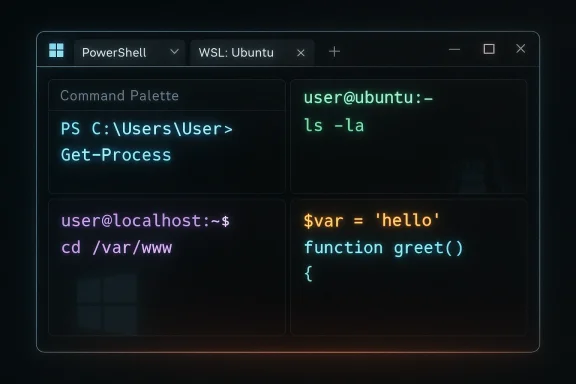
Windows Terminal treats each shell as a profile and each profile can be launched in its own tab or split pane. That means you can run PowerShell in one tab, an Ubuntu session in another, and a remote SSH session as a third—then split one of those tabs vertically to watch logs while editing a file.- Tabs and split panes are first-class features designed for multitasking. They are fast, keyboard-friendly, and intended to replace the era of one-console-per-shell. The project team documents both the UI and command-line parameters you can use to customize startup tabs and panes.
- Fast context switching without juggling windows.
- Scriptable start-up layouts for reproducible workspaces.
- Consistent keyboard shortcuts and searchable command palette.
WSL integration: bring Linux tooling into Windows
Maybe the most transformational part of Terminal for many Windows users is how easily it integrates WSL. Install a WSL distro (for example via wsl --install), open Windows Terminal, and you’ll see dynamic profiles for each installed Linux distribution. You can mix Windows and Linux tools: run apt and ssh side-by-side with PowerShell scripts, call Windows GUI apps from WSL and vice versa.- Microsoft’s WSL docs specifically recommend Windows Terminal as the modern way to work with multiple Linux distributions and command-line contexts on Windows.
- You get the Linux ecosystem (package managers, compilers, container tooling) without a VM or dual-boot setup.
- GPU-accelerated WSL workflows (for compute and GUI apps) are part of Microsoft’s broader WSL roadmap—meaning Terminal is the natural container for mixed Windows/Linux developer workflows.
PowerShell, Cmd, and object-orientation
PowerShell introduced a different model to the command line: pipeline-transmitted objects, not just text. Windows Terminal is shell-agnostic and treats PowerShell as another powerful profile—meaning you can use Terminal to run object-oriented automation, then switch tabs to a bash session to compile code or run makefiles.- PowerShell remains the recommended Windows automation language for system tasks, and Terminal is the comfortable host for both PowerShell’s object pipelines and bash’s text pipelines. This is why many Windows-first automation flows now assume Terminal as the default UI.
Rendering, fonts, and accessibility
Windows Terminal uses a GPU-accelerated text renderer that improves font clarity, speed, and support for modern font features. It supports Cascadia Code and a broad Unicode set (including emoji), and it exposes theming options—color schemes, background images, acrylic and translucency—so you can make the terminal both readable and pleasant.- GPU acceleration makes large log streams, heavy text output, and emoji rendering smoother than in the legacy Windows Console.
Settings, profiles, and automation
Terminal settings are stored in a JSON model (and the app now exposes a live Settings UI), so you can:- Define named profiles (PowerShell, WSL, Cmd, SSH, custom apps).
- Customize key bindings, actions, and startup sequences.
- Export and apply settings across machines or within automation scripts.
Quake mode, default-terminal, and global summon
Two features deserve special mention for everyday productivity:- Quake mode: a drop-down terminal inspired by classic shooters’ consoles; summonable with a hotkey and dismissible in one keystroke. It’s fast for quick lookups, one-off git status checks, or troubleshooting.
- Default terminal setting: Terminal can be configured as the OS’s default console host so that double-clicking PowerShell or launching a console application opens inside Terminal rather than the legacy console. This unifies the experience and short-circuits inconsistent behaviors across different Windows builds.
Practical workflows: what you can do today
- Get a multi-shell workspace: pin Windows Terminal to your taskbar and create profiles for PowerShell, Ubuntu (WSL), and your favorite remote SSH host. Use split panes to debug while tailing logs.
- Learn Linux without leaving Windows: use WSL + Windows Terminal to install the distro you need, experiment with apt, pip, or container tooling, and keep your Windows tools available at the same time. Microsoft’s WSL install guidance shows how simple this can be with the wsl --install shortcut.
- Automate and standardize with JSON: store theme, keybinds, and startup layouts in a checked-in settings.json to replicate developer environments across machines.
- Use the command palette to quickly find actions, launch profiles, or execute commands without memorizing long key sequences.
Security and risk analysis: the parts you must watch
Windows Terminal is extraordinarily capable, but power introduces risk. Two broad classes of hazards stand out.1) User-assisted command execution (the Paste Problem)
One of the oldest and most effective infection chains is social engineering that convinces users to paste commands into a terminal. Attackers craft seemingly harmless install commands that, when pasted and executed, fetch and run payloads. Security researchers and CERT teams repeatedly warn: never blindly paste commands from web pages, chat, or emails. This class of attacks—some vendors call it “ClickFix” or “fake-captcha” campaigns—works because many legitimate developer workflows require pasting curl | bash or PowerShell one-liners.What to do:
- Treat pasted commands as untrusted input. Copy any multi-line command into a text editor, inspect it, and run commands line-by-line when possible.
- In managed environments, teach staff to use reproducible install artifacts (signed installers, package managers, or scripts hosted in trusted repositories).
- For sensitive environments, isolate the initial execution to a non-privileged container or disposable VM.
2) Terminal escape sequences and output-based attacks
Terminals process control sequences embedded in output. Historically, crafted terminal output has been abused to manipulate terminal behavior, inject escape sequences, or even exfiltrate data in some edge cases. Community security threads and vulnerability write-ups (for BusyBox and other terminal-aware utilities) remind us that terminals are not passive: they can interpret data in ways that matter to security. Some research and CVEs have highlighted these risks in embedded utilities or older terminal stacks; administrators should not assume that every component automatically sanitizes control sequences.What to do:
- Avoid piping untrusted network data directly into a terminal for display without sanitization.
- Use terminal settings and shell configurations that disable interpreting unwanted escapes where possible.
- Be especially cautious when viewing outputs from untrusted services, log files, or packet captures.
Platform and enterprise policy risks
- Update model: because Terminal ships via the Microsoft Store and GitHub releases, enterprise management needs to account for decoupled update cadence. IT teams should standardize a channel (Store vs msix) and enforce it with management tooling.
- Policy control: if you’re deploying Terminal across a fleet, test the settings model and profiles with group policy and device management tools before wholesale rollout—some options (like the default terminal setting) were initially gated to preview builds and require OS compatibility checks.
Critical analysis: strengths, limitations, and trade-offs
Strengths
- Unified host for multiple shells: The single-window model with dynamic profiles reduces friction between Windows-native and Linux-native tooling.
- Modern rendering and accessibility: GPU acceleration and font features make text heavy workflows more readable and responsive.
- Open development model: GitHub-based development brings transparency, fast iteration, and a direct feedback loop for power users and enterprise admins.
Limitations and trade-offs
- Feature parity vs. terminal multiplexers: Terminal’s panes and splits are convenient, but some seasoned Linux users still prefer tmux or other multiplexer workflows for remote resilience and session persistence. Terminal is catching up, but it is not a drop-in replacement for all advanced remote workflows.
- Enterprise management complexity: The Store/GitHub split and preview channels can complicate controlled deployments. Administrators must vet update channels and test new features before broad adoption.
- Security is user-dependent: Terminal can’t protect a user who is persuaded to paste a remote command or to elevate a process without inspection. The UX trade-off—fast paste and keyboard-driven operations vs. safety interventions—remains unresolved in many terminal ecosystems; education and policy remain the first line of defense.
How to get started (practical checklist)
- Install WSL and a distro:
- Open an elevated PowerShell and run: wsl --install (follow prompts to choose Ubuntu or another distro). Microsoft’s WSL docs provide step-by-step guidance.
- Install or update Windows Terminal:
- Use the Microsoft Store or your preferred enterprise deployment mechanism (winget, msix, or managed Store policies). Consider Preview builds only for testing.
- Create profiles you need:
- Add a profile for PowerShell, one for your WSL distro, and an SSH profile for remote machines.
- Configure a safe starter layout:
- Use a startup action to open a PowerShell tab plus your preferred WSL tab, or script a “dev layout” with multiple panes.
- Harden habitually:
- Never paste multi-line commands from unknown sources. Inspect scripts in a text editor and run repro visioned steps in controlled environments first.
Advanced tips and workflows
- Use the command palette to search profiles and commands quickly.
- Export your JSON settings and add them to dotfiles so your Terminal configuration behaves the same across devices.
- Map keys for frequent actions (split pane, new tab, rotate panes) so you can work without reaching for the mouse.
- Leverage Terminal’s integration with SSH to keep remote sessions organized; combine with credential managers and SSH agent forwarding as needed.
- For reproducible start-ups, script a layout via command-line parameters or a small helper script that opens a named Terminal layout—this is a simple way to get a deterministic dev environment on any machine.
Closing assessment: why Terminal belongs on your taskbar
Windows Terminal is not a niche toy: it is a modern, actively developed, and supported command-line host that brings together PowerShell, the legacy Command Prompt, WSL distributions, cloud shells, and SSH sessions in a fast, themeable, and scriptable package. For developers and IT professionals who need to move quickly across platforms, it removes friction and reduces context switching.That said, the feature set introduces responsibility. The same convenience that lets you paste a one-liner to install a tool can be abused by attackers who weaponize social engineering. Terminals, by nature, interpret text—so both individuals and IT organizations must adopt safety practices: review and audit commands, centralize trusted install mechanisms, manage Terminal channels for enterprise control, and educate users about the risks of unvetted code.
If you’ve never opened Windows Terminal, take ten minutes today: pin it, add profiles for PowerShell and your preferred WSL distro, and try a split pane. The first time you run a Linux tool, a PowerShell command, and an SSH session side-by-side and everything “just works,” you’ll understand why this is one of the most important productivity updates Windows has received in years. Community discussion and hands-on guides repeatedly show that once users climb the small learning curve, Terminal becomes the fast lane for getting real work done on Windows.
In short: give Windows Terminal a proper try. It’s powerful, flexible, and built to be the command-line front line for modern Windows—just bring caution, a sensible configuration, and the habit of inspecting what you paste.
Source: How-To Geek If you've never opened Windows Terminal, you're missing the most powerful tool already on your PC
