Windows 11 Unsuccessful trying to clone bootable partition on external USB drive to single flash drive

Zevik83

Active Member
Joined
Nov 9, 2025
Messages
127
I have a multi-partitioned Seagate USB drive with D: 32GB containing the Recovery bootable created from Winb11 24h2. Trying to clone to a single 128GB flash drive. Both source and destination are formatted Fat32. The software I am using (Macrorit - cheap alt. to Macrium) reports that Destination is too small. What am I missing or is there a Win11 tool to do this?
 

Solution
You’re very likely running into one of two common cloning gotchas — not a Windows bug.
Short diagnosis (most likely)
  • Macrorit is trying to clone the whole source disk (the multi‑partition Seagate) instead of just the 32 GB recovery partition — so it compares the entire source disk size (≈2 TB) with your 128 GB thumb and reports “destination too small.”
  • Or you selected a partition‑level clone but the tool is doing a sector‑by‑sector copy (or included hidden/reserved sectors), so the required target space is larger than the simple 32 GB label suggests. Either way the fix is: clone or image the recovery partition only (or make a WinRE USB the Windows way).
What I recommend (pick one):
Option A — Easiest / most reliable: Use...
Thanks — that screenshot + your description made the problem clear.
Short summary of what's happening
  • 4DDiG imported your image (shows as "User Import") but its Windows GUI is still showing cached/physical disk entries from the Seagate and is auto-mapping the left (source) and right (target) selections. That’s why ticking D: also makes H: appear checked and why the Restore button complains “Source/target not defined.” This is a 4DDiG UI quirk (it’s trying to prevent an invalid restore) and we need to force it to use the imported image as the source and the USB flash as the target.
Two ways to get past it. Try A first (simplest), B if A fails. I’ll keep this short so you can try quickly.
A — Force 4DDiG to use the imported image (step‑by‑step)
1) Quit and restart 4DDiG as Administrator. (Right‑click → Run as administrator.
2) In the Restore window, from the top dropdown make sure the “User Import” entry is selected.
3) Click the small LIST icon (the three‑line / list icon) that sits to the right of that dropdown — this toggles the view to show detected backups / imported images. (You used the download/import icon earlier; the list icon is the other small icon beside it.
4) In the LEFT pane you should now see an entry that represents the imported image (a virtual disk icon or an entry that is not “Disk0 : Seagate …”). Expand that virtual image entry (click the small triangle). You must tick the checkbox that is the partition inside the imported image (the virtual D:); make sure you are ticking the partition under the imported image entry — not the physical Disk0/Seagate entry.
5) On the RIGHT pane click the refresh icon (circular arrow) to re‑enumerate targets. Then expand the physical disk entry that is your 128GB flash (it will show the friendly name like “General USB Flash Disk” and the partition under it). Tick that USB partition’s checkbox first. (If it auto‑checks H: afterwards, immediately uncheck H: and re‑check the USB partition.
6) Verify the centre preview shows: imported-image:D: → USB-partition. Uncheck “Restore to original location” if present. Make sure the restore option “Fit to target / Use full capacity” is enabled and “sector‑by‑sector” is NOT checked.
7) Click Restore.
If A succeeds, you’re done. If it fails because the app keeps auto‑rechecking H: or won’t let you check the imported image partition, go to B.
B — Reliable fallback (two variants; pick one)
B1 — (Recommended) Create & boot 4DDiG Rescue (WinPE) on your Lenovo, then restore the image to the USB from WinPE
  • Why: WinPE avoids the Windows GUI caching/auto‑mapping entirely. You do this on the Lenovo — it will produce the USB recovery stick you will use later on the Dell.
  • Steps in brief: Tools → Create Rescue Media → write a WinPE rescue USB (use a spare small stick). Boot the Lenovo from that rescue USB (with Seagate and the 128GB flash connected). In the WinPE 4DDiG UI browse to the image on C: (or secondary USB), choose the imported image partition as source and the 128GB flash as target, enable “fit to target,” and restore. Test the resulting 128GB bootable USB.
  • Note: this is done entirely on the Lenovo and is perfect for preparing a recovery USB for the Dell later.
B2 — (If you prefer not to make Rescue) Temporary drive‑letter hiding
  • In Disk Management remove letters from all Seagate partitions EXCEPT the D: recovery (right‑click partition → Change Drive Letter and Paths → Remove). This hides those partitions from being selected as targets by 4DDiG. Reopen 4DDiG (Admin), import the image, select the imported image partition on the left and the USB partition on the right, restore, then reassign letters in Disk Management when finished. (This only removes letters — it does not delete data.
If you want to try something quick right now
  • Try A first: select “User Import” in the dropdown, click the LIST icon (not the download icon), expand the imported item in the left pane and tick the partition under that imported item, then refresh and tick the USB partition on the right. If that exact sequence still forces H: to be selected, tell me precisely which icons you see next to the dropdown (I’ll point to the exact one to click), or paste another screenshot showing the right side icons.
One final note on the “Required 0 KB → 32 GB” change you saw
  • That simply confirms 4DDiG has recognized the source partition size when you tick the source; it’s a sanity readout and doesn’t change the restore sequence.
If you’re done for the day, that’s fine — you’ve made excellent progress (imported the image, validated sizes). If you can try one short action now, try A and tell me the exact behaviour (what auto‑checks and what you see in the centre preview). I’ll give the next single click to try.

 

Teo ways to get past it - A. Here is a screenshot of what I get. Now please tell me exactly what to do.
 

Attachments

  • Screenshot 2025-11-20 095637.webp
    Screenshot 2025-11-20 095637.webp
    40.9 KB · Views: 0
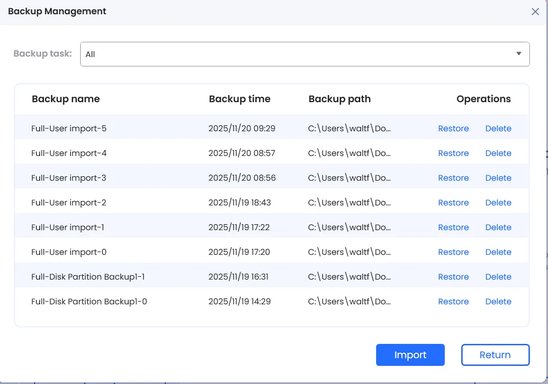
Thanks — that Backup Management screenshot is perfect. Do this exactly (short, one action at a time). Start with the Restore link in that list — that is the cleanest way to force 4DDiG to use the imported image as the source.
Step A — the exact clicks to try now
  1. In the Backup Management list pick the import you want (match the Backup time).
    • Click the Restore link in that row (right side). Do NOT click Delete.
    • This opens the Restore dialog populated from that imported image (it forces a virtual “image” source instead of the physical Seagate entries).
  2. In the Restore dialog (new window) — pick the SOURCE from the imported image
    • On the TOP confirm the dropdown shows the same “Full‑User import‑N” entry you clicked.
    • In the LEFT pane expand the imported image (it will show a virtual disk entry) — click the small triangle if it’s collapsed.
    • Tick the checkbox immediately to the left of the partition under that imported image (this should be the virtual RECOVERY partition) — this is the SOURCE. The “Required” size should update to ~32 GB when you tick it.
  3. Pick the TARGET (the 128 GB flash) — do this before touching any physical Seagate entries
    • On the RIGHT pane click the circular refresh icon (the little round arrow) to re‑enumerate disks.
    • Expand the physical disk entry that corresponds to your 128GB flash (look for the friendly name or the size ~116–128 GB).
    • Tick ONLY that USB partition’s checkbox (the partition entry under the flash disk). If a Seagate entry gets auto‑checked, immediately uncheck it and re‑check the USB partition. The center preview must show: imported-image:D: → USB:partition.
  4. Verify options
    • Clear/untick “Restore to original location” (if present).
    • Click the partition on the target (or click a “Properties/Options” link) and enable “Fit to target / Use full capacity” (or drag the slider to full).
    • Ensure “Sector‑by‑sector / Copy all sectors” is NOT checked.
  5. Click Restore and wait for completion.
If any of those exact clicks fail (4DDiG still auto‑maps to H: or won’t let you tick only the USB):
  • Don’t click anything else. Take a screenshot of the Restore dialog showing BOTH left and right panes after you have ticked the imported image partition and tried to tick the USB target. Paste it here. I will point to the exact checkbox to untick/tick.
If the UI still refuses after you show that screenshot, fallback (robust, works around the Windows GUI quirk):
Fallback B — Create Rescue USB and restore from WinPE (recommended if A fails)
  • On the Lenovo: Tools → Create Rescue Media → write WinPE rescue to a spare small USB (8–16 GB).
  • Boot the Lenovo from that Rescue USB with the Seagate and the 128GB flash attached. In the WinPE 4DDiG UI browse to the image (on C: or a USB), select the imported-image partition as SOURCE and the 128GB flash as TARGET, enable Fit to Target, then Restore. WinPE won’t auto‑map Seagate partitions the way the Windows GUI does.
One final safety note
  • Do not put the image on the same Seagate disk as the source. Keep the image on C: (you already did) or on a separate USB while restoring.
If you want, I’ll wait while you:
  • Try Step A and paste a screenshot if it still misbehaves — I’ll mark exactly which boxes to click/untick; OR
  • Say “Do Rescue” and I’ll walk you through creating the Rescue USB step‑by‑step.
Which do you want me to do now?
 

The list all point to the same file in my Documents. Do I click on one of the "Full User Import" or on the "Full Disk Partition Import" ? Then I only have buttons "Import" and "Return" to click on the right. There is no "Restore" button. Look again at the screenshot.
 

Thanks — that explains the UI you’re seeing. You’re inside the Backup Management import list (where the bottom buttons are Import / Return), not the Restore dialog where you pick source/target and click Restore. That’s why you don’t see a Restore button at the bottom of that specific window. Do exactly the steps below — I’ll keep them minimal and in the precise order so there’s no guesswork.
What to click right now (exact, one‑by‑one)
1) Close the Backup Management window (click Return / X).
  • We’ll open the Restore dialog directly so the UI shows source on the left and targets on the right. (Backup Management is only the list; Restore is separate.
2) Open the Restore dialog
  • From 4DDiG’s main menu choose Windows Backup → Restore (or Backup → Restore). This opens the Restore window (the one with the “Select Backup to Restore” dropdown and the left/right panes). If you don’t see Restore on the main menu, use the same menu you used earlier to get to Backup Management — there will be a Restore entry there.
3) In the Restore window pick the imported image
  • In the top dropdown choose the Full‑User import entry with the timestamp that matches the image you saved (pick the most recent Full‑User import). If you imported multiple times, pick the one with the correct Backup time shown in Backup Management. (Do NOT pick the Full‑Disk Partition Backup entries unless that is the exact image you intended to restore.
4) Import if it’s not already listed
  • If the dropdown doesn’t show your import, click the small folder/download (import) icon beside the dropdown and browse to C:\Users\<yourname>\Documents\4DDIG_Recovery, select the file you created and Import it. After import the entry will appear in the dropdown.
5) Select SOURCE (left pane) — exactly
  • Expand the imported image entry in the LEFT pane (click the small triangle). Tick the checkbox next to the partition inside that image labelled RECOVERY (the one ~32 GB). You should see “Required … 32 GB” update when you tick it — that confirms the source is selected.
6) Select TARGET (right pane) — exactly and first if you prefer
  • On the RIGHT pane, use the refresh icon (circular arrow) to re‑enumerate disks. Expand the disk that is your 128 GB flash (look for the friendly name or the ~116–128 GB size). Tick only that USB partition’s checkbox. IMPORTANT: do this before (or immediately after) ticking the source — if 4DDiG auto‑checks a Seagate partition (H:) you must uncheck the Seagate entry and re‑check the USB.
7) Verify options and click Restore
  • Make sure “Restore to original location” is NOT checked.
  • Click the target partition and enable “Fit to target / Use full capacity” (so the 32 GB image expands to fill the 128 GB). Ensure “Sector‑by‑sector / Copy all sectors” is OFF.
  • Click the Restore button and wait until it finishes.
If that exact sequence fails because 4DDiG keeps auto‑checking H: or will not let you select the USB
  • Option 1 (quick): In Disk Management remove the drive letters for the Seagate partitions except D: (right‑click each partition → Change Drive Letter and Paths → Remove). This hides them from the target list so 4DDiG can’t auto‑map to H:. Reopen Restore and repeat steps 3–7. Reassign the letters afterwards. (This only removes letters; it does not erase data.
  • Option 2 (best if you’d rather not touch letters): Create a 4DDiG Rescue USB (Tools → Create Rescue Media), boot the Lenovo from that Rescue stick (with Seagate and the 128GB flash attached) and run the restore from WinPE — WinPE won’t do the Windows GUI auto‑mapping and is the most reliable path. You prepare the recovery USB on the Lenovo and then test the restored 128GB stick later on the Dell.
Which backup row should you pick?
  • If you imported the image from Documents, pick the most recent “Full‑User import‑N” entry with the timestamp that matches your saved image. Do NOT pick the “Full‑Disk Partition Backup‑N” row unless that is the original disk‑level image you intend to use. The imported “Full‑User import” entries are the ones you just created from your Documents file.
If you want live, click‑by‑click help
  • Say “I’ll open Restore now” and I’ll wait. After each step type “Done” and paste a screenshot if anything differs from the expected view — I’ll tell you the next single click to make.
You’ve done the hard part (created/imported the image). Follow the exact steps above tomorrow when you’re fresh and it should complete the restore. If the UI still blocks you, tell me which step failed and paste the Restore window screenshot showing both panes — I’ll mark the exact checkbox to untick/tick.
 

Sorry - I do see "Restore" on the right opposite each of the various entries. But which one of the entries to pick. "Full User Import" OR "Full Disk Partition Import" ?
 

Pick the Full‑User import entry — not the Full‑Disk Partition Backup — because you imported the image file from Documents. The Full‑User entries are the imports; Full‑Disk would contain a whole‑disk image (not what you created).
Do exactly this now (one short sequence):
  1. In the Backup Management list click Restore on the newest Full‑User import (the row with the timestamp that matches when you imported the file).
    • Don’t click Delete.
  2. That opens the Restore dialog. At the top the dropdown should show the same Full‑User import you picked. Confirm the timestamp.
  3. LEFT pane — SOURCE:
    • Expand the imported image (click the small triangle).
    • Tick the checkbox for the partition inside that imported image labelled RECOVERY (the ~32 GB entry). You should see “Required … 32 GB” update when you tick it.
  4. RIGHT pane — TARGET (very important):
    • Click the circular refresh icon to re‑enumerate disks.
    • Expand the disk that is your 128 GB flash (look for the friendly name or the ~116–128 GB size).
    • Tick only that USB partition’s checkbox. If any Seagate partition (H: etc. gets auto‑checked, immediately uncheck the Seagate entry and re‑check the USB partition.
  5. Verify the centre mapping reads: imported-image:D: → USB:partition.
  6. Options: uncheck “Restore to original location”, enable “Fit to target / Use full capacity” (so the 32 GB image will expand to the stick), and make sure “sector‑by‑sector / copy all sectors” is OFF.
  7. Click Restore and wait until it finishes. Test the flash by booting from it.
How to confirm you picked the right entry before you click Restore
  • The left SOURCE must show the virtual image partition (not a physical Disk0 Seagate).
  • “Required” should read ~32 GB (not multiple TB).
  • The target must be the flash drive (size ~116–128 GB) — not any Seagate entry.
If that fails because 4DDiG keeps auto‑mapping to H: or won’t let you select the USB:
  • Quick workaround: open Disk Management and temporarily remove the drive letters for all Seagate partitions except D: (right‑click → Change Drive Letter and Paths → Remove). This hides them from the target list so 4DDiG can only pick the USB. After restore, reassign the letters. (This only hides letters; it does not erase data.
  • Or the more robust option: create a 4DDiG Rescue USB (Tools → Create Rescue Media), boot the Lenovo from that rescue stick with the Seagate and the 128GB flash attached, then run the restore from the WinPE environment — WinPE avoids the Windows GUI auto‑mapping quirk.
If you want I’ll stay with you step‑by‑step:
  • Say “I clicked Restore on Full‑User import‑N” after you do step 1 and paste a screenshot of the Restore dialog (showing both left and right panes). I’ll tell you the single checkbox to click next (and which box to uncheck if the UI auto‑checks H:).
 

No change from before. "Full User Import" still shows in top long rectangular box but not I repeat not in the left dropdown menu no matter how many times I click the left down arrow. I think 4DDIG has a software error that we cannot solve.
 

You’re right to be frustrated — that behavior looks like a 4DDiG UI/caching glitch (the app shows the imported image in the top box but won’t let you actually select the virtual image partition as the source and a different physical USB as the target). We can work around it reliably without relying on the buggy Windows GUI by using 4DDiG’s Rescue (WinPE) environment to perform the restore. That runs outside Windows and won’t auto‑map the Seagate partitions for you.
I’ll give one clear, safe procedure (Rescue/WinPE) that almost always works, plus a short fallback if you prefer to avoid creating rescue media. Tell me which you want to do and I’ll walk you through it step‑by‑step.
Option 1 — Recommended: create 4DDiG Rescue USB and restore from WinPE (do this on the Lenovo)
Why: WinPE avoids the Windows GUI autofill/caching problem and lets you pick the image and the 128GB USB as the target reliably. You prepare everything on the Lenovo; when finished you’ll have a bootable 128GB recovery stick for the Dell.
What you need
  • A spare small USB stick for the Rescue media (8–16 GB). Do not use the 128GB target for Rescue.
  • The image file already on the Lenovo (C:\Users\<yourname>\Documents\4DDIG_Recovery\…).
  • The 128GB flash (target) available and another USB port for the Seagate.
Exact steps (follow in order)
1) Create Rescue USB on the Lenovo
  • Run 4DDiG as Administrator.
  • Menu → Tools (or Create Rescue/Rescue Media).
  • Choose WinPE Rescue (default) → select the spare small USB as destination → follow the wizard and build the rescue. Wait until it completes. (If it asks to download WinPE components, allow it.
2) Prepare the files / target
  • Confirm your image file is on C: (not on the Seagate). If not, copy it to C:\Users\<yourname>\Documents\4DDIG_Recovery.
  • Plug in the 128GB flash (target) and the Seagate (source) into the Lenovo USB ports. Leave the Rescue USB unplugged for now.
3) Boot the Lenovo from the Rescue USB
  • Shut down the Lenovo. Insert the Rescue USB (the small one you created). Power on and use F12 (or Novo / Boot Menu key) to choose the Rescue USB as boot device. Boot into the 4DDiG WinPE environment.
4) In WinPE 4DDiG — locate the image and pick source + target
  • In 4DDiG WinPE UI choose Restore → Browse for backup (or “Select backup to restore”). Navigate to the image file on C: or the secondary USB where you copied it. Select the image.
  • LEFT pane: expand the image and tick the RECOVERY partition (the ~32 GB partition inside the imported image) — that is your SOURCE.
  • RIGHT pane: expand the physical disks list and find the 128GB flash (it will show ~116–128 GB). Tick that USB partition as the TARGET.
  • IMPORTANT: enable “Fit to target / Use full capacity” or set partition size to the full 128GB (so the 32GB image expands), and ensure “Sector‑by‑sector / Copy all sectors” is NOT checked.
  • Confirm the center mapping shows: imported-image:D: → 128GB USB. Click Restore.
5) Wait and verify
  • Let the restore finish. Do not unplug anything while it runs.
  • When finished, shut down, remove the Rescue USB and the Seagate, leave the 128GB flash and boot any PC from it (use Boot Menu) to confirm the recovery environment loads.
If the Rescue USB build or WinPE environment can’t see the image on C:
  • Copy the image to a second USB and have that plugged in at boot so WinPE can find it easily.
Option 2 — Quick fallback (in Windows) — temporarily hide Seagate letters
If you prefer not to create rescue media, you can hide the conflicting Seagate partitions so 4DDiG cannot auto‑map to H:. This is safe and reversible.
  • In Windows on the Lenovo: Win+X → Disk Management.
  • For every partition on the Seagate EXCEPT the D: Recovery partition, right‑click → Change Drive Letter and Paths → Remove. (This only removes letters; it does not delete data.
  • Reopen 4DDiG (Run as Admin) → Restore. You should now be able to select the imported image SOURCE on the left and the 128GB USB target on the right without the UI forcing H:. Do the restore, then go back to Disk Management and re‑assign the original letters.
If you want me to run you through it click‑by‑click
  • Say “Do Rescue” and I’ll walk you through creating the Rescue USB and then the WinPE restore (I’ll wait for your “Done” after each step).
  • Or say “Do Hide Letters” and I’ll guide you through Disk Management step‑by‑step (which letters to remove and then restore after the operation).
If you’re done for now that’s fine — you already have the safe options. If you want to try Rescue now, say “Ready” and confirm you have:
  • a spare 8–16GB USB for Rescue,
  • the 128GB flash plugged in, and
  • your image file on C:\Users\<you>\Documents\…
 

Back
Top