

If your perfectly serviceable Windows 10 PC now shows as “incompatible” for Windows 11, you can still — in most cases — move it to Windows 11 today without buying new hardware, but you must choose the right path for your machine and accept the real trade‑offs that come with bypassing Microsoft’s checks.
Microsoft set a higher security and firmware baseline for Windows 11: a 64‑bit CPU from the approved list, UEFI firmware with Secure Boot capability, TPM 2.0, at least 4 GB RAM and 64 GB storage, DirectX 12 / WDDM 2.x graphics, and a display of at least 720p. These are the official minimums that decide whether an in‑place upgrade via Windows Update is offered. The calendar adds urgency. Windows 10 reached end of support on October 14, 2025 — meaning normal security and feature updates stopped on that date unless you enroll in Microsoft’s Extended Security Updates (ESU) program or move to Windows 11. Microsoft’s official guidance and lifecycle pages make this explicit. That combination of policy and schedule explains the surge of interest in practical workarounds. Two pragmatic, commonly used options cover most real‑world “incompatible” PCs:
Why it works: the Windows 11 Setup respects a registry flag that tells the installer to skip certain CPU and TPM checks when run from within Windows. Microsoft published guidance on this tweak in earlier material, but public support wording changed in 2025 — the technique remains widely used in practice. Proceed with caution. Step‑by‑step (safe, numbered):
But there are tangible risks and limits. Unsupported installs may have driver gaps, reduced stability, and — crucially — uncertain update entitlement. Instruction‑level CPU blocks in Windows 11 24H2 (POPCNT/SSE4.2) are effectively non‑negotiable; no registry tweak or Rufus wrapper can add missing CPU instructions. Microsoft’s documentation and messaging make the policy intent clear: unsupported machines are not guaranteed to remain fully patched forever. Proceed only after backing up and accepting those trade‑offs.
If an unsupported upgrade is necessary for a non‑critical home PC, these routes are practical and well trodden. For business, critical systems, or machines handling sensitive data, plan a supported migration or ESU enrollment instead — that’s the durable path to security and vendor support.
Source: sportsdende.com.br How to upgrade your 'incompatible' Windows 10 PC to Windows 11 for free - today - Sports Dendê - o esporte com tempero baiano
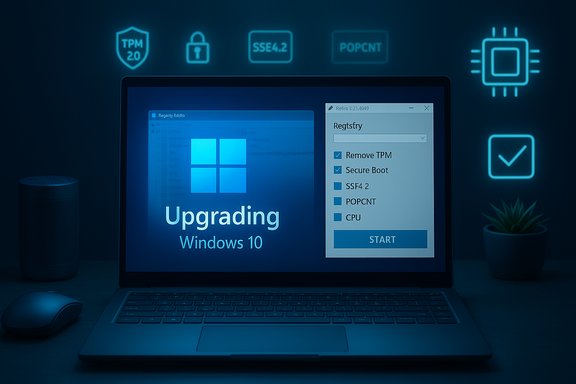 Background / Overview
Microsoft set a higher security and firmware baseline for Windows 11: a 64‑bit CPU from the approved list, UEFI firmware with Secure Boot capability, TPM 2.0, at least 4 GB RAM and 64 GB storage, DirectX 12 / WDDM 2.x graphics, and a display of at least 720p. These are the official minimums that decide whether an in‑place upgrade via Windows Update is offered. The calendar adds urgency. Windows 10 reached end of support on October 14, 2025 — meaning normal security and feature updates stopped on that date unless you enroll in Microsoft’s Extended Security Updates (ESU) program or move to Windows 11. Microsoft’s official guidance and lifecycle pages make this explicit. That combination of policy and schedule explains the surge of interest in practical workarounds. Two pragmatic, commonly used options cover most real‑world “incompatible” PCs:- Option 1: a small registry edit plus running Setup from a mounted Windows 11 ISO (best for UEFI systems that already expose a TPM or have firmware toggles).
- Option 2: using the Rufus utility to create installation media that automatically applies the required tweaks (better for legacy BIOS/MBR systems or PCs without TPM/Secure Boot).
Why Microsoft’s checks exist — and why people bypass them
Microsoft’s stated rationale for the stricter baseline is security and reliability: hardware features such as TPM‑anchored keys, Secure Boot, and processor instruction support (SSE4.2 / POPCNT on newer builds) enable modern protections (VBS, HVCI, hardware isolation). Machines that lack these capabilities are more likely to suffer compatibility, stability, or security gaps. That said, many incompatibility flags are trivial to fix by toggling firmware settings (enable fTPM on AMD, PTT on Intel; enable Secure Boot; convert BIOS/MBR to UEFI/GPT). In dozens of community reports, those simple fixes restored upgrade eligibility. For devices where the CPU is simply not on Microsoft’s “supported” list, or where instruction‑level features like POPCNT or SSE4.2 are missing, the options narrow: third‑party bypasses won’t create missing CPU instructions. Two recent platform changes to be aware of:- Microsoft removed its formal support article that once documented the registry bypass (the company later pared back that guidance). Community coverage and archived captures show the registry tweak has been widely used for years, but Microsoft’s public documentation changed in 2025. Treat that as a policy change, not a technical blocking of the tweak itself.
- Windows 11 version 24H2 added explicit CPU instruction checks — notably POPCNT and SSE4.2 — that are effectively unbypassable on CPUs that never implemented them. If your CPU lacks those instructions, modern Windows 11 builds will refuse to boot. Use Coreinfo or CPU‑Z to check for POPCNT and SSE4.2 before attempting the upgrade.
Checklist: what your PC must (or should) have before attempting an unsupported upgrade
Before you begin, confirm these items. If the machine fails any critical checks, stop and consider ESU or hardware replacement.- A 64‑bit x64 CPU (not ARM).
- At least 4 GB RAM and 25–64 GB free disk space (Microsoft lists 64 GB; in practice 30+ GB is a safer minimum).
- UEFI firmware (not Legacy BIOS) if you plan an in‑place upgrade — check msinfo32.exe and look at BIOS Mode. Convert to UEFI/GPT only if you’re comfortable with the steps.
- TPM presence: open tpm.msc and confirm a TPM is present and enabled. The registry workaround accepts older TPM versions in some cases, but a completely absent TPM typically means you’ll need Rufus or a clean install approach.
- Verify CPU instructions (POPCNT and SSE4.2) for Windows 11 24H2 and newer. Use Coreinfo or CPU‑Z to confirm. If missing, modern Windows 11 builds may refuse to boot.
Option 1 — The registry tweak (when to use it, and exactly how)
When to use this: your PC boots in UEFI, supports Secure Boot (or at least is Secure Boot capable), and it exposes a TPM (even TPM 1.2 sometimes suffices). Use this path when the only blockers are CPU whitelist or TPM‑version checks and you prefer an in‑place upgrade that preserves apps and settings.Why it works: the Windows 11 Setup respects a registry flag that tells the installer to skip certain CPU and TPM checks when run from within Windows. Microsoft published guidance on this tweak in earlier material, but public support wording changed in 2025 — the technique remains widely used in practice. Proceed with caution. Step‑by‑step (safe, numbered):
- Create a full system image and confirm your backups. This is non‑negotiable.
- Open Registry Editor: press Win+R, type regedit, press Enter.
- Navigate to: HKEY_LOCAL_MACHINE\SYSTEM\Setup
- If a key named MoSetup does not exist under Setup, right‑click Setup → New → Key → name it MoSetup.
- With MoSetup selected, right‑click the right pane → New → DWORD (32‑bit) Value. Name it AllowUpgradesWithUnsupportedTPMOrCPU.
- Double‑click that new value and set Value data = 1. Click OK.
- Reboot the PC.
- Download the Windows 11 ISO from Microsoft’s official download page (choose the x64 Disk Image) and save it locally.
- Right‑click the ISO or double‑click to mount it; in File Explorer open the mounted ISO and run Setup.exe. During the Setup warnings, accept the disclaimer and choose Keep personal files and apps if you want an in‑place upgrade.
- If Setup asks “Change how setup downloads updates,” pick Not right now to reduce early failures on some systems (this advice comes from community troubleshooting).
- The registry key must be exactly named and placed precisely in the MoSetup key — typos will fail silently.
- This method will not create missing CPU instructions or add hardware. If you lack POPCNT/SSE4.2 (required by 24H2 and newer), you’ll hit an error later. Confirm instruction support first.
- Microsoft’s official stance is unsupportive for unsupported installs: you may see an installer waiver stating that updates are not guaranteed. That is a deliberate policy; it’s not the same as an immediate technical cutoff, but it is a real risk to long‑term update entitlement.
Option 2 — Use Rufus to create a “compatibility‑relaxed” installer USB
When to use this: the PC lacks TPM, boots legacy BIOS/MBR, or you can’t safely convert to UEFI and still want to upgrade in‑place or perform a clean install. Rufus automates the tweaks that used to require manual file replacements and registry edits. Why Rufus: starting with Rufus v4.6 the developer added a setup.exe wrapper and UI options that let you remove TPM, Secure Boot, RAM and some other requirements when creating the USB installer. The tool does not produce Windows — it customizes the installer environment so Setup will proceed on target machines. You must use a modern Rufus release (4.6+). Step‑by‑step (safe, numbered):- Back up your system image and data. (Again: back up.
- Download the official Windows 11 x64 ISO and save it to your Downloads folder. Do not put the ISO on the USB you’ll create.
- Download the latest Rufus from the official site or GitHub releases; confirm the version is 4.6 or newer.
- Insert a USB flash drive (16 GB minimum). Rufus will reformat it — move any files off it first.
- Run Rufus as Administrator. Select the USB, choose Disk or ISO image, and click Select → pick the Windows 11 ISO.
- Rufus will detect the ISO and present a Windows User Experience dialog with checkboxes to remove hardware requirements (wording varies by Rufus version). Check the top box to remove TPM/Secure Boot and related checks, then click OK.
- Click Start and wait for Rufus to build the USB.
- After Rufus finishes, open the USB in File Explorer on the same Windows 10 PC and double‑click Setup.exe to run the installer (this preserves apps/settings). Do not boot from the USB if you want an in‑place upgrade. For a clean install you may boot from the USB instead.
- Rufus cannot bypass CPU instruction requirements added in 24H2 (POPCNT/SSE4.2). If your CPU lacks these, the installer may fail to boot after upgrade. Check CPU features before you invest time.
- If Setup quits with “An unsupported operation was attempted” during the Rufus path, choose “Change how setup downloads updates” → Not right now and retry; many community reports found this resolves early aborts.
- Use a fresh ISO if you get revoked‑bootloader errors; Microsoft periodically updates the UEFI boot chain and old ISOs can trip Rufus checks.
Troubleshooting tips and quick checks
- If Setup refuses to proceed: confirm the registry value name and location (Option 1), or recreate the Rufus USB with a fresh ISO (Option 2).
- If drivers fail after upgrade: open Device Manager and run Windows Update → Optional updates; download OEM drivers from the vendor support page when possible. Unsupported installs may sometimes need vendor driver downloads.
- If the system won’t boot after a 24H2 installation: verify the CPU supports SSE4.2 and POPCNT; if not, recovery may require restoring your image or reinstalling Windows 10 and enrolling in ESU.
The policy, updates, and long‑term risk
Two policy points matter for any unsupported install:- Microsoft explicitly warns that devices “that do not meet these system requirements will no longer be guaranteed to receive updates, including but not limited to security updates.” That warning appears in Microsoft support language and the installer waiver users accept before proceeding. That is not an idle disclaimer — it defines Microsoft’s support posture.
- Microsoft removed some official documentation that previously described the registry bypass in 2025; the change signals a policy tightening and should increase your caution if you rely on that trick for a fleet of machines. Community and archived references show the tweak existed, but public guidance changed. Treat unsupported installs as a hobbyist or stopgap solution, not a corporate standard.
Decision guide (quick)
- UEFI + TPM present, only CPU whiplisted? — Try Option 1 (registry tweak + mounted ISO). Back up first.
- Legacy BIOS/No TPM/older config but CPU supports POPCNT/SSE4.2? — Use Rufus (Option 2) and run Setup.exe from the created USB to preserve apps where possible.
- CPU lacks POPCNT or SSE4.2 — Do not attempt to force 24H2; you’ll likely fail to boot. Consider ESU, Linux alternatives, or a hardware upgrade.
Final verdict: when this is a smart move — and when it isn’t
There are clear wins to upgrading an older PC to Windows 11 using these methods. You can keep an otherwise fine machine secure for everyday tasks, retain applications and settings in many cases, and avoid immediate hardware expense. The community has proven these techniques on countless machines, and tools such as Rufus automate the messy parts.But there are tangible risks and limits. Unsupported installs may have driver gaps, reduced stability, and — crucially — uncertain update entitlement. Instruction‑level CPU blocks in Windows 11 24H2 (POPCNT/SSE4.2) are effectively non‑negotiable; no registry tweak or Rufus wrapper can add missing CPU instructions. Microsoft’s documentation and messaging make the policy intent clear: unsupported machines are not guaranteed to remain fully patched forever. Proceed only after backing up and accepting those trade‑offs.
Conclusion
Upgrading an “incompatible” Windows 10 PC to Windows 11 is often possible today using one of two practical and tested methods: a precise registry edit when you already have UEFI/TPM, or a Rufus‑created installer for legacy scenarios. Both use official Windows 11 media and both carry trade‑offs — most importantly the question of future update entitlement and the unbypassable CPU instruction requirements introduced with Windows 11 24H2. Before you act: back up, verify CPU instruction support, check TPM/UEFI, choose the appropriate method, and accept the policy risks that come with unsupported installs.If an unsupported upgrade is necessary for a non‑critical home PC, these routes are practical and well trodden. For business, critical systems, or machines handling sensitive data, plan a supported migration or ESU enrollment instead — that’s the durable path to security and vendor support.
Source: sportsdende.com.br How to upgrade your 'incompatible' Windows 10 PC to Windows 11 for free - today - Sports Dendê - o esporte com tempero baiano
