

Microsoft’s October 14, 2025 end‑of‑support deadline for Windows 10 turned a lot of “it still works” family PCs into urgent upgrade projects, but for most machines built in the last decade you have realistic, safe options to move from Windows 10 to Windows 11 without buying new hardware—provided you understand the limits, pick the right method, and accept the tradeoffs.
Microsoft officially ended support for Windows 10 on October 14, 2025, which means ordinary consumer editions stopped receiving regular security and feature updates after that date. That deadline is the key reason many people now need to move to Windows 11 or enroll eligible devices in Extended Security Updates (ESU). Windows 11 was shipped with a stricter baseline than previous upgrades to raise the security floor: UEFI firmware (not Legacy BIOS), Secure Boot capability, a Trusted Platform Module (TPM) version 2.0, 4 GB+ RAM, and 64 GB+ free storage — plus the requirement for a compatible 64‑bit CPU. Microsoft’s system‑requirements pages remain the canonical reference for these minimums. That official baseline is why an older but otherwise serviceable machine will show “This PC can’t run Windows 11.” The good news: most machines from roughly the last 10–12 years are only blocked by policy checks that are fixable; the bad news: a small subset of very old CPUs lack instruction‑set features (notably POPCNT and — in Windows 11 24H2 and later — SSE4.2) that are required at a binary level, and those chips cannot be made to run modern Windows reliably. Independent testing and reporting confirm that if a CPU lacks POPCNT / SSE4.2, no registry trick or installer wrapper will add those instructions to silicon. This article gives a practical, step‑by‑step guide you can use the next time someone hands you a “grandma’s” Windows 10 PC, plus an analysis of risks, which machines you should not attempt to force into Windows 11, and exactly when to prefer a clean install or replacing hardware.
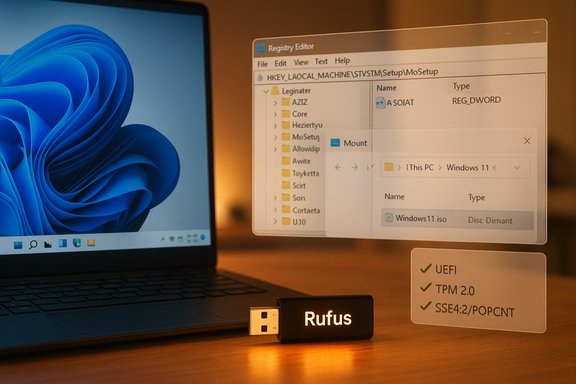
Upgrading an “incompatible” Windows 10 PC to Windows 11 is no longer an arcane trick reserved for a few tinkerers — there are two practical, documented paths that cover most real‑world cases. The registry override is the least invasive way to keep apps and settings when the only blocker is the CPU whitelist or TPM version; Rufus automates the broader bypasses for truly legacy configurations. Both approaches use official Windows 11 media and have predictable tradeoffs: driver work, possible feature limitations, and uncertain long‑term update entitlement. Back up first, verify your CPU instruction support, and choose the route that matches the target machine’s firmware and TPM status — and for any device that’s critical to your work or family, prefer supported hardware when you can.
Source: Bahia Verdade How to upgrade your 'incompatible' Windows 10 PC to Windows 11 for free - today - Bahia Verdade
 Background / Overview
Microsoft officially ended support for Windows 10 on October 14, 2025, which means ordinary consumer editions stopped receiving regular security and feature updates after that date. That deadline is the key reason many people now need to move to Windows 11 or enroll eligible devices in Extended Security Updates (ESU). Windows 11 was shipped with a stricter baseline than previous upgrades to raise the security floor: UEFI firmware (not Legacy BIOS), Secure Boot capability, a Trusted Platform Module (TPM) version 2.0, 4 GB+ RAM, and 64 GB+ free storage — plus the requirement for a compatible 64‑bit CPU. Microsoft’s system‑requirements pages remain the canonical reference for these minimums. That official baseline is why an older but otherwise serviceable machine will show “This PC can’t run Windows 11.” The good news: most machines from roughly the last 10–12 years are only blocked by policy checks that are fixable; the bad news: a small subset of very old CPUs lack instruction‑set features (notably POPCNT and — in Windows 11 24H2 and later — SSE4.2) that are required at a binary level, and those chips cannot be made to run modern Windows reliably. Independent testing and reporting confirm that if a CPU lacks POPCNT / SSE4.2, no registry trick or installer wrapper will add those instructions to silicon. This article gives a practical, step‑by‑step guide you can use the next time someone hands you a “grandma’s” Windows 10 PC, plus an analysis of risks, which machines you should not attempt to force into Windows 11, and exactly when to prefer a clean install or replacing hardware.Who should (and shouldn’t) try these methods
- You should use these methods if:
- The PC is x64 (not an ARM or 32‑bit device).
- The machine boots UEFI (or can be converted safely), has enough RAM and storage, and the CPU supports SSE4.2/POPCNT (or at least runs a Windows 11 build that previously worked on it).
- You are comfortable making backups, editing the registry or creating bootable media, and troubleshooting driver issues.
- You should not attempt to force Windows 11 if:
- The CPU predates the POPCNT/SSE4.2 era (rough rule: pre‑2008 Intel cores or very early AMD architectures); these machines are functionally incompatible with modern Windows 11 builds.
- The machine is mission‑critical and cannot tolerate the risk of driver problems or the possibility Microsoft could change update entitlement for unsupported devices.
- You lack a full backup and image of the current system.
Quick preflight checklist (do this before you touch the registry or make media)
- Confirm Windows 10 is x64 and you’re running an Admin account.
- Check BIOS Mode in msinfo32.exe; if it says Legacy, you’ll need to go to UEFI (and convert disk from MBR to GPT) for some upgrade paths.
- Run tpm.msc to confirm a TPM is present and enabled (TPM 2.0 is required for supported installs; TPM 1.2 sometimes suffices for the registry tweak described below).
- Verify CPU instruction support (POPCNT / SSE4.2) with Coreinfo or CPU‑Z if the machine is very old or from the mid‑2000s era. If the CPU lacks POPCNT / SSE4.2, plan to replace the CPU/machine or stick with Windows 10 + ESU.
- Make a full system image and copy critical files to external media. Do not skip this. Getting a working backup is essential before you attempt an unsupported upgrade.
Two practical upgrade options (when to use each)
- Registry edit + mounted ISO (Option 1) — best when the machine is UEFI, has a TPM (or fTPM), and only the CPU whitelist or TPM version are blocking you. This is an in‑place upgrade that can preserve apps and files.
- Rufus “extended” installer USB (Option 2) — best when the machine lacks TPM, uses Legacy BIOS/MBR, or you cannot safely convert to UEFI. Rufus automates a set of installer tweaks and produces a USB that removes many hardware checks for Setup. This works for in‑place upgrades (run Setup.exe from inside Windows) or clean installs (boot from USB), but it does not — and cannot — add missing CPU instructions. Use the Rufus path when the registry trick is not viable.
Option 1 — The simple registry edit (how it works and exact steps)
Why it works- Windows Setup includes a preflight “appraiser” that enforces Microsoft’s CPU and TPM policy. Adding a specific DWORD in the registry tells Setup to skip the CPU whitelist check and accept older TPM versions for an in‑place upgrade. Microsoft once documented this tweak and later removed the official guidance; it still works on many machines that meet the other requirements. Treat it as unofficial and proceed with caution.
- Backup
- Create a full disk image and copy critical files to external storage. This is non‑optional.
- Create the registry value
- Run Regedit.exe as Administrator.
- Navigate to HKEY_LOCAL_MACHINE\SYSTEM\Setup
- If the MoSetup key does not exist, right‑click Setup → New → Key → name it MoSetup.
- With MoSetup selected, right‑click in the right pane → New → DWORD (32‑bit) Value.
- Name it exactly AllowUpgradesWithUnsupportedTPMOrCPU (spelling and type must be precise).
- Double‑click the new value and set Value data = 1. Click OK.
- Restart the PC.
- Download and mount the official Windows 11 ISO
- Download the x64 ISO from Microsoft’s Download Windows 11 page and save it locally.
- Double‑click the ISO in File Explorer to mount it as a virtual DVD.
- Run Setup.exe from the mounted ISO
- Launch Setup.exe and follow the prompts.
- You’ll see a compatibility warning; accept it to continue.
- In early Setup, use “Change how setup downloads updates” and choose “Not right now” if you encounter stalls — that bypass is a commonly reported fix for some installer failures.
- Choose whether to keep apps and files or perform a clean install.
- Let Setup run; the PC will reboot several times.
- If you mistype the key name or create the wrong value type (QWORD vs DWORD), Setup will ignore it and fail. Double‑check spelling and location.
- If the PC boots in Legacy BIOS mode, this method will not work; you need to convert to UEFI/GPT or use the Rufus route.
- If you picked the wrong language ISO for a localized Windows installation, Setup might refuse to keep your apps and settings — re‑download the correct language ISO and retry. Multiple community reports highlight this subtle but real problem.
- Microsoft does not guarantee future updates or support for devices installed outside the official path. Unsupported installs are a practical stopgap, not a long‑term enterprise strategy. Expect to manage drivers and feature updates manually if Microsoft changes servicing rules for unsupported devices.
Option 2 — Use Rufus to create modified Windows 11 installation media
When to pick Rufus- Use Rufus when the target machine:
- Lacks a TPM option entirely, or
- Boots in Legacy BIOS and you don’t want to convert to UEFI, or
- The registry trick fails but you still want an in‑place upgrade option or a clean install.
- Rufus can create an installer that modifies the Windows Setup flow so it will not abort for TPM, Secure Boot, and certain CPU checks. It automates the appraiserres.dll replacement and registry edits enthusiasts used to perform manually. It does not add hardware features, and it cannot add missing CPU instructions.
- Download and prepare
- Download the official Windows 11 x64 ISO from Microsoft and save it to your system drive (do not place the ISO on the USB you’ll use).
- Get the latest Rufus release (use a version that explicitly supports the 24H2 installer changes — community guidance recommends Rufus 4.6 or later for 24H2 era behavior).
- Create the USB
- Plug in a blank USB stick (16 GB recommended).
- Run Rufus, select the USB, pick the Windows 11 ISO via Select → OK.
- Confirm Partition Scheme and Target System (GPT/UEFI for modern boards; MBR/BIOS for older boards).
- When the Windows User Experience dialog appears, check the option to “Remove requirements for 4GB+ RAM, Secure Boot and TPM 2.0” (wording varies slightly between Rufus versions). You may also select options to bypass the Microsoft account requirement or create a local account.
- Click Start and let Rufus build the installer.
- Run Setup from the USB (to keep apps & files)
- On the target PC, open the USB drive in File Explorer and double‑click Setup.exe (do not boot from the USB if you want an in‑place upgrade that preserves apps and settings).
- Follow the same advice regarding download updates: if Setup offers “Change how setup downloads updates,” choose “Not right now” to avoid early failures on some builds.
- Or boot from the USB for a clean install
- If you want a clean installation, change boot order and boot from the Rufus USB. Use Shift+F10 and regedit to create the LabConfig hacks if needed to bypass checks during a clean install (advanced method).
- Rufus cannot overcome CPU instruction‑level blocks (POPCNT / SSE4.2). If the CPU truly lacks those instructions, the installer may fail to boot or the OS may be unstable. Verify CPU features before you attempt Rufus on very old systems.
- If Setup quits with an “unsupported operation” or similar error, retry with the “Not right now” update option and ensure you used a fresh ISO (revoked bootloaders cause intermittent errors with older ISOs). Community testing shows this resolves many of the odd early‑shutdown errors.
Troubleshooting checklist (if Setup fails)
- Reboot and retry Setup.exe from within Windows rather than booting from media (preserves apps and often avoids early blocking errors).
- Recheck the registry key spelling and location for the AllowUpgradesWithUnsupportedTPMOrCPU DWORD. A single typo means Setup will abort.
- Confirm the ISO language matches the currently installed Windows language if you wish to retain apps and settings. Language mismatches have caused failures in multiple reports.
- If Setup gives a “This PC can’t run Windows 11” message even after a registry tweak or Rufus media, capture logs with SetupDiag and examine the CBS/Setup logs to identify which check failed; community threads and the author’s troubleshooting guide collect many common error codes.
- If drivers fail after an upgrade (audio, GPU, network), visit the OEM support page for Windows 11 drivers or roll back to the previous driver. Unsupported devices often need manual driver work after an unsupported upgrade.
What you gain, and what you risk
Benefits- You can extend the usable life of a functioning PC without immediate hardware replacement.
- In many cases you preserve installed apps, user profiles, and settings (in‑place upgrade).
- You align devices with a currently supported OS (Windows 11) to receive security updates — if Microsoft continues to include your device in update servicing.
- Update entitlement is not guaranteed. Microsoft’s public guidance states unsupported installs are not recommended and may not receive updates; history shows update behavior for unsupported installs is inconsistent and subject to change. Treat unsupported upgrades as a stopgap, not a guaranteed long‑term solution.
- Hardware features that rely on a TPM 2.0 and Secure Boot (BitLocker protection using a hardware root, certain virtualization‑based security features) may be degraded or unavailable if the underlying hardware doesn’t support them properly.
- Old drivers may never be updated by OEMs for Windows 11, causing instability. Be prepared to hunt for driver updates or fall back to Windows 10 (with ESU) or a lightweight Linux distribution for very old machines.
A practical decision flow — which path to take
- Run PC Health Check (or msinfo32 and tpm.msc) to identify the failing checks. If firmware toggles (enable fTPM/PTT, enable Secure Boot) resolve the issue, use Windows Update or the official Installation Assistant.
- If the PC is UEFI, has a TPM (even TPM 1.2 sometimes works with the tweak), and CPU supports SSE4.2/POPCNT, try the registry edit + ISO method first to preserve apps.
- If the PC lacks TPM, runs Legacy BIOS, or you can’t convert to UEFI safely, use Rufus to create a modified installer and run Setup.exe from inside Windows to perform an in‑place upgrade (or boot from USB for a clean install).
- If the CPU fails basic instruction checks (POPCNT / SSE4.2), don’t waste time; plan replacement, ESU enrollment, or migration to a supported alternative OS.
Long‑term perspective and final recommendations
- Unsupported upgrades can and do work for many home PCs, and the registry + Rufus options are well‑trodden by enthusiasts and technicians. The specific instructions and the wording of setup dialogs have changed over time, so always use the most current Windows 11 ISO and a recent Rufus build where recommended.
- Treat these workarounds as pragmatic, short‑to‑medium term solutions for keeping older hardware useful. For machines that matter (work, business, elderly relatives with sensitive data), the safest path is to run supported hardware or enroll in ESU while planning a hardware refresh. Microsoft’s lifecycle and support documentation explains the available routes.
- If you do proceed with an unsupported upgrade: make a full image backup first, keep the previous Windows 10 installation media or system image handy, document the exact Windows 11 build you installed, and keep notes about BIOS/UEFI versions and drivers. That documentation will make rollbacks and troubleshooting far easier.
Quick resources and commands to remember
- Check BIOS Mode and system summary: Win → type msinfo32 → Enter.
- Check TPM: Win → type tpm.msc → Enter.
- Verify CPU POPCNT / SSE4.2: use Sysinternals Coreinfo or CPU‑Z on the machine.
- Registry path for Option 1: HKEY_LOCAL_MACHINE\SYSTEM\Setup\MoSetup\AllowUpgradesWithUnsupportedTPMOrCPU = 1.
- Rufus option: when creating media, check the box to “Remove requirement for 4GB+ RAM, Secure Boot and TPM 2.0” (UI varies). Run Setup.exe from the created USB to preserve apps.
Upgrading an “incompatible” Windows 10 PC to Windows 11 is no longer an arcane trick reserved for a few tinkerers — there are two practical, documented paths that cover most real‑world cases. The registry override is the least invasive way to keep apps and settings when the only blocker is the CPU whitelist or TPM version; Rufus automates the broader bypasses for truly legacy configurations. Both approaches use official Windows 11 media and have predictable tradeoffs: driver work, possible feature limitations, and uncertain long‑term update entitlement. Back up first, verify your CPU instruction support, and choose the route that matches the target machine’s firmware and TPM status — and for any device that’s critical to your work or family, prefer supported hardware when you can.
Source: Bahia Verdade How to upgrade your 'incompatible' Windows 10 PC to Windows 11 for free - today - Bahia Verdade
